Intro to Graphix
Graphix is a programming language using the dataflow paradigm. It is particularly well suited to building user interfaces, and interacting with resources in netidx. Dataflow languages like Graphix are “reactive”, like React or Vue, except at the language level instead of just as a library. A Graphix program is compiled to a directed graph, operations (such as +) are graph nodes, edges represent paths data can take through the program. A simple expression like,
2 + 2
will compile to a graph like
const(2) ──> + <── const(2)
The semantics of simple examples like this aren’t noticibly different from a normal programming language. However a more complex example such as,
let x: i64 = sys::net::subscribe("/foo")$;
x * 10
compiles to a graph like
                                  const(10)
                                      │
                                      │
                                      ▼

const("/foo") ──> sys::net::subscribe ──> * ──> output
Unlike the first example, the value of sys::net::subscribe isn’t a
constant, it can change if the value published in netidx changes. If
that happens the new value will flow through the graph and will be
printed again (the shell prints a program’s value each time it
changes). If the published value of “/foo” is initially 10, and
then the value of “/foo” changes to 5 then the program will print.
100
50
It will keep running forever, if “/foo” changes again, it will print more output. This is a powerful way to think about programming, and it’s especially well suited to building user interfaces and transforming data streams.
Dataflow but Otherwise Normal
Besides being a dataflow language Graphix tries hard to be a normal functional language that would feel familiar to anyone who knows Haskell, OCaml, F# or a similar ML derived language. Some of it’s features are,
- lexically scoped
- expression oriented
- strongly statically typed
- type inference
- structural type discipline with nominal abstract types
- parametric polymorphism
- algebraic data types
- pattern matching
- first class functions, and closures
- late binding
Installing Graphix
To install the Graphix shell from source you need to install a rust build environment. See here for instructions on how to do that for your platform. Once you have that set up, you can just run
cargo install graphix-shell
That should build the graphix command and install it in your
~/.cargo/bin directory. Windows and Mac OS should work out of the box
as long as you have the prerequisites for rust installed.
Linux Prerequisites
Debian/Ubuntu
You need to install
- clang
- libkrb5-dev
On Fedora
You need to install
- clang-devel
- krb5-devel
Netidx
Graphix uses netidx to import and export data streams. Netidx works with zero configuration for local use on a single machine - separate Graphix processes can communicate with each other out of the box.
For more advanced setups involving multiple machines, authentication, or custom resolver configurations, see the netidx book for details on setting up a netidx environment.
Editor Setup
Graphix ships with a Language Server Protocol (LSP) implementation and
tree-sitter grammar, so any editor with LSP support can give you
diagnostics, completion, hover, and go-to-definition for .gx and .gxi
files.
The LSP server is built into the graphix binary itself — there is no
separate graphix-lsp executable to install. Editors launch it by
running:
graphix lsp
It speaks LSP over stdin/stdout, so make sure graphix is on the PATH
that your editor sees.
Editor-specific configurations live in
ide/editors/
in the source tree. The sections below summarize how to install each
one. None of them are published to upstream package registries yet —
the modes for Emacs, Helix, and Zed are intended for upstream submission
in a future release, but until then they install from the repo.
Prerequisites
Make sure the graphix binary is on your PATH:
cargo install graphix-shell
# or, from a checkout:
cargo install --path graphix-shell
Then verify:
graphix lsp --help
If your editor cannot find graphix, point its config at the absolute
path of the binary (~/.cargo/bin/graphix on a typical Cargo install).
VS Code
The extension lives in ide/editors/vscode/. It bundles a TextMate
grammar for syntax highlighting and a thin client that launches
graphix lsp.
cd ide/editors/vscode
npm install
npm run compile
Then either symlink the directory into ~/.vscode/extensions/graphix
or open it in VS Code and press F5 to launch a development
host.
The extension exposes a single setting, graphix.server.path, which
defaults to graphix. Override it if the binary is not on your
editor’s PATH.
Neovim
The Neovim plugin in ide/editors/nvim/ registers the filetype, wires
up the LSP via nvim-lspconfig (with a fallback to the built-in
vim.lsp.start when lspconfig is missing), and registers the
tree-sitter grammar.
nvim/ is a runtime directory (lua/graphix/, ftdetect/,
queries/graphix/): put it on the runtimepath through your plugin
manager or vim.opt.runtimepath:append(..), then call:
require('graphix').setup()
To install the tree-sitter grammar, run :TSInstall graphix after
nvim-treesitter has picked up the registered parser config.
You can disable either piece independently:
require('graphix').setup({ lsp = true, treesitter = false })
Vim
For traditional Vim (8+), ide/editors/vim/ provides regex-based
syntax highlighting and filetype detection. Tree-sitter is Neovim-only,
so this is the right config for plain Vim.
mkdir -p ~/.vim/pack/graphix/start
ln -s "$PWD/ide/editors/vim" ~/.vim/pack/graphix/start/graphix
LSP setup depends on your client. With vim-lsp:
if executable('graphix')
  au User lsp_setup call lsp#register_server(#{
    \ name: 'graphix',
    \ cmd: ['graphix', 'lsp'],
    \ allowlist: ['graphix'],
    \ })
endif
With coc.nvim, add to
coc-settings.json:
{
  "languageserver": {
    "graphix": {
      "command": "graphix",
      "args": ["lsp"],
      "filetypes": ["graphix"]
    }
  }
}
Emacs
ide/editors/emacs/graphix-mode.el provides two modes:
graphix-mode— regex-based fallback for Emacs < 29 or when the tree-sitter grammar is not installed.graphix-ts-mode— tree-sitter mode for Emacs 29+. Selected automatically when the grammar is available.
Drop the file on your load-path and require it:
(require 'graphix-mode)

;; Eglot (built-in, Emacs 29+):
(add-to-list 'eglot-server-programs
             '(graphix-mode . ("graphix" "lsp")))
(add-hook 'graphix-mode-hook #'eglot-ensure)
(add-hook 'graphix-ts-mode-hook #'eglot-ensure)
To install the tree-sitter grammar:
M-x graphix-ts-mode-install-grammar
This compiles the grammar from the GitHub repo via
treesit-install-language-grammar. Once it succeeds, opening a .gx
file will route to graphix-ts-mode automatically.
lsp-mode users can replace the eglot-* lines with the equivalent
lsp-mode registration; the LSP command is the same.
Helix
Helix has no plugin system, so language support has to be added by
putting queries into your runtime path and appending blocks to
languages.toml. The repo ships a script that does both:
cd ide/editors/helix
./install.sh
The script:
- Links the tree-sitter queries into
~/.config/helix/runtime/queries/graphix/(--copycopies them instead, for a checkout you won’t keep). - Appends
[[language]],[language-server.graphix-lsp], and[[grammar]]blocks to~/.config/helix/languages.toml(idempotent — it skips if a graphix entry already exists). - Runs
helix --grammar fetch && helix --grammar buildto compile the parser.
Re-running the script is safe; it replaces the query links (so updates
land) but leaves your languages.toml alone after the first install.
Re-run it after pulling a grammar change — the queries name grammar
nodes, and the compiled grammar is the half that doesn’t track your
checkout.
To verify, open a .gx file and run :tree-sitter-scopes or
:lsp-restart. Note that helix --health graphix only checks that the
query files exist; if coloring is missing entirely, the reason is in
~/.cache/helix/helix.log.
If you’re hacking on the grammar locally, edit the [[grammar]] block
in your languages.toml to point at your checkout instead of the git
URL. See ide/editors/helix/README.md for the exact form.
Zed
The Zed extension lives in ide/editors/zed/. For development:
ln -s "$PWD/ide/editors/zed" ~/.config/zed/extensions/installed/graphix
Restart Zed. The extension auto-detects .gx and .gxi files,
launches graphix lsp, and ships its own copy of the tree-sitter
queries.
The query files under languages/graphix/ are duplicates of the
canonical ones in ide/tree-sitter-graphix/queries/ because Zed
packages each extension as a self-contained directory. If you change
the upstream queries, copy them across:
cp ide/tree-sitter-graphix/queries/{highlights,indents,locals}.scm \
   ide/editors/zed/languages/graphix/
Formatting
graphix fmt is the source formatter. It rewrites each file you name in
place, or formats stdin to stdout when you name none, which is the form
an editor’s “format on save” hook wants:
graphix fmt src/main.gx src/lib.gxi   # rewrite in place
graphix fmt --check src/*.gx          # list files that would change, fail if any
graphix fmt --stdout src/main.gx      # print instead of rewriting
graphix fmt < main.gx                 # stdin to stdout (--interface for a .gxi)
graphix fmt --width 100 --indent 2 main.gx   # override graphixfmt.json for this run
Configuration
The line width and the indent come from a graphixfmt.json; anything it
leaves out keeps its default:
{ "width": 90, "indent": 4 }
The formatter uses the nearest graphixfmt.json in the source file’s
directory or any directory above it, so a project keeps one at the base
of its repository. Failing that it uses yours, in graphix/ under your
platform’s configuration directory:
| Platform | Path |
|---|---|
| Linux | $XDG_CONFIG_HOME/graphix/graphixfmt.json, else ~/.config/graphix/graphixfmt.json |
| macOS | ~/Library/Application Support/graphix/graphixfmt.json |
| Windows | %APPDATA%\graphix\graphixfmt.json |
With neither it fits 90 columns and indents by 4. --width and
--indent override the file for one run, and the language server reads
the same files. A graphixfmt.json that does not parse, or that names a
setting the formatter does not have, is an error rather than a silent
fallback.
What it changes
The formatter keeps what you chose where the choice is yours: the order
of struct fields and of the variants in a union, the delimiters of a
string ("…", r"…", """…"""), your comments and attributes. It
normalizes the rest: adjacent use statements are merged into one sorted
tree per root, i64/f64 literals lose a redundant type prefix,
primitive types come first in a union, a blank line separates every
top-level item that spans more than one line, and lines are fitted to the
width. Before anything is written the formatted text is parsed again and
compared with your program; if the two differ in any way the file is left
untouched and the difference is reported, so a formatter bug can never
change what your code means.
The language server formats through the same code, and the editor
configurations in ide/editors/ turn format-on-save ON by default, with
a four-space indent to match the formatter. To turn it off:
| Editor | Setting |
|---|---|
| VS Code | "[graphix]": { "editor.formatOnSave": false } in settings.json |
| Neovim | require('graphix').setup({ format_on_save = false }) |
| Helix | auto-format = false in the graphix entry of languages.toml |
| Emacs | (setq graphix-format-on-save nil) |
| Zed | "languages": { "Graphix": { "format_on_save": "off" } } in settings.json |
A file that does not parse is left alone. Plain Vim has no LSP client of
its own; use :%!graphix fmt there.
What the LSP currently supports
| Feature | Status |
|---|---|
| Diagnostics (parse and type errors, warnings) | ✓ |
Completions: names in scope, struct fields, call labels, use trees | ✓ |
| Hover with type and doc information | ✓ |
| Go-to-definition | ✓ |
| Find references | ✓ |
| Document and workspace symbols | ✓ |
| Formatting (whole document) | ✓ |
Diagnostics arrive as you type, for the files you have open and the
projects they belong to. A project is a .gx file that no other file
loads with mod, together with everything it loads; a file outside
every project is checked by itself. Files you have not opened are not
checked. The compiler stops at the first error, so a project shows one
diagnostic at a time.
While a buffer does not compile, completion, hover and navigation answer
from the last version that did. Completion offers the names in scope
(locals included), a struct’s fields after ., a call’s #labels inside
its parentheses, and inside a use what the module under the cursor
exports, however deep the tree.
Warnings (an error no catch will see, for instance) are shown beside
errors, and stay while a buffer does not compile.
A package that defines its own builtins (an external graphix-package-*
crate) can be edited with the stock graphix: each builtin it declares
that this binary was not built with is a warning on its 'name, calls to
it are checked against its declared signature, and everything else is
checked as usual. Run the graphix built with the package to clear them.
Rename and code actions are not yet implemented. File issues at graphix-lang/graphix if something specific would unblock you.
Reporting editor issues
Editor configs live in the same repo as the compiler, so bugs in
syntax highlighting, indentation, or LSP behavior all belong in the
same issue tracker. When filing one, mention which editor and which
mode (graphix-mode vs graphix-ts-mode, vim vs nvim, etc.) you’re
using, plus a minimal .gx snippet that triggers the problem.
Getting Started
Welcome to Graphix! This tutorial will get you up and running in about 10-15 minutes. You’ll learn how to use the interactive REPL, write your first expressions, and create a simple reactive program.
By the end of this guide, you’ll understand the basics of Graphix’s reactive dataflow model and be ready to explore the language in depth.
Prerequisites
Make sure you’ve already installed Graphix. You can verify your installation by running:
graphix --version
Starting the REPL
The Graphix shell provides an interactive Read-Eval-Print Loop (REPL) where you can experiment with the language. Start it by running graphix with no arguments:
graphix
You’ll see a prompt that looks like this:
Welcome to the graphix shell
Press ctrl-c to cancel, ctrl-d to exit, and tab for help
〉
The REPL evaluates expressions and shows you both the type and the value. The output format is:
-: Type
value
Let’s try it!
Your First Expressions
Arithmetic
Type some simple arithmetic at the prompt:
〉2 + 2
-: i64
4
The -: i64 line tells you the result is a 64-bit integer, and 4 is
the value. You may be wondering why you don’t get the 〉 prompt after
running this expression. This is because, being a dataflow language,
expressions are pipelines that can output more than one value, they
will run until you stop them by hitting ctrl-c. Do this now to get the
prompt back.
Since ctrl-c is used to stop the currently running pipeline, if you want to exit the REPL press ctrl-d.
Try a more complex expression:
〉10 * 5 + 3
-: i64
53
〉2.5 * 4.0
-: f64
10
Notice that integer arithmetic produces i64 (integer) results, while floating-point arithmetic produces f64 (float) results.
Strings
Strings are written in double quotes:
〉"Hello, Graphix!"
-: string
"Hello, Graphix!"
String Interpolation
Graphix supports string interpolation using square brackets. Any expression inside [...] in a string will be evaluated and inserted:
〉"The answer is [2 + 2]"
-: string
"The answer is 4"
〉"2 + 2 = [2 + 2], and 10 * 5 = [10 * 5]"
-: string
"2 + 2 = 4, and 10 * 5 = 50"
This is incredibly useful for building dynamic strings!
Variables with Let Binds
Use let to create named bindings:
〉let x = 42
〉x
-: i64
42
〉let name = "World"
〉"Hello, [name]!"
-: string
"Hello, World!"
You can reuse the same name to create a new binding (this is called shadowing):
〉let x = 10
〉let x = x + 5
〉x
-: i64
15
The second let x creates a new binding that references the previous value of x.
Functions
Functions in Graphix are first-class values. Create them with the lambda syntax |args| body:
〉let double = |x| x * 2
〉double(21)
-: i64
42
You can add type annotations if you want to be explicit:
〉let add = |x: i64, y: i64| x + y
〉add(10, 32)
-: i64
42
Functions can capture variables from their surrounding scope:
〉let multiplier = 3
〉let times_three = |x| x * multiplier
〉times_three(14)
-: i64
42
Creating Your First File
Now let’s write a real Graphix program! Create a file called hello.gx with this content:
use tui::text::text;

let counter = count(sys::time::timer(duration:1.s, true));

text(&"Count: [counter]")
This program demonstrates Graphix’s reactive nature:
sys::time::timer(duration:1.s, true)produces an event every secondcountfrom the core library tallies the events into a reactive integercounterupdates whenever the timer fires, so the text widget rerenders- The last expression creates a text widget displaying the count
Running Your File
Run your program with:
graphix hello.gx
You’ll see a terminal UI that displays the count increasing every second! The screen updates automatically because Graphix tracks dependencies and propagates changes through the dataflow graph.
To stop the program, press Ctrl+C.
A Simpler Example
If you want to see the reactive behavior without the TUI, try this simpler version (counter.gx):
let counter = count(sys::time::timer(duration:1.s, true));
"Count: [counter]"
Run it with graphix counter.gx and you’ll see the count printed to the console every second.
Understanding the Output
In Graphix programs:
- The last value is what determines what the shell displays
- If it’s a
Tuitype (like our text example), then it is rendered as a TUI - Otherwise, the value is printed to the console every time it updates
- If it’s a
- Use
printorprintlnfor explicit output during execution - Programs run forever unless they explicitly exit - they’re reactive graphs that respond to events
The Dataflow Model
The key insight: when the timer fires, count produces a new tally, which propagates to counter, which the text widget depends on, so the widget re-renders. The entire chain reacts automatically. You describe what should happen, not when or how to update things.
This is very different from traditional imperative programming where you’d need loops and manual state management. In Graphix, you build a graph of dependencies and the runtime handles updates for you.
Try It Yourself
Experiment with these ideas:
- Modify the counter to count down instead of up
- Make it count by 2s or 10s instead of 1s
- Change the timer interval to 0.5 seconds
- Display multiple values that update independently
- Try arithmetic on the count (show doubled value, squared value, etc.)
Next Steps
Now that you’ve experienced Graphix’s reactive nature, you’re ready to dive deeper:
- Core Language - Learn the fundamental language constructs
- Functions - Master functions, closures, and higher-order programming
- Building UIs - Create rich terminal user interfaces
- Standard Library - Explore built-in functions and modules
The best way to learn Graphix is to experiment! Keep the REPL open as you read through the documentation and try out the examples. Every code snippet in this book is designed to be runnable.
Core Language
This chapter introduces the core constructs that make Graphix work. If you’re coming from imperative languages like Python, Java, or C, some of these concepts will feel familiar—but the reactive twist makes them work differently than you might expect.
Types: Strong but Flexible
Graphix has a powerful static type system, but you’ll rarely write type annotations. The compiler infers types for you using structural typing—types are compared by their shape, not their name. A struct {x: i64, y: i64} is the same type whether you call it Point or Vector or don’t name it at all.
The Fundamental Types section covers the built-in numeric types (i64, f64, u32, etc.), booleans, strings, durations, and more. You’ll learn how arithmetic works across different numeric types, how string interpolation works with [...] brackets, and why division by zero doesn’t crash your program.
Reading Type Signatures teaches you how to read the type annotations you’ll see throughout the documentation. Function types like fn(a: Array<'a>, f: fn(x: 'a) -> 'b) -> Array<'b> tell you exactly what a function expects and returns, including what errors it might throw.
Binding Values and Building Blocks
In Graphix, you create bindings with let. Unlike variables in other languages, these bindings can update over time—they’re more like pipes that different values flow through.
Let Binds explains how to create bindings, how shadowing works, and why every binding in Graphix is potentially reactive. When you write let x = 42, you’re not just storing a value—you’re creating a node in the dataflow graph.
Blocks shows how to group expressions with {...} to create scopes, hide intermediate bindings, and build up complex expressions. Blocks are expressions too—they evaluate to their last value.
Use imports names into scope so you can write map(arr, f) instead of array::map(arr, f). Simple, but essential as your programs grow.
Connect: The Heart of Reactivity
This is where Graphix becomes special. The <- operator (connect) is the only way to create cycles in your dataflow graph, and it’s the key to writing reactive programs and loops.
Connect is the most important section in this chapter. When you write:
let count = 0;
count <- timer ~ (count + 1)
You’re telling Graphix: “When timer updates, increment count for the next cycle.” Connect schedules updates for the future, which is how you build everything from simple counters to complex state machines. There’s no for or while: a loop over time is connect and select working together, and iteration over a collection is the collection functions (array::map, array::fold, …) or recursion.
Select: Powerful Pattern Matching
The select expression is Graphix’s answer to switch, match, and if/else. It lets you match on types, destructure complex data, and ensure at compile time that you’ve handled every case.
Select shows you how to:
- Match on union types and ensure you handle all variants
- Destructure arrays with slice patterns like
[head, tail..] - Match structs with patterns like
{x, y} - Guard patterns with conditions like
n if n > 10 - Build loops by combining select with connect
The compiler checks your select expressions exhaustively—if you forget a case, it won’t compile. If you match a case that can never happen, it won’t compile. This eliminates entire classes of bugs.
Error Handling: Exceptions, Done Right
Graphix has first-class error handling with scoped catch handlers and the ? operator. Errors are just values with the special Error<'a> type, and they’re tracked through the type system.
Error Handling explains:
- How
?throws errors to the nearest installedcatchin dynamic scope - How error types are checked at compile time—you can’t forget to handle an error type
- How the
$operator drops an error to bottom and logs it at warn with its site - How error chains track the full context of where errors originated
Every error that gets raised with ? is wrapped in an ErrChain that captures the file, line, column, and full stack of previous errors. No more mystery exceptions.
How It All Fits Together
These constructs combine to create the Graphix programming model:
- You create bindings that hold values
- You build expressions that compute new values from old ones
- You use select to handle different cases and make decisions
- You use connect to update bindings when events occur
- The type system ensures everything is safe and correct
- Errors propagate cleanly to installed
catchhandlers
The result is a language where you describe relationships between values, and the runtime automatically maintains those relationships as things change. A temperature value updates, and the Fahrenheit conversion updates automatically. A timer fires, and your counter increments. A network subscription delivers new data, and your UI reflects it instantly.
Fundamental Types
Graphix has a few fundamental data types, the Graphix shell is a good way to
explore them by trying out small Graphix expressions. You can run the Graphix
shell by invoking graphix with no arguments.
Numbers
i8, u8, i16, u16, i32, u32, i64, u64, f32, f64, and
decimal are the fundamental numeric types in Graphix. Literals are written with their type prefixed, except
for i64 and f64 which are written bare. for example, u32:3 is a u32
literal value.
decimal is an exact decimal representation for performing financial
calculations without rounding or floating point approximation errors.
The basic arithmetic operations are implemented on every number type. Both
operands of an operation are one type: an f64 and an i64 do not mix
without a cast.
| Operation | Unchecked | Checked |
|---|---|---|
| Add | + | +? |
| Subtract | - | -? |
| Multiply | * | *? |
| Divide | / | /? |
| Mod | % | %? |
Unchecked integer +, - and * wrap on overflow (`i64:9223372036854775807
- 1
is the smallesti64). Unchecked/and%return bottom (no value) on a zero divisor (the interpreter also logs it; compiled code does not, so run with–no-fusionto see the log), and/also on the one quotient that overflows, the smallest signed value divided by-1;x % -1is0`. A bottomed expression simply stops updating until its inputs change to values that produce a valid result.
Checked operators return a union type [T, Error<ArithError(string)>], allowing you to handle arithmetic errors explicitly using ?, $, or select`.
Mixing two numeric types is refused at compile time; cast one side:
〉1. + 1
error: in expr

Caused by:
    0: at: line: 1, column: 1, in: 1.0 + 1
    1: cannot compute f64 + i64: arithmetic is fn<'a: Number + Singleton>(x: 'a, y: 'a) -> 'a — both operands must be one numeric type (cast one side explicitly)
〉1. + cast<f64>(1)$
-: f64
2
With unchecked operators, a division by zero returns bottom (logged by the interpreter only) – the expression produces no value until the inputs change. This means downstream expressions simply stop updating until the arithmetic becomes valid again.
〉0 / 0
-: i64
No value is printed because the division by zero produces bottom. If the divisor later changes to a non-zero value, the expression will resume producing values.
With checked operators, you get an explicit error value you can handle:
〉0 /? 0
-: [i64, Error<`ArithError(string)>]
error:`ArithError("attempt to divide by zero")
You can use ? to propagate, $ to swallow, or select to match on the result:
〉(0 /? 0)?
-: i64
// throws ArithError to the nearest installed catch

〉(0 /? 0)$
-: i64
// logs warning, returns bottom

〉u32:0 -? u32:1
-: [u32, Error<`ArithError(string)>]
error:`ArithError("attempt to subtract with overflow")
v32, z32, v64, z64
These number types are the same as the normal types except when they are sent over the wire via netidx (or written to a file) they use variable width encoding instead of normal encoding. The number of bytes used varies for 64 bit numbers to between 1 and 10. Small numbers (below 127) are encoded in 1 byte, larger number use more bytes. The type correspondence is,
| Compact | Normal |
|---|---|
| v32 | u32 |
| z32 | i32 |
| v64 | u64 |
| z64 | i64 |
Number Sets
There are a few sets of number types that classify numbers into various kinds.
Number being the most broad, it contains all the number types. Int contains
only integers, Float the two float types, Real contains only reals
(decimal plus the two float types), Sint contains signed integers, Uint
contains unsigned integers. A set is a type for a variable to range over
('a: Number); a value of a set type is one of its members, and
arithmetic takes one member type at a time.
Bool
Boolean literals are written as true and false, and the name of the boolean
type is bool.
Boolean expressions using &&, ||, and ! are supported. These operators
only operate on bool. They can be grouped with parenthesis. && and ||
are strict: they do not short circuit, and an operand that is bottom makes
the result bottom (false && never() produces nothing). For example,
〉true && false
-: bool
false
〉true || false
-: bool
true
〉!true
-: bool
false
〉!1
error: in expr

Caused by:
    0: at: line: 1, column: 2, in: i64:1
    1: type mismatch bool does not contain i64
Duration
A time duration. The type name is duration, and the literals are written as,
duration:1.0s, duration:1.0ms, duration:1.0us, duration:1.0ns (and
m, h, d, M and y). The arithmetic operators do not apply to
durations; sys::time does the arithmetic.
〉sys::time::add_dur(duration:1.0s, duration:1.0s)$
-: duration
2.s
〉sys::time::scale(duration:1.0s, 50.0)$
-: duration
50.s
〉sys::time::scale(duration:1.0s, 0.02)$
-: duration
20.ms
DateTime
A date and time in the UTC time zone. The type name is datetime and literals
are written in RFC3339 format inside quotes. For example,
datetime:"2020-01-01T00:00:00Z". sys::time::add and sys::time::sub
move a datetime by a duration, and sys::time::diff is the duration
between two.
〉sys::time::add(datetime:"2020-01-01T00:00:00Z", duration:30.s)
-: datetime
2020-01-01 00:00:30 UTC
You can enter datetime literals in local time and they will be converted to UTC. For example,
〉datetime:"2020-01-01T00:00:00-04:00"
-: datetime
2020-01-01 04:00:00 UTC
String
Strings in Graphix are UTF8 encoded text. The type name is string and the
literal is written in quotes "this is a string". The escapes are \n, \r,
\t, \0, \\, \", and \[ / \] for a literal bracket (a bare [
starts an interpolation): "this is \" a string with a quote and a \n". Non printable
characters such as newline will be escaped by default when strings are printed
to the console, you can use print to print the raw string including control
characters.
String Interpolation
String literals can contain expressions that will be evaluated and joined to the string,
such expressions are surrounded by unescaped [] in the string. For example,
〉let row = 1
〉let column = 999
〉"/foo/bar/[row]/[column]"
-: string
"/foo/bar/1/999"
Values in an interpolation need not be strings, they are printed into the
string when they are used. You can write a literal [ or ] in a string by escaping
it.
〉"this is a string with a \[ and a \] but it isn't an interpolation"
-: string
"this is a string with a [ and a ] but it isn't an interpolation"
String literals may span multiple lines; the newlines become part of the string.
Triple Quoted Strings (Templates)
A string delimited by """ is the TEMPLATE form: literal text is the
common case there, so the marking flips relative to a normal string.
Bare ", [, and ] are all plain content, and interpolation is the
marked thing — a splice is written \[expr]. That makes templates the
natural home for blocks of quoted or bracket-heavy text — embedded
code, shell, TUI layouts — with reactive values spliced in:
let name = "world";
let page = """
say "hello" to \[name]
keys: [a]pprove · [d]eny
shell embeds verbatim: [ -z "$d" ] && x=$1
value = \[1 + 1]
"""
The rule is a symmetric inversion, easy to remember: in strings, interpolation is bare and literal brackets are marked; in templates, brackets are bare and interpolation is marked.
One newline immediately after the opening """ is stripped, so the
template’s first line does not have to share a line with the
delimiter. The content ends at the first unescaped """; to include a
literal """, escape one of the quotes (\"""), and a " that would
touch the closing delimiter must likewise be escaped ("""ends in \"""").
The other escapes (\n, \t, \\, \") work as in normal strings;
\] is an error (a bare ] is always writable), and a literal
backslash-then-bracket is \\[.
Raw Strings
A raw string is written r"…", or with hashes — r#"…"#,
r##"…"##, and so on — exactly as in Rust. There are NO escapes and
no interpolation: the content is verbatim, ending at the first "
followed by the opener’s hash count. Any string at all can be written
by choosing enough hashes. This is the form for embedding scripts,
regexes, or other bracket- and backslash-heavy text:
let pat = r"[\[\]0-9]+";
let script = r#"
awk '{ print "field:", $1 }'
"#
Raw strings do not strip any newlines: the content is exactly what is between the delimiters.
Any
The Any type is a type that unifies with any other type, it corresponds to the
underlying variant type that represents all values in Graphix (and netidx). It
is not used very often, as it provides very few guarantees, however it has it’s
place. For example, queue’s #clock argument is Any: any value at all can
tick it. Usually the first thing you do with a value of type Any is call
cast to turn it into the type you expect (or an error), or use a select
expression to match its type (more on select later). A cast keeps a
value’s kind: a number converts to another number (an integer type only
when it holds the value exactly), and a union target takes a member of
the value’s own kind first, so cast<[i8, Array<f64>]>([1, 2]) is
[1., 2.]. Across kinds a cast only parses a string (cast<i64>("42"),
cast<bool>("true")), prints a number, bool, datetime or duration
plainly (cast<string>(42) is "42"), converts between a number and
a datetime (Unix seconds) or a duration (seconds), turns a bool into a
number (1 or 0), or reads an array of numbers as bytes; anything else,
such as cast<bool>(1), cast<string>([1, 2]) or cast<Array<i64>>(5),
is an InvalidCast error.
Reading data whose type
the program cannot see, a netidx subscription or a json document, is
type-directed instead: sys::net::subscribe returns the type you annotate
and casts what arrives to it.
Null
Null is nothing, just like in many other languages. Unlike most other languages
null is a type not a catch all. If the type of a value does not include null
then it can’t be null. The set ['a, null] (alias Option<'a>) is commonly
used to represent things that will sometimes return null.
Array
Arrays are immutable, contiguous, and homogeneous. They are
parameterized, Array<string> indicates an array of strings. Arrays
are zero indexed a[0] is the first element. Array elements can be
any type, including other arrays at arbitrary levels of nesting. There
is a special array type that acts like Array<Any>, that represents
the fundamental array type in the underlying value representation.
Array literals are written like [x, y, z]. There are many functions
in the array module of the standard library for working with arrays.
Array Slicing and Indexing
Graphix supports array subslicing, the syntax will be familiar to Rust programmers.
a[2..]a slice from index 2 to the end of the arraya[..4]a slice from the beginning of the array to index 3a[1..3]a slice from index 1 to index 2a[-1]the last element in the arraya[-2]the second to last element in the arraya[-2..]the last two elements of the arraya[..-1]every element but the last
A negative index or slice bound counts from the end of the array. A bound past either end is an out-of-bounds error, as is a slice whose start comes after its end.
..= is not supported however, the second part of the slice will always be the
exclusive bound. Literal numbers can always be replaced with a Graphix
expression, e.g. a[i..j] is perfectly valid.
Mutability and Implementation
Arrays are not mutable, like all other Graphix values. All operations that “change” an array, actually create a new array leaving the old one unchanged. This is even true of the connect operator, which we will talk more about later.
There are a couple of important notes to understand about the implementation of Arrays.
-
Arrays are memory pooled, in almost all cases (besides really huge arrays) creating an array does not actually allocate any memory, it just reuses a previously used array that has since become unused. This makes using arrays a lot more efficient than you might expect.
-
Arrays are contiguous in memory. This means they are generally very memory efficient, each element is 2 machine words, and O(1) to access. However there are a few cases where this causes a problem, such as building up an array by appending one element at a time. This is sadly an O(n^2) operation on arrays. You may wish to use another data structure, such as a map (which would be O(n log(n)) if you need to build a large data structure this way.
-
Array slices are zero copy, and also pooled. They simply create a light weight view into the array. This means algorithms that progressively deconstruct an array by slicing are O(N) not O(N^2) and the constants are very fast.
List
List<'a> is an immutable singly linked list. Lists complement
arrays: an array is contiguous — compact and O(1) to index, but O(n²)
to build by appending one element at a time — while a list is built
front to back one O(1) cons at a time, and two lists with a common
tail share memory. When you are accumulating an unknown number of
elements, cons onto a list as you go and convert once at the end
(list::to_array, or list::to_array_rev to undo the reversal that
front-consing produces, in one walk).
List literals are written like array literals with angle brackets added,
let l = [<1, 2, 3>];
l
$ graphix test.gx
[<1, 2, 3>]
The empty list is [<>]. On its own it usually needs a type
annotation, since there is no element to infer the element type from,
let empty: List<i64> = [<>]
Elements can be any type, including other lists. The
list module in the standard library has the
functions for working with lists — list::cons, list::len,
list::map, list::fold and many more — and lists are destructured
with list patterns in select.
Mutability and Implementation
Like all Graphix values lists are immutable: consing onto a list
creates a new list whose tail is the old list, unchanged and fully
shared — this is what makes lists cheap to build incrementally. The
cells are pooled like arrays, so building a list does not usually
allocate. Indexed access (list::nth) walks the spine and is O(n);
if you need random access, convert to an array.
Lists as Data
Data carries no list cells: every writer (json, toml, pack, netidx)
writes a list as a flat array, so pack::write_bytes([<1, 2, 3>]) is the
same bytes as pack::write_bytes([1, 2, 3]). A typed read or a cast to a
List builds the list from the array again, so what a writer emits reads
back into its type, and a cast of an Any holding an array of rows reads
the list directly:
let v: Any = [[1, 2], [3, 4]];
cast<List<Array<i64>>>(v)
is [<[1, 2], [3, 4]>].
Tuples
Tuples are written (x, y), they can be of arbitrary length, and each element
may have a different type. Tuples may be indexed using numeric field indexes.
Consider
let x = (1, 2, 3, 4);
x.0
Will print 1.
Map
Maps in Graphix are key-value data structures with O(log(N)) lookup, insert, and
remove operations. Maps are parameterized by their key and value type, for
example Map<string, i64> indicates a map with string keys and integer values.
There are many functions for working with maps in the map standard library
module
Map Literals
Maps can be constructed using the {key => value} syntax:
〉{"a" => 1, "b" => 2, "c" => 3}
-: Map<'_1893: string, '_1895: i64>
{"a" => 1, "b" => 2, "c" => 3}
Keys and values can be any Graphix type, for example here is a map where the key
is a Map<string, i64>.
{{"foo" => 42} => "foo", {"bar" => 42} => "bar"}
-: Map<'_1919: Map<'_1915: string, '_1917: i64>, '_1921: string>
{{"bar" => 42} => "bar", {"foo" => 42} => "foo"}
Map Indexing
Maps can be indexed using the map{key} syntax to retrieve values:
〉let m = {"a" => 1, "b" => 2, "c" => 3}
〉m{"b"}
-: ['_1907: i64, Error<`MapKeyError(string)>]
2
If a key is not present in the map, indexing returns a MapKeyError:
〉m{"missing"}
-: ['_1907: i64, Error<`MapKeyError(string)>]
error:`MapKeyError("map key \"missing\" not found")
Mutability and Implementation
Like all Graphix values, maps are immutable. All operations that “change” a map actually create a new map, leaving the original unchanged. Maps are memory pooled and very efficient - creating new maps typically reuses existing memory rather than allocating new memory.
Maps maintain their key-value pairs in a balanced tree structure, ensuring O(log(N)) performance for all operations regardless of map size.
Chaining Access Operators
The postfix access operators — struct field .name, tuple index .0, array
index/slice [i] / [i..j], map index {key}, and function call (args) —
can be chained directly, left to right, without intermediate parentheses:
// field, then index, then field
data.users[0]$.name
// map index, then field
config{"db"}$.port
// nested array index
matrix[i]$[j]$
// tuple index, then field
point.0.x
// a call whose result is itself called
make_handler(cfg)(event)
Each operator applies to the value produced by everything to its left, so a
chain reads in evaluation order. Array and map indexing return a Result, so
the ? or $ that unwraps one sits right after that access, before the
chain goes on: data.users[0]?.name propagates an error from the indexing.
Parentheses are only needed when the source of an access is not itself a
simple value or another access, for example (a, b).0 (index into a tuple
literal). A bare identifier or an existing chain never needs them.
Error
Error is the built in error type. It carries a type parameter indicating the
type of error, for example Error<MapKeyError(string)>is an error that carries a ``MapKeyError `` variant. You can access the inner error value
using e.0 e.g.,
〉let e = error(`MapKeyError("no such key"))
〉e.0
-: `MapKeyError(string)
`MapKeyError("no such key")
More information about dealing with errors is available in the section on error handling.
Reading Type Signatures
Throughout this book and in the standard library documentation, you’ll encounter function type signatures. This guide will help you understand what they mean. Don’t try to memorize everything here - just use this as a reference when you encounter unfamiliar notation.
Basic Function Signatures
The simplest function signature looks like this:
val double: fn(x: i64) -> i64
This breaks down into:
fn(...)- this is a functionx: i64- takes one parameter namedxof type i64 (64-bit integer)-> i64- returns a value of type i64
Every positional parameter in a function type carries a name as well as a type. The name is documentation for the reader and is what your editor shows in hover and completion popups; it does not change the call (you still pass arguments positionally, in order).
Another example:
val concat: fn(a: string, b: string) -> string
Takes two strings, returns a string.
Type Parameters (Generics)
Type parameters (like generics in other languages) are written with a single quote followed by an identifier: 'a, 'b, 'e, etc.
Simple Type Parameters
val identity: fn(x: 'a) -> 'a
This means: “takes a value of any type 'a and returns a value of the same type 'a”. The identity function could work with integers, strings, or any other type.
val first: fn(a: Array<'a>) -> 'a
This means: “takes an array of any type 'a and returns a single element of type 'a”. If you pass an Array<string>, you get back a string. If you pass an Array<i64>, you get back an i64.
Multiple Type Parameters
val map: fn(a: Array<'a>, f: fn(x: 'a) -> 'b) -> Array<'b>
This function takes:
- An array of type
'a - A function that transforms
'ainto'b - Returns an array of type
'b
The types 'a and 'b can be the same or different.
Optional Labeled Arguments
Arguments prefixed with ?# are optional and labeled:
val text: fn(?#style: Style, content: string) -> Widget
This function can be called in two ways:
// style uses default value
text("Hello");
// style is specified
text(#style: my_style, "Hello")
Order Flexibility
Labeled arguments can be provided in any order, but must come before positional arguments:
val widget: fn(?#width: i64, ?#height: i64, content: string) -> Widget

// All of these are valid:
widget("text")
widget(#width: 100, "text")
widget(#height: 50, #width: 100, "text")
widget(#height: 50, "text")
Required Labeled Arguments
Arguments with # but no ? are required but labeled:
val input_handler: fn(
    ?#enabled: &[bool, null],
    #handle: &fn(e: Event) -> [`Stop, `Continue],
    child: &Tui
) -> Tui
You must provide #handle, but it doesn’t have to be in the first position. However, it must come before the unlabeled &Tui argument:
input_handler(#handle: &my_handler, &my_widget)
Variadic Arguments
The @args notation means a function accepts any number of arguments:
val sum: fn(@args: i64) -> i64
You can call this with any number of integers:
sum(1, 2, 3);
sum(1, 2, 3, 4, 5, 6, 7, 8, 9, 10)
Variadic with Required Arguments
Sometimes a function requires at least one argument:
val max: fn(first: 'a, @args: 'a) -> 'a
The first 'a is required, then any number of additional arguments of the same type.
Only a builtin takes a variadic argument: a lambda written in Graphix
with an @args parameter is refused.
Reference Types
An ampersand & before a type means “reference to” rather than the value itself:
val text: fn(content: &string) -> Widget
This takes a reference to a string, not the string value directly. References are important for:
- Efficiency - avoid copying large data structures
- Reactivity - updating a referenced value triggers updates without rebuilding entire structures
Create a reference with & and dereference (get the value) with *:
let s = "Hello";
// r is a reference to s
let r = &s;
// v is the value "Hello"
let v = *r;
&T is read-only. A function that writes through a reference (*r <- v) takes &mut T, and you pass it &mut x:
let set = |r: &mut i64, v: i64| *r <- v;
let x = 0;
// x becomes 1
set(&mut x, 1)
A &T parameter accepts a &mut too, and covers any narrower type: &[i64, null] accepts &x with x: i64. A &mut T must refer to exactly a T.
In function signatures, &T in a parameter position means the function expects a reference. In widget examples, you’ll often see:
block(#title: &line("My Title"), &my_widget)
The &line(...) creates a reference to the line, and &my_widget is a reference to the widget.
For a deeper dive, see References.
Error Types (throws)
When a function can throw errors, the signature includes throws:
val divide: fn(a: i64, b: i64) -> i64 throws `DivideByZero
This function returns i64 if successful, but might throw a DivideByZero error.
Multiple Error Types
A function can throw multiple error types:
val parse_and_divide: fn(num: string, denom: string) -> i64 throws [`ParseError, `DivideByZero]
Generic Error Types
Often error types are parameterized:
val filter: fn(v: 'a, f: fn(x: 'a) -> bool throws 'e) -> 'a throws 'e
This means: the filter function itself doesn’t throw errors, but if the function you pass to it throws errors of type 'e, then filter will also throw those same errors.
A function type without throws throws nothing. A parameter written
f: fn(x: 'a) -> bool refuses a callback that can throw; write throws 'e to accept one and pass its errors on.
Result Type
The Result type is a convenient way to represent success or error:
type Result<'r: NoError, 'e> = ['r, Error<'e>]
So a function signature like:
val parse: fn(s: string) -> Result<i64, `ParseError>
Returns either an i64 (success) or an Error<ParseError>` (failure).
The NoError bound says the success type holds no error itself, so the
error member is the only error in a result and error as e always picks
it out. Result<[i64, Error<A>], B> is refused; write the union of
the errors instead, Result<i64, [A, B]>.
See Error Handling for complete details on working with errors.
Set Types
Square brackets [...] denote a set type - the value can be any one of the types in the set:
val process: fn(x: [i64, string]) -> string
This function accepts either an i64 or a string, and returns a string.
Optional Types (Nullable)
The pattern [T, null] means “T or nothing”:
val find: fn(haystack: Array<string>, needle: string) -> [string, null]
Returns a string if found, null if not found. This is aliased as Option<T>:
type Option<'a> = ['a, null];
val find: fn(haystack: Array<string>, needle: string) -> Option<string>
Nested Sets
Types can nest arbitrarily:
val sum: fn(@args: [Number, Array<[Number, Array<Number>]>]) -> Number
This accepts numbers, arrays of numbers, or even arrays of (numbers or arrays of numbers). The flexibility allows you to call:
sum(1, 2, 3);
sum([1, 2], [3, 4]);
sum(1, [2, 3], 4)
Function Constraints
Type variables in functions can have constraints:
val sum: fn<'a: Number>(@args: 'a) -> 'a
This is subtly different from the sum examples earlier. This says,
sum is a function that takes any number of arguments of the same
type and returns the same type, and that type must be some kind of
number.
Auto Parameters
The compiler often infers type variables (and constrains them) by itself during the type inference process.
if we compile a function with no type constraints, such as:
let f = |x, y| x + y
Its type will be something like:
val f: fn<'_2067: Number + Singleton>(x: '_2067, y: '_2067) -> '_2067
The compiler has inferred two properties here,
- both arguments are one type of number: arithmetic is
fn<'a: Number + Singleton>(x: 'a, y: 'a) -> 'a, sof(1, 2.5)is refused (cast one side). - the result is that same type.
Singleton says the type is one type, not a union of several. The
operands must be exactly one type: x + 1 over x: [i64, null] is
refused (take the null off first, x$ + 1), and so is any arithmetic
over a type holding two numeric types, [i64, f64] or Number, even
x * x: its values would promote at runtime, so the result’s type
would not say what it is. A call of f with two [i64, f64] values is
refused the same way, where it is called.
Comparison is fn('a, 'a) -> bool over exactly one type: |x, y| x < y
takes two arguments of one type, and neither operand’s type may merely
contain the other’s. x == 3 over x: [i64, null] and v == `Red
over v: [`Green, `Red] are refused; select on the value instead
(select v { `Red => true, _ => false }, opt::is_some). Any one
type compares, unions included: two [Green, Red] values, two
[string, i64] values, and two [i64, f64] values, whose different
types order by type before value (i64:3 == f64:3.0 is false).
Because unchecked arithmetic operators like + wrap on overflow, and
/ and % return bottom on a zero divisor, rather than throwing, there
is no throws clause in the type signature. (A bottomed division is
logged by the interpreter; JIT compiled code, the default, returns
bottom without logging. Run with --no-fusion to see the diagnostics
when debugging.)
In the shell this type signature is made a bit more complex by the
shell also telling you what type variables are currently bound to, or
unbound if they aren’t bound. So in the shell this pops out as,
〉f
-: fn<'_2067: unbound: Number + Singleton>(x: '_2067: unbound, y: '_2067: unbound) -> '_2067: unbound
The constraint '_2067: unbound: Number + Singleton is read as: _2067
is not currently bound to a type but is constrained to one type of
Number. This is
all useful information, even though it’s intimidating at first it’s
worth putting in the work to learn to decipher it.
Putting It All Together
Let’s decode some complex real-world signatures:
Example 1: TUI Table Widget
val table: fn(
    ?#header: &[Row, null],
    ?#selected: &[i64, null],
    ?#row_highlight_style: &[Style, null],
    ?#highlight_symbol: &[string, null],
    rows: &Array<&Row>
) -> Tui
(a few of table’s labeled arguments; the rest have the same shape)
Breaking it down:
?#header: &[Row, null]- optional labeled argument, reference to a Row or null?#selected: &[i64, null]- optional labeled argument, reference to the selected index?#row_highlight_style: &[Style, null]- optional labeled argument, reference to a Style?#highlight_symbol: &[string, null]- optional labeled argument, reference to the symbol stringrows: &Array<&Row>- required positional argument, reference to array of row references-> Tui- returns a TUI widget
All parameters are references because the table needs to react to changes without rebuilding.
Example 2: Filter Function
val filter: fn(v: 'a, pred: fn(x: 'a) -> bool throws 'e) -> 'a throws 'e
Breaking it down:
v: 'a- a value of any typepred: fn(x: 'a) -> bool throws 'e- a predicate function that:- Takes the same type
'a - Returns bool
- Might throw errors of type
'e
- Takes the same type
-> 'a- returns the same type as inputthrows 'e- propagates any errors from the predicate
Example 3: Queue Function
val queue: fn(#clock: Any, ?#flush: Any, ?#flush_before: [i64, null], v: 'a) -> 'a
Breaking it down:
#clock: Any- required labeled argument of any type, just used as an event source?#flush: Any- optional labeled argument, an event that empties the queue?#flush_before: [i64, null]- optional labeled argument: when it isn, the values that arrived before then-th are discardedv: 'a- a value of any type-> 'a- returns values of the same type
Call it like: queue(#clock: my_timer, my_value)
Example 4: Array Map
val map: fn(a: Array<'a>, f: fn(x: 'a) -> 'b throws 'e) -> Array<'b> throws 'e
Breaking it down:
a: Array<'a>- array of any type'af: fn(x: 'a) -> 'b throws 'e- transformation function that:- Takes type
'a(array element type) - Returns type
'b(result element type) - Might throw errors of type
'e
- Takes type
-> Array<'b>- returns array of transformed typethrows 'e- propagates errors from the transform function
Quick Reference Table
| Notation | Meaning | Example |
|---|---|---|
'a, 'b, 'e | Type parameter (generic) | fn(x: 'a) -> 'a |
'_23, '_24, '_25 | Inferred type parameter (generic) | fn(x: '_23) -> '_23 |
name: T | Named positional argument | fn(x: i64) -> i64 |
?#param | Optional labeled argument (its default is the lambda’s, |#x: i64 = 0| ..) | fn(?#x: i64) |
#param | Required labeled argument | fn(#x: i64) |
@args | Variadic (any number of args) | fn(@args: i64) |
&T | Reference to type T | fn(s: &string) |
throws 'e | Can throw errors of type ’e | fn() -> i64 throws 'e |
[T, U] | T or U (set/union type) | [i64, null] |
-> | Returns | fn(x: i64) -> string |
Array<T> | Array of T | Array<string> |
Map<K, V> | Map with keys K, values V | Map<string, i64> |
Error<'e> | Error containing type ’e | Error<\ParseError>` |
Result<'r, 'e> | Success ’r or Error ’e | Result<i64, \Err>` |
Option<'a> | Value ’a or null | Option<string> |
Tips for Reading Signatures
- Start with the basics - identify parameters and return type
- Look for type parameters - they tell you about genericity
- Check for optional/labeled args - they indicate flexibility in calling
- Note reference types - important for reactivity
- Watch for throws - you’ll need error handling
- Don’t panic at complexity - break it down piece by piece
Remember: you don’t need to memorize these patterns. As you use Graphix, you’ll naturally become familiar with common signatures. This guide is here whenever you need a reminder!
See Also
- Fundamental Types - Built-in types and type sets
- Functions - Creating and using functions
- Error Handling - Working with errors and the throws system
- References - Deep dive into reference types
- User Defined Types - Structural typing and custom types
Let Binds
Let bindings introduce names that are visible in their scope after they are defined.
// compile error x isn't defined yet
let x = 2 + 2 + x;
// ok
let y = x + 1
The same name can be used again in the same scope, it will shadow the previous value.
let x = 1;
// ok uses the previous definition
let x = x + 1;
// true
x == 2
You can annotate the binding with a type, which will then be enforced at compile time. Sometimes this is necessary in order to help type inference.
// x may be null later, so its type is the union, though it starts as an i64
let x: [i64, null] = 1;
// compile time type error: string does not contain [i64, null]
let y: string = x;
You can use patterns in let binds as long as they will always match.
// binds x to 3 and y to "hello"
let (x, y) = (3, "hello");
// true
x == 3;
// true
y == "hello"
You can mix type annotations with pattern matches
let (x, y): (i64, string) = (3, "hello")
To document the public API of a module, use /// documentation comments in
interface files. Documentation is displayed in the
shell during tab completion and made available by the LSP server.
Comments
A // comment runs to the end of its line and belongs to whatever comes
next: write it on its own line directly above an expression, a select
arm, a method inside an impl block, or a field of a struct literal.
// a counter, one step per cycle
let n = 0;
n <- n + 1;
select n {
  // nothing has happened yet
  0 => "waiting",
  // every later step
  k => "step [k]"
}
Anywhere else is a parse error — after an expression on the same line
(x + 1; // no), between an operator and its operand, or dangling before
a closing } with nothing below it. The rule is what lets the parser keep
every comment in the syntax tree, so tools that rewrite a program (the
formatter, the REPL echo) never lose one.
Connect
Connect, written x <- expr is where things get interesting in Graphix. The
sharp eyed may have noticed that up until now there was no way to introduce a
cycle in the graph. Connect is the only graph operator in Graphix, it allows you
to connect one part of the graph to another by name, causing the output of the
right side to flow to the name on the left side. Consider,
let x = "off";
x <- sys::time::timer(duration:1.0s, false) ~ "on";
x
This program will first print off, and after 1 second it will print on. Note
the ~ operator means, when the expression on the left updates return the
current value of the expression on the right (called the sample operator). The
graph we created looks like,
const("off") ────────────────> "x" ──────> output
                                 ▲
                                 │
                                 │
           sys::time::timer ──> sample
                            ▲
                            │
                            │
                      const("on")
We can also build an infinite loop with connect. This won’t crash the program, and it won’t stop other parts of the program from being evaluated,
let x = 0;
x <- x + 1;
x
This program will print all the i64s from 0 to MAX and then will wrap around. It will print numbers forever. You might notice, and you might wonder, why does it start from zero, shouldn’t it start from 1? After all we increment x BEFORE it is printed, right? Well, no, not actually, it will start at 0, for the same reason this infinite loop won’t lock up the program or cause other expressions not to be evaluated. Graphix programs are evaluated in cycles, a batch of updates from the network, timers, and other IO is processed into a set of all events that happened “now”, then the parts of the program that care about those particular events are evaluated, and then the main loop goes back to waiting for events.
What connect does is it schedules an update to x for the next cycle, the
current cycle proceeds as normal to it’s conclusion as if the connect didn’t
happen yet, because it didn’t. In the above case the event loop would never
wait, because there is always work to do adding 1 to x, however it will still
check for other events every cycle.
When combined with other operations, specifically select, connect becomes a
looping construct that runs one step per cycle: connect is the only way to
make a cycle in the graph. To iterate over a collection, use the collection
functions (array::map, array::fold, …) or recursion
(Recursion), which compute the whole result in one
cycle; a connect loop takes a cycle per step and starts over when its input
moves mid-loop. A quick example,
let count = {
  let x = 0;
  select x {
    n if n < 10 => x <- x + 1,
    // never() never updates
    _ => never()
  };
  x
};
count
This program creates a bind count that will update with the values 0 to 10. If
you put it in a file test.gx and execute it using graphix test.gx it will
print 0 to 10 and then wait.
$ graphix test.gx
0
1
2
3
4
5
6
7
8
9
10
Is Connect Mutation?
Connect causes let bound names to update, so it’s kind of mutation. Kind of. A
better way to think about it is that every let bound value is a pipe with
multiple producers and multiple consumers. Connect adds a new producer to the
pipe. The values being produced are immutable, an array [1, 2, 3] will always
and forever be [1, 2, 3], but a new array [1, 2, 3, 4] might be pushed into
the same pipe [1, 2, 3] came from, and that might make it appear that the
array changed. The difference is, if you captured the original [1, 2, 3] and
put it somewhere, a new [1, 2, 3, 4] arriving on the pipe can’t change the
original array.
Blocks
A block is a group of code between { and } that has it’s own scope, and
evaluates to the last value in the block. Expressions in a block are ;
separated, meaning every expression except the last one must end in a ; and
it is illegal for a block to have just one expression (it will not parse).
You can use blocks to hide intermediate variables from outer scopes, and to group code together in a logical way.
let important_thing = {
  let x = 0;
  let y = x + 1;
  43 - y
};

// compile error, x isn't in scope
x;
// compile error, y isn't in scope
y;
important_thing
This program won’t compile because you can’t reference y and x from outside the block scope. Blocks are valid anywhere an expression is valid, and they are just expressions. They will become very important when we introduce lambda expressions.
Use
use imports a name into the current scope. It follows the same
rules as Rust 2018 paths: every name in scope arrived either by an
explicit declaration (let, type, mod), an explicit use, or one
of the two preludes described below. Nothing else is implicit.
// fully qualified call
sys::net::subscribe(...);
// import the name `net`
use sys::net;
// now `net` is in scope
net::subscribe(...);
// import the item itself
use sys::net::subscribe;
// same function
subscribe(...)
Note that use sys::net imports the single name net — it does not
bring the contents of sys::net into scope. To import an item, name
the item. An imported name covers every declaration kind that shares
it: if a module exports both a type Color and a value Color, one
use m::Color imports both.
Forms
// one name
use tui::line;
// group
use tui::{line, span, style};
// groups nest; self names the prefix
use sys::{fs::{self, watch}, io};
// rename
use tui::line as tline;
// glob: import everything array exports
use array::*;
// from the parent module
use super::{answer, identicon};
// from the current package's root
use package::tui::pump;
self inside a group names the prefix itself: use sys::{self, net}
is use sys plus use sys::net. A trailing comma is allowed. The
same syntax works in .gxi interface files.
Globs are legal but discouraged outside test modules — an explicit list documents where every name comes from, and two globs that both provide a name make that name an error at its first use.
In the UI packages a widget module and its main function share a
name. Import the function by its path, use tui::text::text, and the
module’s other items the same way, use tui::overlay::{Layer, layer, overlay}. A group may name the module (self) or the function, not
both: use tui::overlay::{self, overlay} is refused, because both are
overlay. Collect everything from one root in one statement:
use tui::{
  line, style,
  block::block,
  input_handler::{Event, input_handler, on_press},
  layout::{child, layout}
};
Path roots
The leading segment of any path — in use, in expressions, and in
type annotations — is one of:
- a package name:
array::len,tui::line. Every installed package’s name is usable as a path root anywhere, with nouse(this is the package prelude; only the name is implicit, not the package’s items). self— the current module:self::helper.super— the parent module, chainable:use super::super::x. In a program file’s top-level submodules,superreaches the bindings at the top of the file.package— the root of the current package (like Rust’scrate):use package::tui::pump.
The same grammar works outside use: super::helper(x) and
let p: package::tui::Pump = ... are both valid.
The core prelude
The root items of the core package (print, println, cast,
error, filter, once, never, range, Any, Result, …) and
the primitive type names are implicitly imported into every module.
They can be shadowed by explicit declarations and imports.
Scoping
use is a statement, valid in any block or module body (not in
expression position), and imports into the enclosing lexical scope only:
let list = {
  use array::map;
  map([1, 2, 3, 4, 5], |x| x * 2)
};
list
will print [2, 4, 6, 8, 10]
let list = {
  use array::map;
  map([1, 2, 3, 4, 5], |x| x * 2)
};
map(list, |x| x * 2)
will not compile — the import is local to the block:
$ graphix test.gx
Error: in file "test.gx"

Caused by:
    0: at: line: 5, column: 1 in file test.gx, in: map
    1: map not defined
Unlike declarations, imports carry no ordering constraint within a
module: use self::sub::x may stand above mod sub;. Module and type
names are visible whatever their order; a value is not, because a
module’s body runs where its mod statement stands, so a sub-module
that imports a parent’s value must be declared below that value.
Shadowing and collisions
Within one scope, names resolve in precedence order: an explicit
declaration beats an import, an import beats a glob, a glob beats the
package prelude, and the package prelude beats the core prelude.
Inner scopes shadow outer scopes as usual, so a block-local use
shadows an outer let:
let map = |a, f| "hello you called map!";
let list = {
  use array::map;
  map([1, 2, 3, 4, 5], |x| x * 2)
};
(list, map(list, |x| x * 2))
prints
$ graphix test.gx
([2, 4, 6, 8, 10], "hello you called map!")
The error cases:
- a declaration and an import of the same name in the same scope:
error at the
useif the declaration comes first; if the declaration comes after, it shadows the import (rebinding a name withletis idiomatic Graphix and imports are no different) - two explicit imports of the same name: error — rename one
- two globs that both provide a name: allowed at import, error at the first use of the ambiguous name, naming both sources
Select
Select lets us create a graph node with multiple possible output paths that will choose one path for each value based on a set of conditions. Kind of like,
                     ┌─────────────────────> if foo > 0 => ...
                     │
                     │
ref(foo) ──> select ─┼─────────────────────> if foo < 0 => ...
                     │
                     │
                     └─────────────────────> otherwise => ...
is written as
select foo {
  n if n > 0 => ...,
  n if n < 0 => ...,
  n => ...
}
select takes an expression as an argument and then evaluates one or more “arms”. Each arm consists of an optional type predicate, a destructuring pattern, and an optional guard clause. If the type predicate matches, the pattern matches, and the guard evaluates to true then the arm is “selected”. Only one arm may be selected at a time, the arms are evaluated in lexical order, and first arm to be selected is chosen as the one and only selected arm.
The code on the right side of the selected arm is the only code that is
evaluated by select, all other code is “asleep”, it will not be evaluated
until it is selected (and if it has netidx subscriptions or published values
they will be unsubscribed and unpublished until it is selected again).
Sleep is a pause: when the arm is selected again it resumes where it
stood. Its counters, onces and queues keep their state, a call it made
is not made again, and the only events it sees are the ones that fired
while it slept, each once, at its current value. The first time an arm
is selected is its birth: its constants fire then, and only then.
Like every other expression, a select updates whenever any of its inputs
update: a new value of the argument, a new value read by a guard, or a new
value produced by the selected arm’s body all cause the select to produce its
current value — even if the same arm stays selected and the value is
unchanged. If you want updates only when the value actually changes, wrap the
argument (or the whole select) in uniq.
Matching Types
Consider we want to select from a value of type [Array<i64>, i64, null],
let x: [Array<i64>, i64, null] = null;
x <- sys::time::timer(duration:1.s, false) ~ [1, 2, 3, 4, 5];
x <- sys::time::timer(duration:2.s, false) ~ 7;
select x {
  Array<i64> as a => array::fold(a, 0, |s, x| s + x),
  i64 as n => n,
  null as _ => 42
}
This program will print 42, 15, 7 and then wait. The compiler will check that you have handled all the possible cases. If we remove the null case from this select we will get a compile error.
$ graphix test.gx
Error: in file test.gx

Caused by:
    0: at: line: 4, column: 1 in file test.gx, in: select x { Array<i64> as a => array::f..
    1: missing match cases: no arm covers null
The compiler subtracts what each arm matches from the argument’s type, and
names what is left when the arms run out: here null, which no arm covers.
This goes both ways, a match case that could never match is also an error.
let x: [Array<i64>, i64, null] = null;
x <- sys::time::timer(duration:1.s, false) ~ [1, 2, 3, 4, 5];
x <- sys::time::timer(duration:2.s, false) ~ 7;
select x {
  Array<i64> as a => array::fold(a, 0, |s, x| s + x),
  i64 as n => n,
  f64 as n => cast<i64>(n)?,
  null as _ => 42
}
Here we’ve added an f64 match case, but the argument type can never contain an
f64 so we will get a compile error.
$ graphix test.gx
Error: in file test.gx

Caused by:
    0: at: line: 4, column: 1 in file test.gx, in: select x { Array<i64> as a => array::f..
    1: at: line: 7, column: 3 in file test.gx
    2: pattern f64 will never match null, unused match cases
The diagnostic message gives you an insight into the compiler’s thinking. What
it is saying is that, by the time it’s gotten to looking at the f64 pattern,
the only type left in the argument that hasn’t already been matched is null,
and since f64 doesn’t unify with null it is sure this pattern can never
match.
Guarded patterns can always not match because of the guard, so they do not subtract from the argument type set. You are required to match without a guard at some point. No analysis is done to determine if your guard covers the entire range of a type.
let x: [Array<i64>, i64, null] = null;
x <- sys::time::timer(duration:1.s, false) ~ [1, 2, 3, 4, 5];
x <- sys::time::timer(duration:2.s, false) ~ 7;
select x {
  Array<i64> as a => array::fold(a, 0, |s, x| s + x),
  i64 as n if n > 10 => n,
  null as _ => 42
}
This will fail with a missing match case because the i64 pattern is guarded
and no unguarded pattern exists that matches i64.
$ graphix test.gx
Error: in file test.gx

Caused by:
    0: at: line: 4, column: 1 in file test.gx, in: select x { Array<i64> as a => array::f..
    1: missing match cases: no arm covers i64
This is the same error you would get if you omitted the i64 match case
entirely.
Matching Structure
The type predicate is optional in a pattern, and the more commonly used pattern is structural. Graphix supports several kinds of structural matching,
- array slices
- tuples
- structs
- variants
- literals, ignore
- or alternatives
NB: In most contexts you can match the entire value as well as parts of it’s
structure by adding a v@ pattern before the pattern. You will see this in many
of the examples.
The captured v has the type of what the arm matched in the value being
selected, not the type the pattern happens to spell out. A partial struct
pattern leaves the other fields readable, and a _ slot keeps its real type:
type Pair = { left: i64, right: i64 };
let p: Pair = { left: 1, right: 2 };
select p { whole@ { left, .. } => left + whole.right }
Over a union, v is the member the arm matched; in an or-pattern, where every
alternative captures the same name, it is the union of what they match.
Slice Patterns
Suppose we want to classify arrays that have at least two elements vs arrays that don’t, and we want to return a variant with a triple of the first two elements and the rest of the array or `Short with the whole array.
let a = [1, 2, 3, 4];
a <- [1];
a <- [5, 6];
select a {
  [x, y, tl..] => `Ok((x, y, tl)),
  a => `Short(a)
}
This program will print,
$ graphix test.gx
`Ok((1, 2, [3, 4]))
`Short([1])
`Ok((5, 6, []))
The following kinds of slice patterns are supported,
-
whole slice, with binds, or literals, e.g.
[1, x, 2, y]matches a 4 element array and binds it’s 2nd and 4th element toxandyrespectively. -
head pattern, like the above program, e.g.
[(x, y), ..]matches the first pair in an array of pairs and ignores the rest of the array, binding the pair elements toxandy. You can also name the remainder, as we saw, e.g.[(x, y), tl..]does the same thing, but binds the rest of the array totl -
tail pattern, just like the head pattern, but for the end of the array. e.g.
[hd.., {foo, bar}]matches the last element of an array of structs with fieldsfooandbar, bindinghdto the array minus the last element, andfooto field foo andbarto field bar.
Structure patterns (all of the different types) can be nested to any depth.
Slice patterns count toward exhaustiveness by LENGTH: a set of
unguarded slice arms whose element patterns are all binds or _
covers the array when their lengths cover every possible length —
which needs a head or tail (rest) pattern for the unbounded lengths,
plus an exact-length arm for each length below the rest pattern’s
minimum. So this select is exhaustive with no wildcard arm:
select a {
  [] => `Empty,
  [x, tl..] => `Cons(x, tl)
}
An arm carrying a guard, or an element pattern that can refute (a literal, a variant, a nested slice), only matches SOME arrays of its length, so it claims no coverage — the error says so when that is why a select falls short. Note also that a slice arm covers only arrays of its own inferred (or written) element type: if the scrutinee is a union of differently-typed arrays, each array member needs the whole length ladder to check out against every slice arm’s type.
Dead-arm checking is length-precise in the same way: an arm whose
every matchable length is already matched by earlier covering slice
arms can never run and is refused — [init.., y] after [x, tl..]
is dead (both match every non-empty array), and a _ behind a
complete ladder like the one above is dead exactly as it would be
behind a full variant set. Order exact-length arms above the rest
arm that subsumes them.
List Patterns
Lists (see Fundamental Types) have
their own slice-like patterns, written with the list literal’s
delimiters. [<>] matches the empty list, [<a, b>] matches a list
of exactly two elements, and [<h, rest..>] matches any non-empty
list, binding h to the first element and rest to everything after
it. Binding the rest is O(1) and copies nothing — the bound tail is
the matched list’s tail, memory shared — which is what makes a
recursive walk over a list linear:
let rec sum = |l: List<i64>, acc: i64| -> i64 select l {
  [<>] => acc,
  [<x, rest..>] => sum(rest, acc + x)
};
sum([<1, 2, 3, 4>], 0)
$ graphix test.gx
10
There is no suffix form: [<init.., x>] is refused. Reaching the
last element of a singly linked list means walking the whole spine,
so the pattern that would hide an O(n) walk does not exist — convert
to an array if you need to work from the back. (Arrays keep both
forms because their slices are zero-copy views, so [x, rest..] and
[init.., x] are both O(1) there.)
Exhaustiveness and dead-arm checking work by length exactly as for
slice patterns: [<>] plus [<h, rest..>] covers every list, an
exact-length arm above a rest arm claims its length, and a guard or a
refutable element pattern claims no coverage.
Tuple Patterns
Tuple patterns allow you to match tuples. Compared to slice patterns they are
fairly simple. You must specify every field of the tuple, you can choose to bind
it, or ignore it with _. e.g.
("I", "am", "a", "happy", "tuple", w, _, "patterns")
Struct Patterns
Struct patterns, like tuple patterns, are pretty simple.
{ x, y }if you like the field names then there is no need to change them{ x: x_coord, y: y_coord }but if you need to use a different name you can{ x, .. }you don’t have to write every field
Consider
let a = {x: 54, y: 23};
a <- {x: 21, y: 88};
a <- {x: 5, y: 42};
a <- {x: 23, y: 32};
select a {
  {x, y: _} if (x < 10) || (x > 50) => `VWall,
  {y, x: _} if (y < 10) || (y > 40)  => `HWall,
  {x, y} => `Ok(x, y)
}
does some 2d bounds checking, and will output
$ graphix test.gx
`VWall
`HWall
`VWall
`Ok(23, 32)
You can replace y: _ with .. — a partial pattern names only the
fields it needs, and the type checker completes the rest from the
scrutinee’s type:
let a = {x: 54, y: 23};
a <- {x: 21, y: 88};
a <- {x: 5, y: 42};
a <- {x: 23, y: 32};
select a {
  {x, ..} if (x < 10) || (x > 50) => `VWall,
  {y, ..} if (y < 10) || (y > 40)  => `HWall,
  {x, y} => `Ok(x, y)
}
$ graphix test.gx
`VWall
`HWall
`VWall
`Ok(23, 32)
This works at any nesting depth — a partial pattern inside a variant
payload (`Event({id, ..})) completes against that payload’s type.
The one case that still needs help is when SEVERAL struct members
that reach the arm carry all the named fields (a member an earlier arm
already matched does not count): the pattern is ambiguous, and the
compiler asks you to annotate the member you mean:
S as {x, ..} if (x < 10) || (x > 50) => `VWall
Any type in scope (or an inline structural type,
{x: i64, y: i64} as {x, ..}) works as the annotation.
Variant Patterns
Variant patterns match variants. Consider,
let v: [`Bare, `Arg(i64), `MoreArg(string, i64)] = `Bare;
v <- `Arg(42);
v <- `MoreArg("hello world", 42);
select v {
  `Bare => "it's bare, no argument",
  `Arg(i) => "it has an arg [i]",
  x@ `MoreArg(s, n) => "it's big [x] with args \"[s]\" and [n]"
}
produces
$ graphix test.gx
"it's bare, no argument"
"it has an arg 42"
"it's big `MoreArg(\"hello world\", 42) with args \"hello world\" and 42"
Variant patterns enforce the same kinds of match case checking as all the other pattern types
let v: [`Bare, `Arg(i64), `MoreArg(string, i64)] = `Bare;
v <- `Arg(42);
v <- `MoreArg("hello world", 42);
select v {
  `Bare => "it's bare, no argument",
  `Arg(i) => "it has an arg [i]",
  x@ `MoreArg(s, n) => "it's big [x] with args \"[s]\" and [n]",
  `Wrong => "this won't compile"
}
yields
$ graphix test.gx
Error: in file test.gx

Caused by:
    0: at: line: 4, column: 1 in file test.gx, in: select v { `Bare => "it's bare, no arg..
    1: at: line: 8, column: 3 in file test.gx
    2: unreachable arm: the earlier arms already cover the whole scrutinee, unused match cases
Literals, Ignore
You can match literals as well as bind variables, as you may have noticed, and
the special pattern _ means match anything and don’t bind it to a variable.
Or Patterns
An arm can match several alternative patterns, separated by |. Alternatives
are tried left to right, and the first one that matches structurally selects
the arm and delivers its bindings.
select (0, 5) {
    (0, y) | (y, 0) => y,
    _ => -1
}
$ graphix or.gx
5
The rules are the orthodox ones:
- Same binds. Every alternative must bind exactly the same names, and a
name’s type is the union of its types in the alternatives:
`A(n) | `B(n)over[`A(i64), `B(string)]bindsn: [i64, string].(0, y) | (y, 0)is fine over(i64, i64);1 | xis refused (the second alternative bindsx, the first binds nothing). - One guard per arm. A guard written after the alternation covers the
whole arm:
(0, y) | (y, 0) if y > 3 => y. - No dead alternatives. An alternative that can never match — a duplicate of an earlier one, anything after an alternative that matches everything, or one whose type can’t match what’s left of the scrutinee — is an error, just like a dead arm.
Alternatives nest anywhere a sub-pattern can appear: `A(1 | 2) matches
`A carrying 1 or 2. Coverage counts each alternative separately, so an
arm’s alternatives can complete a set of variants or a slice length ladder —
[] | [_, ..] covers every array length with no wildcard.
Top-level or-patterns belong to select arms only: let bindings and lambda
parameters refuse them (a lambda’s argument list is itself delimited by |,
and those positions are irrefutable anyway — an or-pattern there could never
be useful).
There is no x@ (p1 | p2) — patterns have no grouping parentheses. A capture
is per-alternative, and the same-binds rule keeps it symmetric:
t@ D(_) | t@ E(_) => f(t).
Arms That Never Fire
never() is a value that never arrives. It is the natural body of an
arm that has nothing to say: the arm is selected, the select produces
nothing, and nothing downstream updates until the scrutinee moves on.
It takes any number of arguments, all of which stay live and are
consumed, so never(x) keeps x running without producing it.
The type of a bare never() is bottom, which every type absorbs: a
select whose other arms are all string is itself a string, however
deeply the never() arms nest.
let admins = select load {
  `Roster => list_admins(target),
  _ => never()
};
A let whose initializer is a bare never() takes its type from
whatever writes it, so let res = never(); res <- s types res as
s does. Where nothing fixes the type — a field, an argument, a
binding nothing writes — spell it: never<T>() types as T.
let pick = never<[`Servers, `Clusters]>();
A struct literal with a never<i64>() field is a struct that never
materializes, since a struct fires once every field has arrived; that
is the right behaviour for a placeholder something else must write.
Select and Connect
Using select and connect together is one way to iterate in Graphix. Consider,
let a = [1, 2, 3, 4, 5];
let len = 0;
select a {
  [x, tl..] => {
    len <- len + 1;
    a <- tl
  },
  _ => len
}
produces
$ graphix test.gx
5
This is not normally how we would get the length of an array in Graphix, or even
how we would do something with every element of an array (see array::map and
array::fold), however it illustrates the power of select and connect together.
Writing From an Arm
A connect inside an arm is an ordinary node of that arm: it fires
when its right-hand side fires. Sample the event when the write
should run on every delivery into the arm. A constant right-hand side
fires when the constant does, at the arm’s first entry and never
again, so the check warns of it; the same goes for a call with an
effect whose arguments are all constants, and a seq with no trigger.
select k.code {
  kk@ `Up => sel <- kk ~ (sel - 1),
  kk@ `Down => sel <- kk ~ (sel + 1),
  kk@ `Enter => screen <- kk ~ `Pick,
  _ => never()
}
e ~! v is the strict sample: v at each fire of e, and bottom
with no bank when v is bottom. ~ still banks.
Seq and Seqq
Why sequences
Sometimes you just want to run some steps one after another. Graphix
could always express that, but only verbosely: a state variable, a
select over it, ~ guards on every input so a step waits for the one
before it, and a <- to advance the state. The dataflow was correct
but difficult to read.
Within a seq you write statements the way you would in an ordinary
language, and the compiler transforms them into that state machine for
you.
seq trigger {
    do_step_1(x);
    do_step_2(y);
    do_step_3(z)
}
In ordinary Graphix do_step_1, do_step_2 and do_step_3 would all run
concurrently, each firing whenever its own inputs fire. Inside a seq only
one statement is running at a time. Each statement runs until it produces a
value; then it stops and the next one starts. The run is started by the trigger;
without one, the block runs once at initialization (or once per outer run for a
nested block).
A seq is still a Graphix expression. Its value is the value of its last
step, produced once per completed run, so you can bind it, connect it
to a variable, or feed it to another expression.
seq let name = expr { ... } names the trigger’s value for the body,
and nothing outside the block sees the name. Like seq name { ... }
over a variable, the name is the value the run started with, and the
pattern may destructure (seq let {x, y} = point { ... }):
seq let session = (*connected)$ {
    known <- upsert(known, session.domain, session.server, session.fingerprint);
    save <- session
}
A seq can also be a step of another seq. Written without a trigger
it runs every time its statement is reached, and the enclosing step
waits for that run to complete:
seq request {
    let cfg = seq { let raw = read_config(request); parse(raw) };
    apply(cfg)
}
An error inside the inner seq aborts the inner run and, unless a
try in the outer body takes it, the outer run as well. A nested
seq costs two cycles more than the same statements written inline.
seq and seqq
The two forms differ in what happens when the trigger fires while a run is in progress:
seq trigger { ... }drops the trigger. Use it for things that should not pile up, such as a refresh button.seqq trigger { ... }queues the trigger, with one run active at a time. Use it when every request must be served, such as a stream of jobs. The queue is unbounded; see Captured inputs for what a queued request carries.
The trigger is any expression. A burst of triggers that should cost one
run, such as a key held down, is debounced at the trigger:
seqq sys::time::after_idle(duration:250.ms, key) { ... } runs once,
250ms after the last press.
let request = count(sys::time::timer(duration:20.ms, 3)?);
let label = "job";
seqq request {
    let reply = sys::time::after_idle(duration:60.ms, "[label] [request]");
    println(reply);
    reply
}
This processes all three requests in order. The block’s last step supplies
its output; each new output releases the next queued request, even when the
output equals the previous one. Effectful calls must produce a completion
value: println, for example, returns null after printing. never()
stalls the current run and therefore stops the queue from advancing.
Statements
A seq body is straight-line: a list of statements, each of which is one
step. There is no if or looping inside a seq; branch with select
inside a step, or call a function. The statement kinds are:
An expression. f(x); is a step that completes when the expression
produces a value. The last expression of the block is its output.
let x = e; is a step like any other, and additionally carries the
value it produced into every later step. Once its step has passed, x
keeps that value: a later change of e’s inputs while a later step
waits is not seen. A later let x = ... creates a
new binding. Its initializer sees the preceding x;
earlier references and closures continue to refer to that preceding
binding. The new binding can have a different type.
x <- e; connects, as it does anywhere. The destination is the
original variable outside the block, and the step completes when e
produces. A later statement that reads x sees the write.
until cond; waits until the boolean cond is true, reading it live
rather than as a queued copy. It has no value, so it cannot be the last
statement of a body whose value is used.
{ s1; s2; ... } runs several statements together as one step.
Every statement in the block is issued when the step starts, so two
asynchronous calls in one block are in flight at once, where at the seq
level the second would wait for the first (see below). A let inside a
block is local to it; a later statement in the block that uses it waits
for it, as ordinary dataflow does. Connects and calls in a block are
still clocked to the step: they issue once, when the block is entered,
not again when their inputs move. The block completes when every
statement in it has produced, with the value of its last statement, so
a block can end a seq or initialize a let. Inside a block you are
back in ordinary Graphix: a statement that reads a variable a sibling
wrote sees the old value, and an error in one statement does not
retract a write a sibling already issued. until and try are refused
inside a block.
A declaration (use, type, trait, impl, mod) is not a step: write
it in a block with the code that uses it, or outside the seq. An
attribute on a statement annotates the statement’s computation, as it
would outside a seq (#[native] let y = x * 2;); a try statement takes
none.
try { steps } with(e) { steps } is the sequence’s error handling.
An error raised in the try body transfers control to the with body; see
Errors.
When the next statement starts
A statement starts in the first cycle where the effect of the one
before it can be seen. For a let or a call the effect is its value,
and dataflow carries it at once, so let a = f(); let b = g(a) issues
g in the cycle f produced. For a connect the effect is its write,
which lands the next cycle, so a statement that reads a variable an
earlier statement wrote starts the next cycle and reads the new value:
n <- n + 1; publish(n) publishes the new n. Connects that nothing
in between reads land together: a <- x; b <- y; let s = a + b writes
a and b in one cycle and binds s the next.
The compiler decides this after it has resolved every call, following
each call into the function it reaches. A write a function makes counts
like one the statement makes itself: put(5); let s = b, where let put = |v| { b <- v; v } writes the b it captured, reads the new b. (A
step must produce a value to complete: written |v| b <- v, put’s
value would be a connect’s, which never produces, and the run would
stall.) A call to a function
that does not read a does not wait for a <- .. to land. Two things
count as touching every variable, because the compiler cannot name what
they touch: a read or write through a reference (*r), and a call
whose function is only known at run time (one stored in a struct or an
array). A statement after one of those that reads anything outside the
seq starts a cycle later. until and try follow the same rule. When
you know two calls are independent, put them in a block: { a <- f(x); b <- g(y) } issues both at once.
graphix --expand file.gx checks the file and prints each sequence’s
lowered program: the step variable and one step per statement, then,
for each instance, which steps start in the cycle the one before them
completes (S0 -> S1 same) and which wait a cycle (S1 -> S2 next).
It is the tool for seeing exactly which event a step is waiting on and
which statements share a cycle.
Call inputs
In both forms, each call waits until all its explicit arguments are
present, then samples them together with ~! and issues once. This gives
standing values a fresh call event, including values carried from an
earlier step:
seq request {
    let x = request;
    let f = |v| v ~ x;
    f(request)
}
If an argument is bottom at entry, the call waits; it cannot reuse a previous run’s snapshot. After issuance, later argument changes or bottom do not change the snapshot or interrupt the pending result. Nested calls get their own snapshots. A call without arguments is read at entry like a level.
A step completes when it produces a new value after its entry, never on a
value left standing from an earlier run. A call’s answer is what the call
produces after it is issued; a step that reads a level (let y = x,
until flag) takes the level as it stands at entry, and waits for it if
it is absent. One consequence: a function that returns a level it does not
derive from its argument (|v| k) produces nothing new when called
again, so a step calling it never completes after the first run. Sample
the level on the argument instead (|v| v ~ k).
This clocks the call site, not the function body: callbacks and captured
state inside a function remain reactive. References are sampled as
handles, not copies of their contents. Calls inside until conditions and
a with body’s steps are steps like any other.
Captured inputs
seqq captures the external values read by its body. At each trigger it
samples them together into one tuple and queues that tuple. Later changes
to those inputs do not change a queued request or reissue a waiting step.
Bindings declared inside the block retain their ordinary scope.
A capture uses its last produced value; it need not produce on the same cycle as the request. If its source becomes bottom, its previous value is still usable. These snapshots can therefore contain stale data.
Until every capture has produced at least once, there is no complete tuple to sample. Requests wait for that first tuple, and those early requests can share the first available snapshot, including its latest trigger value. Initialize required inputs before issuing requests if each request must carry its exact arrival-time values.
Capture is shallow: references retain their identity and remain live when dereferenced. Capturing a function does not snapshot the external state read inside that function.
A write through a captured reference uses that queued handle, even if the source reference variable subsequently points somewhere else.
Live state and waits
until ready observes the live condition, rather than a queued copy of it.
The one name it does not read live is the trigger’s: seqq request { until served == request; .. } waits on the request this run is serving, as the
same block under seq does.
Connect destinations remain the original variables. An external variable
the block writes, directly or through a function it calls, also remains
live when read, so queued count <- count + 1 operations can accumulate
rather than overwrite one another with an old count. Taking &state
refers to the original state. A write through a reference does not make
anything live: the reference’s target stays what it was captured as. So a
body that writes through a reference and reads the target by name,
*r <- a + 1 with r = &mut a, reads a from each request’s snapshot,
and queued requests overwrite one another. Read through the reference
too: *r <- *r + 1 reads the target live and accumulates.
Keep persistent effects such as subscriptions and tui::suspend outside
the block; steps can update their inputs and wait for their responses.
Errors
A thrown error aborts the current request, resets the sequence, and
rethrows to the enclosing handler. It is not a successful block output.
If a run raises several errors, each is rethrown. The sequence resets
and releases the queue only once, after those deliveries, keeping the
failed request’s captured inputs in place. This does not wait for
asynchronous work started by an enclosing handler. Sample that
handler’s side-effect arguments on the error, for example
println(e ~ "failed [request]"), so later captured-value changes do
not reissue the effect.
catch is not allowed anywhere inside a seq body. A catch is an
install: it can observe an error but it cannot produce the value the
next step is waiting for, so inside a sequence it could only rethrow
or stall the run. (A lambda literal is its own scope and may contain
one: inside a function you are back in ordinary Graphix.) Error
handling inside a sequence is control flow:
seq req {
  let code = try {
    let child = sys::process::spawn(options(req))?;
    let status = sys::process::wait(child.proc)?;
    status.code
  } with(e) {
    toast <- failed(e);
    -1
  };
  report(code)
}
try { steps } with(e) { steps } is a seq statement. An error raised
anywhere in the try body, by a ?, by a function the body calls, or
inside a fused region, transfers control to the with body’s first step
with e bound to the first error of the failure (a step that raises
several errors in one cycle delivers only the first; the rest are
consumed). The with body’s last step continues to the statement after
the try. The statement’s value is whichever body ran, so
let x = try { .. } with(e) { .. }, x <- try { .. } with(_) { .. }
and a bare try as a statement or as the block’s last expression all
work. The with body’s value must fit the try body’s type; annotate the
let to recover into a wider one, let x: [i64, null] = try { f()? } with(_) { null }.
An error raised in the with body goes to the enclosing try, else to
the sequence, which aborts as usual. Cleanup that still fails the run
is therefore with(e) { cleanup; e? }, and the error reaches the
handler around the seq exactly once. A let bound in the try body is not
visible after the try; e is visible only in the with body;
with(e: T) ascribes T to e and requires it to cover everything the
body can throw. try is a seq statement: it is refused inside a block
and outside a seq.
An error reaching the sequence’s handler takes precedence over a value produced by the same step. The failing step cannot publish a result or start the statements after it. This is not rollback: effects already performed inside an ordinary expression remain performed, and the statements of a block are issued together, so a sibling’s write is not retracted.
Aborting a run
abort(event) in the head, separated from the trigger by ;, ends the
run in progress when event fires:
seq go; abort(cancel) {
  let child = sys::process::spawn(options(cmd))?;
  let status = sys::process::wait(child.proc)?;
  report(status.code)
}
The run stops where it is. The block produces no value, no error is
raised, and a try around the current step is not taken: an abort is
not a failure to recover from. The sequence is idle and the next
trigger starts a fresh run. The step that was waiting drops its work as
any sleeping expression does (a pending timer is cancelled, a request
in flight is forgotten), so nothing from the aborted run arrives in the
next one.
The event is evaluated as the run’s first step. It is asleep between runs and wakes when a run starts, so a timer in it times the run, and an event that fired while nothing was running aborts nothing:
// a ten second budget for each run
seq go; abort(sys::time::timer(duration:10.s, false)) { ... }

// the trigger's name is this run's trigger
seqq let job = jobs; abort(sys::time::after_idle(job.budget, job)) { ... }
Only fires after the run has started count; a value the event already holds when the run starts is not a fire.
Nothing is undone. Writes the run already made stay made, and a value
bound by a let stays alive until the next run replaces it, a spawned
process included. Undo what needs undoing outside the block, on the
same event: busy <- cancel ~ false. A child that must die with the
run is written to a variable outside the block rather than bound with
let.
Under seqq, abort ends the current run and the next queued request
starts. flush(event) also empties the queue:
seqq request; abort(skip); flush(cancel_all) { ... }
flush follows abort when both are present, and only seqq accepts
it. A request that arrives with the flush or after it is kept.
Sleeping
A sequence inside a select arm, or inside a function called from one,
sleeps with the arm. A run in progress does not survive that: the
sequence is idle when the arm wakes, since a wake resumes the arm and
starts nothing. A seq without a trigger in an arm runs only at the
arm’s first entry, and the check warns of it: to run at every entry,
trigger it on the event that selects the arm. A seq nested in a step
of an outer run that was aborted is idle too; a triggerless one starts
again when a later run enters its step.
The queue is unbounded. A producer faster than the block can consume will
grow it; a permanently stalled run can retain all subsequent requests.
Sleeping the enclosing expression keeps the queued requests, as queue
keeps its contents: they are served after the wake, and the credit of
the run the sleep aborted is returned then.
Error Handling
Errors in Graphix are represented by the Error<'a> type. A new instance of
which can be created with the error function. e.g.
〉error(`Foo)
-: Error<'a>
error:`Foo
Catch and ?
While errors are normal values, and can be matched in select, they can also be
thrown and handled like exceptions. A catch(e) expr statement installs an
error handler covering the REST of its enclosing scope — every statement after
it, and everything called from those statements. The ? operator throws
errors generated by the expression on it’s left to the nearest installed
catch in dynamic scope. for example,
〉let a = [1, 2, 3, 4]
〉catch(e: Error<ErrChain<`ArrayIndexError(string)>>) println(e)
〉a[15]?
-: i64
error:{cause: null, error: `ArrayIndexError("array index out of bounds"), ori: {parent: null, source: `Unspecified, text: "a[15]?\n"}, pos: {column: 1, line: 1}}
Catches the array index error and prints it’s full context to stdout. In the REPL each input line is checked on its own, so a catch entered before the code that raises to it has seen no error yet: annotate it with the errors it takes, as here. In a file the catch’s type is inferred from what it covers.
Catching errors is NOT control flow: the catch statement is an installation, its type is bottom (it never produces a value), and an error being raised does not stop the execution of any node. The handler is an ordinary reactive expression that runs when an error value arrives — the natural idiom is to connect it to state your program reads,
let error_display: [null, string] = null;
let x = {
    catch(e) error_display <- "[e]";
    calc(in0)
};
widget([x, text(error_display)])
The catch here covers calc(in0) — and only that block: a catch installed
inside a block covers the rest of THAT block, nothing outside it. A second
catch in the same block shadows the first for the statements below it; a
handler may rethrow with ?, which resolves to the previous catch (or the
next one out). Every
error raised with ? is wrapped in an ErrChain struct, the full definition of
which is,
type Pos = {
    line: i32,
    column: i32
};

type Source = [
    `File(string),
    `Netidx(string),
    `Vfs(string),
    `Program,
    `Unspecified
];

type Ori = {
    parent: [Ori, null],
    source: Source,
    text: string
};

type ErrChain<'a> = {
    cause: [ErrChain<'a>, null],
    error: 'a,
    ori: Ori,
    pos: Pos
}
This gives the full context of where the error happened, and whether it was previously caught and reraised, giving the full history back to the first time it was ever raised.
The scope is dynamic, not lexical, mirroring exception systems that unwind the stack,
〉let div0 = { catch(e) println(e ~ "never triggered"); |x| (x /? 0)? }
〉catch(e: Error<ErrChain<`ArithError(string)>>) println(e)
〉div0(0)
-: i64
error:{cause: null, error: `ArithError("attempt to divide by zero"), ori: {parent: null, source: `Unspecified, text: "let div0 = { catch(e) println(e ~ \"never triggered\"); |x| (x /? 0)? }\n"}, pos: {column: 59, line: 1}}
The catch surrounding the function call site, not the definition site, is the
one triggered. Note the use of the checked division operator /? combined with
? to propagate the error – unchecked / would simply return bottom on
division by zero rather than throwing.
Constraining the error type
The binder may carry a type annotation, catch(e: T) expr. That is a
type ascription: e has type T in the handler. The compiler still
checks that T contains every error the covered region can throw.
Checked Errors
Graphix function types are annotated by the type of error they might raise. In
most cases this is automatic, but for some higher order functions it may be
necessary to specify it explicitly. For example array map has type
fn(a: Array<'a>, f: fn(x: 'a) -> 'b throws 'e) -> Array<'b> throws 'e indicating that
while the map function itself does not throw any errors, it will throw any
errors the function passed to it throws. This is all in the service of being
able to statically check the type of thrown errors, for example,
let a = [0, 1, 2, 3];
catch(e) select (e.0).error {
    `ArithError(s) => println("arithmetic operation error [s]"),
    `ArrayIndexError(s) => println("array index error [s]")
};
(a[0]? +? a[1]?)?
There are two types of errors that can happen in this example: the array
indexing can produce an ArrayIndexError, and the checked addition +? can
produce an ArithError. The compiler knows both, and if you were to omit one of
them, then the example would not compile.
Suppose we remove the pattern for ArrayIndexError, we would get,
Error: in file test.gx

Caused by:
    0: at: line: 2, column: 1 in file test.gx, in: catch(e) select e.0.error { `ArithErro..
    1: at: line: 2, column: 10 in file test.gx, in: select e.0.error { `ArithError(s) => p..
    2: missing match cases: no arm covers `ArrayIndexError(string)
You’ll recognize that this is just the normal select exhaustiveness checking at work. Since errors are just normal types, the important point is the compiler knows the type of every error at compile time, everything else flows from there.
Unhandled Errors
By default when evaluating a file, the compiler will print a warning whenever an
error raised by ? is not covered by an installed catch. Using -W
flags you can change the compilers behavior in this respect.
The $ Operator, aka Or Never
The $ operator goes in the same position as ?, and is best described as “or
never”. If the expression on it’s left is a non error, then $ doesn’t do
anything, otherwise it logs the error at the warn! log level and returns
nothing. This is a concise way of writing,
select might_fail(1, 2, 3) {
  error as _ => never(),
  v => v
}
can instead be written as,
might_fail(1, 2, 3)$
The $ operator logs errors rather than silently discarding them, making it
easier to debug issues while still allowing execution to continue. The log
line names the site and the error, and is the same whether the expression
runs in the interpreter or in a JIT-compiled kernel.
? and $ on Nullable Values
Both operators also work on an optional value, a ['a, null]. $ is still
“or never”: a null produces nothing, and because a null is not a failure
nothing is logged. It is the way to say “wait until this is there”,
let session = (*connected)$
? raises. There is no error value to raise, so it makes one,
`NullError(string), where the string is the expression that was null. Only
a ? on a nullable adds that tag to the error type of the catch it raises to,
〉catch(e: Error<ErrChain<`NullError(string)>>) println((e.0).error)
〉let m = {"a" => 1}
〉let v = map::get(m, "b")
〉v?
-: i64
`NullError("v")
When a type has both an error and a null, the errors come off first, and the
null is left in place. That is what you want from a function that returns
Result<null, 'e>, its ? must not raise on success, and it means each
operator takes one layer, as in Rust. To take both, write both,
db::txn::get(tree, key)?$
raises a database error to the nearest catch, and then waits for the key to
have a value. Use opt::ok_or(v, e)? instead of a bare ? when the catch
should hear something more specific than NullError.
Functions
Functions are first class values. They can be stored in variables, in data structures, and they can be passed around to other functions. Etc. They are defined with the syntax,
|arg0, arg1, ...| body
This is often combined with a let bind to make a named function.
let f = |x, y| x + y + 1
f is now bound to the lambda that adds it’s two arguments and 1. You can also
use structure patterns in function arguments as long as the pattern will always
match.
let g =|(x, y), z| x + y + z
Type annotations can be used to constrain the argument types and the return type,
let g = |(x, y): (f64, f64), z: f64| -> f64 x + y + z
Functions are called with the following syntax.
f(1, 1)
Would return 3. A function stored in a data structure is called the same
way, s.f(1, 1) calls the function f in the struct s.
Labeled and Optional Arguments
Functions can have labeled and also optional arguments. Labeled arguments need not be specified in order, and optional arguments don’t need to be specified at all. When declaring a function you must specify the labeled and optional arguments before any non labeled arguments.
let f = |#lbl1, #lbl2, arg| ...
In this case lbl1 and 2 are not optional, but are labeled. You can call f with
either labeled argument in either order. e.g. f(#lbl2, #lbl1, a).
let f = |#opt = null, a| ...
opt need not be specifed when f is called, if it isn’t specified then it
will be null. e.g. f(2) is a valid way to call f. You can also apply type
constraints to labeled and optional arguments.
let f = |#opt: [i64, null] = null, a| ..
Specifies that opt can be either an i64 or null and by default it is null.
A default is checked where the function is defined: it must fit the
argument’s type, and when that type is a declared type variable, the
variable’s constraint. So 'a: [Int, Float] |#start: 'a = 0.0, x: 'a|
is fine; a call that omits start takes 'a from the default, and a
call that passes #start: 1 takes it from the call.
The compiler implements subtyping for functions with optional arguments. For
example if you write a function that takes a function with a labeled argument
foo, you can pass any function that has a labeled argument foo, even if it
also has other optional arguments. The non optional and non labeled arguments
must match, of course. For example,
let f = |g: fn(#foo: i64, x: i64) -> i64, x: i64| g(#foo: x, x);
let g = |#foo:i64, #bar: i64 = 0, x: i64| foo + bar + x;
// valid call
f(g, 42)
outputs
$ graphix test.gx
84
Lexical Closures
Functions can reference variables outside of their definition. These variables are captured by the function definition, and remain valid no matter where the closure is called. For example,
let f = {
  let v: i64 = sys::net::subscribe("/local/foo")$;
  |n| v + n
};
f(2)
f captures v and can use it even when it is called from a scope where v
isn’t visible. Closures allow functions to encapsulate data, just like an object
in OOP.
Functions are First Class values
We can store a function in a structure, which can itself be stored in a data structure, passed to and returned from functions. A function exists only in the program that made it: it cannot be written to a file or sent across the network (the json and pack writers refuse one). Here we build a struct that maintains a count, and a function to operate on the count, returning a new struct of the same type with a different count.
type T = { count: i64, f: fn(t: T) -> T };
let t = { count: 0, f: |t: T| {t with count: t.count + 1} };
(t.f)(t)
when run this example will output,
{count: 1, f: Abstract(|t: T| { t with count: t.count + 1 })}
A function value prints as its source.
Late Binding
A call whose function the compiler can see (a name bound to a lambda,
a function argument it can trace to one) is resolved when the program
compiles. A call through a function value it cannot trace, one read out
of a data structure for example, is late bound: the runtime figures out
which function it calls, and at compile time only the function’s type
is known. Late binding is a powerful abstraction tool.
For example we can create two structs of type T that each contain a different
implementation of f, and we can use them interchangibly with any function that
accepts a T. In this simple example we create one implementation of f that
increments the count, and one that decrements it.
type T = { count: i64, f: fn(t: T) -> T };
let ts: Array<T> = [
  { count: 0, f: |t: T| {t with count: t.count + 1} },
  { count: 0, f: |t: T| {t with count: t.count - 1} }
];
let t = array::iter(ts);
(t.f)(t)
when run this example will output,
{count: 1, f: Abstract(|t: T| { t with count: t.count + 1 })}
{count: -1, f: Abstract(|t: T| { t with count: t.count - 1 })}
You can see that f is bound to a different function in each struct,
and the call ran each one’s body. While Graphix is not an object
oriented language, you can use closures and late binding to achieve some of the
same outcomes as OOP.
Polymorphism
While the compiler does a pretty good job of inferring the types of functions, sometimes you want to express a constraint that can’t be inferred. Suppose we wanted to write a function that you can pass any type of number to, but it has to be the same type for both arguments, and the return type will be the same as the argument type. We can say that using type variables and constraints in our annotations.
〉let f = 'a: Number |x: 'a, y: 'a| -> 'a x + y
〉f
-: fn<'a: unbound: Number + Singleton>(x: 'a: unbound, y: 'a: unbound) -> 'a: unbound
Abstract('a: Number |x: 'a, y: 'a| -> 'a x + y)
In type annotations of lambda expressions,
- The constraints come before the first
|, separated by commas if there are multiple constrained type variables. e.g.'a: Number - Each argument may optionally have a
: Typeafter it, and this will set it’s type, e.g.x: 'a - After the second
|you can optionally include an-> Typewhich will set the return type of the function, e.g.-> 'a - After the return type, you can optionally specify a throws type,
throws Type, which will set the type that is thrown by the function
When a function type is printed, the stuff between the fn<> are the
type constraints, the syntax in this readout is a colon separated list
of,
- type variable name, for example ’_2073
- current value, or unbound if there is no current value
- constraint type
fn<'a: unbound: Number + Singleton>
(x: 'a: unbound, y: 'a: unbound) -> 'a: unbound
We can remove the (unbound) current values and it becomes easier to read,
fn<'a: Number + Singleton>
(x: 'a, y: 'a) -> 'a
We just have one variable now, 'a representing both argument types
and the return type. The body’s + added Singleton to the declared
Number: arithmetic needs one numeric type, not a union of several
like [i64, f64].
Two bounds say how many types a variable may stand for. Singleton
says one type, not a union of several. OneNumber says at most one
numeric type, so a nullable number of one numeric type is
let g = 'a: [Number, null] + OneNumber |x: 'a| -> 'a x
which takes an [i64, null] or an [f64, null], and refuses an
[i64, f64, null]. The two-argument f above takes any one number
type,
〉f(1.212, 2.0)
-: f64
3.2119999999999997
However notice that we get back the explicit type we passed in,
〉f(2, 2)
-: i64
4
In one case f64, in the other i64. We can’t pass numbers of
different types to the same call,
〉f(1, 1.2)
error: in expr

Caused by:
    0: at: line: 1, column: 6, in: f64:1.2
    1: type mismatch 'a: i64 does not contain f64
Here the compiler is saying that 'a is already initialized as i64 and i64
doesn’t unify with f64.
Declaring two variables promises the opposite: that the function works
for any 'a and any 'b, chosen independently. The body is checked
against that promise, so a body that only works when the two are the
same type is refused at the definition rather than at some later call,
〉let g = 'a: Number, 'b: Number |x: 'a, y: 'b| -> ['a, 'b] x + y
error: ... type mismatch 'a does not contain 'b
+ takes two values of one type, so x + y needs 'a and 'b to be
equal, which is exactly what the signature said they need not be. A
caller may still pass two values of the same type to a two-variable
function; the promise is about what the body may assume, not about what
callers may do.
A third bound, Discernible, says the values of a type can be told
apart at run time the way the type tells them apart. Nearly every type
can: a string, an array, a tuple, a struct, a list and each variant are
different values at run time, whatever they hold, and == compares a
reference by what it points to. The exception is functions: a function
value doesn’t say its type, so in [fn(x: i64) -> i64, fn(s: string) -> string] the two can’t be told apart by a test. Comparing such values,
or hashing them, would mix the two up, so == and the other
comparisons, map keys, uniq, min, max, array::sort and the
other functions that compare or hash need Discernible. A function
whose body compares takes the bound on its type variable, as arithmetic
adds Singleton, and a call refuses a type that isn’t Discernible,
〉let eq = |x, y| x == y
〉let inc = |x: i64| x + 1
〉let v: [fn(x: i64) -> i64, fn(s: string) -> string] = inc
〉eq(v, v)
error: ... 'a must be Discernible, but [fn(x: i64) -> i64, fn(s: string) -> string]
holds fn(x: i64) -> i64 and fn(s: string) -> string, which have the same runtime
form; wrap them in distinct variants
Wrapping the members in variants of their own, [`I(fn(x: i64) -> i64), `S(fn(s: string) -> string)], tells them apart.
What orders or hashes values (< and the other orderings, map keys,
min, max, the sorts, array::dedup) needs Ordered, which is
Discernible and no references: a reference has no order, and ==,
!= and uniq compare one by what it points to (see
References).
Higher Order Functions
Since functions are first class, they can take other functions as arguments, and even return functions. These relationships can be often inferred automatically without issue, but sometimes annotations are required.
〉 let apply = |x: 'a, f: fn(x: 'a) -> 'b throws 'e| -> 'b throws 'e f(x)
〉 apply
-: fn<'e: unbound: _>(x: 'a: unbound, f: fn(x: 'a: unbound) -> 'b: unbound throws 'e: unbound) -> 'b: unbound throws 'e: unbound
Abstract(|x: 'a, f: fn(x: 'a) -> 'b throws 'e| -> 'b throws 'e f(x))
Here we’ve specified a single argument apply, it takes an argument, and a
function f, and calls f on the argument. Note that we’ve explicitly said
that whatever type of error f throws, apply will throw as well. That was
constrained by the compiler to _ meaning basically this could throw anything
or also not throw at all, it just depends on f.
We can see a more practical example in the type of array::map (this
implementation of which I will not repeat here), which is,
fn(a: Array<'a>, f: fn(x: 'a) -> 'b throws 'e) -> Array<'b> throws 'e
So map takes an array of 'a, and a function mapping 'a to 'b and possibly
throwing 'e and returns an array of 'b possibly throwing 'e.
Implicit Polymorphism
All functions are polymorphic, even without annotations, argument and return types are inferred at each call site, and thus may differ from one site to another. Any internal constraints are calculated when the definition is compiled and are enforced at each call site. For example consider,
let f = |x, y| x + y
Its type, with the unbound current values removed, is
fn<'_1: Number + Singleton>(x: '_1, y: '_1) -> '_1
One inferred variable stands for both arguments and the return type. The
body’s + gave it the arithmetic bound: Number + Singleton, one numeric
type, not a union of several. So f takes any one number type,
let f = |x, y| x + y;
let a = f(2, 2);
let b = f(1.5, 2.5);
(a, b)
but not two at once: f(1.0, 1) is refused (type mismatch f64 does not contain i64), and a cast is the fix, f(1.0, cast<f64>(1)$).
Because unchecked + wraps on overflow rather than throwing, there is
no throws clause in the type. If you want arithmetic errors
to be part of the type, use the checked operator +? instead, which
returns [T, Error<ArithError(string)>]`.
Recursion
Functions can be recursive. Every call creates an activation: the
function’s body, live, with its own state — its subscriptions, its
timers, its counts, its own bindings. Each iteration of a recursion
owns its state, exactly as each element owns its callback in
array::map.
A recursive call in tail position whose body holds no state (no async
operation, no stateful builtin such as count or uniq, no <- to one
of its own bindings) and compiles to native code runs as a native loop
instead: constant stack, any depth, answering exactly what the
activations would. A body that does not compile keeps an activation per
call, which costs memory and time for every call: one per level for a
linear recursion, one per call in the whole call tree for a branching
one like a naive fib. The things that
keep a body out of native code are reading a reference (*r), a ?
raising to a handler, a <- to a variable outside the function, and a
builtin without a fast call; move them out of the loop when the loop is
deep.
That is what makes recursion the way to write a reactive traversal:
let rec publish_all = |paths: Array<string>, i: i64| select paths {
  [] => null,
  [p, rest..] => {
    sys::net::publish(p, i)$;
    publish_all(rest, i + 1)
  }
}
Every path gets its own publish site, retained across cycles. When the array changes, the activations are fed again by position, and those past the new end are deleted, their publishes withdrawn; a later regrow builds fresh ones.
Recursion is bounded by memory, not by a limit: non-tail recursion nests on
heap-allocated stack segments, in the interpreter and in compiled code
alike. An embedder may cap it with a stack budget
(graphix_compiler::set_stack_budget, or GRAPHIX_STACK_BUDGET in
bytes or with a K, M or G suffix, as in 64M), and with an
activation budget, the live activations (calls, collection slots)
a runtime may hold (Control::set_activation_budget, or
GRAPHIX_ACTIVATION_BUDGET); unlimited by default. A program that
exceeds a budget is stopped the way Ctrl-C stops it.
If you rely on a function running as a constant-space loop, assert it:
#[tail_recursive]
let rec sum_to = |n: i64, acc: i64| -> i64 select n {
  0 => acc,
  _ => sum_to(n - 1, acc + n)
};
let total = #[native] sum_to(1000000, 0)
#[tail_recursive] asserts the shape and #[native] that the call
compiles to native code. #[tail_recursive] is a compile-time check: if any recursive call is
not in tail position, if the body is stateful or async, if a parameter
is labeled (the loop rebinds positional parameters), if the body holds
memory of its own per call (a collection operation, or a call to a
function that holds one, which each activation keeps apart), if the
function does not recurse at all, or if it recurses mutually, the
program does not compile. Only compiled code runs the loop: the
interpreter keeps an activation per call, so the assertion holds when
fusion is on and the body compiles to native code, and a body that
does not (it takes a reference, say) fails the compile. With
--no-fusion it is not checked, as #[native] is not.
Two related assertions document a function’s timing: #[sync] asserts that
every output appears on the same cycle as its trigger (the body reaches no
timer, IO, or other async operation), and #[async] asserts the opposite.
Like #[tail_recursive] they never change how the function compiles — they
only fail the compile when the compiler disagrees with your expectation.
The check needs a call to look at. A function called only through a
value chosen at runtime (let g = select b { true => f, false => h }; g(x)) is checked when that call first reaches it; the program is
already running then, so a failure is reported the way an unhandled
error is, on stderr and in the log.
With that out of the way, lets write a recursive function to add up pairs of numbers in an array,
let rec add_pairs = 'a: Number |a: Array<'a>| -> Array<'a> select a {
  [e0, e1, tl..] => array::push_front(add_pairs(tl), e0 + e1),
  a => a
}
running this we see,
〉add_pairs([1, 2, 3, 4, 5])
-: Array<'a: i64>
[3, 7, 5]
Detailed Semantics
In the chapter on connect (<-) we introduced the idea that Graphix executes code in cycles. In this chapter we will really dive into this concept in order to understand all the implications. By the time we finish we will be able to write code that does exactly what we want it to do, and we’ll understand when connect is appropriate and where it should not be used.
The Function Execution Model
A function call site becomes a graph at compile time, the function’s arguments are connected to the arguments passed in at the call site, and it’s output is connected to the call site itself. All the local variables are unique and invisible to the outside, and the types are resolved at compile time for each call site. Consider,
let f = |x, y| x + y + y;
let n: i64 = sys::net::subscribe("/hev/stats/power")$;
f(n, 1)
Here there is one call site for f, this builds a graph at the call
site that connects n to argument x, 1 to argument y, and the
output of f to the output of the program. Whenever
"/hev/stats/power" updates, n updates which causes x to update
which causes x + y + y to update which causes the call site to
return x + y + y, which causes the program to print x + y + y
Lets transform this program into something closer to the actual graph that is executed,
let n: i64 = sys::net::subscribe("/hev/stats/power")?;
n + 1 + 1
Here we’ve essentially inlined out f so that we can see the
execution flow of the graph, these two programs output will be
identical.
Functions, Cycles, and Connect
Lets revisit an earlier example where we used select and connect to find the length of an array. Suppose we want to generalize that into a function,
let len = |a: Array<'a>| {
  let sum = 0;
  select a {
    [x, tl..] => {
      sum <- sum + 1;
      a <- tl
    },
    _ => sum
  }
}
Now this is a very contrived example, meant to illustrate the
semantics of connect when combined with functions, normally you’d use
a sequential iterator like array::fold for a job like
this. Nevertheless, lets carry on
let a = [1, 2, 3, 4, 5];
len(a)
and when we run this we get,
$ graphix test.gx
5
However if we do,
let a = [1, 2, 3, 4, 5];
a <- [1, 2, 3];
a <- [1, 2];
len(a)
this results in,
$ graphix test.gx
4
This happens because connect (<-) operates across multiple cycles,
each connect schedules an update for the next cycle, and because we’ve
used it to iterate, we’ve created an iteration that takes multiple
cycles to complete. However since the argument to len is also updated
for the next two cycles, this results in an iteration that is
interrupted with a new a argument before it can complete. A detailed
breakdown of what happens is as follows,
- the first cycle we add 1 to
sumand set the inneratotl(it’s not the same variable as the outera, which is why the chaos isn’t even greater). But the outeraalso gets set to[1, 2, 3]and that overwrites the inner set because it happens after it (because that’s just the way the runtime works). - the second cycle we add 1 to
sumand set the innerato[2, 3]and the outerato[1, 2] - the third cycle we add 1 to
sumand set the innerato[2] - the 4th cycle we add 1 to
sumand setato[] - the 5th cycle we update our return value with
sum, which is now 4
Synchronous Iterators, the Right Way
As mentioned above len is a contrived example, the right way to get
the length of an array is to call array::len, and the right way to
compute something like the length, or sum, etc over an array is to use
a synchronous iterator such as array::fold (or write a built-in in
rust if you require high performance). Synchronous iterators compute
the entire result in one cycle.
let len = |a: Array<'a>| array::fold(a, 0, |acc, x| x ~ acc + 1);
let a = [1, 2, 3, 4, 5];
a <- [1, 2, 3];
a <- [1, 2];
len(a)
This will output
$ graphix test.gx
5
3
2
Advanced Cycle Programming
Synchronous iterators aside, sometimes, such as when controlling IO
devices, you want to use the cycle semantics to achieve a particular
semantics. For these cases there is the queue function (and
friends), which allows you to control how updates to a variable are
processed.
val queue: fn(#clock: Any, v: 'a) -> 'a
Every time clock updates queue allows a ’a through. If no ’a is queued, it still remembers to allow that many through when they arrive.
Lets use it to write two different subscription functions with different but equally valid and useful semantics.
let f = |path| -> string sys::net::subscribe(path)$;
let path = "/local/baz0";
path <- "/local/baz1";
path <- "/local/baz2";
f(path)
Now suppose we have published
| path | value |
|---|---|
| /local/baz0 | “baz0” |
| /local/baz1 | “baz1” |
| /local/baz2 | “baz2” |
This program will always return “baz2”
$ graphix text.gx
"baz2"
This is because every time the argument to sys::net::subscribe updates it
drops the previous subscription and starts a new one. This is useful,
for example, if the user is typing this path into a UI element, they
probably only care about the most recent one.
Moreover, if one of these paths doesn’t exist, or the publisher is dead, we may not want to wait for that dead path before moving on to the next one.
Now suppose you want to subscribe to all the paths one at a time in order, and you want to wait for each one to return a value before moving on to the next one. We can use queue to achieve this.
let f = |path| {
  let clock = "";
  let path = queue(#clock, path);
  let res: string = sys::net::subscribe(path)$;
  clock <- uniq(res ~ path);
  res
};
let path = "/local/baz0";
path <- "/local/baz1";
path <- "/local/baz2";
f(path)
This will sequence the subscriptions and result in,
$ test.gx
"baz0"
"baz1"
"baz2"
Fixing Our Contrived Len
Advice about not using <- in iteration aside, if you understand cycles
then you can do it if you wish, and maybe in advanced examples there
is even a reason to. Lets fix our len function to be cycle aware and
work in any situation using queue.
let len = |a: Array<'a>| {
  let clock = once(null);
  let q = queue(#clock, a);
  let sum = 0;
  select q {
    [x, tl..] => {
      sum <- x ~ sum + 1;
      q <- tl
    },
    e@ [] => {
      clock <- e ~ null;
      sum <- e ~ 0;
      e ~ sum
    }
  }
}
The queue holds each new array until the previous one is counted. Every
write samples the event that selected its arm (x ~, e ~): an arm
that is left and later selected again resumes, so a constant such as
clock <- null would write only at the arm’s first entry, and sum + 1
read on its own would not fire when the arm comes back to a sum that
has not changed.
Now we can see our very verbose and inefficient len is now correct
$ graphix cycle_iter.gx
5
3
2
Parallel Evaluation
A cycle’s work runs on more than one core where it can. When parts of an expression are independent, the runtime may evaluate them at the same time on a pool of worker threads, and merge their results back in program order, so a parallel cycle computes exactly what a serial one does. The places it can fork are:
- the statements of a block,
- the arguments of a call and the operands of an operator,
- the fields of a struct, tuple or array literal,
- the slots of a collection operation (
array::map,array::filter, …), - the requests a server handles (
http::serve, asys::netrpc), and - the chunks of a fused native loop over a large array.
Two siblings are independent when no later one reads what an earlier
one writes, and when they do not both reach a builtin whose state is
shared across calls (queuefn). A seq machine runs its steps in
order, though the work inside a step may still fork.
When it forks
By default (GRAPHIX_PAR=auto) the runtime measures what each fork
point costs and forks only where a side costs enough to repay handing
it to another thread. GRAPHIX_PAR=off runs everything on one thread;
GRAPHIX_PAR=force forks at every fork point (useful for testing).
GRAPHIX_EVAL_THREADS sets the number of worker threads.
Two attributes override the measurement for the code under them:
let n = 1000;
let fast = #[parallel] array::map(array::init(n, |i| i), |i| i * i);
let slow = #[serial] array::map(array::init(n, |i| i), |i| i + 1)
#[parallel] forks every fork point under it (a compile error where
nothing can fork; the bodies of the functions it calls are not
included). #[serial] keeps everything under it on one thread, the
functions it calls included.
Effects
Values merge in program order, but an external effect (printing,
writing a file, publishing to netidx) in a forked branch happens when
that branch runs. Effects in two parallel branches are therefore
unordered with respect to each other; use #[serial], or a data
dependency between them, where the order matters.
User Defined Types
You can define your own data types in Graphix. This is useful for many tasks, such as enforcing interface invariants, and modeling data. As a data modeling language Graphix supports both structures, so called conjunctive types, where you are modeling data that always appears together, and variants, or so called disjunctive types, where a type can be one of many possible types drawn from a set. This contrasts with other languages, for example Python, which only support conjunctive types.
Structural Typing
In most languages types are dealt with by name, meaning that two structs with exactly the same fields are still different types if they have a different name. The obvious implication of this is that all types need to be given a name, and thus declared. Graphix works differently. Types in Graphix are structural, meaning that types that are structurally the same are the same type. In fact types in Graphix don’t formally have names, there can be aliases for a large type to cut down on verbosity, but an alias is always resolved to the structural type when type checking. Because of this you don’t need to declare types before using them.
Set Based Type System
The Graphix type system is based on set operations. For example, a function
could declare that it can take either an i32 or an i64 as an argument by
defining the set, [i32, i64] and annotating it’s argument with this type.
let f = |a: [i32, i64]| ...
When this function is called, the type checker will check that the type of
argument a is a subset of [i32, i64], and will produce a type error if it is
not. Pretty much every operation the type checker performs in Graphix is one of,
or a combination of, simple set operations contains, union, difference, etc.
The combination of structural typing, set based type operations, and aggressive type inference is meant to make Graphix feel like an untyped scripting language most of the time, but still catch a lot of mistakes at compile time, and make it possible to enforce interface contracts.
Structs
Structs allow you to define a type that groups any number of fields together as one data object. The fields are accessible by name anywhere in the program. For example,
{ foo: string, bar: i64 }
defines a struct with two fields, foo and bar. foo has type string and
bar has type i64. We can assign a struct of this type to a variable, and
pass it around just like any other data object. For example,
let s = { foo: "I am foo", bar: 42 };
println("the struct s is [s]")
will print
the struct s is {bar: 42, foo: "I am foo"}
Names and Reserved Words
Field names may be any lowercase identifier — including reserved words
like duration, string, or type, which often appear in data
mirrored from outside. The primitive type names (duration, string,
i64, …) may also name bindings — let bindings, lambda
parameters, labeled arguments, and pattern binds — so field shorthand
and destructuring work with them like any other name. Position always
disambiguates: after : in an annotation they are types, as a literal
prefix (duration:1.5s) they are literals, in Type as patterns they
are type tests, and everywhere a value is expected they are ordinary
names.
〉let duration: duration = duration:1.5s
〉let p = { duration, string: "label" }
〉p.duration
-: duration
duration:1.5s
Control keywords (let, select, cast, …) and the literal words
(true, false, null, ok) still can’t name bindings, and so can’t
be used as field shorthand — write those fields explicitly
({ type: v }, x.type). bytes is the one primitive that also can’t
bind: its literal payload is base64, whose alphabet overlaps
identifiers, so an annotated let bytes: T = v would be ambiguous with
a literal pattern — as a field, { bytes: v } and x.bytes work like
any other.
Field References
Struct fields can be referenced with the .field notation. That is,
〉s.foo
-: string
"I am foo"
A more complex expression that results in a struct, such as a function call,
takes .field the same way,
〉let f = || s
〉f().foo
-: string
"I am foo"
Mutability and Functional Update
Structs are not mutable, like everything else in Graphix. However There is a quick way create a new struct from an existing struct with only some fields changed. This is called functional struct update syntax. For example,
{ s with bar: 21 }
Will create a new struct with all the same fields as s except bar which will be set to 21. e.g.
〉{ s with bar: 21 }
-: {bar: i64, foo: string}
{bar: 21, foo: "I am foo"}
Notice that the type printed is the full type of the struct, this is because of structural typing.
Implementation
A struct is an array whose first element is the struct marker, a value no data can hold that tells a struct apart from an array at run time, followed by its fields as pairs, the field name being the first element of the pair and the value the second. The pairs are sorted by field name, and because of this it is not necessary to do any matching when the field is accessed at run time, the index of the field reference is pre computed at compile time, so field references are always O(1). Because structs are array backed, they are also memory pooled, and so making a new struct does not usually allocate any memory, but instead reuses objects from the pool.
Data carries no marker. A writer (the network, json, toml, pack)
writes a struct as its sorted array of pairs, so the field names travel
with the values and nothing is lost; a cast or a typed read builds the
struct from the pairs again.
The cast operator can cast an unsorted array of pairs where the first element
is a string to a struct type. For example,
〉cast<{foo: string, bar: i64}>([["foo", "I am foo"], ["bar", 42]])$
-: {bar: i64, foo: string}
{bar: 42, foo: "I am foo"}
Structs along with cast can be used to communicate complex values over the
network as long as the two sides agree on what the type is supposed to be.
Variants
Variants allow you to define a case that belongs to a set of possible cases a value is allowed to be. For example we might categorize foods,
[`Vegetable, `Fruit, `Meat, `Grain, `Other(string)]
Here we’ve defined a set of variants that together cover all the cases we want to model. We can write a function that will only accept a member of this set,
let f = |food: [`Vegetable, `Fruit, `Meat, `Grain, `Other(string)]| ...
and the type checker will ensure that it is an error caught at compile time to pass any other type of value to this function. The most interesting variant in this set is probably
`Other(string)
Because it carries data with it. Variant cases can carry an zero or more values with them (types separated by commas, e.g. `Other(string, i64)). We can use pattern matching to extract these values at run time. Lets write the body of our food consuming function,
let f = |food: [`Vegetable, `Fruit, `Meat, `Grain, `Other(string)]| select food {
  `Vegetable => "it's a vegetable",
  `Fruit => "it's a fruit",
  `Meat => "it's meat",
  `Grain => "it's grain",
  `Other(s) => "it's a [s]"
};
f(`Other("foo"))
If we copy the above into a file and run it we will get,
$ graphix test.gx
"it's a foo"
In this example the type checker will ensure that,
- every item in the set is matched by a non guarded arm of the select (see the section on select)
- no extra items that can’t exist in the set are matched
- you can’t pass anything to f that isn’t in the set
Singleton variant cases like `Other(string) are actually a perfectly valid type in Graphix, although they are much more useful in sets. Once we start naming types (in a later section), they will become even more useful.
Tuples
Tuples are like structs where the field names are numbers, or like Arrays where every element can be a different type and the length is known at compile time. For example,
(string, i64, f64)
Is an example of a three tuple.
Field Accessors
You can access the fields of a tuple by their field number, e.g. .0, .1, .2, etc.
〉let t = (1, 2, 3)
〉t.0 == 1
-: bool
true
Tuple fields may also be bound in a pattern match in a let bind, a select arm, or a function argument. For example,
〉let (f0, f1, f2) = t
〉f0
-: i64
1
Named Types
You can name types to avoid having to type them more than once. Named types are just aliases for the full structure of the type they reference. The fully written out type is the same as the alias and visa versa. Lets go back to our foods example from the section on variants.
type FoodKind = [
  `Vegetable,
  `Fruit,
  `Meat,
  `Grain,
  `Other(string)
];

let v: FoodKind = `Vegetable;
let f = |food: FoodKind| ...
Aliases are very useful for more complex types that are used many times. Selective annotations can also help the type checker make sense of complex program structures.
In the next section you’ll see that we can do a lot more with them.
Parametric Polymorphism
We can define type variables as part of the definition of named types and then use them in the type definition in order to create type aliases with type parameters. For example, suppose in our foods example we wanted to specify that `Other could carry a value other than a string,
type FoodKind<'a> = [
  `Vegetable,
  `Fruit,
  `Meat,
  `Grain,
  `Other('a)
];
let v: FoodKind<`Cookie> = `Other(`Cookie);
v
if we paste this program into a file and run it we get,
$ graphix test.gx
`Other(`Cookie)
We can even place constraints on the type that a type variable can take. For example,
type Point3<'a: Number> = {x: 'a, y: 'a, z: 'a};
let f = |p: Point3<'a>, x: 'a| {p with x: p.x + x};
f({x: 0., y: 1., z: 3.14}, 1.)
Running this program we get,
$ graphix test.gx
{x: 1, y: 1, z: 3.14}
However, consider,
type Point3<'a: Number> = {x: 'a, y: 'a, z: 'a};
let v: Point3<'a> = {x: "foo", y: "bar", z: "baz"};
v
Running this, we can see that 'a is indeed constrained, since we get
$ graphix test.gx
Error: in file "test.gx"

Caused by:
    0: at: line: 2, column: 21, in: { x: "foo", y: "bar", z: "baz" }
    1: type mismatch Point3<'a: [Int, Real]> does not contain {x: string, y: string, z: string}
Indicating that we can’t construct a Point3 with the type parameter of string,
because the constraint is violated.
Recursive Types
Type aliases can be used to define recursive types, and this is a very powerful
modeling tool for repeating structure. If you want to see an advanced example
look no further than the Tui type in graphix-shell. Tui’s are a set of
mutually recursive types that define the tree structure of a UI. For a less
overwhelming example consider a classic, the cons list. Graphix ships this
exact structure as the built-in List
type — that name is reserved — so our hand-rolled twin is called Lst,
type Lst<'a> = [
  `Cons('a, Lst<'a>),
  `Nil
]
This defines a singly linked list as a set of two variant cases. Either the list
is empty (nil), or it is a cons cell with a 'a and a list, which itself could
be either a cons cell or nil. If you’ve never heard the term “cons” and “nil”
they come from lisp, the original functional programming language from the late
1950s.
The recursion must pass through a structure, as Lst does through the payload
of `Cons: a type that refers back to itself through unions and aliases alone,
type T = [i64, T] or type A = B; type B = A, describes no value, and it is
refused where it is defined.
Anyway, lets define some functions to work on our new list type,
type Lst<'a> = [
  `Cons('a, Lst<'a>),
  `Nil
];

// cons a new item on the head of the list
let cons = |l: Lst<'a>, v: 'a| -> Lst<'a> `Cons(v, l);

// compute the length of the list
let len = |l: Lst<'a>| {
  let rec len_int = |l: Lst<'a>, n: i64| select l {
    `Cons(_, tl) => len_int(tl, n + 1),
    `Nil => n
  };
  len_int(l, 0)
};

// map f over the list
let rec map = |l: Lst<'a>, f: fn(x: 'a) -> 'b| -> Lst<'b> select l {
  `Cons(v, tl) => `Cons(f(v), map(tl, f)),
  `Nil => `Nil
};

// fold f over the list
let rec fold = |l: Lst<'a>, init: 'b, f: fn(acc: 'b, x: 'a) -> 'b| -> 'b select l {
  `Cons(v, tl) => fold(tl, f(init, v), f),
  `Nil => init
}
You can probably see where functional programming gets it’s (partly deserved) reputation for being elegant and simple. Lets try them out,
let l = cons(cons(cons(cons(`Nil, 1), 2), 3), 4);
l
running this we get,
$ graphix test.gx
`Cons(4, `Cons(3, `Cons(2, `Cons(1, `Nil))))
Lets try something more complex,
map(l, |x| x * x)
results in
$ graphix test.gx
`Cons(16, `Cons(9, `Cons(4, `Cons(1, `Nil))))
as expected. Finally lets sum the list with fold,
fold(l, 0, |acc, v| acc + v)
and as expected we get,
$ graphix test.gx
10
So with recursive types and recursive functions you can do some really powerful things. When you add these capabilities to the data flow nature of Graphix, it only multiplies the power even further.
References
A reference value is not the thing itself, but a reference to it, just like a pointer in C. This is kind of an odd thing to have in a very high level language like Graphix, but there are good reasons for it. Before we get into those lets see what one looks like.
〉let v = &1
〉v
-: &i64
&ref
The & in front of the 1 creates a reference. You can create a reference to
any value. Note that the type isn’t i64 anymore but &i64 indicating that v
is a reference to an i64. A reference prints as &ref, not the value it
refers to; its id belongs to the session (a cached program image relocates it),
so it is not shown. We get the value that the reference refers to with the
deref operator *.
〉*v
-: i64
1
But Why
Now that we’ve got the basic semantics out of the way, what is this good for? Suppose we have a large struct, with many fields, or even a struct of structs of structs with a lot of data. And suppose every time that struct updates we do a bunch of work. This is exactly how UIs are built by the way, they are deeply nested tree of structs. Under the normal semantics of Graphix, if any field anywhere in our large tree of structs were to update, then we’d rebuild the entire object (or at least a substantial part of it), and any function that depended on it would have no way of knowing what changed, and thus would have to do whatever huge amount of work it is supposed to do all over again. Consider a constrained GUI type with just labels and boxes,
type Gui = [
  `Label(string),
  `Box(Array<Gui>)
]
So we can build labels in boxes, and we can nest the boxes, laying out the labels however we like (use your imagination). We have the same problem as the more abstract example above, if we were mapping this onto a stateful GUI library then every time a label text changed anywhere we’d have to destroy all the widgets we had created and rebuild the entire UI from scratch. We’d like to be able to just update the label text that changed, and we can, with a small change to the type.
type Gui = [
  `Label(&string),
  `Box(Array<Gui>)
]
Now, the string inside the label is a reference instead of the actual string. Since references are assigned an id at compile time, they never change, and so the layout of our GUI can never change just because a label text was updated. Whatever is actually building the GUI will only see an update to the root when the actual layout changes. To handle the labels it can just deref the string reference in each label, and when that updates it can update the text of the label, exactly what we wanted.
Connect Deref
Suppose we want to write a function that can update the value a passed in reference refers to, instead of the reference itself (which we can also do). We can do that with,
*r <- "new value"
A reference made with & is read-only; writing through one needs a writable
reference, made with &mut and typed &mut T. Consider,
let f = |x: &mut i64| *x <- once(*x) + 1;
let v = 0;
f(&mut v);
println("[v]")
Running this program will output,
$ graphix test.gx
0
1
We were able to pass v into f by reference and it was able to update it,
even though the original bind of v isn’t even in a scope that f can see.
Read-Only and Writable References
&T can only be read, so it may refer to anything that is a T: &[i64, null] accepts &x where x: i64, and a &mut T can be passed where a &T is
expected. This is what lets a widget take an optional &[string, null] that
you hand &title.
&mut T can also be written, so it must refer to exactly a T. If &mut [i64, null] accepted &mut x with x: i64, writing null through it would
put a null into x, so the checker refuses it. When a function wants a value
it may or may not write, the parameter is an optional reference instead,
[&mut i64, null], as queuefn’s #count is.
The grant is visible where the reference is made: a caller that writes &x
knows the callee cannot change x. The same rule holds for a union of
references: two read-only references may be one &[i64, string], but a write
must fit every reference the value may hold.
Comparing References
== and != ask whether two references point to the same thing: the
same binding, or the same element or field of one. Two references made
separately are equal when they name the same place,
let x = 1;
let a = [1, 2];
let r = &x;
[&x == r, &a[0] == &a[0], &a[0] == &a[1]]
is [true, true, false]. A reference made from a value rather than a
binding, &mut 0, is its own place, equal only to itself.
References have no order, so < and the other orderings refuse them,
and so does anything that orders or hashes values: map keys, min,
max, the sorts and array::dedup. uniq compares them as == does.
Referencing a Name vs Referencing an Expression
& does slightly different things depending on what follows it.
&v, where v is a binding, is a reference to that binding. Dereferencing it
reads the binding, so *r and v always agree — on the same cycle, in the same
update round.
let v = 0;
let r = &v;
v <- 7;
// (0, 0) then (7, 7)
(v, *r)
&(a + b) has no binding to name, so it makes a fresh cell that holds the
expression’s value. The cell is updated in the same cycle as the expression, as
a let would be, so a deref sees each new value right away:
let a = 2;
let b = 3;
let r = &(a + b);
a <- 10;
// (5, 5) then (13, 13)
(a + b, *r)
So a reference to a name is a reference to a place, and a reference to an expression is a reference to a value that is being kept up to date for you.
Traits
A trait names a set of operations a type can support. It is declared once, implemented per type, and used as a bound on type variables — Graphix’s traits are Rust’s, spelled in Graphix.
Declaring a Trait
trait Show {
    // required: every implementor supplies it
    val show: fn(self) -> string;

    // overridable: the body is the default
    val twice: fn(self) -> string = |s| "[show(s)] [show(s)]"
};
Each item is a val with a function type. The type self is the
receiver — the type implementing the trait — and a method takes it as
a positional self parameter, written bare: fn(self, n: u64) -> bytes
is self followed by an ordinary named parameter. A method may use
self anywhere in its signature (fn(self) -> self). A method that
names self only in its result (fn(x: i64) -> self) is accepted, as
is its implementation, but a call dispatches on its self argument, so
no call can reach it: calling one is refused (“called without its self
argument”). Core’s Cast::from_value is one; the compiler calls it,
never a program.
A method with a = default body is inherited by implementors that
do not override it. Inside a default body the trait’s other methods
are visible bare (show(s) above), as are the items of the declaring
module.
Trait declarations are legal in .gx files and in .gxi interface
files; an interface’s declaration applies to the implementation file
automatically, like a type, and must not be repeated there.
Implementing a Trait
type Counter = Abstract<i64>;

impl Show for Counter {
    let show = |c| "Counter([c.0])"
};

impl Show for i64 {
    let show = |x| "int [x]";
    // overriding the default
    let twice = |x| "int [x], again"
};
An impl block holds one let per method. Each binding is checked
against the trait’s signature with self replaced by the target
(fn(self: Counter) -> string above), so the lambdas need no
annotations. A required method left out is a compile error; a method
the trait does not declare is too. The trait’s methods are visible
bare inside the block, so one method may call another.
impl Trait for Target; (no body) implements a trait whose methods
all have defaults, and is the form an interface file uses to declare
that the implementation provides the impl (see below).
Parameterized targets
impl<'a: Show> Show for Array<'a> {
    let show = |xs| "\[[str::join(#sep: ", ", array::map(xs, Show::show))]\]"
}
The head’s type variables are declared in impl<..> with their
bounds; every one must occur in the target. Array<i64> then
implements Show exactly when i64 does.
Where an impl may be written
Implementations are global facts: once the module holding one loads,
the impl applies everywhere the trait is used. To keep that coherent,
an impl is restricted to where its author answers for it:
- an abstract type (
Abstract<..>or Rust-backed) may be implemented in the type’s package or the trait’s package; - any other type — a primitive,
Array<..>, a struct, a tuple, a variant, an alias — only inside the trait’s own package, except under a constructor trait (one overself<'a>, such asCollection): there a named type (L<'_>, even a union alias) may be implemented in the package that defines the name or the trait’s package, which is how a script implementsCollectionfor its ownL(Collection).
A structural type is its shape, so impl Show for {x: i64, y: i64}
would apply to every {x: i64, y: i64} in the program; only the
trait’s author may decide that. A type that should carry behaviour
gets a name: type Point = Abstract<{x: i64, y: i64}>. Unions are
never targets (each member is implemented separately) outside a
constructor trait’s named head, and one implementation per (trait, type)
is enforced.
Calling Trait Methods
A trait’s methods live under the trait’s name, like a module’s items:
Show::show(Counter(42));

// or `use Show::*`
use Show::{show, twice};
show(7);
twice(Counter(1))
A call resolves to the implementation selected by the type of the
self argument — statically, when the program is compiled. That is
what makes a trait call as cheap as any other static call (and lets it
fuse into the JIT). If the self type is not known at the call, the
call is a compile error: annotate the argument.
Dispatch over a union
When the self type is a union of implementors, the call becomes the
select you would otherwise write, one arm per member:
let v: [i64, Counter] = select flag { true => 1, false => Counter(2) };
// ≡ select v { i64 as x => show(x), Counter as x => show(x) }
show(v)
Every member needs an implementation.
Traits as Bounds
A trait names no value’s type; it constrains a type variable:
let describe = 'a: Show |x: 'a| "<[show(x)]>";
describe(3);
describe(Counter(4))
Inside describe, show(x) resolves per use: each call site of
describe elaborates the body with its own argument type, so 3
dispatches to i64’s show and Counter(4) to Counter’s.
Writing the trait as a parameter’s type is shorthand for a fresh bounded variable per parameter:
// the same as 'a: Show, 'b: Show |a: 'a, b: 'b| ...
let both = |a: Show, b: Show| "[show(a)] [show(b)]"
Bounds combine with +: 'a: Show + Ord, fn<'s: Read + Write>(s: 's).
A trait anywhere else in a type — a return type, a field, an array
element — is an error, since no value has a trait as its type.
A function whose signature was written before an implementation existed still accepts the new type: bounds are checked at each use, against the implementations known then.
Traits in Interface Files
// m.gxi
trait Show { val show: fn(self) -> string };
type Counter;
impl Show for Counter;
val make: fn(x: i64) -> Counter
// m.gx
type Counter = Abstract<i64>;
impl Show for Counter { let show = |c| "Counter([c.0])" };
let make = |x| Counter(x)
The interface declares the trait (with its defaults, if any) and
impl Show for Counter; promises the implementation; a consumer
compiles against the interface and calls m::Show::show(m::make(9)).
A trait declared only in the .gx file is private to that module.
The Core Traits: Eq, Ord and Display
Three traits are built into core and consulted by the language itself:
trait Eq { val eq: fn(self, other: self) -> bool };
type Ordering = [`Less, `Equal, `Greater];
trait Ord { val cmp: fn(self, other: self) -> Ordering };
trait Display { val fmt: fn(self) -> string };
== and != consult Eq; <, >, <= and >= consult Ord;
string interpolation, print, println, dbg and log consult
Display. The implementation is attached to the VALUE: wherever an
abstract value with an implementation is compared or printed —
directly, nested inside an array or a struct, as a map key, in
array::sort, min/max or uniq — the implementation is called;
everything else takes the structural case (compare values, or print
them as Graphix syntax). Every type has the structural default, so
the core traits hold as bounds for every type, and the dispatchers
work on every value: Eq::eq(1, 1) is 1 == 1.
A case-insensitive key, equal however it is capitalized:
type Key = Abstract<string>;
impl Eq for Key { let eq = |a, b| str::to_lower(a.0) == str::to_lower(b.0) };
// true: the implementation
Key("Foo") == Key("FOO");
// true: called per element
[Key("a")] == [Key("A")];
// false: the i64s differ
(Key("x"), 1) == (Key("X"), 2)
A color that prints as its hex triplet, wherever it appears:
type Color = Abstract<{r: i64, g: i64, b: i64}>;
impl Display for Color { let fmt = |c| "#[c.0.r][c.0.g][c.0.b]" };
let red = Color({r: 255, g: 0, b: 0});
// #25500
println("[red]");
// [#25500, #25500]
println([red, red]);
// {fg: #25500, n: 3}
println({fg: red, n: 3})
Outside core only an abstract type may implement a core trait (the
rule of the previous section). A core trait’s method runs inside the
comparison or the print, so it is implicitly #[sync] — a body that
waits on a timer is a compile error — and a method that produces no
value makes the comparison produce none.
Because the implementation rides the value, a MAP is keyed by the
user’s Ord:
type T = Abstract<i64>;
impl Ord for T {
// reversed
let cmp = |x, y| select (x.0, y.0) {
(a, b) if a < b => `Greater,
(a, b) if a > b => `Less,
_ => `Equal
}
};
let m = {T(0) => 0, T(1) => 1, T(2) => 2};
// {T(2) => 2, T(1) => 1, T(0) => 0}
"[m]"
and an Ord that calls two payloads equal unifies them as keys —
inserting Key("A") replaces Key("a") under a case-insensitive
order. A map consults Ord only (like a B-tree); keeping an Eq
implementation consistent with the order is the implementor’s duty,
as it is in Rust. Likewise the implementation must be a consistent
total order — one that answers differently across cycles corrupts
the maps keyed by it.
If an implementation produces no value for some pair (an error
dropped with $, say), the comparison still needs an answer that
preserves the total order. The rule is per key, like NaN’s: a key
the implementation bottoms on sorts below every real key and equals
its fellow bottom keys. A fmt that produces nothing prints the
structural form and logs a warning.
Values compared where no Graphix code can run — on the wire, in the REPL’s echo of a bare expression — compare and print structurally.
Abstract Types in Data: Cast
An abstract type hides its representation, so data can’t make one by
shape: a cast, a typed read (json::read, pack::read,
sys::net::subscribe, a db tree) and a writer (json::write_str,
pack::write_bytes, sys::net::publish, a db insert) reach an
abstract type only through its implementation of the core trait Cast:
trait Cast {
val to_value: fn(self) -> Any;
val from_value: fn(v: Any) -> Result<self, `InvalidCast(string)>
};
A writer writes what to_value returns, and a read makes the value
with from_value, which may refuse the data:
type Sorted = Abstract<Array<i64>>;
impl Cast for Sorted {
let to_value = |s: Sorted| s.0;
let from_value = |v| select cast<Array<i64>>(v) {
error as e => e,
a => select array::sort(a) == a {
true => Sorted(a),
false => error(`InvalidCast("not sorted"))
}
}
};
let s: Result<Sorted, [`JsonErr(string), `InvalidCast(string)]> = json::read("\[2, 1\]")
s is the error can't cast [2, 1] to Sorted: not sorted.
Only the module that defines the type implements Cast, where the
representation is visible, and a method it leaves out is the
representation itself: impl Cast for Point {} reads and writes
Point as its representation, checked by nothing but the cast to it.
A representation that holds a function or a reference crosses no
data, so its implementation writes both methods. A type with no
implementation is refused by the compiler wherever data would carry
it: as a cast’s target, a read’s target or a written value. A program
never calls to_value or from_value itself.
A writer’s value has the bound 'a: Data: no function, no reference,
and no abstract type without Cast.
Constructor Traits: Collection
A trait’s receiver can be a type constructor rather than a type.
Writing self<'a> in a method signature — self applied to an
element type — makes the trait a constructor trait: a receiver’s type
is decomposed on its outermost form, its last type parameter becomes
'a, and what remains (Array<'_>, Map<string, '_>, List<'_>, a
program’s own Tree<'_>) selects the implementation. Core’s
Collection is the one in the standard library:
trait Collection {
val fold: fn(self<'a>, init: 'b, f: fn(acc: 'b, x: 'a) -> 'b throws 'e) -> 'b throws 'e;
val filter_map: fn(self<'a>, f: fn(x: 'a) -> Option<'b> throws 'e) -> self<'b> throws 'e;
val flat_map: fn(self<'a>, f: fn(x: 'a) -> self<'b> throws 'e) -> self<'b> throws 'e;
// a default, as are filter, find, find_map and len
val map: fn(self<'a>, f: fn(x: 'a) -> 'b throws 'e) -> self<'b> throws 'e
= |c, f| filter_map(c, |x| f(x))
};
fold, filter_map and flat_map are required; map, filter,
find, find_map and len derive from them, and an implementation
overrides any it can do better. Core implements it for Array and
Map (a map is a collection of its values: map(m, f) keeps the
keys), the list package for List, all three through their
intrinsics — so use Collection::* makes map(c, f) mean the same
thing whatever c is:
use Collection::*;
// [2, 4, 6]
map([1, 2, 3], |x| x * 2);
// 6
fold(list::from_array([1, 2, 3]), 0, |a, x| a + x);
// 1
len(filter({"a" => 1, "b" => 20}, |v| v > 5))
An implementation’s head names the constructor with the hole '_ as
its last parameter:
type Bag<'a> = Abstract<Array<'a>>;
impl Collection for Bag<'_> {
let fold = |b, init, f| array::fold(b.0, init, f);
let filter_map = |b, f| Bag(array::filter_map(b.0, f));
let flat_map = |b, f| Bag(array::flat_map(b.0, |x| f(x).0))
};
use Collection::*;
// 2, through the defaults
len(filter(Bag([1, 2, 3, 4]), |x| x > 2))
'_ is legal only there. A program’s own linear or tree structure
implements the three methods as recursions — an activation per
element, see Recursion — and gets the
rest.
A parameter typed by a constructor trait is a constructor variable applied to a fresh element, and each call site resolves it for its own receiver:
let total = |c: Collection| fold(c, 0, |a, x| a + x);
// 10
total([1, 2]) + total(list::from_array([3, 4]))
|c: Collection| hides the constructor, which is enough when the
result is not the same shape (total returns a scalar). To preserve
the container — return the same kind of collection with a new element
— name the constructor and apply it:
let sqr = 'c: Collection, 'a: Number |c: 'c<'a>| -> 'c<'a> map(c, |n| n * n);
// Array<i64> [1, 4, 9]
sqr([1, 2, 3]);
// Map<string, i64>
sqr({"a" => 2, "b" => 3})
'c: Collection binds the constructor; 'c<'a> applies it to the
element, so -> 'c<'a> returns the same container: an Array in
yields an Array out, a Map a Map — checked, not widened to “some
collection.” The bound stays on 'c, the constructor; the <'a> only
marks where it is applied. 'a: Number constrains the element. (There
is no 'c<'a>: Collection quantifier form: the bound belongs on the
constructor 'c, not on the application.)
The receiver must have a last type parameter: a union of collections,
a struct or a bare primitive is not a constructor, and an impl head
whose last parameter is filled (impl Collection for Bag<i64>) is
refused. A trait spells its receiver one way throughout — self<'a>
in every signature, or self in every signature.
Current limits
- Traits take no type parameters and declare no associated types.
- A constructor trait decomposes its receiver on the outermost form only, and a union of collections has no implementation (dispatch over a union receiver is for plain traits).
Hashis not a trait: map keys hash structurally.- A
==or<whose implementation sits inside a composite (anArray<Key>) runs on the node-walk; one on the whole type is a static call and fuses like any call.
Implementing Collection
The built-in collections implement Collection
through compiler intrinsics, and those aren’t going anywhere — they
are the fastest path for Array and Map. But the trait needs only
three methods, and all three are ordinary Graphix: any structure you
can fold, you can give the whole collection API. This chapter is the
reference for what those implementations look like written out, and
what they cost.
The operations as loops
Over an array-backed structure, the operations are index tail recursions, compiled to a native loop:
// The collection operations written as plain Graphix loops over an
// array — the spellings a Collection implementation for your own
// array-backed type would use. Each is an index tail recursion, and the
// whole loop compiles to a native kernel.
// fold: the primitive (the loop pays its own bounds check, `$` and
// select per element; array::len is a fast call).
let rec fold_go = |a: Array<'a>, f: fn(acc: 'b, x: 'a) -> 'b, i: i64, acc: 'b| -> 'b
select i < array::len(a) {
true => fold_go(a, f, i + 1, f(acc, a[i]$)),
false => acc
};
// find: stops at the match, the early exit a fold cannot express. For
// a type of your own that is the point; against Array's intrinsic it
// wins only on a hit near the front.
let rec find_go = |a: Array<'a>, f: fn(x: 'a) -> bool, i: i64| -> ['a, null]
select i < array::len(a) {
false => null,
true => select f(a[i]$) {
true => a[i]$,
false => find_go(a, f, i + 1)
}
};
// map: by construction over the length — at parity with the intrinsic.
let map_go = |a: Array<'a>, f: fn(x: 'a) -> 'b| -> Array<'b>
array::init(array::len(a), |i| f(a[i]$));
let xs = [1, 2, 3, 4, 5];
let s = #[native] fold_go(xs, |acc, x| acc + x, 0, 0);
let m = select #[native] find_go(xs, |x| x > 3, 0) { null as _ => -1, x => x };
let d = #[native] map_go(xs, |x| x * 10);
println("sum=[s] found=[m] mapped=[d]");
sys::exit(s ~ 0)
fold is the primitive; the hand-written loop pays its own bounds
check, $ and select per element, so it runs several times slower
than the intrinsic. find as a loop stops at the match, an early
exit the fold-derived default cannot express. That is what a
Collection implementation for your own type gains; against Array’s
intrinsic, which is faster per element and forks across cores, the
loop wins only when the hit is near the front. map by construction
over the length runs close to the intrinsic.
flat_map without the quadratic
The tempting derivation — fold with array::concat — copies the
accumulator on every step and is O(n²) by construction. Cons onto a
List instead and finish with one reverse walk:
// flat_map without the O(n²) of repeated array concatenation: cons
// every produced element onto a List (O(1) per element) and finish
// with one reverse walk into an array. Linear, and the nested fold
// fuses into one kernel with the outer loop.
let flat_map_go = |a: Array<'a>, f: fn(x: 'a) -> Array<'b>| -> Array<'b> {
let nil: List<'b> = [<>];
let l = array::fold(a, nil, |acc, x|
array::fold(f(x), acc, |acc, y| list::cons(y, acc)));
list::to_array_rev(l)
};
let r = #[native] flat_map_go([1, 2, 3], |x| [x, x * 10]);
println("[r]");
sys::exit(r ~ 0)
This is linear, and the nested fold fuses into one kernel with the
outer loop — about 3.5x the intrinsic, all of it the per-element
Cons construction.
A full implementation for your own type
A program-defined linear (or tree) structure implements the three
required methods as natural recursions over its constructors and
inherits map, filter, find, find_map and len from the
defaults:
// A program-defined linear structure with a full Collection
// implementation: write the three required methods as natural
// recursions over the constructors and every derived method (map,
// filter, find, len, ...) comes for free. The tail-recursive fold
// runs as a native loop; the value-building recursions are an
// activation per element.
type L<'a> = [`C('a, L<'a>), `N];
let rec fold_l = |l: L<'a>, acc: 'b, f: fn(acc: 'b, x: 'a) -> 'b throws 'e|
-> 'b throws 'e
select l {
`N => acc,
`C(x, rest) => fold_l(rest, f(acc, x), f)
};
let rec filter_map_l = |l: L<'a>, f: fn(x: 'a) -> Option<'b> throws 'e|
-> L<'b> throws 'e
select l {
`N => `N,
`C(x, rest) => select f(x) {
null as _ => filter_map_l(rest, f),
y => `C(y, filter_map_l(rest, f))
}
};
let rec append_l = |a: L<'a>, b: L<'a>| -> L<'a>
select a { `N => b, `C(x, rest) => `C(x, append_l(rest, b)) };
let rec flat_map_l = |l: L<'a>, f: fn(x: 'a) -> L<'b> throws 'e|
-> L<'b> throws 'e
select l {
`N => `N,
`C(x, rest) => append_l(f(x), flat_map_l(rest, f))
};
impl Collection for L<'_> {
let fold = |l, init, f| fold_l(l, init, f);
let filter_map = |l, f| filter_map_l(l, f);
let flat_map = |l, f| flat_map_l(l, f)
};
use Collection::*;
let l: L<i64> = `C(1, `C(2, `C(3, `N)));
let doubled = map(l, |x| x * 2);
let s = #[native] fold(doubled, 0, |a, x| a + x);
let n = len(filter(l, |x| x > 1));
println("sum=[s] kept=[n]");
sys::exit(s ~ 0)
The tail-recursive fold_l compiles to a native loop over the
conses; the value-building recursions (filter_map_l, append_l)
are an activation per element — see
Recursion. This shape is not a toy: the
same spelling over the built-in List — written with list patterns,
[<>] and [<x, rest..>] — runs faster than the list fold
intrinsic at 100k elements (the intrinsic pays a
convert-to-array boundary; the recursion just walks the conses).
The measured comparisons behind the numbers above live in
bench/collection/README.md in the Graphix repository, one row per
operation and derivation, re-run as the compiler moves.
Modules
Graphix has a module system for organizing code into projects and controlling what parts of a module are publicly accessible.
Current features include:
- module hierarchies
- implementation files (
.gx) for module code - interface files (
.gxi) for defining module APIs and controlling visibility - explicit imports with renaming (
use a::b as c) and glob imports (use a::*) - relative paths from
self,super, andpackageroots - modules stored in files or netidx
- modules dynamically loadable at runtime
Name resolution follows the same discipline as Rust 2018: every name in
scope arrived by an explicit declaration, an explicit use, or one of
the two preludes (the core prelude and the installed package names).
See Use for the import rules.
Implementation Files
Module implementations are stored in .gx files. A module may be defined in
either a file or by a value in netidx.
For files, the file name must end in .gx and the part before that is the name
of the module. For example a file m.gx contains the expressions defining the
module m. The name of the module is taken from the filename.
Modules may optionally have an interface file (.gxi) that defines their public
API. See Interface Files for details.
In netidx, the naming convention is the same as for files: implementations end
in .gx and interfaces end in .gxi. For example, to publish a module named
strops, you would publish the implementation at /libs/graphix/strops.gx and
optionally the interface at /libs/graphix/strops.gxi.
Here is a simple example,
$ ls
m.gx test.gx
test.gx is the program that we will run, m.gx is a module it will load.
test.gx
mod m;
m::hello
m.gx
let hello = "hello world"
running this we get,
$ graphix test.gx
"hello world"
Module Load Path
The graphix shell reads the GRAPHIX_MODPATH environment variable at startup
and searches its entries after the program’s own directory and before the
Graphix init directory. The syntax is a comma separated list of paths. Paths
that start with netidx: are netidx paths, otherwise file paths are expected. The comma separator can be escaped with \.
For example,
GRAPHIX_MODPATH=netidx:/foo,/home/user/graphix-modules,/very/str\,ange/path
would add
- netidx:/foo
- /home/user/graphix-modules
- /very/str,ange/path
to the Graphix module path
Default Module Path
By default the module resolve path has several entries,
- the parent directory of the program file passed on the command line. e.g. if
we are running
/home/user/test.gxthen Graphix will look for modules in/home/user - the entries of
GRAPHIX_MODPATH, in order - the Graphix init directory. This is a platform specific directory where you
can put Graphix modules.
- On Linux
~/.local/share/graphix - On Windows
%LOCALAPPDATA%\graphix - On Mac OS
~/Library/Application Support/graphix
- On Linux
In REPL mode, which is when it’s given no argument, the graphix command will
try to load the module init. If no such module exists it will silently carry
on. You can use this to load commonly used utilities in the repl automatically.
Modules in Netidx
We can publish the same code as the files example in netidx and use it in Graphix directly. First lets publish it,
$ printf \
"/local/graphix/test.gx|string|%s\n/local/graphix/m.gx|string|%s" \
"$(tr \n ' ' <test.gx)" "$(tr \n ' ' <m.gx)" \
| netidx publisher
Graphix doesn’t care about whitespaces like newline, so we can just translate them to spaces to avoid confusing the command line publisher. Lets see if we published successfully.
$ netidx subscriber /local/graphix/test.gx
/local/graphix/test.gx|string|"mod m; m::hello"
Looks good, now lets run the code. We need to add to the resolve path to tell the Graphix shell where it should look for modules.
$ GRAPHIX_MODPATH=netidx:/local/graphix graphix netidx:/local/graphix/test.gx
"hello world"
Module Hierarchies
Module hierarchies can be created using directories. To create m::n you would
create a directory m and in it a file called mod.gx and a file called n.gx.
Optionally, you can add interface files (mod.gxi, n.gxi) to define the public
API of each module.
$ find .
.
./m
./m/mod.gx
./m/mod.gxi # optional interface for module m
./m/n.gx
./m/n.gxi # optional interface for module n
./test.gx
test.gx is the root of the hierarchy
mod m;
m::n::hello
m/mod.gx is the root of module m
mod n
m/n.gx is the m::n module
let hello = "hello world"
if we run the program we get,
$ graphix test.gx
"hello world"
Module Hierarchies in Netidx
Module hierarchies in netidx work the same as in the file system. To replicate the above example we’d publish,
/lib/graphix/test.gx <- the contents of test.gx
/lib/graphix/m/mod.gx <- the contents of m/mod.gx
/lib/graphix/m/mod.gxi <- the contents of m/mod.gxi (optional)
/lib/graphix/m/n.gx <- the contents of m/n.gx
/lib/graphix/m/n.gxi <- the contents of m/n.gxi (optional)
Interface Files
Interface files (.gxi files) define the public API of a module. They serve a
similar purpose to .mli files in OCaml or header files in C: they declare what
a module exports without revealing the implementation details.
Why Use Interface Files?
Interface files provide several benefits:
- API Documentation: They serve as clear documentation of a module’s public API
- Encapsulation: Implementation details not in the interface are hidden from users
- Type Checking: The compiler verifies that implementations match their interfaces
- Stability: Changing internals won’t break dependent code as long as the interface is preserved
File Naming Convention
For a module named foo:
- Implementation file:
foo.gx - Interface file:
foo.gxi
For hierarchical modules using a directory:
- Implementation file:
foo/mod.gx - Interface file:
foo/mod.gxi
The interface file must be in the same directory as the implementation file.
Interface Syntax
Interface files contain declarations of what the module exports. There are four types of declarations:
Value Declarations (val)
Declare exported values and their types using val:
val add: fn(a: i64, b: i64) -> i64;
val greeting: string;
val config: Array<i64>;
The implementation must provide bindings with matching names and types.
Type Definitions (type)
Export type definitions that users of the module can reference:
type Color = [`Red, `Green, `Blue];
type Point = { x: f64, y: f64 };
type Result<'a, 'e> = ['a, Error<'e>];
// abstract: defined in the implementation
type Handle;
// a public newtype
type Meters = Abstract<f64>;
Types can be polymorphic and recursive, just like in regular Graphix code.
Module Declarations (mod)
Declare sub-modules that the module exports:
mod utils;
mod parser;
Each declared sub-module should have its own implementation file (e.g.,
utils.gx) and optionally its own interface file (utils.gxi).
Use Statements (use)
Import names the interface’s own declarations need:
use super::{Client, Response};
use sys::io::Read;
A use in the interface applies to the implementation automatically —
don’t repeat it in the .gx file. It is a private import, not a
re-export: it does not make the imported names part of the module’s
public API. The reverse is not true: an interface sees only what it
imports or declares itself, so a type it names must be imported here
even when the implementation imports it too.
A Complete Example
Let’s create a simple math utilities module with an interface.
math.gxi (interface):
/// Add two numbers
val add: fn(a: i64, b: i64) -> i64;
/// Subtract the second number from the first
val sub: fn(a: i64, b: i64) -> i64;
/// Common mathematical constants
type Constants = {
pi: f64,
e: f64
};
val constants: Constants;
math.gx (implementation):
let add = |a, b| a + b;
let sub = |a, b| a - b;
let constants = { pi: 3.14159265359, e: 2.71828182845 };
let internal_helper = |x| x * 2
Note that the Constants type is defined in the interface and automatically
available in the implementation - defining it again there is an error. Also,
internal_helper is not in the interface, so it is not accessible to users of
the module.
main.gx (usage):
mod math;
let result = math::add(1, 2);
let pi = math::constants.pi
Calling math::internal_helper(5) here would be an error: it is not exported.
Interface and Implementation Relationship
When a module has an interface file:
-
Type definitions, traits,
modstatements, andusestatements declared in the interface automatically apply to the implementation. A type or trait the interface defines must not be defined again in the.gxfile. The one exception is a type the interface hides (type T;): the implementation defines it, astype T = Abstract<..>. -
Value declarations (
val) specify what bindings must exist in the implementation with matching types. -
Extra items allowed: The implementation may contain additional items not in the interface; these are simply not accessible to users of the module.
If the implementation doesn’t match the interface, you’ll get a compile-time error.
Documentation Comments
Interface files support documentation comments using ///. These comments
document the exported items and are the primary place to document your module’s
public API:
/// Filter an array, keeping only elements where the predicate returns true.
///
/// The predicate function is called for each element. Elements for which
/// the predicate returns true are included in the result.
val filter: fn(a: Array<'a>, f: fn(x: 'a) -> bool throws 'e) -> Array<'a> throws 'e;
Polymorphic Functions
Interface files fully support polymorphic type signatures:
/// Transform each element of an array using function f
val map: fn(a: Array<'a>, f: fn(x: 'a) -> 'b throws 'e) -> Array<'b> throws 'e;
/// Fold an array into a single value
val fold: fn(a: Array<'a>, init: 'b, f: fn(acc: 'b, x: 'a) -> 'b throws 'e) -> 'b throws 'e;
Type variables (like 'a, 'b, 'e) work the same as in regular type
annotations.
Module Hierarchies
For module hierarchies, each level can have its own interface. Here’s an example structure:
mylib/
mod.gx # Root implementation
mod.gxi # Root interface
utils.gx # Sub-module implementation
utils.gxi # Sub-module interface
parser/
mod.gx # Nested module implementation
mod.gxi # Nested module interface
The root interface (mod.gxi) declares the sub-modules:
// mod.gxi
type Config = { name: string, version: i64 };
val config: Config;
mod utils;
mod parser;
Sub-module Visibility
A sub-module sees nothing of its parent implicitly — it imports what it
needs with use super::.... Module and type names are visible whatever
their order, but values are not: a module’s body runs where its mod
statement stands, so a value it imports from its parent must be bound
above that mod. Place mod after the values the child imports, as the
example below does. A mod declared only in the .gxi stands in the
body right after the item the interface lists before it, so a body
statement above that point cannot read the child’s values.
Privacy follows Rust’s rule: a private item is visible to its defining
module and that module’s descendants. So a sub-module may
use super::private_setup even when private_setup is not exported in
the parent’s interface — privacy hides items from users of the
module, not from the module’s own subtree.
Whether the sub-module itself is exported is controlled by the
interface: a mod child; in the .gxi exports it, a mod child; only
in the .gx keeps it private to the parent’s subtree.
Example:
// parent.gxi
val public_helper: fn(x: i64) -> i64;
mod child;
// parent.gx
let private_setup = ...;
let public_helper = |x| x + 1;
mod child;
// parent/child.gx
// both visible here
use super::{private_setup, public_helper};
Interfaces with Netidx Modules
Interface files also work with modules stored in netidx. The naming convention
is the same as for files: if your module implementation is at
/libs/graphix/mymodule.gx, the interface would be at
/libs/graphix/mymodule.gxi.
Interfaces and Dynamic Modules
Interface files work with static (file-based and netidx) modules. For dynamic
modules loaded at runtime, use the inline sig { ... } syntax described in the
Dynamic Modules chapter. The signature syntax in dynamic modules
uses the same declaration forms (val, type, mod) as interface files.
Abstract Types
An abstract type hides the representation of a type from users of your module — the encapsulation that lets you change the internals without affecting code that uses the module. Graphix’s abstract types are nominal: a value of the type is a box carrying the type’s identity, minted only by the type’s constructor, so two abstract types with the same representation are different types at compile time and at runtime.
Declaring Abstract Types
In an interface file, declare an abstract type by omitting the body:
type Handle;
type Container<'a>;
type NumericBox<'a: Number>;
The implementation defines it with an Abstract<..> body around the
representation:
type Handle = Abstract<{ id: i64, name: string }>;
type Container<'a> = Abstract<Array<'a>>;
type NumericBox<'a: Number> = Abstract<{ value: 'a }>;
Abstract<..> is legal only as the whole body of a type definition —
the name is what gives the type its identity. A type hidden by an
interface must be defined this way (or be a Rust-backed type, declared
type T; in the interface alone); hiding a transparent alias is an error.
The Three Faces
Inside the module — wherever the definition is visible — the type’s
name is its constructor, .0 reads the payload, and T(pattern)
destructures it:
type Counter = Abstract<i64>;
// construct
let make = |x: i64| -> Counter Counter(x);
// payload
let get = |c: Counter| -> i64 c.0;
// destructure
let bump = |c: Counter| -> Counter {
let Counter(x) = c;
Counter(x + 1)
};
let sign = |c: Counter| -> i64 select c {
Counter(x) if x > 0 => 1,
Counter(0) => 0,
Counter(_) => -1
}
The payload keeps its shape: for Abstract<{ a: i64, b: string }>,
x.0.a reads a field and T({ (x.0) with a: 1 }) updates one.
Outside the module all three are compile errors — users can only call
the functions the interface exports. The type test T as t works
everywhere, since it compares the tag:
let v: [a::A, b::B] = ...;
select v {
a::A as _ => "an A",
b::B as _ => "a B"
}
Example: Encapsulated Counter
counter.gxi:
/// An opaque counter type
type Counter;
/// Create a new counter starting at the given value
val make: fn(x: i64) -> Counter;
/// Get the current value
val get: fn(c: Counter) -> i64;
/// Increment the counter every time trig updates
val increment: fn(#trig: Any, c: &mut Counter) -> null;
counter.gx:
// We could change the representation later without breaking users
type Counter = Abstract<i64>;
let make = |x: i64| -> Counter Counter(x);
let get = |c: Counter| -> i64 c.0;
let increment = |#trig: Any, c: &mut Counter| -> null {
*c <- Counter((trig ~ *c).0 + 1);
null
}
main.gx:
mod counter;
let c = counter::make(0);
counter::increment(#trig:null, &mut c);
// 1
let value = counter::get(c)
Public Newtypes
Nominal and hidden are independent. Put the Abstract<..> body in the
interface and the type is nominal but constructible by anyone — a
newtype whose representation is public:
// interface
type Meters = Abstract<f64>;
val add: fn(a: Meters, b: Meters) -> Meters;
A module with no interface file exports its definitions too, so its
Abstract<..> types are public newtypes as well.
Parameterized Abstract Types
Abstract types can have type parameters, allowing generic containers:
// interface
type Box<'a>;
val wrap: fn(x: 'a) -> Box<'a>;
val unwrap: fn(b: Box<'a>) -> 'a;
// implementation
type Box<'a> = Abstract<{ value: 'a }>;
let wrap = |x: 'a| -> Box<'a> Box({ value: x });
let unwrap = |b: Box<'a>| -> 'a b.0.value
Constrained Type Parameters
Type parameters on abstract types can have constraints. The interface and
implementation must have matching constraints, and a val declares every
bound its implementation needs. double adds a value to itself, and
arithmetic takes operands of exactly one numeric type, so it needs
Singleton as well as Number:
// interface - constraint required
type NumericWrapper<'a: Number>;
val wrap: fn(x: 'a) -> NumericWrapper<'a>;
val double: fn<'a: Number + Singleton>(w: NumericWrapper<'a>) -> 'a;
// implementation - same constraint required
type NumericWrapper<'a: Number> = Abstract<'a>;
let wrap = |x: 'a| -> NumericWrapper<'a> NumericWrapper(x);
let double = |w: NumericWrapper<'a>| -> 'a w.0 + w.0
Abstract Types in Compound Types
Abstract types can be used within other type definitions in the interface:
type Element;
type Chain = [`Link(Element, Chain), `End];
type Pair = (Element, Element);
type Container = { items: Array<Element> };
This allows you to export complex data structures while keeping the element type opaque.
Equality and Printing
Two abstract values are equal when they carry the same tag and equal
payloads; a value prints as its constructor applied to its payload
(Counter(5)). The box costs one allocation per construction, so use
abstract types for handles and newtypes rather than for hot data
structures.
Abstract Types vs Type Aliases
| Declaration | Meaning |
|---|---|
type T; | Abstract type — nominal, representation hidden |
type T = Abstract<i64>; | Nominal newtype — representation public |
type T = i64; | Type alias — T is i64, structurally |
Use abstract types when you want encapsulation or a distinct identity. Use type aliases when you want to give a convenient name to a type that users can still see and use directly.
Best Practices
- Document in interfaces: Put documentation comments in the
.gxifile since that’s what users see - Minimal interfaces: Only export what users need; keep implementation details private
- Stable interfaces: Think carefully before changing an interface, as it may break dependent code
- Type aliases: Export type aliases in the interface to give users convenient names for complex types
- Use abstract types for encapsulation: When you want to hide implementation details and reserve the right to change them, use abstract types instead of exposing concrete types
Dynamic Modules
Graphix programs can dynamically load modules at runtime. The loaded code will be compiled, type checked, and the loader will return an error indicating any failure in that process. Because Graphix is a statically typed language we must know ahead of time what interface the dynamically loaded module will have. We do this by defining a module signature. We can also define what the dynamically loaded module is allowed to reference, in order to prevent it from just calling any function it likes (aka it’s sandboxed). Lets dive right in with an example,
// the module source, which we will publish in netidx
let path = "/local/foo";
let source = "
let add = |x| x + 1;
let sub = |x| x - 1;
let cfg = \[1, 2, 3, 4, 5\];
let hidden = 42
";
sys::net::publish(path, source)$;
// now load the module
let status = mod foo dynamic {
sandbox whitelist [core];
sig {
val add: fn(x: i64) -> i64;
val sub: fn(x: i64) -> i64;
val cfg: Array<i64>
};
source sys::net::subscribe(path)$
};
select status {
error as e => never(dbg(e)),
null as _ => foo::add(foo::cfg[0]$)
}
running this we get,
$ graphix test.gx
2
In the first part of this program we just publish a string containing the source code of the module we want to ultimately load. The second part is where it gets interesting, lets break it down.
mod foo dynamic declares a dynamically loaded module named foo. In the rest
of our code we can refer (statically) to foo as if it was a normal module that
we loaded at compile time. There are three sections required to define a dynamic
module, they are required to be defined in order, sandbox, sig, and source,
-
a
sandboxstatement, of which there are three typessandbox unrestricted;no sandboxing, the dynamic module can access anything in it’s scopesandbox whitelist [item0, item1, ...]the dynamic module may access ONLY the names explicitly listed. e.g.sandbox whitelist [core, array];would allow the dynamic module to access onlycoreandarrayand nothing else.sandbox blacklist [item0, item1, ...]the dynamic module may access anything except the names listed.sandbox blacklist [sys];everything except thesyspackage would be accessible
-
a
sigstatement is the type signature of the module, written as an interface is. Its statements are,- a val statement defines a value and it’s type,
val add: fn(x: i64) -> i64is an example of a val statement, it need not be a function it can be any type - a type statement defines a type in the loaded module, e.g.
type T = { foo: string, bar: string }val statements that come after a type statement may use the defined type. The type statement is identical to the normal type statement in Graphix (so it can be polymorphic, recursive, etc). - an abstract type statement declares a type without defining it, e.g.
type T;The loaded module must provide a concrete definition, but that definition is hidden from the loading code. This provides encapsulation - see the Abstract Types section for details. - a trait statement defines a trait, and an impl statement,
impl Show for T;, declares an implementation the loaded module must provide. - a use statement imports names the signature uses, e.g.
use sys::io::Read;
A dynamic module has no sub-modules: its source is one piece of text, so it cannot declare a
mod, and amodin its sig is refused. - a val statement defines a value and it’s type,
-
a
sourcestatement defines where the source code for the dynamic module will come from. It’s type must be a string. The source expression is part of the loading program, so it resolves in the enclosing scope — referencingpathabove works even though it appears inside themod foo dynamicblock.
The mod foo dynamic ... expression returns a value of type,
[null, Error<`DynamicLoadError(string)>]
The runtime will try to load the module every time the source updates. If it
succeeds it will update with null, if it fails it will update with an error
indicating what went wrong. Regardless of the outcome the previous loaded
module, if any, will be deleted. If compilation succeeded the new module will be
initialized, possibly causing values it exports to update.
Obviously the loaded module must match the type signature defined in the dynamic mod statement. However, the signature checking only cares that every item mentioned in the signature is present in the dynamic module and that the types match. If extra items are present in the dynamic module they will simply be ignored, and will be inaccessible to the loading program.
The Graphix Shell
The Graphix shell (graphix) is the primary way to interact with Graphix programs. It provides both an interactive REPL for experimentation and a runtime for executing Graphix scripts. This chapter explores the shell’s behavior in depth, covering topics like output handling, module resolution, and project structure.
Running Modes
The shell operates in several distinct modes:
REPL Mode
When you run graphix with no arguments, it starts an interactive Read-Eval-Print Loop:
graphix
In REPL mode:
- Input is read line by line from the user
- Each line is compiled and executed immediately
- Completion is available via the Tab key
- The value and type of output expressions are
- built into TUIs if they are of type Tui
- printed to stdout if they are not
Ctrl+Ccancels the currently running expression/tuiCtrl+Dexits the shell
REPL mode is designed for interactive exploration. It doesn’t enable warnings by default to keep the experience lightweight.
Script Mode
When you pass a file path, directory path, or netidx url to graphix, it runs in script mode:
graphix ./myprogram.gx
graphix ./myapp # my app is a directory containing a main.gx
graphix netidx:/path/to/my/program
In script mode:
- The entire program source is loaded, compiled, and executed
- The value of the last expression is
- built into a TUI if it is of type Tui
- printed to stdout as it updates if it is not
Ctrl+Cexits the program- Warnings about unhandled errors are enabled by default
Script mode is for running complete programs. The shell stays running to handle the reactive graph’s ongoing updates.
Check Mode
Check mode compiles a program but doesn’t execute it:
graphix --check ./myprogram
You can pass the same program sources to check mode as you can to script mode.
This is useful for:
- Verifying syntax and types without running side effects
- Integrating with editors and build tools
- Quick validation during development
The check is every definition’s check and every call site’s, the same
check the language server runs. It does not build the program: it
compiles no native code and analyzes no instance, so #[native],
#[tail_recursive], #[sync] and #[async] are verified by a run
(--expand builds, to show each instance’s steps). Files parse in
parallel, so a large module split into several files checks faster.
Package Management
The shell includes a built-in package manager for extending Graphix with
additional functionality. Use graphix package to search for, install, and
manage packages:
graphix package search http # search for packages
graphix package add mypackage # install a package
graphix package remove mypackage # remove a package
graphix package list # list installed packages
Adding or removing a package rebuilds the graphix binary with the new set of
packages compiled in. See Packages for full details.
Understanding Output
One of the most important concepts to understand about the shell is its output behavior. Not all expressions produce output, and expressions that do produce output can update multiple times.
Output vs Non-Output Expressions
The shell only prints values from expressions that are considered “output expressions.” The following expression types are not considered output and will not print anything:
- Bindings:
let x = 42defines a variable but doesn’t output - Lambdas:
|x| x + 1defines a function but doesn’t output - Use statements:
use sys::timeimports a module but doesn’t output - Connect operations:
x <- yschedules updates but doesn’t output - Module declarations:
mod mloads a module but doesn’t output - Type definitions:
type Point = {x: f64, y: f64}defines a type but doesn’t output
Everything else is considered an output expression:
- Values:
42,"hello",true - Arithmetic:
2 + 2 - Function calls:
sys::time::now(null) - Variable references:
x - Struct/variant/tuple construction:
{x: 10, y: 20} - Blocks with output expressions as their last value
This is why you can type let x = 42 in the REPL and not see any output - it’s a binding, not an output expression.
Why Programs Keep Running
Graphix programs are reactive dataflow graphs. When you run an expression that produces output, that output can update over time as upstream values change. The shell keeps the program running to display these updates.
For example:
let count = 0;
let timer = sys::time::timer(duration:1.s, true);
count <- timer ~ (count + 1);
count
The last line count is an output expression. Its value changes every second as the timer fires. The shell stays running, printing each new value.
To stop watching the output and return to the REPL prompt, press Ctrl+C. In script mode, Ctrl+C exits the entire program.
Non-Terminating Expressions
Most useful Graphix programs don’t terminate naturally because they’re reactive systems responding to events. The program runs until you explicitly stop it with Ctrl+C.
However, some expressions produce a single value and effectively “complete”:
〉2 + 2
-: i64
4
Even though this printed its value immediately, the shell is still waiting for potential updates. Since 2 + 2 can never update, nothing more will happen, but you still need Ctrl+C to return to the prompt.
Script Output Behavior
When you run in script mode only the last top-level expression produces output. Consider this file:
let x = 10;
let y = 20;
x + y;
print("Hello");
x * y
This file has multiple top-level expressions. The first two are
bindings (no output). The third (x + y) is an output expression but
not the last. The fourth calls print which has side effects and
returns null. The fifth and final expression (x * y) is the
output expression that the shell will print.
When you run this file:
print("Hello")will print “Hello” as a side effect- The shell will print the value of
x * y(200) as the program output
Special Output TUIs
When the type of the output expression is a Tui then instead of printing the expression to stdout the Graphix shell will switch to TUI mode and will render the output expression as a tui. For example,
〉let count = 0
〉count <- sys::time::timer(1, true) ~ count + 1
〉tui::text::text(&"count is [count]")
won’t print the expression returned by tui::text::text(&"count is [count]") to stdout, it will build a tui,
When you type Ctrl+C the shell will exit TUI mode and return to the
normal shell mode. You can use this behavior to experiment with TUI
widgets interactively.
Module Resolution
A crucial feature of the shell is its automatic module path configuration. Understanding how this works is essential for organizing larger projects.
Running a Local File
When you run a local file, the parent directory of that file is automatically added to the module search path:
graphix /home/user/myproject/src/main.gx
This automatically adds /home/user/myproject/src to the module path. Any .gx files in that directory can be loaded as modules.
For example, if you have:
/home/user/myproject/src/
main.gx
utils.gx
math.gx
Then main.gx can use:
mod utils;
mod math;
utils::helper()
The shell will find utils.gx and math.gx because they’re in the same directory.
Running a Local Directory
When you run a local directory, the shell looks for main.gx in that directory and executes it. The directory is also added to the module search path.
For example, with this structure:
/home/user/myproject/src/
main.gx
utils.gx
math.gx
You can run:
graphix /home/user/myproject/src
This executes main.gx and adds /home/user/myproject/src to the module search path, so main.gx can load utils and math modules.
This is useful for organizing projects where you want both a runnable program (main.gx) and a library interface (mod.gx) for the same set of modules.
Running from Netidx
When you run a program from netidx, the netidx path is added to the module search path.
If you run:
graphix netidx:/my/graphix/modules/myprogram
The shell:
- subscribes to
/my/graphix/modules/myprogram - Loads and executes it
- Adds
netidx:/my/graphix/modules/myprogramto the module search path
So if myprogram contains mod utils, the shell will look for
netidx:/my/graphix/modules/myprogram/utils.
Module Search Path Priority
The complete module search path, in order of priority:
- File parent directory (if running a local file)
- Netidx path (if running from netidx)
- GRAPHIX_MODPATH entries (from the environment variable)
- Platform-specific init directory:
- Linux:
~/.local/share/graphix - Windows:
%LOCALAPPDATA%\graphix - macOS:
~/Library/Application Support/graphix
- Linux:
The shell searches these paths in order, returning the first match found.
The GRAPHIX_MODPATH Environment Variable
You can extend the module search path by setting GRAPHIX_MODPATH:
export GRAPHIX_MODPATH=netidx:/shared/modules,file:/home/user/graphix-lib
graphix myprogram.gx
The syntax is a comma-separated list of entries:
file:entries, and entries with no registered scheme, are filesystem paths (on Windows, the prefix keeps drive letters unambiguous:file:C:\graphix\lib)netidx:entries are netidx paths (available when netidx is enabled)- Other schemes can be registered by embedders
- Escape literal commas in paths with
\ - An entry a resolver refuses stops the shell at startup, naming it
Example:
GRAPHIX_MODPATH=netidx:/foo,file:/home/user/lib,file:/path/with\,comma
This adds:
netidx:/foo/home/user/lib/path/with,comma
Structuring Larger Projects
Understanding module resolution makes it straightforward to structure larger projects.
Single-Directory Projects
For small to medium projects, keep all .gx files in a single directory:
myproject/
main.gx
ui.gx
logic.gx
utils.gx
Run with:
graphix myproject/main.gx
The module resolution will automatically find the other .gx files in myproject/.
Hierarchical Projects
For larger projects, use directory hierarchies:
myproject/
main.gx
ui/
mod.gx
widgets.gx
layout.gx
logic/
mod.gx
handlers.gx
state.gx
In this structure:
ui/mod.gxdefines theuimodule (loads submodules)ui/widgets.gxdefines theui::widgetsmodulelogic/mod.gxdefines thelogicmodulelogic/handlers.gxdefines thelogic::handlersmodule
From main.gx:
mod ui;
mod logic;
ui::widgets::button("Click me")
The shell will:
- Find
ui/mod.gxfor theuimodule - Find
ui/widgets.gxwhenui/mod.gxdoesmod widgets - Similarly for the
logichierarchy
Shared Libraries
To share code across multiple projects, use the init directory or GRAPHIX_MODPATH:
Option 1: Init Directory
Place shared modules in your platform’s init directory (e.g., ~/.local/share/graphix on Linux):
~/.local/share/graphix/
common.gx
mylib.gx
Any Graphix program can then use:
mod common;
mod mylib;
Option 2: GRAPHIX_MODPATH
Keep shared libraries elsewhere and point to them:
export GRAPHIX_MODPATH=/opt/graphix-libs
graphix myproject/main.gx
Option 3: Netidx
Publish shared modules to netidx for organization-wide sharing:
# Publish the library
netidx publisher /shared/graphix/mylib < mylib.gx
# Use it from any program
GRAPHIX_MODPATH=netidx:/shared/graphix graphix myprogram.gx
The Init Module
In REPL mode only, the shell automatically tries to load a module named init. If found, it’s loaded before the REPL starts. If not found, the shell continues silently.
Create an init.gx file in your init directory to define commonly
used utilities.
Example ~/.local/share/graphix/init.gx:
let debug = |x| { println("DEBUG: [x]"); x };
let twice = |f: fn(x: 'a) -> 'a, x: 'a| f(f(x));
The shell loads this as the module init, so in any REPL session the
utilities are available as init::debug, init::twice, etc. — or
bare after a use init::*.
Command-Line Options
The graphix command supports several options for controlling its behavior.
Netidx Configuration
# Use a specific netidx config file
graphix --config /path/to/netidx.toml myprogram
# Specify the netidx authentication mechanism
graphix --auth krb5 netidx:/apps/myprogram
# Disable netidx entirely (internal-only mode)
graphix --no-netidx ./myapp
When netidx is disabled, networking functions work only within the same process.
Publisher Configuration
# Set the publisher bind address
graphix --bind 127.0.0.1:5000 ./myprogram.gx
# Set a timeout for slow subscribers
graphix --publish-timeout 30 myprogram
Module Resolution
# Set timeout for resolving netidx modules (seconds)
graphix --resolve-timeout 10 netidx:/apps/myprogram
# Skip loading the init module in REPL mode
graphix --no-init
Compiler Warnings
Control which warnings are enabled with the -W flag:
# Warn about unhandled error operators (?) - default in script mode
graphix -W unhandled ./myprogram
# Disable warning about unhandled errors
graphix -W no-unhandled myapp.gx
# Make all warnings into errors
graphix -W error ./myapp
Multiple warning flags can be combined:
graphix -W unhandled -W error myprogram
If you specify both a flag and its negation (e.g., unhandled and no-unhandled), the no- variant always wins.
Startup Cache
The shell caches compiled work so a later start is fast. After compiling
it writes an image of the session (the packages compiled in, and for a
script the program itself, fusion’s native code included) under
$XDG_CACHE_HOME/graphix/registration/<build-id>/, and a later start of
the same executable restores it instead of compiling. An entry records
every source file the compile read, and the compile flags and
GRAPHIX_MODPATH are part of its key: a changed file, flag or search
path is a miss, and the program compiles again. A new build of
graphix gets entries of its own.
# neither read nor write the cache
graphix --no-cache ./myprogram.gx
# compile, write the cache and exit (prepare a deployment's first start)
graphix --warm ./myprogram.gx
A restored program compiles nothing, so diagnostics printed while
compiling (some warnings, --fusion-stats) appear only on a cold
start: pass --no-cache to see them.
Debugging Native Code
# run every expression in the interpreter (no native code)
graphix --no-fusion ./myprogram.gx
# print the fusion profile (regions attempted and fused, and why
# the rest were not) to stderr after compiling
graphix --no-cache --fusion-stats ./myprogram.gx
--no-fusion is also how to see the interpreter’s diagnostics for
unchecked arithmetic (a division by zero), which native code does not
log.
Logging
Enable debug logging for troubleshooting:
RUST_LOG=debug graphix --log-dir /tmp/graphix-logs ./myprogram
Logs will be written to files in the specified directory.
Summary
The Graphix shell is designed around the reactive nature of Graphix programs:
- Output expressions produce values that can update over time
- Programs keep running to display ongoing updates
- Ctrl+C stops the current expression (REPL) or exits (file mode)
- Module resolution is automatic based on where you run from
- Project structure can be flat or hierarchical
- Shared code can live in the init directory, GRAPHIX_MODPATH, or netidx
Understanding these concepts will help you work efficiently with Graphix, whether you’re experimenting in the REPL or building large applications.
The Standard Library
The Graphix standard library is split into several packages. The core
module is always imported with an implicit use statement.
corefundamental functions, types, bitwise operations, and binary encoding/decodingarrayfunctions for manipulating arraysmapfunctions for manipulating mapsstrfunctions for manipulating stringsreregular expressionsrandrandom number generatorsyssystem-level I/O, filesystem, networking, timers, stdio, and directory pathshttpHTTP client/server and REST helpersjsonJSON serialization and type-directed deserializationtomlTOML serialization and type-directed deserializationpacknative binary serialization via the netidx Pack formatxlsread xlsx, xls, ods, and xlsb spreadsheetssqliteSQLite database access with type-directed query resultsdbembedded key-value database with transactions, cursors, and reactive subscriptionslistimmutable singly-linked lists with structural sharingargscommand-line argument parsing with subcommandshbshandlebars template rendering
Core
print, println, and log produce a null event after processing each
message. This acknowledgement lets a seq step advance, including when
the same message is printed again. Changing only the destination produces
no acknowledgement. If an enclosing expression should produce nothing,
end its block with never() explicitly.
type Sint = [ i8, i16, i32, z32, i64, z64 ];
type Uint = [ u8, u16, u32, v32, u64, v64 ];
type Int = [ Sint, Uint ];
type Float = [ f32, f64 ];
type Real = [ Float, decimal ];
type Number = [ Int, Real ];
type NotNull = [Number, string, error, array, datetime, duration, bytes, bool];
type Primitive = [NotNull, null];
type PrimNoErr = [Number, string, bool, array, datetime, duration, bytes, null];
type Log = [`Trace, `Debug, `Info, `Warn, `Error, `Stdout, `Stderr];
type Result<'r: NoError, 'e> = ['r, Error<'e>];
type Option<'a> = ['a, null];
/// The result of a three-way comparison.
type Ordering = [`Less, `Equal, `Greater];
/// Equality. `==` and `!=` consult the implementation of the operand
/// type — and of every type nested inside it — falling back to the
/// structural comparison of values where there is none. Outside core
/// only an abstract type may implement it. The method is implicitly
/// `#[sync]`: it runs inside the comparison.
trait Eq {
/// true if the two values are equal
val eq: fn(self, other: self) -> bool
};
/// Ordering. `<`, `>`, `<=` and `>=` consult the implementation the
/// way `==` consults `Eq`, and so do `array::sort`, `min`/`max` and map
/// keys. Implicitly `#[sync]`.
trait Ord {
/// the order of `self` relative to `other`
val cmp: fn(self, other: self) -> Ordering
};
/// Printing. String interpolation, `print`/`println`, `dbg` and `log`
/// consult the implementation the way `==` consults `Eq`, everywhere
/// in the printed type. Implicitly `#[sync]`.
trait Display {
/// the printed form of `self`
val fmt: fn(self) -> string
};
/// Data. An abstract type crosses data only through its implementation:
/// a cast or a typed read (`json::read`, `pack::read`,
/// `sys::net::subscribe`, ..) makes a value with `from_value`, and a
/// writer (`json::write`, `pack::write`, `sys::net::publish`, ..)
/// writes what `to_value` returns. Only the module that defines the
/// type, where its representation is visible, implements it, and a
/// method it leaves out is the representation itself: `impl Cast for T
/// {}` reads and writes `T` as its representation. Casts and writers
/// call the methods, a program never does. Implicitly `#[sync]`.
trait Cast {
/// the data `self` is written as
val to_value: fn(self) -> Any;
/// the value `v` reads as, or why it can't
val from_value: fn(v: Any) -> Result<self, `InvalidCast(string)>
};
/// A collection: a type constructor whose values can be traversed and
/// rebuilt — `Array`, `List`, `Map` (over its values), and any type a
/// program implements it for. `self<'a>` is the constructor applied to
/// the element type. `fold`, `filter_map` and `flat_map` are required;
/// the rest derive from them, and an implementation overrides what it
/// can do better. Over an element type that holds null, the derived
/// `map` and `filter` drop the null elements (they go through
/// `filter_map`'s `Option`); the built-in collections override both.
/// `use Collection::*` makes the methods callable bare, and `map(c, f)`
/// then does the same thing whatever `c` is. A parameter typed
/// `Collection` accepts any collection: `|c: Collection| fold(c, ..)`.
trait Collection {
/// fold the elements, front to back
val fold: fn(self<'a>, init: 'b, f: fn(acc: 'b, x: 'a) -> 'b throws 'e) -> 'b throws 'e;
/// the elements `f` maps to a value, in order
val filter_map: fn(self<'a>, f: fn(x: 'a) -> Option<'b> throws 'e) -> self<'b> throws 'e;
/// the concatenation of `f` over the elements
val flat_map: fn(self<'a>, f: fn(x: 'a) -> self<'b> throws 'e) -> self<'b> throws 'e;
// CR claude for eric: [risk/low] The derived map and filter go through filter_map's
// Option, so a null result of f (map) or a null element (filter) is dropped. On a
// program-defined collection, map(c, |x| x) and filter(c, |_| true) therefore lose
// elements without any warning. Example: a cons list L<[i64, null]> of 1, null, 3
// gives (len, len of map, len of filter) = (3, 2, 2). The trait doc attributes this
// to the element type, but for map it is f's result type. Either make map and
// filter required (no defaults), or give filter_map a tag that cannot collide with
// element values (`Keep('b) / `Drop) so the derivations are total. At minimum,
// correct the doc. probe: design/review-2026-10-12/repro/gx-stdlib-05.gx
// (gx-stdlib-06)
/// `f` over every element
val map: fn(self<'a>, f: fn(x: 'a) -> 'b throws 'e) -> self<'b> throws 'e
= |c, f| filter_map(c, |x| f(x));
/// the elements `f` accepts
val filter: fn(self<'a>, f: fn(x: 'a) -> bool throws 'e) -> self<'a> throws 'e
= |c, f| filter_map(c, |x| select f(x) { true => x, false => null });
/// the first element `f` accepts
val find: fn(self<'a>, f: fn(x: 'a) -> bool throws 'e) -> Option<'a> throws 'e
= |c, f| {
let init: [`Found('a), null] = null;
let found = fold(c, init, |acc, x| select acc {
null as _ => select f(x) { true => `Found(x), false => null },
found => found
});
select found { `Found(x) => x, null as _ => null }
};
/// the first value `f` maps an element to
val find_map: fn(self<'a>, f: fn(x: 'a) -> Option<'b> throws 'e) -> Option<'b> throws 'e
= |c, f| {
let init: Option<'b> = null;
fold(c, init, |acc, x| select acc { null as _ => f(x), found => found })
};
/// the number of elements
val len: fn(self<'a>) -> i64 = |c| fold(c, 0, |n, _| n + 1)
};
impl Collection for Array<'_>;
impl<'k> Collection for Map<'k, '_>;
impl Collection for List<'_>;
type Pos = {
line: i32,
column: i32
};
type Source = [
`File(string),
`Netidx(string),
`Vfs(string),
`Program,
`Unspecified
];
type Ori = {
parent: [Ori, null],
source: Source,
text: string
};
type ErrChain<'a> = {
cause: [ErrChain<'a>, null],
error: 'a,
ori: Ori,
pos: Pos
};
/// return the first argument when all arguments are equal, otherwise return nothing
val all: fn<'a: Discernible>(a: 'a, @args: 'a) -> 'a;
/// return true if all arguments are true, otherwise return false
val and: fn(@args: bool) -> bool;
/// return the number of times x has updated
val count: fn(x: Any) -> i64;
/// return the first argument divided by all subsequent arguments; a
/// failed division (by zero, an overflow) is logged and returns nothing
val divide: fn(@args: [Number, Array<[Number, Array<Number>]>]) -> Number;
/// return e only if e is an error
val filter_err: fn(e: Result<'a, 'b>) -> Error<'b>;
/// return v if f(v) is true, otherwise return nothing
val filter: fn(v: 'a, f: fn(v: 'a) -> bool throws 'e) -> 'a throws 'e;
/// return true if e is an error
val is_err: fn(e: Any) -> bool;
/// construct an error carrying e
val error: fn(e: 'a) -> Error<'a>;
/// return the maximum value of any argument
val max: fn<'a: Ordered>(a: 'a, @args: 'a) -> 'a;
/// return the mean of the passed in arguments
val mean: fn(v: [Number, Array<Number>], @args: [Number, Array<Number>]) -> Result<f64, `MeanError(string)>;
/// return the minimum value of any argument
val min: fn<'a: Ordered>(a: 'a, @args:'a) -> 'a;
/// return v only once, subsuquent updates to v will be ignored
/// and once will return nothing
val once: fn(v: 'a) -> 'a;
/// take n updates from e and drop the rest; a negative n takes none. The
/// count restarts when n updates.
val take: fn(#n: i64, e: 'a) -> 'a;
/// skip n updates from e and return the rest; a negative n skips none.
/// The count restarts when n updates.
val skip: fn(#n: i64, e: 'a) -> 'a;
/// range will update j - i times, starting at i and ending at j - 1
val range: fn(i: i64, j: i64) -> Result<i64, `RangeError(string)>;
/// return true if any argument is true
val or: fn(@args: bool) -> bool;
/// bitwise AND
val bit_and: fn<'a: Int + Singleton>(a: 'a, b: 'a) -> 'a;
/// bitwise OR
val bit_or: fn<'a: Int + Singleton>(a: 'a, b: 'a) -> 'a;
/// bitwise XOR
val bit_xor: fn<'a: Int + Singleton>(a: 'a, b: 'a) -> 'a;
/// bitwise complement
val bit_not: fn<'a: Int>(a: 'a) -> 'a;
/// shift left (wrapping)
val shl: fn<'a: Int + Singleton>(a: 'a, b: 'a) -> 'a;
/// shift right (wrapping)
val shr: fn<'a: Int + Singleton>(a: 'a, b: 'a) -> 'a;
/// return the product of all arguments
val product: fn(@args: [Number, Array<[Number, Array<Number>]>]) -> Number;
/// return the sum of all arguments
val sum: fn(@args: [Number, Array<[Number, Array<Number>]>]) -> Number;
/// when v updates return v if the new value is different from the previous value,
/// otherwise return nothing.
val uniq: fn<'a: Discernible>(v: 'a) -> 'a;
/// when v updates place it's value in an internal fifo queue. when clock updates
/// return the oldest value from the fifo queue. If clock updates and the queue is
/// empty, record the number of clock updates, and produce that number of
/// values from the queue when they are available. When flush updates
/// discard every value waiting in the queue; recorded clock updates are kept.
/// When flush_before updates to n, discard the values waiting that arrived
/// before the n-th v update, the first being the 0-th.
val queue: fn(#clock:Any, ?#flush:Any, ?#flush_before: [i64, null], v: 'a) -> 'a;
/// queuefn wraps a function f and returns a function with the same signature
/// whose invocations are queued and released by an external trigger.
///
/// Each call site of queuefn creates a fresh queue. The wrapper has an
/// internal pop_count initialized to 1, so the first invocation runs
/// immediately. Subsequent invocations push their args onto the queue and
/// emit nothing until #trigger fires; each #trigger update releases one
/// queued invocation, or banks a pop slot if the queue is empty.
///
/// If #count is provided as a writable ref, the current queue depth is
/// written through it whenever it changes, to a place (`&mut s.depth`)
/// as to a binding: as a level, so a cycle's changes arrive as its final
/// depth. If null (default), depth is not reported. f may not
/// have a variadic argument or a defaulted label: wrap a lambda that
/// calls it.
///
/// When f re-emits, the queue and pop_count are NOT reset. Subsequent
/// pops process queued args with the new f, regardless of which f was
/// current when those args were queued. If you need a fresh queue when f
/// changes, build it explicitly using `queue` instead.
///
/// Concurrent in-flight invocations are possible if #trigger fires before
/// f finishes emitting a previous invocation's output — the wrapper
/// emits whatever any in-flight invocation produces.
val queuefn: fn<'a: Function>(?#count: [&mut i64, null], #trigger:Any, f: 'a) -> 'a;
/// hold the most recent value of v interally until clock updates. If v updates
/// more than once before clock updates, older values of v will be discarded,
/// only the most recent value will be retained. If clock updates when no v is held
/// internall, record the number of times it updated, and pass that many v updates
/// through immediatly when they happen.
val hold: fn(#clock:Any, v: 'a) -> 'a;
/// when v updates, return it, but also print it along
/// with the position of the expression to the specified sink
val dbg: fn(?#dest:[`Stdout, `Stderr, Log], v: 'a) -> 'a;
/// print a log message to stdout, stderr or the specified log level using the rust log
/// crate. Returns null after processing each message.
val log: fn(?#dest:Log, msg: 'a) -> null;
/// print a raw value to stdout, stderr or the specified log level using the rust log
/// crate. Does not automatically insert a newline or add the source module/location.
/// Returns null after processing each message.
val print: fn(?#dest:Log, msg: 'a) -> null;
/// print a raw value to stdout, stderr or the specified log level using the rust log
/// crate followed by a newline. Returns null after processing each message.
val println: fn(?#dest:Log, msg: 'a) -> null;
/// Throttle v so it updates at most every #rate, where rate is a
/// duration (default 0.5 seconds). Intermediate updates that push v
/// over the #rate will be discarded. The most recent update will always
/// be delivered. If the sequence, m0, m1, ..., mN, arrives simultaneously
/// after a period of silence, first m0 will be delivered, then after the rate
/// timer expires mN will be delivered, m1, ..., m(N-1) will be discarded.
val throttle: fn(?#rate:duration, v: 'a) -> 'a;
mod buffer;
mod math;
mod opt;
core::buffer
The buffer submodule provides functions for working with raw bytes:
conversion between bytes and strings/arrays, concatenation, and a
flexible binary encode/decode system with control over endianness and
variable-length encoding.
use super::Result;
/// Convert bytes to a UTF-8 string.
val to_string: fn(b: bytes) -> Result<string, `EncodingError(string)>;
/// Convert bytes to a UTF-8 string, replacing invalid sequences.
val to_string_lossy: fn(b: bytes) -> string;
/// Convert a string to its UTF-8 bytes.
val from_string: fn(s: string) -> bytes;
/// Concatenate bytes values.
val concat: fn(@args: [bytes, Array<bytes>]) -> bytes;
/// Convert bytes to an Array<u8>.
val to_array: fn(b: bytes) -> Array<u8>;
/// Convert an Array<u8> to bytes.
val from_array: fn(a: Array<u8>) -> bytes;
/// Return the length of a bytes value.
val len: fn(b: bytes) -> u64;
/// Spec for encoding values into bytes. Bare tags are
/// big-endian (network byte order), LE suffix for little-endian.
type Encode = [
`I8(i8), `U8(u8),
`I16(i16), `I16LE(i16), `U16(u16), `U16LE(u16),
`I32(i32), `I32LE(i32), `U32(u32), `U32LE(u32),
`I64(i64), `I64LE(i64), `U64(u64), `U64LE(u64),
`F32(f32), `F32LE(f32), `F64(f64), `F64LE(f64),
`Bytes(bytes),
`Pad(u64),
`Varint(u64),
`Zigzag(i64)
];
/// Spec for decoding bytes into refs. Bare tags are
/// big-endian (network byte order), LE suffix for little-endian.
/// Each decoded field is written through its &mut. Variable-length
/// fields take a &u64 for the length so that
/// earlier decoded lengths can be resolved within the same call.
type Decode = [
`I8(&mut i8), `U8(&mut u8),
`I16(&mut i16), `I16LE(&mut i16), `U16(&mut u16), `U16LE(&mut u16),
`I32(&mut i32), `I32LE(&mut i32), `U32(&mut u32), `U32LE(&mut u32),
`I64(&mut i64), `I64LE(&mut i64), `U64(&mut u64), `U64LE(&mut u64),
`F32(&mut f32), `F32LE(&mut f32), `F64(&mut f64), `F64LE(&mut f64),
`Bytes(&u64, &mut bytes),
`UTF8(&u64, &mut string),
`Skip(&u64),
`Varint(&mut u64),
`Zigzag(&mut i64)
];
/// Encode values into bytes according to the spec.
val encode: fn(spec: Array<Encode>) -> bytes;
/// Decode bytes into refs according to the spec.
/// Returns the remaining bytes after all fields are consumed.
val decode: fn(buf: bytes, spec: Array<Decode>) -> Result<bytes, `DecodeError(string)>;
core::math
The math submodule wraps Rust’s f64 math intrinsics (trigonometric,
hyperbolic, exponential, logarithmic, power, rounding, comparison,
predicate, and angle-conversion routines) plus the standard
mathematical constants. Argument and result conventions match
std::f64: angles are in radians, NaN propagates through arithmetic,
and min/max return the non-NaN operand when one input is NaN.
For polymorphic n-ary min / max / sum / product over Number,
use the top-level functions in core instead — the bindings here are
the binary f64-only forms.
/// Sine. Argument in radians.
val sin: fn(x: f64) -> f64;
/// Cosine. Argument in radians.
val cos: fn(x: f64) -> f64;
/// Tangent. Argument in radians.
val tan: fn(x: f64) -> f64;
/// Inverse sine. Result in radians, [-π/2, π/2].
val asin: fn(x: f64) -> f64;
/// Inverse cosine. Result in radians, [0, π].
val acos: fn(x: f64) -> f64;
/// Inverse tangent. Result in radians, (-π/2, π/2).
val atan: fn(x: f64) -> f64;
/// Four-quadrant inverse tangent: `atan2(y, x)`. Result in radians, [-π, π]
/// (`atan2(-0.0, -1.0)` is -π).
val atan2: fn(y: f64, x: f64) -> f64;
/// Hyperbolic sine.
val sinh: fn(x: f64) -> f64;
/// Hyperbolic cosine.
val cosh: fn(x: f64) -> f64;
/// Hyperbolic tangent.
val tanh: fn(x: f64) -> f64;
/// Inverse hyperbolic sine.
val asinh: fn(x: f64) -> f64;
/// Inverse hyperbolic cosine.
val acosh: fn(x: f64) -> f64;
/// Inverse hyperbolic tangent.
val atanh: fn(x: f64) -> f64;
/// `e^x`.
val exp: fn(x: f64) -> f64;
/// `2^x`.
val exp2: fn(x: f64) -> f64;
/// `e^x - 1`. More accurate than `exp(x) - 1` near zero.
val exp_m1: fn(x: f64) -> f64;
/// Natural logarithm (base e).
val ln: fn(x: f64) -> f64;
/// `ln(1 + x)`. More accurate than `ln(1 + x)` near zero.
val ln_1p: fn(x: f64) -> f64;
/// Logarithm base 2.
val log2: fn(x: f64) -> f64;
/// Logarithm base 10.
val log10: fn(x: f64) -> f64;
/// Logarithm with arbitrary base: `log(x, base) = ln(x) / ln(base)`.
val log: fn(x: f64, base: f64) -> f64;
/// `x^y`.
val pow: fn(x: f64, y: f64) -> f64;
/// Square root.
val sqrt: fn(x: f64) -> f64;
/// Cube root.
val cbrt: fn(x: f64) -> f64;
/// `sqrt(x^2 + y^2)`, computed without overflow for large inputs.
val hypot: fn(x: f64, y: f64) -> f64;
/// Largest integer less than or equal to `x`.
val floor: fn(x: f64) -> f64;
/// Smallest integer greater than or equal to `x`.
val ceil: fn(x: f64) -> f64;
/// Round to the nearest integer, ties away from zero.
val round: fn(x: f64) -> f64;
/// Truncate toward zero.
val trunc: fn(x: f64) -> f64;
/// Fractional part: `x - trunc(x)`.
val fract: fn(x: f64) -> f64;
/// Absolute value.
val abs: fn(x: f64) -> f64;
/// Sign: 1.0 when `x` is positive or `0.0`, -1.0 when it is negative or
/// `-0.0`. NaN if `x` is NaN.
val signum: fn(x: f64) -> f64;
/// `x` with the sign of `y`.
val copysign: fn(x: f64, y: f64) -> f64;
/// Smaller of two f64 values, returning the non-NaN operand if one is NaN.
/// Core `min` takes any number of `'a: Ordered` values and follows the
/// language's total order, where NaN is below every number: `min(math::nan,
/// 1.0)` is NaN where `math::min` gives 1.
val min: fn(x: f64, y: f64) -> f64;
/// Larger of two f64 values, returning the non-NaN operand if one is NaN.
/// Core `max` takes any number of `'a: Ordered` values and follows the
/// language's total order, where NaN is below every number.
val max: fn(x: f64, y: f64) -> f64;
/// Clamp `x` to the closed interval `[lo, hi]`. Returns a catchable
/// `` `ClampError `` when the range is invalid (`lo > hi`, or a NaN bound)
/// — handle it with `?`/`$`/`select`.
val clamp: fn(x: f64, lo: f64, hi: f64) -> [f64, Error<`ClampError(string)>];
/// True if `x` is NaN.
val is_nan: fn(x: f64) -> bool;
/// True if `x` is finite (not NaN, not infinite).
val is_finite: fn(x: f64) -> bool;
/// True if `x` is positive or negative infinity.
val is_infinite: fn(x: f64) -> bool;
/// Convert radians to degrees.
val to_degrees: fn(x: f64) -> f64;
/// Convert degrees to radians.
val to_radians: fn(x: f64) -> f64;
/// π ≈ 3.14159265358979…
val pi: f64;
/// e ≈ 2.71828182845904…
val e: f64;
/// τ = 2π ≈ 6.28318530717958…
val tau: f64;
/// √2 ≈ 1.41421356237309…
val sqrt_2: f64;
/// ln(2) ≈ 0.69314718055994…
val ln_2: f64;
/// ln(10) ≈ 2.30258509299404…
val ln_10: f64;
/// Positive infinity.
val infinity: f64;
/// Not-a-number.
val nan: f64;
core::opt
The opt submodule provides combinators for working with optional
values — graphix’s Option<'a> is just the structural union
['a, null], and these functions mirror the most useful parts of
Rust’s std::option::Option API in a reactive setting.
The plain combinators (contains, or, and, zip, …) are strict,
like every function and like && and ||: they produce once every
argument has a value, so opt::or(a, b) waits for b even when a
is not null. To decide from the first alone, select on it:
select a { null => b, v => v }.
The higher-order combinators (map, flat_map, filter, or_else,
ok_or_else, is_some_and, is_none_or) are deliberately
fire-and-forget: they never queue inputs. If a callback is slow or
never produces a value, a new input simply supersedes the pending one
(latest wins). Use the explicit core::queue / core::hold operators
when you need ordered async behavior.
use super::Result;
/// true if v is not null
val is_some: fn(v: ['a, null]) -> bool;
/// true if v is null
val is_none: fn(v: ['a, null]) -> bool;
/// true if v is not null and equals x. Produces false when v is null,
/// whatever x is.
val contains: fn<'a: Discernible>(v: ['a, null], x: 'a) -> bool;
/// or_default(v, d): if v is null return d, otherwise return v
val or_default: fn(v: ['a, null], d: 'a) -> 'a;
/// or(a, b): return a if non-null, otherwise return b (which may itself
/// be null).
val or: fn(a: ['a, null], b: ['a, null]) -> ['a, null];
/// and(a, b): return b if a is non-null, otherwise return null.
val and: fn(a: ['a, null], b: ['b, null]) -> ['b, null];
/// xor(a, b): return whichever of a or b is non-null, or null if both
/// or neither are non-null.
val xor: fn(a: ['a, null], b: ['a, null]) -> ['a, null];
/// ok_or(v, e): return v unchanged when non-null, otherwise return
/// error(e).
val ok_or: fn(v: ['a, null], e: 'e) -> Result<'a, 'e>;
/// zip(a, b): if both are non-null return the tuple (a, b), otherwise
/// return null.
val zip: fn(a: ['a, null], b: ['b, null]) -> [('a, 'b), null];
/// unzip(p): given a tuple-valued option, return the pair of options.
/// null input yields (null, null).
val unzip: fn(p: [('a, 'b), null]) -> (['a, null], ['b, null]);
/// map(v, f): apply f to the inner value if v is non-null, otherwise
/// return null. It is `select v { null as _ => null, x => f(x) }`, so it
/// fires as f does: f answers every non-null input (a slow async f
/// answers each in order), and fires again whenever what f reads fires.
val map: fn(v: ['a, null], f: fn(x: 'a) -> 'b throws 'e) -> ['b, null] throws 'e;
/// flat_map(v, f): apply f to the inner value if v is non-null,
/// otherwise return null. f's own optional result is forwarded
/// unchanged. It fires as map does.
val flat_map: fn(v: ['a, null], f: fn(x: 'a) -> ['b, null] throws 'e) -> ['b, null] throws 'e;
/// filter(v, pred): if v is non-null and pred(v) is true, emit v.
/// Otherwise (v is null, or pred is false) emit null. It fires as map
/// does.
///
/// Caveat for reactive predicates: when pred takes more than one cycle
/// to produce its bool, the emitted value is the *current* input, not
/// the input pred was actually answering for. If the input changes
/// between feeding pred and pred firing, you'll see the new value
/// gated on a verdict about the old one. Pure predicates (the
/// expected case) are unaffected. Use `core::queue` if you need
/// strict input-bool pairing.
val filter: fn(v: ['a, null], f: fn(x: 'a) -> bool throws 'e) -> ['a, null] throws 'e;
/// or_else(v, f): return v if non-null, otherwise return whatever f()
/// produces. f is invoked eagerly and its latest value is cached so
/// later updates to v can be resolved without re-invoking f. If v is
/// null before f has produced its first value, no output is emitted
/// until f fires.
val or_else: fn(v: ['a, null], f: fn() -> ['a, null] throws 'e) -> ['a, null] throws 'e;
/// ok_or_else(v, f): return v if non-null, otherwise return
/// error(f()). Same eager-with-caching semantics as or_else; null v
/// before f's first firing is silent until f produces.
val ok_or_else: fn(v: ['a, null], f: fn() -> 'e throws 'x) -> Result<'a, 'e> throws 'x;
/// is_some_and(v, pred): true when v is non-null and pred(v) is true,
/// false when v is null or pred is false. It fires as map does: for a
/// non-null v, no output is produced until pred fires.
val is_some_and: fn(v: ['a, null], f: fn(x: 'a) -> bool throws 'e) -> bool throws 'e;
/// is_none_or(v, pred): true when v is null or pred(v) is true, false
/// when v is non-null and pred is false. It fires as map does: for a
/// non-null v, no output is produced until pred fires.
val is_none_or: fn(v: ['a, null], f: fn(x: 'a) -> bool throws 'e) -> bool throws 'e
Array
/// filter returns a new array containing only elements where f returned true
val filter: fn(a: Array<'a>, f: fn(x: 'a) -> bool throws 'e) -> Array<'a> throws 'e;
/// filter_map returns a new array containing the outputs of f
/// that were not null
val filter_map: fn(a: Array<'a>, f: fn(x: 'a) -> Option<'b> throws 'e) -> Array<'b> throws 'e;
/// return a new array where each element is the output of f applied to the
/// corresponding element in a
val map: fn(a: Array<'a>, f: fn(x: 'a) -> 'b throws 'e) -> Array<'b> throws 'e;
/// return the arrays f returns for each element of a, concatenated in order.
val flat_map: fn(a: Array<'a>, f: fn(x: 'a) -> Array<'b> throws 'e) -> Array<'b> throws 'e;
/// return the result of f applied to the init and every element of a in
/// sequence. f(f(f(init, a[0]), a[1]), ...)
val fold: fn(a: Array<'a>, init: 'b, f: fn(acc: 'b, x: 'a) -> 'b throws 'e) -> 'b throws 'e;
/// each time v updates group places the value of v in an internal buffer
/// and calls f with the length of the internal buffer and the value of v.
/// If f returns true then group returns the internal buffer as an array
/// otherwise group returns nothing.
/// group waits for f's answer before it takes the next v, and queues
/// the updates that arrive meanwhile. An f that answers nothing for an
/// element, because it raised or read something with no value yet, holds
/// group until something it reads fires and it answers. A raise for an
/// element whose inputs never fire again holds it for good: answer a
/// default instead, `select chk(x) { error as _ => false, b => b }`.
val group: fn(v: 'a, f: fn(len: i64, x: 'a) -> bool throws 'e) -> Array<'a> throws 'e;
/// iter produces an update for every value in the array a. updates are produced
/// in the order they appear in a.
val iter: fn(a: Array<'a>) -> 'a;
/// iterq produces an update for each value in a, but only when clock updates. If
/// clock does not update but a does, then iterq will store each a in an internal
/// fifo queue. If clock updates but a does not, iterq will record the number of
/// times it was triggered, and will update immediatly that many times when a
/// updates.
val iterq: fn(#clock: Any, a: Array<'a>) -> 'a;
/// returns the length of a
val len: fn(a: Array<'a>) -> i64;
/// returns the concatenation of two or more arrays. O(N) where
/// N is the size of the final array.
val concat: fn(x: Array<'a>, @args: Array<'a>) -> Array<'a>;
/// return an array with the args added to the end. O(N)
/// where N is the size of the final array
val push: fn(a: Array<'a>, @args: 'a) -> Array<'a>;
/// return an array with the args added to the front. O(N)
/// where N is the size of the final array
val push_front: fn(a: Array<'a>, @args: 'a) -> Array<'a>;
/// return an array no larger than #n with the args
/// added to the back. If pushing the args would cause the
/// array to become bigger than #n, remove values from the
/// front. O(N) where N is the window size.
val window: fn(#n: i64, a: Array<'a>, @args: 'a) -> Array<'a>;
/// flatten takes an array with two levels of nesting and produces a flat array
/// with all the nested elements concatenated together.
val flatten: fn(a: Array<Array<'a>>) -> Array<'a>;
/// return a new array with duplicate elements removed, preserving the order of
/// first occurrence. Uses a hash set internally so the input does not need to
/// be sorted. O(N) expected.
val dedup: fn<'a: Ordered>(a: Array<'a>) -> Array<'a>;
/// applies f to every element in a and returns the first element for which f
/// returns true, or null if no element returns true
val find: fn(a: Array<'a>, f: fn(x: 'a) -> bool throws 'e) -> Option<'a> throws 'e;
/// applies f to every element in a and returns the first non null output of f
val find_map: fn(a: Array<'a>, f: fn(x: 'a) -> Option<'b> throws 'e) -> Option<'b> throws 'e;
type Direction = [
`Ascending,
`Descending
];
/// return a new copy of a sorted ascending (by default). If numeric is true then
/// values will be cast to numbers before comparison, resulting in a numeric sort
/// even if the values are strings.
val sort: fn<'a: Ordered>(?#dir: Direction, ?#numeric: bool, a: Array<'a>) -> Array<'a>;
/// return an array of pairs where the first element is the index in
/// the array and the second element is the value.
val enumerate: fn(a: Array<'a>) -> Array<(i64, 'a)>;
/// given two arrays, return a single array of pairs where the first
/// element in the pair is from the first array and the second element in
/// the pair is from the second array. The final array's length will be the
/// minimum of the length of the input arrays
val zip: fn(a0: Array<'a>, a1: Array<'b>) -> Array<('a, 'b)>;
/// create an array of n elements where element i is f(i) for i in [0, n)
val init: fn(n: i64, f: fn(i: i64) -> 'a throws 'e) -> Array<'a> throws 'e;
/// given an array of pairs, return two arrays with the first array
/// containing all the elements from the first pair element and second
/// array containing all the elements of the second pair element.
val unzip: fn(a: Array<('a, 'b)>) -> (Array<'a>, Array<'b>);
/// Return a new array with the elements of a rotated by n places. A
/// positive n rotates forward: the last n elements move to the front
/// and every other element shifts n places right. A negative n
/// rotates backward: the first n elements move to the end and every
/// other element shifts n places left. n is taken modulo the length
/// of a, so rotating by the length (or rotating an empty array) is
/// the identity. n defaults to 1.
val rotate: fn(?#n: i64, a: Array<'a>) -> Array<'a>;
Map
/// return a new map where each element is the output of f applied to
/// the corresponding key value pair in the current map; when f maps two pairs
/// to one key, the later pair's value wins
val map: fn<'k2: Ordered>(m: Map<'k, 'v>, f: fn(kv: ('k, 'v)) -> ('k2, 'v2) throws 'e) -> Map<'k2, 'v2> throws 'e;
/// return a new map containing only the key-value pairs where f applied to
/// (key, value) returns true
val filter: fn(m: Map<'k, 'v>, f: fn(kv: ('k, 'v)) -> bool throws 'e) -> Map<'k, 'v> throws 'e;
/// filter_map returns a new map containing the outputs of f
/// that were not null; when two outputs share a key, the
/// later one's value wins
val filter_map: fn<'k2: Ordered>(m: Map<'k, 'v>, f: fn(kv: ('k, 'v)) -> Option<('k2, 'v2)> throws 'e) -> Map<'k2, 'v2> throws 'e;
/// return the result of f applied to the init and every k, v pair of m in
/// sequence. f(f(f(init, (k0, v0)), (k1, v1)), ...)
val fold: fn(m: Map<'k, 'v>, init: 'acc, f: fn(acc: 'acc, kv: ('k, 'v)) -> 'acc throws 'e) -> 'acc throws 'e;
/// The union of two maps; on a key present in both, `b`'s value.
val union: fn<'k: Ordered>(a: Map<'k, 'v>, b: Map<'k, 'v>) -> Map<'k, 'v>;
/// return the length of the map
val len: fn(m: Map<'k, 'v>) -> i64;
/// get the value associated with the key k in the map m, or null if not present
val get: fn<'k: Ordered>(m: Map<'k, 'v>, k: 'k) -> Option<'v>;
/// get the value associated with the key k in the map m, or return the
/// default value if k is not present in m
val get_or: fn<'k: Ordered>(m: Map<'k, 'v>, k: 'k, default: 'v) -> 'v;
/// insert a new value into the map
val insert: fn<'k: Ordered>(m: Map<'k, 'v>, k: 'k, v: 'v) -> Map<'k, 'v>;
/// update the value at k by applying f to the current value at k, or
/// to the provided default if k is not present. returns the new map
/// with k set to f's result. e.g. change(m, "count", 0, |n| n + 1)
val change: fn<'k: Ordered>(m: Map<'k, 'v>, k: 'k, default: 'v, f: fn(v: 'v) -> 'v throws 'e) -> Map<'k, 'v> throws 'e;
/// remove the value associated with the specified key from the map
val remove: fn<'k: Ordered>(m: Map<'k, 'v>, k: 'k) -> Map<'k, 'v>;
/// iter produces an update for every key-value pair in the map m.
/// updates are produced in the order they appear in m.
val iter: fn(m: Map<'k, 'v>) -> ('k, 'v);
/// iterq produces an update for each value in m, but only when clock updates. If
/// clock does not update but m does, then iterq will store each m in an internal
/// fifo queue. If clock updates but m does not, iterq will record the number of
/// times it was triggered, and will update immediatly that many times when m
/// updates.
val iterq: fn(#clock: Any, m: Map<'k, 'v>) -> ('k, 'v);
Str
type Escape = {
escape: string,
escape_char: string,
tr: Array<(string, string)>
};
/// return true if s starts with #pfx, otherwise return false
val starts_with: fn(#pfx: string, s: string) -> bool;
/// return true if s ends with #sfx otherwise return false
val ends_with: fn(#sfx: string, s: string) -> bool;
/// return true if s contains #part, otherwise return false
val contains: fn(#part: string, s: string) -> bool;
/// if s starts with #pfx then return s with #pfx stripped otherwise return null
val strip_prefix: fn(#pfx: string, s: string) -> Option<string>;
/// if s ends with #sfx then return s with #sfx stripped otherwise return null
val strip_suffix: fn(#sfx: string, s: string) -> Option<string>;
/// return s with leading and trailing whitespace removed
val trim: fn(s: string) -> string;
/// return s with leading whitespace removed
val trim_start: fn(s: string) -> string;
/// return s with trailing whitespace removed
val trim_end: fn(s: string) -> string;
/// replace all instances of #pat in s with #rep and return s
val replace: fn(#pat: string, #rep: string, s: string) -> string;
/// return the parent path of s, or null if s does not have a parent path
val dirname: fn(path: string) -> Option<string>;
/// return the leaf path of s, or null if s is not a path. e.g. /foo/bar -> bar
val basename: fn(path: string) -> Option<string>;
/// given a path ending in .../row/col, return the tuple (row, col).
/// equivalent to (basename(dirname(s)), basename(s)), but in a single
/// builtin call. returns null if s has fewer than two path components.
/// e.g. /foo/bar/baz -> ("bar", "baz"), /foo -> null
val row_col: fn(path: string) -> Option<(string, string)>;
/// return a single string with the arguments concatenated and separated by #sep
val join: fn(#sep:string, @args: [string, Array<string>]) -> string;
/// concatenate the specified strings into a single string
val concat: fn(@args: [string, Array<string>]) -> string;
/// escape every character of #esc.escape in s with #esc.escape_char, and translate the
/// characters #esc.tr names; the escape char must appear in #esc.escape
val escape: fn(?#esc:Escape, s: string) -> Result<string, `StringError(string)>;
/// unescape every character in s escaped by #esc.escape_char, reversing #esc.tr
val unescape: fn(?#esc:Escape, s: string) -> Result<string, `StringError(string)>;
/// split the string by the specified #pat and return an array of each part
val split: fn(#pat: string, s: string) -> Array<string>;
/// reverse split the string by the specified #pat and return an array of each part
val rsplit: fn(#pat: string, s: string) -> Array<string>;
/// split the string by the specified #pat into at most #n parts (#n: 1 is the whole
/// string) and return an array of each part
val splitn: fn(#pat:string, #n:i64, s: string) -> Result<Array<string>, `StringSplitError(string)>;
/// split the string from its end by the specified #pat into at most #n parts and return
/// an array of each part, the last part first
val rsplitn: fn(#pat:string, #n:i64, s: string) -> Result<Array<string>, `StringSplitError(string)>;
/// give an escape character #esc, and a #sep character, split the string s into an array
/// of parts delimited by it's non escaped separator characters. #esc and #sep are one
/// character each, and must differ.
val split_escaped: fn(#esc:string, #sep:string, s: string) -> Result<Array<string>, `SplitEscError(string)>;
/// give an escape character #esc, and a #sep character, split the string s into an array
/// of at most #n parts delimited by it's non escaped separator characters. #esc and #sep
/// are one character each, and must differ.
val splitn_escaped: fn(#n:i64, #esc:string, #sep:string, s: string) -> Result<Array<string>, `SplitNEscError(string)>;
/// split the string once from the beginning by #pat and return a
/// tuple of strings, or return null if #pat was not found in the string
val split_once: fn(#pat: string, s: string) -> Option<(string, string)>;
/// split the string once from the end by #pat and return a tuple of strings
/// or return null if #pat was not found in the string
val rsplit_once: fn(#pat: string, s: string) -> Option<(string, string)>;
/// change the string to lowercase
val to_lower: fn(s: string) -> string;
/// change the string to uppercase
val to_upper: fn(s: string) -> string;
/// C style sprintf, implements most C standard format args
val sprintf: fn(fmt: string, @args: Any) -> Result<string, `FormatError(string)>;
/// return the length of the string in bytes
val len: fn(s: string) -> i64;
/// return the number of unicode characters in the string, e.g.
/// str::char_len("💖é") is 2 where str::len is 6
val char_len: fn(s: string) -> i64;
/// extract a substring of s starting at #start with lenth #len.
/// both #start and #len are unicode character indexes,
/// not byte indexes. e.g. str::sub(#start:0, #len:2, "💖💖💖")
/// will return "💖💖"
val sub: fn(#start:i64, #len:i64, s: string) -> Result<string, `SubError(string)>;
/// parse the specified string as a value. return the value on success or an
/// error on failure. Note, if you feed the parser a well formed error then
/// parse will also return an error
val parse: fn<'b: Concrete>(s: string) -> Result<'b, `ParseError(string)>;
Re
/// return true if the string is matched by #pat, otherwise return false.
/// return an error if #pat is invalid.
val is_match: fn(#pat: string, s: string) -> Result<bool, `ReError(string)>;
/// return an array of instances of #pat in s. return an error if #pat is
/// invalid.
val find: fn(#pat: string, s: string) -> Result<Array<string>, `ReError(string)>;
/// return an array with an element per match of #pat, each an array of the whole match
/// followed by each capture group, null for a group that did not take part: re::captures(
/// #pat: r"(\d)(x)?", "1 2x") is [["1", "1", null], ["2x", "2", "x"]]. Return an error if
/// #pat is invalid.
val captures: fn(#pat: string, s: string) -> Result<Array<Array<Option<string>>>, `ReError(string)>;
/// return an array of strings split by #pat. return an error if #pat is invalid.
val split: fn(#pat: string, s: string) -> Result<Array<string>, `ReError(string)>;
/// split the string by #pat into at most #limit parts, the last holding the rest.
/// return an error if #pat is invalid or #limit is not positive
val splitn: fn(#pat: string, #limit: i64, s: string) -> Result<Array<string>, `ReError(string)>;
Rand
/// generate a random number between #start and #end (exclusive)
/// every time any argument updates, #clock or a bound. The bounds
/// default to 0.0 and 1.0, so an integer range gives both. An empty
/// range produces nothing.
val rand: fn<'a: [Int, Float] + Singleton>(?#start:'a, ?#end:'a, #clock:Any) -> 'a;
/// pick a random element from the array and return it. Update
/// each time the array updates. If the array is empty return
/// nothing.
val pick: fn(a: Array<'a>) -> 'a;
/// return a shuffled copy of a
val shuffle: fn(a: Array<'a>) -> Array<'a>;
sys
The sys module provides access to operating system level functionality:
files, sockets, processes, timers, and the netidx publish/subscribe
system. Each kind of stream (a file, a TCP or TLS connection, stdio, a
child process’s pipe) is its own type, and the Read, Lines, Write,
Close and Seek traits give them the same operations; see
sys::io.
| Module | Purpose |
|---|---|
sys::io | The stream traits, stdin/stdout/stderr |
sys::fs | Open files, directory operations, filesystem watching |
sys::tcp | TCP connect, listen, accept |
sys::tls | Upgrade TCP streams to TLS |
sys::process | Spawn child processes, their pipes and exit status |
sys::net | Netidx publish/subscribe and RPC |
sys::time | Timers and current time |
sys::dirs | Platform-aware standard directory paths |
mod io;
mod fs;
mod process;
mod tcp;
mod tls;
mod time;
mod net;
mod dirs;
/// the command line arguments. argv[0] names the program: the script
/// file, or a standalone binary's own path. A program an embedder runs
/// from source gets the arguments the embedder passes.
val args: fn() -> Array<string>;
/// join parts to path using the OS specific path separator
val join_path: fn(path: string, @args: [string, Array<string>]) -> string;
/// flush stdout/stderr and terminate the process with the given exit
/// code; a code outside 0..=255 exits with 1. The return type is fully polymorphic because the call never
/// actually returns; it fires when its argument produces a value, so
/// you can use it as the trailing expression of a program to make it
/// exit deterministically on completion.
val exit: fn(code: i64) -> 'a;
sys::io
sys::io is where the io capabilities live. A stream is not one type
with a tag saying what it is — it is a type of its own (sys::fs::File,
sys::tcp::TcpStream, sys::tls::TlsStream, sys::process::Pipe,
sys::io::Stdio), and the traits it implements say what you can do
with it. Anything else that implements them — including a stream
written in Graphix — works with the same code.
use sys::io::{Read, Write, Close};
let f = sys::fs::open(`Read, "/etc/hostname")?;
let text = buffer::to_string(Read::read_all(f)?)?;
Close::close(text ~ f)?
Read is the one to implement if you are writing a stream of your own:
read is the only required method, and read_exact and read_all are
written in terms of it, so they come for free. The system streams
override read_exact with a single call into the operating system,
which reads under one lock instead of looping.
/// A handle to one of the process's standard streams, from [stdin],
/// [stdout] or [stderr].
type Stdio;
/// A source of bytes.
///
/// `read` is the only method an implementation must supply — the
/// others are written in terms of it, so a stream written in Graphix
/// (a decoder, a framer, a mock for a test) gets them for free. The
/// system streams override `read_exact` with a single call into the
/// operating system, which reads under one lock instead of looping.
trait Read {
/// Read up to n bytes from the stream. May return fewer bytes than
/// requested if fewer are available, and no bytes at the end of
/// the stream.
val read: fn(self, n: u64) -> Result<bytes, `IOError(string)>;
/// Read exactly n bytes from the stream. Returns fewer bytes only
/// if the stream ends before n bytes have been read.
val read_exact: fn(self, n: u64) -> Result<bytes, `IOError(string)> = |s, n| {
// a new request, a new stream or a new n, starts over
let want: u64 = (s, n) ~ n;
let acc: bytes = (s, n) ~ buffer::from_string("");
let chunk = read(s, want);
select chunk {
error as _ => filter_err(chunk),
// done is decided when a chunk arrives, never when acc moves
bytes as b => select b ~ (buffer::len(b) == u64:0
|| buffer::len(acc) + buffer::len(b) >= n) {
true => b ~ buffer::concat(acc, b),
false => {
// `b ~` is load-bearing: a connect fires when its
// RHS fires, and an ungated `acc <- f(acc, b)`
// would re-fire on its own write — the documented
// counter idiom, an accumulator by accident.
acc <- b ~ buffer::concat(acc, b);
want <- b ~ want - buffer::len(b);
never()
}
}
}
};
// CR claude for eric: [perf/low] Every chunk does `buffer::concat(acc, b)`, which
// copies everything read so far, so a Graphix-defined stream reads in time
// quadratic in its length: 64 MB took 3.8 s against 1.3 s for 32 MB. read_exact's
// default does the same. Push the chunks onto an Array<bytes> and `buffer::concat`
// it once at the end. For read_exact, keep a running length beside the array.
// probe: design/review-2026-10-19/repro/gx-stdlib-read-all-quadratic.sh
// (gx-stdlib-07)
// 2026-10-19 claude: Not done: the Graphix default bodies in sys's io.gxi reach
// only core (sys depends on no array or list package), and core has no array or
// list append, so the chunks cannot be pushed onto an Array<bytes> here. A fix
// needs one of: sys depending on graphix-package-array for array::push, a core
// builtin that appends to an Array, or a recursive chunk list flattened at the end.
// Each is a dependency or surface choice.
/// Read the stream to its end and return everything it produced as
/// one value. Reads re-arm themselves until the stream ends, so a
/// stream that never ends (a socket the peer holds open) never
/// produces.
val read_all: fn(self) -> Result<bytes, `IOError(string)> = |s| {
let want: u64 = u64:65536;
let acc: bytes = s ~ buffer::from_string("");
let chunk = read(s, want);
select chunk {
error as _ => filter_err(chunk),
bytes as b => select b ~ (buffer::len(b) == u64:0) {
true => b ~ acc,
false => {
// gated on the chunk: see `read_exact`
acc <- b ~ buffer::concat(acc, b);
want <- b ~ u64:65536;
never()
}
}
}
}
};
/// A source of bytes that frames itself into lines.
///
/// Framing is at the BYTE level, which is why this is a capability of
/// its own and not a loop over [Read::read]: a multi-byte character
/// split across a read boundary is destroyed by decoding each chunk on
/// its own, and nothing the caller does controls where those
/// boundaries fall. Only complete lines are decoded, and lossily, so
/// one line of invalid UTF-8 cannot take down the stream. A trailing
/// `\r` is stripped, and a last line the stream ends without a newline
/// is still a line. A line longer than 16 MiB is an error.
///
/// Reads re-arm themselves, so either method is the whole "follow a
/// stream" idiom in one call. Both stop at the end of the stream. A
/// read error is returned, which also stops it — a stream that has
/// failed once will not recover, and re-arming into the same error
/// would spin. The error is a VALUE, like every other operation in
/// this module: the caller decides whether to propagate it with `?`,
/// log and drop it with `$`, or match on it.
trait Lines {
/// One event per complete line, with the newline stripped. A chunk
/// carrying several lines produces several events, and a chunk
/// that ends mid-line holds the remainder until the rest arrives,
/// so a line is never split across two events.
val lines: fn(self) -> Result<string, `IOError(string)>;
/// As [Lines::lines], but each event carries every line the read
/// made available, instead of one line per event.
///
/// This is the cheaper form and the one to reach for when the
/// consumer works in batches anyway — a busy stream delivers one
/// event per read rather than one per line. Framing is identical.
val lines_batched: fn(self) -> Result<Array<string>, `IOError(string)>;
};
/// A sink for bytes.
///
/// `write` and `flush` are the required methods; `write_exact` loops
/// over `write` and the system streams override it with a single call.
trait Write {
/// Write bytes to the stream. Returns the number of bytes written,
/// which may be less than the full length of data.
val write: fn(self, data: bytes) -> Result<u64, `IOError(string)>;
/// Write all the bytes, looping until complete.
val write_exact: fn(self, data: bytes) -> Result<null, `IOError(string)> = |s, data| {
let rest: bytes = (s, data) ~ data;
let written = write(s, rest);
select written {
error as _ => filter_err(written),
u64 as n => select n ~ (n >= buffer::len(rest)) {
true => null,
false => select n {
u64:0 => error(`IOError("write returned 0 bytes")),
_ => { rest <- n ~ rest[n..]$; never() }
}
}
}
};
/// Flush any buffered writes.
val flush: fn(self) -> Result<null, `IOError(string)>;
};
/// A handle that holds an operating system resource until it is
/// released.
trait Close {
/// Close the stream, releasing the underlying resource. For
/// writable streams pending data is flushed and end-of-stream is
/// signaled — a piped child stdin delivers EOF, so a
/// read-until-EOF child can run to completion. Closing an
/// already-closed stream is a no-op; subsequent operations on a
/// closed stream return an error.
val close: fn(self) -> Result<null, `IOError(string)>;
};
impl Read for Stdio;
impl Lines for Stdio;
impl Write for Stdio;
impl Close for Stdio;
/// Return a handle to standard input.
val stdin: fn(trigger: Any) -> Stdio;
/// Return a handle to standard output.
val stdout: fn(trigger: Any) -> Stdio;
/// Return a handle to standard error.
val stderr: fn(trigger: Any) -> Stdio;
Which stream implements what
| type | Read | Lines | Write | Close | other |
|---|---|---|---|---|---|
sys::fs::File | ✓ | ✓ | ✓ | ✓ | sys::fs::Seek |
sys::tcp::TcpStream | ✓ | ✓ | ✓ | ✓ | sys::tcp::Socket |
sys::tls::TlsStream | ✓ | ✓ | ✓ | ✓ | sys::tcp::Socket |
sys::process::Pipe | ✓ | ✓ | ✓ | ✓ | |
sys::io::Stdio | ✓ | ✓ | ✓ | ✓ |
A handle whose direction is wrong for the call — writing to stdin,
reading from a child’s stdin pipe — returns an IOError rather than
failing to compile: the trait says the operation exists, the operating
system says which end of the pipe you are holding.
Parsing and writing formats
json and toml parse from bytes or a string and serialize to
either; pack reads and writes bytes; xls reads bytes and has no
writer. Reading a document from a stream is therefore just
reading the stream:
use sys::io::{Read, Write};
let f = sys::fs::open(`Read, path)?;
let config: Config = toml::read(Read::read_all(f)?)?;
let out = sys::fs::open(`Create, out_path)?;
Write::write_exact(out, json::write_bytes(#pretty: true, config)?)?
sys::fs - Filesystem Operations
The sys::fs module provides functions for reading, writing, and watching files and directories.
Interface
use sys::io::{Read, Lines, Write, Close};
type FileType = [
`Dir,
`File,
`Symlink,
`SymlinkDir,
`BlockDev,
`CharDev,
`Fifo,
`Socket,
null
];
type Metadata = {
accessed: [datetime, null],
created: [datetime, null],
modified: [datetime, null],
kind: FileType,
len: u64,
permissions: [u32, `ReadOnly(bool)]
};
type DirEntry = {
path: string,
file_name: string,
depth: i64,
kind: FileType
};
type Mode = [`Read, `Write, `Append, `ReadWrite, `Create, `CreateNew];
type SeekFrom = [`Start(u64), `End(i64), `Current(i64)];
/// An open file. It reads, writes, seeks, and closes.
type File;
/// A handle with a position in a finite resource.
trait Seek {
/// Seek to a position. Returns the new position.
val seek: fn(self, pos: SeekFrom) -> Result<u64, `IOError(string)>;
};
impl Read for File;
impl Lines for File;
impl Write for File;
impl Close for File;
impl Seek for File;
mod watch;
mod tempdir;
/// Read the specified file into memory as a utf8 string and return it, or an
/// error if,
/// - path is not a file
/// - path is not valid utf8
/// - an OS specific error occurs while trying to read path
val read_all: fn(path: string) -> Result<string, `IOError(string)>;
/// Read the specified file into memory as a bytes and return it, or an
/// error if,
/// - path is not a file
/// - an OS specific error occurs while trying to read path
val read_all_bin: fn(path: string) -> Result<bytes, `IOError(string)>;
/// Write data to path. If path does not exist it will be created. If path exists it
/// will be truncated and it's contents will be replaced with data.
val write_all: fn(#path: string, data: string) -> Result<null, `IOError(string)>;
/// Write data to path. If path does not exist it will be created. If path exists it
/// will be truncated and it's contents will be replaced with data.
val write_all_bin: fn(#path: string, data: bytes) -> Result<null, `IOError(string)>;
/// if path is a file then return path
/// otherwise return an IOError.
val is_file: fn(path: string) -> Result<string, `IOError(string)>;
/// if path is a directory then return path, otherwise return an IOError.
val is_dir: fn(path: string) -> Result<string, `IOError(string)>;
/// Return the metadata for a filesystem object, or an error.
val metadata: fn(?#follow_symlinks: bool, path: string) -> Result<Metadata, `IOError(string)>;
/// readdir reads a directory and returns an array of directory entries.
val readdir: fn(
?#max_depth: i64,
?#min_depth: i64,
?#contents_first: bool,
?#follow_symlinks: bool,
?#follow_root_symlink: bool,
?#same_filesystem: bool,
path: string
) -> Result<Array<DirEntry>, `IOError(string)>;
/// create a directory. If all is true (default false) create all intermediate
/// directories as well.
val create_dir: fn(?#all: bool, path: string) -> Result<null, `IOError(string)>;
/// remove a directory. If all is true (default false) then recursively remove
/// the contents as well.
val remove_dir: fn(?#all: bool, path: string) -> Result<null, `IOError(string)>;
/// remove a file
val remove_file: fn(path: string) -> Result<null, `IOError(string)>;
/// Open a file with the specified mode.
val open: fn(mode: Mode, path: string) -> Result<File, `IOError(string)>;
/// Get metadata for the open file.
val fstat: fn(file: File) -> Result<Metadata, `IOError(string)>;
/// Truncate or extend the file to the specified length.
val truncate: fn(file: File, len: u64) -> Result<null, `IOError(string)>;
An open File reads, writes and closes through the sys::io
traits, and seeks through Seek:
use sys::{fs::{Seek, open}, io::{Close, Read, Write}};
let f = open(`Create, path)?;
let written = Write::write_exact(f, buffer::from_string("hello"))?;
let rewound = Seek::seek(f, written ~ `Start(u64:0))?;
let text = buffer::to_string(Read::read_all(rewound ~ f)?)?;
Close::close(text ~ f)?
sys::fs::watch
/// The type of file system events you are interested in.
/// The short names, e.g. `Access mean ANY kind of access event.
/// The longer names e.g. `AccessOpen mean a more specific subset
/// of the short named class event. There are sometimes multiple
/// levels of this. For example `Modify expresses interest in
/// any modification, `ModifyRename expresses interest in any
/// kind of rename operation, and `ModifyRenameTo expresses interest
/// only on rename to.
///
/// `Established is a special event that happens when the watch is
/// successfully established
type Interest = [
`Established,
`Any,
`Access,
`AccessOpen,
`AccessClose,
`AccessRead,
`AccessOther,
`Create,
`CreateFile,
`CreateFolder,
`CreateOther,
`Modify,
`ModifyData,
`ModifyDataSize,
`ModifyDataContent,
`ModifyDataOther,
`ModifyMetadata,
`ModifyMetadataAccessTime,
`ModifyMetadataWriteTime,
`ModifyMetadataPermissions,
`ModifyMetadataOwnership,
`ModifyMetadataExtended,
`ModifyMetadataOther,
`ModifyRename,
`ModifyRenameTo,
`ModifyRenameFrom,
`ModifyRenameBoth,
`ModifyRenameOther,
`ModifyOther,
`Delete,
`DeleteFile,
`DeleteFolder,
`DeleteOther,
`Other
];
type WatchEvent = {
paths: Array<string>,
event: Interest
};
/// An opaque handle to a filesystem watcher. Cleaned up when
/// no remaining references exist.
type Watcher;
/// An opaque handle to a single watch. Use path() and events()
/// to extract values from watch events.
type Watch;
/// Create a filesystem watcher.
///
/// poll_interval: How often to poll a batch, must be >= 100ms. default 1s.
/// poll_batch_size: How many files to poll per batch, must be >= 0. default 100.
val create: fn(
?#poll_interval:[duration, null],
?#poll_batch_size:[i64, null],
trigger: Any
) -> Result<Watcher, `WatchError(string)>;
/// Watch path for events matching #interest using the given watcher.
/// watch updates when,
/// - an event occurs that matches interest
/// - an error occurs when trying to establish the watch
///
/// If you wish to know when the watch is established, you must express interest
/// in the `Established event (which is in the default set). If you do so, you will
/// also get a new established event if you change the interest or the path.
///
/// If path is a directory the watch will report events about immediate children.
/// If the watch could not be established establishement will be retried every
/// time path updates
///
/// Filesystem watches are a limited operating system resource, like file
/// descriptors, or handles.
val watch: fn(?#interest: Array<Interest>, watcher: Watcher, path: string)
-> Result<Watch, `WatchError(string)>;
/// The path of the filesystem object involved in the most recent
/// watch event. Updates reactively when new events arrive.
/// Accepts a single Watch, an Array of Watches, or a Map with Watch values.
/// When given a collection, flattens to a single stream — fires when
/// any watch in the collection fires.
val path: fn(@args: [Watch, Array<Watch>, Map<'k, Watch>]) -> Result<string, `WatchError(string)>;
/// The full watch event including all paths and the event type.
/// Updates reactively when new events arrive.
/// Same collection handling as path().
val events: fn(@args: [Watch, Array<Watch>, Map<'k, Watch>]) -> Result<WatchEvent, `WatchError(string)>;
sys::fs::tempdir
/// An opaque handle to a temporary directory. The directory is
/// automatically deleted when there are no remaining references
/// to the TempDir value.
type T;
/// Get the filesystem path of a TempDir as a string.
val path: fn(td: T) -> string;
/// Create a temporary directory and return a tempdir::T handle.
/// The directory will be cleaned up when the tempdir::T value is
/// no longer referenced.
///
/// if `in` is specified, the temporary directory will be created as a child of `in`
///
/// if `name` is specified, the temporary directory will have either a prefix of name
/// or a suffix of name.
val create: fn(
?#in:[null, string],
?#name:[null, `Prefix(string), `Suffix(string)],
trigger: Any
) -> Result<T, `IOError(string)>;
sys::process
The sys::process module starts and manages local child processes. A
stdio handle configured as Pipe is a sys::process::Pipe, which
implements the sys::io traits.
use sys::io::{Read, Lines, Write, Close};
/// An opaque handle to a managed child process.
type Proc;
/// One end of a pipe to a child process: the child's stdin (which the
/// parent writes) or its stdout or stderr (which the parent reads).
type Pipe;
impl Read for Pipe;
impl Lines for Pipe;
impl Write for Pipe;
impl Close for Pipe;
/// Where one of the child's standard streams goes.
type Redirect = [
`Pipe,
`Inherit,
`Null,
];
type StdioConfig = {
stdin: Redirect,
stdout: Redirect,
stderr: Redirect,
};
type SpawnOptions = {
command: string,
args: Array<string>,
cwd: [string, null],
clear_env: bool,
env: Map<string, [string, null]>,
stdio: StdioConfig,
kill_on_drop: bool,
};
type Child = {
proc: Proc,
pid: i64,
stdin: [Pipe, null],
stdout: [Pipe, null],
stderr: [Pipe, null],
};
type ExitStatus = {
code: [i64, null],
success: bool,
};
/// Build stdio configuration. Streams inherit from the parent by default.
val stdio: fn(
?#stdin: Redirect,
?#stdout: Redirect,
?#stderr: Redirect
) -> StdioConfig;
/// Build spawn options with default args/env/cwd/stdio settings.
val options: fn(
?#args: Array<string>,
?#cwd: [string, null],
?#clear_env: bool,
?#env: Map<string, [string, null]>,
?#stdio: StdioConfig,
?#kill_on_drop: bool,
command: string
) -> SpawnOptions;
/// Start a child process using the supplied options. The process handle
/// owns the child lifetime; if kill_on_drop is true, dropping the final
/// handle kills a still-running child.
val spawn: fn(options: SpawnOptions) -> Result<Child, `ProcessError(string)>;
/// Wait until the process exits and return its status. Multiple callers may
/// wait on the same process concurrently.
val wait: fn(proc: Proc) -> Result<ExitStatus, `ProcessError(string)>;
/// Return the OS process identifier assigned when the process was spawned.
val pid: fn(proc: Proc) -> i64;
/// Stop the process if it is still running: signal graceful shutdown
/// (SIGTERM on unix, the shutdown event on Windows), give it #grace to
/// comply, then hard-kill as the backstop. The default #grace of zero
/// is an immediate hard kill. Resolves after the process is dead; a
/// no-op for a process that already exited.
val kill: fn(?#grace: duration, proc: Proc) -> null;
kill stops a running process gracefully: it signals shutdown (SIGTERM
on unix, a shutdown event on Windows), gives the process #grace to
comply, then hard-kills as the backstop. The default grace of zero is
an immediate hard kill. It resolves after the process is dead, and is
a no-op for a process that already exited. On Windows a kill_on_drop
child is also assigned to a job object, so it is terminated even if
the graphix process crashes; a child spawned with kill_on_drop: false is detached and may outlive the graphix process on every
platform.
There is no separate status-probe function: wait is the reactive
status source. To track running state, give it an initial value:
let child = sys::process::spawn(sys::process::options(
#args: ["-c", "sleep 0.1"],
#kill_on_drop: true,
"/bin/sh"
))$;
let status: [`Running, `Exited(sys::process::ExitStatus)] = `Running;
status <- `Exited(sys::process::wait(child.proc)$);
println("[status]")
status holds `Running until the process exits, then fires
exactly once with the exit status — no polling, no race. A wait
called after the process has already exited fires immediately, and
multiple concurrent waiters are fine.
Example:
{
use opt;
let options = sys::process::options(
#args: ["-c", "printf hello"],
#stdio: sys::process::stdio(#stdout: `Pipe, #stderr: `Inherit),
#kill_on_drop: true,
"/bin/sh"
);
let child = sys::process::spawn(options)?;
let stdout = opt::ok_or(child.stdout, `Null("stdout"))?;
let out = buffer::to_string(sys::io::Read::read(stdout, u64:1024)?)?;
let status = sys::process::wait(child.proc)?;
status.success ~ out
}
sys::tcp
use sys::io::{Read, Lines, Write, Close};
/// An opaque handle to a TCP listener. The listener is closed when
/// there are no remaining references to the TcpListener value.
type TcpListener;
/// A connected TCP stream.
type TcpStream;
/// A connected network socket. Implemented by [TcpStream] and by
/// `sys::tls::TlsStream`, since a TLS session is still a socket.
trait Socket {
/// Shutdown the write half of the stream.
val shutdown: fn(self) -> Result<null, `TCPError(string)>;
/// Get the remote address of the connected peer.
val peer_addr: fn(self) -> Result<string, `TCPError(string)>;
/// Get the local address of the stream.
val local_addr: fn(self) -> Result<string, `TCPError(string)>;
};
impl Read for TcpStream;
impl Lines for TcpStream;
impl Write for TcpStream;
impl Close for TcpStream;
impl Socket for TcpStream;
/// Connect to a TCP server at the given address (host:port).
val connect: fn(addr: string) -> Result<TcpStream, `TCPError(string)>;
/// Bind a TCP listener to the given address (host:port).
val listen: fn(addr: string) -> Result<TcpListener, `TCPError(string)>;
/// Accept a new connection from the listener. The second argument
/// is a trigger — each time it updates, a new accept is performed.
val accept: fn(listener: TcpListener, trigger: Any) -> Result<TcpStream, `TCPError(string)>;
/// Get the local address that the listener is bound to.
val listener_addr: fn(listener: TcpListener) -> Result<string, `TCPError(string)>;
TcpStream implements the sys::io traits, so reading and writing a
socket is the same code as reading and writing a file:
use sys::io::{Read, Write};
use sys::tcp::Socket;
let s = sys::tcp::connect("example.com:80")?;
Write::write_exact(s, buffer::from_string("GET / HTTP/1.0\r\n\r\n"))?;
let reply = buffer::to_string(Read::read_all(s)?)?;
Socket::peer_addr(s)?
sys::tls
TLS upgrades for TCP streams. A TlsStream implements the same io
traits as a TcpStream — and sys::tcp::Socket as well, since a TLS
session is still a socket — so nothing above the upgrade changes.
use sys::io::{Read, Lines, Write, Close};
use sys::tcp::{Socket, TcpStream};
/// A TLS session over a TCP stream. It is still a socket, so it
/// implements [Socket] as well as the io traits.
type TlsStream;
impl Read for TlsStream;
impl Lines for TlsStream;
impl Write for TlsStream;
impl Close for TlsStream;
impl Socket for TlsStream;
/// Upgrade a TCP stream to a TLS client connection.
///
/// The upgrade CONSUMES the TCP stream: on success the session lives
/// in the returned handle and the one passed in is empty, so a stray
/// plaintext read on it is an error rather than a silent read of the
/// encrypted session. An upgrade refused before the handshake (a bad
/// certificate or hostname) leaves it untouched; one that fails in the
/// handshake has spent it, since a socket partway through a handshake
/// cannot carry plaintext. A handshake that has not finished in 2
/// minutes fails, the socket spent.
val connect: fn(?#ca_cert:[bytes, null], hostname: string, stream: TcpStream) -> Result<TlsStream, `TLSError(string)>;
/// Upgrade a TCP stream to a TLS server connection. Each stream's
/// handshake runs at once, beside any still pending; one that has not
/// finished in 2 minutes fails, the socket spent.
val accept: fn(#cert:bytes, #key:bytes, stream: TcpStream) -> Result<TlsStream, `TLSError(string)>;
sys::net - Netidx Operations
The sys::net module provides publish/subscribe and RPC operations via
netidx.
type Table = { rows: Array<string>, columns: Array<string> };
type RpcArg<'a> = { default: 'a, doc: string };
/// Write the value to the specified path. When its arm wakes, the write
/// attaches to the path again and writes only when the value or the path
/// fires.
val write: fn<'a: Data>(path: string, value: 'a) -> Result<_, `WriteError(string)>;
/// subscribe to the specified path
val subscribe: fn<'a: Concrete>(path: string) -> Result<'a, [`SubscribeError(string), `InvalidCast(string)]>;
/// call the specified rpc. args must be a struct or null.
val call: fn<'a: Data, 'b: Concrete>(path: string, args: 'a) -> Result<'b, [`RpcError(string), `InvalidCast(string)]>;
/// Publish an rpc,
/// - spec ('spec) must be a struct where every field is a RpcArg, or null (no arguments)
/// - the argument to f ('args) must be a struct with the same fields as 'spec,
/// or null if 'spec is null
/// - every field in 'args must contain the type of the corresponding default in 'spec
/// Each call runs an instance of f of its own and is answered by its first
/// value, or by the error it raises. A call runs to its answer whether or not
/// the caller is still waiting; one f never answers holds the call.
val rpc: fn<'spec: Data, 'result: Data, 'args: Concrete + Data>(
#path:string,
#doc:string,
#spec:'spec,
#f:fn(args: 'args) -> 'result throws 'e
) -> Result<_, `PublishRpcError(string)> throws 'e;
/// list paths under the specified path.
val list: fn(?#update:Any, path: string) -> Result<Array<string>, `ListError(string)>;
/// list the table under the specified path.
val list_table: fn(?#update:Any, path: string) -> Result<Table, `ListError(string)>;
/// Publish the specifed value at the specified path. A write to it is cast
/// to #on_write's argument type, and a value that does not cast answers the
/// writer with the cast's error. Without a handler the publication takes no
/// writes, and while the handler is null a write answers the writer with an
/// error.
val publish: fn<'v: Data, 'a: Concrete + Data>(?#on_write:[fn(v: 'a) -> _ throws 'e, null], path: string, v: 'v) -> Result<_, `PublishError(string)> throws 'e;
sys::time - Timers and Time Arithmetic
/// When v updates wait timeout and then return it. If v updates again
/// before timeout expires, reset the timeout and continue waiting. A numeric
/// timeout is a number of seconds. An invalid timeout is logged and leaves
/// any pending timer armed; without a pending timer, no value is produced.
val after_idle: fn(timeout: [duration, Number], v: 'a) -> 'a;
/// timer will wait timeout and then update with the current time.
/// If repeat is true, it will do this forever. If repeat is a number n,
/// it will do this n times and then stop. If repeat is false, it will do
/// this once. A numeric timeout is a number of seconds. Setting repeat to
/// zero stops the timer. An invalid timeout or repeat produces TimerError.
val timer: fn(timeout: [duration, Number], repeat: [bool, Number]) -> Result<datetime, `TimerError(string)>;
/// return the current time each time trigger updates
val now: fn(trigger: Any) -> datetime;
/// Add a duration to a datetime, saturating at the datetime range limits.
val add: fn(t: datetime, d: duration) -> datetime;
/// Subtract a duration from a datetime, saturating at the datetime range limits.
val sub: fn(t: datetime, d: duration) -> datetime;
/// Sum two durations. Overflow is a catchable error.
val add_dur: fn(a: duration, b: duration) -> Result<duration, `DurationError(string)>;
/// Subtract two durations, saturating at zero (durations are unsigned).
val sub_dur: fn(a: duration, b: duration) -> duration;
/// The time from `earlier` to `later`, saturating at zero when `later`
/// is not after `earlier` (durations are unsigned).
val diff: fn(later: datetime, earlier: datetime) -> duration;
/// Scale a duration by a float factor (divide by scaling with 1/x).
/// A negative, NaN, or overflowing result is a catchable error.
val scale: fn(d: duration, by: f64) -> Result<duration, `DurationError(string)>
sys::dirs
The sys::dirs module provides platform-aware paths to standard
directories (home, config, data, etc.). Functions return null on
platforms where the directory does not apply.
/// the user's home directory
val home_dir: fn() -> [string, null];
/// the application cache directory
val cache_dir: fn() -> [string, null];
/// the application configuration directory (e.g. ~/.config on Linux)
val config_dir: fn() -> [string, null];
/// the local application configuration directory
val config_local_dir: fn() -> [string, null];
/// the application data directory
val data_dir: fn() -> [string, null];
/// the local application data directory
val data_local_dir: fn() -> [string, null];
/// the executables directory (Linux only, null on other platforms)
val executable_dir: fn() -> [string, null];
/// the application preference directory
val preference_dir: fn() -> [string, null];
/// the runtime directory (Linux only, null on other platforms)
val runtime_dir: fn() -> [string, null];
/// the state directory (Linux only, null on other platforms)
val state_dir: fn() -> [string, null];
/// the user's audio/music directory
val audio_dir: fn() -> [string, null];
/// the user's desktop directory
val desktop_dir: fn() -> [string, null];
/// the user's documents directory
val document_dir: fn() -> [string, null];
/// the user's downloads directory
val download_dir: fn() -> [string, null];
/// the fonts directory
val font_dir: fn() -> [string, null];
/// the user's pictures directory
val picture_dir: fn() -> [string, null];
/// the public share directory
val public_dir: fn() -> [string, null];
/// the templates directory
val template_dir: fn() -> [string, null];
/// the user's video directory
val video_dir: fn() -> [string, null];
executable_dir, runtime_dir, and state_dir are Linux-only and
return null on other platforms.
http - HTTP Client/Server
The http module provides HTTP client and server functionality.
Interface
type Method = [`GET, `POST, `PUT, `DELETE, `PATCH, `HEAD, `OPTIONS];
type Response = {
body: string,
headers: Array<(string, string)>,
status: u16,
url: string
};
type BinResponse = {
body: bytes,
headers: Array<(string, string)>,
status: u16,
url: string
};
/// A request to a server: `body` is the body as text, null when it is
/// empty or not UTF-8; `raw` is the body as sent.
type Request = {
body: [string, null],
headers: Array<(string, string)>,
method: string,
path: string,
query: [string, null],
raw: bytes
};
type Client;
type Server;
/// Create a configured HTTP client.
val client: fn(
?#timeout: [duration, null],
?#default_headers: Array<(string, string)>,
?#redirect_limit: u32,
?#ca_cert: [bytes, null],
trigger: Any
) -> Result<Client, `HTTPError(string)>;
/// Get or create a shared default HTTP client.
val default_client: fn(trigger: Any) -> Result<Client, `HTTPError(string)>;
/// Make an HTTP request and return a text response.
val request: fn(
?#method: Method,
?#headers: Array<(string, string)>,
?#body: [string, null],
?#timeout: [duration, null],
client: Client,
url: string
) -> Result<Response, `HTTPError(string)>;
/// Make an HTTP request and return a binary response.
val request_bin: fn(
?#method: Method,
?#headers: Array<(string, string)>,
?#body: [bytes, null],
?#timeout: [duration, null],
client: Client,
url: string
) -> Result<BinResponse, `HTTPError(string)>;
/// Convenience: GET request with text response.
val get: fn(client: Client, url: string) -> Result<Response, `HTTPError(string)>;
/// Convenience: GET request with binary response.
val get_bin: fn(client: Client, url: string) -> Result<BinResponse, `HTTPError(string)>;
/// Return the bound address of a running server.
val server_addr: fn(server: Server) -> string;
/// Start an HTTP server. Each request runs an instance of `#handler` of
/// its own, concurrently with the others, and is answered by that
/// instance's first value; one that raises, or that the server drops (it
/// sleeps or is deleted), is answered 500. A request its instance never
/// answers is held, with its connection and its share of
/// `#max_connections`, until the client gives up. A body over `#max_body`
/// bytes (16 MiB by default) is answered 413 without reaching the handler.
/// A connection has 30 s to send a request's headers, idle between
/// requests included, and 60 s for its body.
val serve: fn(
#addr: string,
?#cert: [bytes, null],
?#key: [bytes, null],
?#max_connections: i64,
?#max_body: i64,
#handler: fn(req: Request) -> Response throws 'e
) -> Result<Server, `HTTPError(string)> throws 'e;
mod rest;
http::rest
Convenience functions for JSON REST APIs with optional bearer token authentication.
use super::{Client, Method, Response, request};
/// GET with JSON Accept header and optional bearer auth.
val get: fn(
?#bearer: [string, null],
?#headers: Array<(string, string)>,
client: Client,
url: string
) -> Result<Response, `HTTPError(string)>;
/// POST with JSON Content-Type/Accept headers and optional bearer auth.
val post: fn(
?#bearer: [string, null],
?#headers: Array<(string, string)>,
#body: string,
client: Client,
url: string
) -> Result<Response, `HTTPError(string)>;
/// PUT with JSON Content-Type/Accept headers and optional bearer auth.
val put: fn(
?#bearer: [string, null],
?#headers: Array<(string, string)>,
#body: string,
client: Client,
url: string,
) -> Result<Response, `HTTPError(string)>;
/// DELETE with JSON Accept header and optional bearer auth.
val delete: fn(
?#bearer: [string, null],
?#headers: Array<(string, string)>,
client: Client,
url: string
) -> Result<Response, `HTTPError(string)>;
/// PATCH with JSON Content-Type/Accept headers and optional bearer auth.
val patch: fn(
?#bearer: [string, null],
?#headers: Array<(string, string)>,
#body: string,
client: Client,
url: string,
) -> Result<Response, `HTTPError(string)>;
json
The json module provides JSON serialization and deserialization.
json::read uses type-directed deserialization — the target type is
inferred from the type annotation at the call site.
/// Parse JSON from a string or bytes.
///
/// To parse a stream, read it first — `json::read(Read::read_all(f)?)`.
val read: fn<'b: Concrete>(input: [string, bytes]) -> Result<'b, [`JsonErr(string), `InvalidCast(string)]>;
/// Serialize a value to a JSON string, as its type says: a struct or a
/// map is an object, an array, tuple or list an array.
val write_str: fn<'a: Data>(?#pretty: bool, value: 'a) -> Result<string, `JsonErr(string)>;
/// Serialize a value to JSON bytes.
///
/// To write to a stream, write the bytes — `Write::write_exact(f, json::write_bytes(v)?)`.
val write_bytes: fn<'a: Data>(?#pretty: bool, value: 'a) -> Result<bytes, `JsonErr(string)>;
Parsing takes bytes or a string, so parsing from a stream is
reading the stream (sys::io):
use sys::io::{Read, Write};
let f = sys::fs::open(`Read, path)?;
let user: {name: string, age: i64} = json::read(Read::read_all(f)?)?;
let out = sys::tcp::connect(addr)?;
Write::write_exact(out, json::write_bytes(user)?)?
Type-directed deserialization
The return type of json::read is determined by the type annotation on
the binding. The compiler resolves the concrete type at compile time and
generates the appropriate deserialization code.
let n: i64 = json::read("42")?;
let s: string = json::read("\"hello\"")?;
let user: {name: string, age: i64} = json::read("{\"name\": \"Alice\", \"age\": 30}")?;
let items: Array<{id: i64, label: string}> = json::read(data)?;
let maybe: [string, null] = json::read(data)?;
Type-directed serialization
json::write_str and json::write_bytes write a value as its type at
the call site says: a struct or a Map is an object; an array, a tuple
or a List is an array (a List flat); a variant with a payload is an
array of its tag and payload. An Array<(string, T)> is an array of
pairs whatever order its keys are in. Only a value whose type says
nothing (Any) is written by its contents, where an array of
(string, _) pairs in key order is an object.
let pairs: Array<(string, i64)> = [("a", 1), ("b", 2)];
// [["a",1],["b",2]]
json::write_str(pairs)$;
// {"a":1,"b":2}
json::write_str({a: 1, b: 2})$
toml
The toml module provides TOML serialization and deserialization.
Like json::read, toml::read uses type-directed deserialization, and
the writers write a value as its type says, as json::write_str does: a
document is a struct or a Map, and an Array<(string, T)> is refused.
As with json, only a value whose type says nothing (Any) is written by
its contents, where an array of (string, _) pairs in key order is a
table.
/// Parse TOML from a string or bytes.
///
/// To parse a stream, read it first — `toml::read(Read::read_all(f)?)`.
val read: fn<'b: Concrete>(input: [string, bytes]) -> Result<'b, [`TomlErr(string), `InvalidCast(string)]>;
/// Serialize a value to a TOML string.
val write_str: fn<'a: Data>(?#pretty: bool, value: 'a) -> Result<string, `TomlErr(string)>;
/// Serialize a value to TOML bytes.
///
/// To write to a stream, write the bytes — `Write::write_exact(f, toml::write_bytes(v)?)`.
val write_bytes: fn<'a: Data>(?#pretty: bool, value: 'a) -> Result<bytes, `TomlErr(string)>;
Example
type Config = {
host: string,
port: i64,
debug: bool
};
let cfg: Config = toml::read(sys::fs::read_all("config.toml")?)?;
let out = toml::write_str(#pretty: true, cfg)?;
pack
The pack module provides native binary serialization using the netidx
Pack format. Like json::read, pack::read uses type-directed
deserialization.
/// Decode a value from packed binary bytes.
///
/// To decode from a stream, read it first — `pack::read(Read::read_all(f)?)`.
val read: fn<'b: Concrete>(input: bytes) -> Result<'b, [`PackErr(string), `InvalidCast(string)]>;
/// Encode a value to packed binary bytes.
///
/// To write to a stream, write the bytes — `Write::write_exact(f, pack::write_bytes(v)?)`.
val write_bytes: fn<'a: Data>(value: 'a) -> Result<bytes, `PackErr(string)>;
The Pack format is a compact binary encoding native to netidx. It is more space-efficient than JSON or TOML and supports the full range of Graphix types including bytes, datetime, and duration.
xls
The xls module reads spreadsheet files in xlsx, xls, ods, and xlsb
formats (via calamine). Data is returned as a 2D array of primitive
values.
/// List sheet names in a workbook.
///
/// To read a workbook from a stream, read it first —
/// `xls::sheets(Read::read_all(f)?)`.
val sheets: fn(input: bytes) -> Result<Array<string>, `XlsErr(string)>;
/// Read a sheet by name as a 2D array of rows from A1: rows[0][0] is A1,
/// every row as wide as the last used column, an empty cell null.
val read: fn(input: bytes, sheet: string) -> Result<Array<Array<PrimNoErr>>, `XlsErr(string)>;
Example
let data = sys::fs::read_all_bin("report.xlsx")?;
let names = xls::sheets(data)?;
let rows = xls::read(data, names[0]$)?;
sqlite
The sqlite module provides SQLite database access. sqlite::query
uses type-directed deserialization — annotate the result type to
control how rows are deserialized.
/// A SQLite value: integer, float, string, bytes, or null.
type SqlVal = [i64, f64, string, bytes, null];
/// An opaque SQLite connection handle.
type Connection;
/// Open (or create) a SQLite database. Use ":memory:" for in-memory.
val open: fn(path: string) -> Result<Connection, `SqliteError(string)>;
// SQL text is a Graphix string, so every [..] in it interpolates: values
// go through the ? params, and SQL that holds a [ is written r"..." or
// """...""".
/// Execute a non-returning statement (INSERT/UPDATE/DELETE/DDL) with params. Returns rows affected.
val exec: fn(conn: Connection, sql: string, params: Array<SqlVal>) -> Result<u64, `SqliteError(string)>;
/// Execute multiple semicolon-separated statements (no params). Good for schema setup.
val exec_batch: fn(conn: Connection, sql: string) -> Result<null, `SqliteError(string)>;
/// Query rows, deserializing each into the annotated type.
/// Annotate as Array<{...}> for typed structs, or Array<Map<string, SqlVal>> for raw maps.
val query: fn<'a: Concrete>(conn: Connection, sql: string, params: Array<SqlVal>) -> Result<Array<'a>, [`SqliteError(string), `InvalidCast(string)]>;
/// Begin a transaction.
val begin: fn(conn: Connection) -> Result<null, `SqliteError(string)>;
/// Commit the current transaction.
val commit: fn(conn: Connection) -> Result<null, `SqliteError(string)>;
/// Rollback the current transaction.
val rollback: fn(conn: Connection) -> Result<null, `SqliteError(string)>;
/// Close the connection explicitly (optional — connections close on drop).
val close: fn(conn: Connection) -> Result<null, `SqliteError(string)>;
SQL is written in an ordinary Graphix string, and an ordinary string
interpolates every [..] in it. Pass values through the ? params,
never by splicing them into the text: "... WHERE name = '[name]'" is
SQL injection. SQL that itself holds a [ (a JSON path such as
'$.items[0]') is written as a raw string r"..." or a template
"""...""", where brackets are content.
Type-directed queries
The return type of sqlite::query determines how rows are deserialized.
Use struct types for named columns, or Map<string, SqlVal> for raw access.
Calls on one connection are independent async calls, ordered only when
something sequences them: here a seq, so the table exists before the
insert and the row before the queries.
let (users, raw) = seq {
try {
let conn = sqlite::open(":memory:")?;
sqlite::exec_batch(conn, "CREATE TABLE users (id INTEGER PRIMARY KEY, name TEXT, age INTEGER)")?;
sqlite::exec(conn, "INSERT INTO users VALUES (?, ?, ?)", [1, "Alice", 30])?;
// typed struct results
let users: Array<{id: i64, name: string, age: i64}> =
sqlite::query(conn, "SELECT * FROM users", [])?;
// raw map results
let raw: Array<Map<string, sqlite::SqlVal>> =
sqlite::query(conn, "SELECT * FROM users", [])?;
(users, raw)
} with(e) {
println("sqlite failed: [e]");
([], [])
}
};
println("[users] [raw]")
db
The db module provides an embedded key-value database (backed by sled)
with ACID transactions, typed trees, cursors, and reactive subscriptions.
A transaction’s commit is on disk when it answers.
Tree key and value types are tracked at both compile time and run time —
if a tree is reopened with different types, db::tree returns a DbErr.
Interface
/// An opaque handle to an embedded database.
type Db;
/// A typed view of a database tree (key-value namespace).
///
/// The type parameters 'k and 'v are tracked at compile time, but
/// also stored as metadata in the database. If a tree is reopened
/// with different key or value types, `tree` returns a `DbErr` at
/// run time.
///
/// Keys are kept in the language's order (as `<` orders them), which
/// first, last, get_lt, get_gt and cursor::range follow.
type Tree<'k, 'v>;
mod cursor;
mod txn;
mod subscription;
/// Get the stored type metadata for a tree, or null if none.
/// Pass null for the default tree.
val get_type: fn(db: Db, name: [string, null]) -> Result<[(string, string), null], `DbErr(string)>;
/// Open or create an embedded database at the given path.
val open: fn(path: string) -> Result<Db, `DbErr(string)>;
/// Flush all pending writes to disk.
val flush: fn(db: Db) -> Result<null, `DbErr(string)>;
/// Generate a monotonically increasing unique u64 ID.
val generate_id: fn(db: Db) -> Result<u64, `DbErr(string)>;
/// List the names of all trees in the database.
val tree_names: fn(db: Db) -> Result<Array<string>, `DbErr(string)>;
/// Drop a named tree from the database.
val drop_tree: fn(db: Db, name: string) -> Result<bool, `DbErr(string)>;
/// Open or create a named tree with typed keys and values.
/// Pass null for the default (unnamed) tree. The key and value
/// types are recorded on first open; reopening the same tree with
/// different types returns a `DbErr`.
val tree: fn<'k: Concrete + Ordered + Data, 'v: Concrete + Data>(db: Db, name: [string, null]) -> Result<Tree<'k, 'v>, `DbErr(string)>;
/// Get the value for a key, or null if not found.
val get: fn(t: Tree<'k, 'v>, key: 'k) -> Result<['v, null], `DbErr(string)>;
/// Insert a key-value pair. Returns the previous value, or null.
val insert: fn(t: Tree<'k, 'v>, key: 'k, value: 'v) -> Result<['v, null], `DbErr(string)>;
/// Remove a key. Returns the previous value, or null.
val remove: fn(t: Tree<'k, 'v>, key: 'k) -> Result<['v, null], `DbErr(string)>;
/// Check whether a key exists.
val contains_key: fn(t: Tree<'k, 'v>, key: 'k) -> Result<bool, `DbErr(string)>;
/// Batch get values for an array of keys. Returns values in input order, null for missing.
val get_many: fn(t: Tree<'k, 'v>, keys: Array<'k>) -> Result<Array<['v, null]>, `DbErr(string)>;
/// Get the first (minimum key) entry, or null if empty.
val first: fn(t: Tree<'k, 'v>) -> Result<[('k, 'v), null], `DbErr(string)>;
/// Get the last (maximum key) entry, or null if empty.
val last: fn(t: Tree<'k, 'v>) -> Result<[('k, 'v), null], `DbErr(string)>;
/// Atomically remove and return the minimum-key entry.
val pop_min: fn(t: Tree<'k, 'v>) -> Result<[('k, 'v), null], `DbErr(string)>;
/// Atomically remove and return the maximum-key entry.
val pop_max: fn(t: Tree<'k, 'v>) -> Result<[('k, 'v), null], `DbErr(string)>;
/// Get the entry with the greatest key strictly less than the given key.
val get_lt: fn(t: Tree<'k, 'v>, key: 'k) -> Result<[('k, 'v), null], `DbErr(string)>;
/// Get the entry with the smallest key strictly greater than the given key.
val get_gt: fn(t: Tree<'k, 'v>, key: 'k) -> Result<[('k, 'v), null], `DbErr(string)>;
/// Atomic compare-and-swap. Returns null on success,
/// or `Mismatch(current_value) if the current value didn't match.
val compare_and_swap: fn(t: Tree<'k, 'v>, key: 'k, old: ['v, null], new: ['v, null]) -> Result<[null, `Mismatch(['v, null])], `DbErr(string)>;
/// Atomically apply a batch of inserts and removes.
val batch: fn(t: Tree<'k, 'v>, ops: Array<[`Insert('k, 'v), `Remove('k)]>) -> Result<null, `DbErr(string)>;
/// Number of entries in the tree (O(n) scan).
val len: fn(t: Tree<'k, 'v>) -> Result<u64, `DbErr(string)>;
/// True if the tree has no entries.
val is_empty: fn(t: Tree<'k, 'v>) -> Result<bool, `DbErr(string)>;
/// Total size of the database on disk in bytes.
val size_on_disk: fn(db: Db) -> Result<u64, `DbErr(string)>;
/// True if the database was recovered after a crash.
val was_recovered: fn(db: Db) -> Result<bool, `DbErr(string)>;
/// CRC32 checksum of all keys and values (O(n)).
val checksum: fn(db: Db) -> Result<u32, `DbErr(string)>;
/// Export all database contents to a file.
val export: fn(db: Db, path: string) -> Result<null, `DbErr(string)>;
/// Import previously exported data from a file in one transaction.
/// Every imported key must be absent, including stored tree-type metadata:
/// opening a typed tree creates metadata even when that tree has no entries.
/// Malformed input and key collisions are refused without writing entries.
val import: fn(db: Db, path: string) -> Result<null, `DbErr(string)>;
db::cursor
Cursors iterate over tree entries reactively, advancing on each trigger.
use super::Tree;
/// A cursor for iterating over tree entries one at a time.
type Cursor<'k, 'v>;
/// Create a new cursor, optionally filtering by key prefix.
/// Strings and bytes match by their byte prefix, including in union key types.
/// Arrays match initial whole elements; maps match initial whole key/value pairs
/// in key order. Other keys match exactly. Use cursor::range for compound ranges.
/// A null prefix disables filtering, including when the key type contains null.
val new: fn(?#prefix: ['k, null], t: Tree<'k, 'v>) -> Cursor<'k, 'v>;
/// Create a cursor over a key range. Both bounds are optional (null = unbounded).
/// Use `Included(key) or `Excluded(key) to specify each bound.
val range: fn(?#start: [`Included('k), `Excluded('k), null], ?#end: [`Included('k), `Excluded('k), null], t: Tree<'k, 'v>) -> Cursor<'k, 'v>;
/// Read the next entry from the cursor. Advances on each trigger.
/// Returns a (key, value) tuple, or null when exhausted.
val read: fn(c: Cursor<'k, 'v>, trigger: Any) -> Result<[('k, 'v), null], `DbErr(string)>;
/// Read up to N entries from the cursor. Returns a shorter array when exhausted.
val read_many: fn(c: Cursor<'k, 'v>, n: i64) -> Result<Array<('k, 'v)>, `DbErr(string)>;
db::txn
Multi-tree ACID transactions, optimistic: an open transaction locks
nothing. Its reads see the trees as they stand and its own writes, and
its writes wait for the commit, which checks that every key it read
still holds what it read and applies the writes atomically, or fails
with `Conflict and applies none. A program that gets `Conflict
runs the transaction again.
use super::Db;
/// An open transaction handle.
type Txn;
/// A tree view within a transaction.
/// Types are checked against stored metadata, just like db::tree.
type TxnTree<'k, 'v>;
/// Begin a multi-tree transaction on a database. Reads see the trees
/// as they stand and the transaction's own writes; writes are applied
/// at commit. Nothing is locked while it is open.
val begin: fn(db: Db) -> Result<Txn, `DbErr(string)>;
/// Open a tree within the transaction. Pass null for the default tree. A tree
/// that does not exist yet is created when the transaction commits, and not
/// at all when it rolls back or fails.
val tree: fn<'k: Concrete + Ordered + Data, 'v: Concrete + Data>(txn: Txn, name: [string, null]) -> Result<TxnTree<'k, 'v>, `DbErr(string)>;
/// Get a value within the transaction.
val get: fn(t: TxnTree<'k, 'v>, key: 'k) -> Result<['v, null], `DbErr(string)>;
/// Insert a key-value pair within the transaction.
val insert: fn(t: TxnTree<'k, 'v>, key: 'k, value: 'v) -> Result<['v, null], `DbErr(string)>;
/// Remove a key within the transaction.
val remove: fn(t: TxnTree<'k, 'v>, key: 'k) -> Result<['v, null], `DbErr(string)>;
/// Atomically apply a batch of inserts and removes within the transaction.
val batch: fn(t: TxnTree<'k, 'v>, ops: Array<[`Insert('k, 'v), `Remove('k)]>) -> Result<null, `DbErr(string)>;
/// Commit the transaction. All writes become visible atomically, or
/// none do: `Conflict when a key the transaction read has changed
/// since, after which the program may run the transaction again.
/// If you use any object created from this transaction after commit
/// or rollback you will receive a runtime error
val commit: fn(txn: Txn) -> Result<null, [`DbErr(string), `Conflict]>;
/// Abort the transaction. No changes are applied.
/// If you use any object created from this transaction after commit
/// or rollback you will receive a runtime error
val rollback: fn(txn: Txn) -> Result<null, `DbErr(string)>;
db::subscription
Reactive subscriptions fire when entries are inserted or removed.
on_change carries both, each key’s in the order they happened, so a
copy of a tree follows it; a commit may arrive across several cycles.
use super::Tree;
/// A reactive subscription to changes on a tree.
type Subscription<'k, 'v>;
/// Subscribe to changes on a tree, optionally filtering by key prefix.
/// Strings and bytes match by their byte prefix, including in union key types.
/// Arrays match initial whole elements; maps match initial whole key/value pairs
/// in key order. Other keys match exactly. Use cursor::range for compound ranges.
/// A null prefix disables filtering, including when the key type contains null.
/// Re-firing the same tree and prefix keeps the subscription. Changing either
/// discards pending events and starts a new watch.
val new: fn(?#prefix: ['k, null], t: Tree<'k, 'v>) -> Subscription<'k, 'v>;
/// Fires with the changes each delivery carries, each key's in the order
/// they were made, as the ops `db::batch` takes: a copy that applies each
/// delivery front to back holds what the tree holds once the deliveries
/// catch up. A commit or a batch may arrive across several deliveries.
val on_change: fn(sub: Subscription<'k, 'v>) -> Result<Array<[`Insert('k, 'v), `Remove('k)]>, `DbErr(string)>;
/// Fires reactively when inserts occur on the subscription. It drops the
/// removes, and with them the order of the two: a copy of the tree
/// follows `on_change`.
val on_insert: fn(sub: Subscription<'k, 'v>) -> Result<Array<{key: 'k, value: 'v}>, `DbErr(string)>;
/// Fires reactively when removes occur on the subscription. It drops the
/// inserts, and with them the order of the two: a copy of the tree
/// follows `on_change`.
val on_remove: fn(sub: Subscription<'k, 'v>) -> Result<Array<{key: 'k}>, `DbErr(string)>;
list
List<'a> is the built-in singly linked list type — see
Fundamental Types for the type
itself, [<1, 2, 3>] literals, and
list patterns. Two lists with a
common tail share memory, cons (prepend) is O(1), and indexed access
is O(n). The list module provides the functions for working with
lists.
/// Return an empty list.
val nil: fn(trig: Any) -> List<'a>;
/// Prepend an element to the front of a list. O(1).
val cons: fn(x: 'a, l: List<'a>) -> List<'a>;
/// Return a list containing a single element.
val singleton: fn(x: 'a) -> List<'a>;
/// Return the first element of the list, or null if empty.
val head: fn(l: List<'a>) -> Option<'a>;
/// Return the list without its first element, or null if empty.
val tail: fn(l: List<'a>) -> Option<List<'a>>;
/// Return both the head and tail as a pair, or null if empty.
val uncons: fn(l: List<'a>) -> Option<('a, List<'a>)>;
/// Return true if the list is empty.
val is_empty: fn(l: List<'a>) -> bool;
/// Return the element at position n (0-indexed), or null if out of bounds. O(n).
val nth: fn(l: List<'a>, n: i64) -> Option<'a>;
/// Return the number of elements in the list. O(n).
val len: fn(l: List<'a>) -> i64;
/// Return the list in reverse order. O(n).
val reverse: fn(l: List<'a>) -> List<'a>;
/// Return the first n elements of the list. O(n).
val take: fn(n: i64, l: List<'a>) -> List<'a>;
/// Return the list without its first n elements. O(n).
val drop: fn(n: i64, l: List<'a>) -> List<'a>;
/// Convert a list to an array. O(n).
val to_array: fn(l: List<'a>) -> Array<'a>;
/// The elements as an array in reverse order, in one walk — the finish
/// for a front-to-back accumulator that consed as it went.
val to_array_rev: fn(l: List<'a>) -> Array<'a>;
/// Convert an array to a list. O(n).
val from_array: fn(a: Array<'a>) -> List<'a>;
/// Concatenate two or more lists. O(n) in the total size of all lists
/// except the last.
val concat: fn(l: List<'a>, @args: List<'a>) -> List<'a>;
/// Flatten a list of lists into a single list.
val flatten: fn(l: List<List<'a>>) -> List<'a>;
/// Return a new list where each element is the output of f applied to the
/// corresponding element of the input list.
val map: fn(l: List<'a>, f: fn(x: 'a) -> 'b throws 'e) -> List<'b> throws 'e;
/// Return a new list containing only elements where f returned true.
val filter: fn(l: List<'a>, f: fn(x: 'a) -> bool throws 'e) -> List<'a> throws 'e;
/// Return a new list containing the non-null outputs of f.
val filter_map: fn(l: List<'a>, f: fn(x: 'a) -> Option<'b> throws 'e) -> List<'b> throws 'e;
/// Return the lists f returns for each element, concatenated in order.
val flat_map: fn(l: List<'a>, f: fn(x: 'a) -> List<'b> throws 'e) -> List<'b> throws 'e;
/// Fold the list from left to right: f(f(f(init, a0), a1), ...).
val fold: fn(l: List<'a>, init: 'b, f: fn(acc: 'b, x: 'a) -> 'b throws 'e) -> 'b throws 'e;
/// Return the first element for which f returns true, or null.
val find: fn(l: List<'a>, f: fn(x: 'a) -> bool throws 'e) -> Option<'a> throws 'e;
/// Return the first non-null output of f.
val find_map: fn(l: List<'a>, f: fn(x: 'a) -> Option<'b> throws 'e) -> Option<'b> throws 'e;
type Direction = [`Ascending, `Descending];
/// Return a sorted copy of the list.
val sort: fn<'a: Ordered>(?#dir: Direction, ?#numeric: bool, l: List<'a>) -> List<'a>;
/// Return a list of (index, element) pairs.
val enumerate: fn(l: List<'a>) -> List<(i64, 'a)>;
/// Zip two lists into a list of pairs. Length is min of the two inputs.
val zip: fn(l0: List<'a>, l1: List<'b>) -> List<('a, 'b)>;
/// Unzip a list of pairs into a pair of lists.
val unzip: fn(l: List<('a, 'b)>) -> (List<'a>, List<'b>);
/// Create a list of n elements where element i is f(i).
val init: fn(n: i64, f: fn(i: i64) -> 'a throws 'e) -> List<'a> throws 'e;
/// Produce an update for every element in the list.
val iter: fn(l: List<'a>) -> 'a;
/// Produce an update for each element, gated by clock updates.
val iterq: fn(#clock: Any, l: List<'a>) -> 'a;
args
The args module provides command-line argument parsing with support for
positional arguments, options, flags, and subcommands.
Interface
/// Argument kind
type Kind = [`Positional, `Option, `Flag];
/// Argument descriptor
type Arg = {
name: string,
kind: Kind,
short: [string, null],
help: [string, null],
default: [string, null],
required: [bool, null]
};
/// Command descriptor (recursive for subcommands)
type Command = {
name: string,
version: [string, null],
about: [string, null],
args: Array<Arg>,
subcommands: Array<Command>
};
/// Parse result: the matched command path, and every level's args by
/// name (an option's string, a flag's "true" or "false", null when absent)
type ParseResult = {
command: Array<string>,
values: Map<string, [string, null]>
};
/// create a positional argument descriptor
val positional: fn(#name: string, ?#help: [string, null], ?#required: [bool, null]) -> Arg;
/// create an option argument descriptor (--name value)
val option: fn(#name: string, ?#short: [string, null], ?#help: [string, null], ?#default: [string, null], ?#required: [bool, null]) -> Arg;
/// create a flag argument descriptor (--name, boolean)
val flag: fn(#name: string, ?#short: [string, null], ?#help: [string, null]) -> Arg;
/// create a command descriptor
val command: fn(#name: string, ?#version: [string, null], ?#about: [string, null], ?#subcommands: Array<Command>, args: Array<Arg>) -> Command;
/// parse the program's arguments (sys::args) against the spec. A
/// flag's value is "true" or "false". --help and --version answer
/// `ArgHelp with the text to print, a usage error `ArgError.
val parse: fn(cmd: Command) -> [ParseResult, Error<[`ArgError(string), `ArgHelp(string)]>];
parse reads the program’s own arguments, the ones sys::args returns.
In values an option’s value is its string, and a flag’s is "true" or
"false"; every command level on the path to the matched subcommand puts
its args there, so a subcommand may not reuse an enclosing command’s arg
name (parse refuses the spec with `ArgError). --help and --version answer `ArgHelp with the text
to print, and a usage error answers `ArgError with clap’s message,
so a script prints either and exits, 0 for help and non-zero for an
error, as the example does.
Example
let cli: args::ParseResult = select args::parse(
args::command(
#name: "example",
#version: "0.1.0",
#about: "An example CLI tool",
#subcommands: [
args::command(
#name: "serve",
[args::option(#name: "port", #short: "p", #default: "8080")]
)
],
[
args::positional(#name: "file", #help: "Input file"),
args::option(#name: "count", #short: "n", #default: "1", #help: "Repeat count"),
args::flag(#name: "verbose", #short: "v", #help: "Verbose output")
]
)
) {
args::ParseResult as r => r,
Error<'e> as e => select e.0 {
`ArgHelp(text) => {
println(text);
sys::exit(text ~ 0)
},
`ArgError(text) => {
println(text);
sys::exit(text ~ 2)
}
}
};
println("Command: [cli.command]");
println("Values: [cli.values]");
hbs
The hbs module provides Handlebars template
rendering.
/// Render a Handlebars template with the given data context.
/// Use #partials to register named partial templates (as a struct or map).
/// Use #strict to error on missing variables instead of rendering empty strings.
val render: fn<'b: Data>(?#strict: bool, ?#partials: 'a, template: string, data: 'b) -> Result<string, `HbsErr(string)>;
Example
let greeting = hbs::render(
"Hello, {{name}}! You have {{count}} messages.",
{name: "Alice", count: 5}
)?;
// with partials
let page = hbs::render(
#partials: {header: "<h1>{{title}}</h1>"},
"{{> header}}{{body}}",
{title: "Welcome", body: "Content here"}
)?;
Building UIs With Graphix
Graphix excels at building user interfaces thanks to its reactive dataflow nature. Changes in data automatically propagate through the UI graph, updating only the components that need to change. This makes building complex, interactive applications surprisingly straightforward.
Why Graphix for UIs?
Traditional UI frameworks require you to manually manage state changes, update DOM elements, and coordinate between different parts of your application. Graphix eliminates this complexity by treating your entire application as a reactive graph where:
- Data flows automatically: When underlying data changes, dependent UI components update automatically
- State is declarative: You describe what the UI should look like, not how to update it
- Composition is natural: Complex UIs are built by composing simple, reusable components
- Performance is built-in: Only the computations that depend on changed data re-run; the view is then redrawn from the current widget values
UI Backends
Graphix currently supports two UI backends:
Terminal UIs (TUIs)
Surprisingly complex and useful UIs can be built in the standard terminal, and it is the absolute lowest common denominator that will always be present even on a bandwidth constrained remote system. Graphix uses the excellent ratatui library as a basis to build upon.
Graphical UIs (GUIs)
Native desktop applications with GPU-accelerated rendering, built on the iced framework. GUI programs return Array<&Window> (aliased as gui::Gui) to create one or more windows with rich widget trees, theming, and the same reactive programming model as TUIs.
Future UI Targets
The reactive architecture makes Graphix well-suited for additional UI paradigms:
- Web UIs: The dataflow model maps naturally to modern web frameworks
- Mobile UIs: Touch-based interfaces with gesture handling
The core concepts of reactive data flow, component composition, and declarative styling apply across all UI targets.
Getting Started
The Graphix shell automatically detects the UI backend from the type of your program’s last value:
tui::Tui— launches a terminal UIgui::Gui(i.e.Array<&Window>) — launches a graphical desktop UI
You can try out the examples in this book by pasting them in a file, or even typing (the short ones) into the interactive REPL. Each component has detailed documentation in the following sections, including complete API references and practical examples.
TUI examples are in examples/tui/, GUI examples in examples/gui/.
Terminal User Interfaces (TUIs)
Graphix includes a comprehensive TUI library built on top of the popular Rust ratatui crate. This allows you to build rich, interactive terminal applications with:
Core Components
The TUI library provides all the essential building blocks:
- Layout: Flexible container system with horizontal/vertical arrangement and various sizing constraints
- Block: Wrapper component that adds borders, titles, and styling to other components
- Text: Rich text rendering with styling, colors, and formatting
- Paragraph: Multi-line text with scrolling and word wrapping
Interactive Widgets
- Table: Selectable data tables with custom styling
- List: Scrollable lists with selection and highlighting
- Tabs: Tabbed interface for organizing content
- Browser: Netidx browser component
- Calendar: Month calendar with highlighted dates and events
- Line edit and Form: Single-line text editing and modal forms (see Text Entry)
Data Visualization
- Chart: Line charts with multiple datasets, custom axes, and styling
- Bar Chart: Grouped and individual bar charts with labels
- Sparkline: Compact inline charts perfect for dashboards
- Gauge: Progress indicators and meters
- Canvas: Low-level drawing surface for custom graphics
Input Handling
Interactive components wrap a widget in an input_handler to handle
UI events that flow through the widget graph from parent to child.
Parents can choose to pass on events they receive or not. See
Input Handling for details.
Building Your First TUI
Here’s a simple example that demonstrates the core concepts:
use tui::{line, style, block::block, text::text};
let counter = count(sys::time::timer(duration:1.s, true));
let content = text(&"Counter: [counter]");
block(
#border: &`All,
#title: &line("My First TUI"),
#style: &style(#fg: `Green),
&content
)
This creates a bordered block with a counter that increments every second. The key insight is that when counter changes, the text automatically updates because of Graphix’s reactive nature.
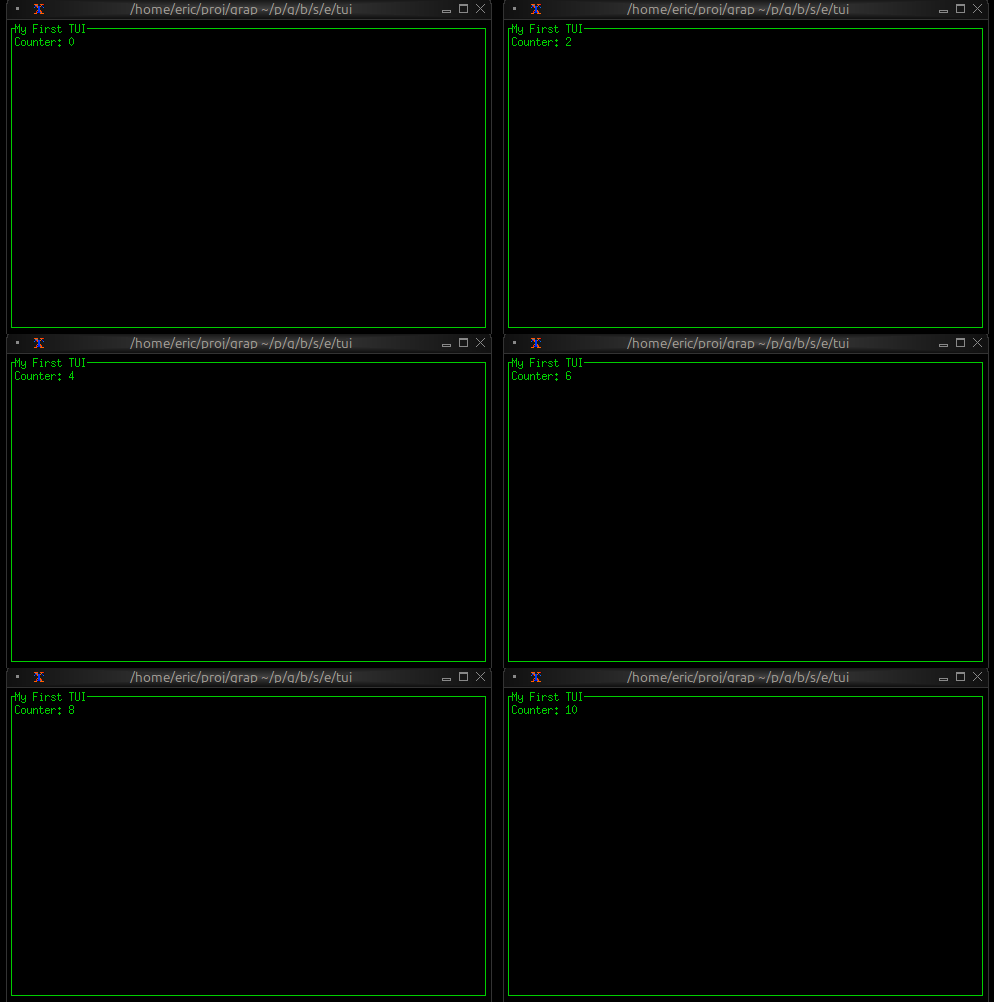
Styling and Theming
Graphix TUIs support rich styling with:
- Colors: Named colors (
Red,Green,Blue), indexed colors (Indexed(202)), and RGB (Rgb({r: 255, g: 100, b: 50})) - Text Effects: Bold, dim, italic, underlined, reversed, crossed out, and the other modifiers on the style page
- Background Colors: Set background colors for any component
- Conditional Styling: Use
selectexpressions to change styles based on state
Many widgets take optional style arguments, allowing styling to be applied at many levels.
use tui::{style, paragraph::paragraph};
let is_selected = true;
paragraph(
#style: &style(
#fg: select is_selected { true => `Yellow, false => `White },
#bg: `DarkGray,
#add_modifier: [`Bold]
),
&"a styled paragraph"
)
Layout System
The layout system provides flexible component arrangement:
- Direction:
HorizontalorVertical - Constraints:
Percentage(50),Length(20),Min(10),Max(100),Ratio(1, 3),Fill(1) - Flex: how leftover space is distributed:
Start,End,Center,SpaceBetween,SpaceEvenly,SpaceAround - Focus Management: Built-in focus handling for interactive components
use tui::{layout::{child, layout}, text::text};
let selected_pane = 0;
let sidebar = text(&"Sidebar");
let main_content = text(&"Main");
layout(
#direction: &`Horizontal,
#focused: &selected_pane,
&[
child(#constraint: `Percentage(30), sidebar),
child(#constraint: `Percentage(70), main_content)
]
)
State Management
In Graphix, UI state is just regular program state. Use variables to track:
- Selection states in lists and tables
- Input field contents
- Window/pane focus
- Application modes (normal, edit, command)
State changes automatically trigger UI updates:
use tui::{line, input_handler::{Event, input_handler, on_press}, list::list};
let selected_item = 0;
let items = [line("Item 1"), line("Item 2"), line("Item 3")];
let handle = |e: Event| on_press(e, |k| select k.code {
d@ `Down => {
selected_item <- d ~ (selected_item + 1) % array::len(items);
`Stop
},
_ => `Continue
});
// UI automatically reflects the change
input_handler(
#handle: &handle,
&list(#highlight_symbol: &"> ", #selected: &selected_item, &items)
)
Real-time Data Integration
Graphix TUIs excel at displaying real-time data. Connect to data sources via netidx and the UI updates automatically:
use tui::{span, style, gauge::gauge};
use core::math;
use sys::time;
// Self-contained: publish a simulated temperature reading once a
// second, then subscribe to it for display. Drop the publish to
// point the gauge at any other publisher.
//
// The gauge below renders `temperature / 100.0` as its ratio, so
// `temperature` is published in the 0–100 range (the gauge clamps
// anything outside [0, 1] and warns).
let tick = time::timer(duration:1.s, true);
let t = cast<f64>(count(tick))$;
let temp_source = 50.0;
temp_source <- tick ~ 50.0 + 25.0 * math::sin(t / 5.0);
sys::net::publish("/local/graphix/overview_realtime/temperature", temp_source);
let temperature: f64 = sys::net::subscribe("/local/graphix/overview_realtime/temperature")$;
// Will display updates automatically when data changes
gauge(
#gauge_style: &style(#fg: `Red),
#label: &span("Temperature"),
&(temperature / 100.0)
)
Style
Styles control the visual appearance of TUI widgets, including colors and text modifiers. Most widgets accept style parameters to customize their appearance.
Colors
The Color type defines available colors:
type Color = [
`Reset,
`Black,
`Red,
`Green,
`Yellow,
`Blue,
`Magenta,
`Cyan,
`Gray,
`DarkGray,
`LightRed,
`LightGreen,
`LightYellow,
`LightBlue,
`LightMagenta,
`LightCyan,
`White,
`Rgb({ r: i64, g: i64, b: i64 }),
`Indexed(i64)
];
Use Reset to return to the terminal’s default color. Use Rgb for 24-bit true
color, or Indexed for 256-color palette indices.
Modifiers
Text modifiers change the appearance of text:
type Modifier = [
`Bold,
`Dim,
`Italic,
`Underlined,
`SlowBlink,
`RapidBlink,
`Reversed,
`Hidden,
`CrossedOut
];
The Style Type
A Style combines foreground color, background color, underline color, and
modifiers:
type Style = {
fg: [Color, null],
bg: [Color, null],
underline_color: [Color, null],
add_modifier: [Array<Modifier>, null],
sub_modifier: [Array<Modifier>, null]
};
Creating Styles
Use the tui::style function to create styles. All parameters are optional:
val style: fn(
?#fg: [Color, null],
?#bg: [Color, null],
?#underline_color: [Color, null],
?#add_modifier: [Array<Modifier>, null],
?#sub_modifier: [Array<Modifier>, null]
) -> Style;
Examples:
// Red foreground
tui::style(#fg: `Red);
// Green text on black background
tui::style(#fg: `Green, #bg: `Black);
// Bold yellow text
tui::style(#fg: `Yellow, #add_modifier: [`Bold]);
// Bold italic text with RGB color
tui::style(#fg: `Rgb({ r: 255, g: 128, b: 0 }), #add_modifier: [`Bold, `Italic]);
// Default style (no customization)
tui::style()
Spans and Lines
Styles are commonly used with Span and Line types to create styled text.
Spans
A Span is a piece of text with a single style:
type Span = {
style: Style,
content: string
};
val span: fn(?#style: Style, content: string) -> Span;
Example:
// Create a red "Error:" span
tui::span(#style: tui::style(#fg: `Red), "Error:");
// Plain text span (default style)
tui::span("Hello")
Lines
A Line contains one or more spans with optional alignment:
type Alignment = [
`Left,
`Center,
`Right
];
type Line = {
style: Style,
alignment: [Alignment, null],
spans: [Array<Span>, string]
};
val line: fn(?#style: Style, ?#alignment: [Alignment, null], spans: [Array<Span>, string]) -> Line;
The spans field can be either an array of spans (for mixed styling) or a
simple string (which will use the line’s style).
Examples:
// Simple centered line
tui::line(#alignment: `Center, "Centered Text");
// Line with mixed styles
tui::line([
tui::span(#style: tui::style(#fg: `Red, #add_modifier: [`Bold]), "Error: "),
tui::span("Something went wrong")
]);
// Right-aligned with style
tui::line(#style: tui::style(#fg: `Gray), #alignment: `Right, "Status: OK")
Using Styles with Widgets
Most widgets accept style parameters. For example:
// Styled paragraph
tui::paragraph::paragraph(
#style: &tui::style(#fg: `White, #bg: `Blue),
&"Hello, styled world!"
);
// Styled gauge
tui::gauge::gauge(
#style: &tui::style(#fg: `Green),
&0.75
)
See individual widget documentation for specific style parameters they accept.
Indexed Colors
`Indexed(n) names one of the terminal’s 256 palette colors. This
prints the whole palette with each index:
use tui::{line, span, style, paragraph::paragraph};
let l = line(array::flatten(array::init(256, |i| [
span(#style: style(#fg: `Indexed(i)), "██"),
span("[i]"),
span(#style: style(#fg: `Indexed(i)), "██")
])));
paragraph(&[l])
The Bar Chart Widget
The bar_chart widget displays categorical data as bars, vertical by default (#direction: &`Horizontal lays them out sideways), supporting grouped bars, custom styling, and dynamic updates. It’s ideal for comparing values across categories, showing rankings, or displaying resource usage.
Interface
use super::{Direction, Line, Style, Tui};
type Bar = {
label: &[Line, null],
style: &[Style, null],
text_value: &[string, null],
value: &i64,
value_style: &[Style, null]
};
val bar: fn(
?#label: &[Line, null],
?#style: &[Style, null],
?#text_value: &[string, null],
?#value_style: &[Style, null],
value: &i64
) -> Bar;
type BarGroup = {
bars: Array<Bar>,
label: [Line, null]
};
val bar_group: fn(
?#label: [Line, null],
bars: Array<Bar>
) -> BarGroup;
type BarChart = {
bar_gap: &[i64, null],
bar_style: &[Style, null],
bar_width: &[i64, null],
data: &Array<BarGroup>,
direction: &[Direction, null],
group_gap: &[i64, null],
label_style: &[Style, null],
max: &[i64, null],
style: &[Style, null],
value_style: &[Style, null]
};
val bar_chart: fn(
?#bar_gap: &[i64, null],
?#bar_style: &[Style, null],
?#bar_width: &[i64, null],
?#direction: &[Direction, null],
?#group_gap: &[i64, null],
?#label_style: &[Style, null],
?#max: &[i64, null],
?#style: &[Style, null],
?#value_style: &[Style, null],
data: &Array<BarGroup>
) -> Tui;
Parameters
bar_chart
- max - Maximum value for chart scale (auto-scales if not specified)
- bar_width - Width of each bar in characters
- bar_gap - Space between bars within a group
- group_gap - Space between bar groups
- style - Base style for the chart
- direction -
`Vertical(the default) or`Horizontal - bar_style - Default style for every bar
- label_style - Style for the bar and group labels
- value_style - Default style for the values drawn on the bars
bar_group
- label - Line labeling the group (displayed below bars)
bar
- style - Style for the bar
- label - Line labeling the bar
- text_value - String displayed above the bar (defaults to the numeric value)
- value_style - Style for this bar’s value
Examples
Basic Usage
use tui::{line, style, barchart::{bar, bar_chart, bar_group}};
let bar1 = bar(
#style: &style(#fg: `Cyan),
#label: &line("Sales"),
&42
);
bar_chart(&[bar_group(#label: line("Q1"), [bar1])])
Grouped Bars with Dynamic Data
use tui::{line, style, barchart::{bar, bar_chart, bar_group}, block::block};
use rand::rand;
let clock = sys::time::timer(duration:0.7s, true);
let group0 = [
bar(#style: &style(#fg: `Red), #label: &line("CPU"), &rand(#start:0, #end:100, #clock)),
bar(#style: &style(#fg: `Yellow), #label: &line("Memory"), &rand(#start:25, #end:200, #clock))
];
let group1 = [
bar(#style: &style(#fg: `Cyan), #label: &line("Network"), &rand(#start:0, #end:50, #clock)),
bar(#style: &style(#fg: `Magenta), #label: &line("Disk"), &rand(#start:1, #end:25, #clock))
];
let chart = bar_chart(
#bar_gap: &2,
#bar_width: &8,
#max: &200,
&[
bar_group(#label: line("Server 1"), group0),
bar_group(#label: line("Server 2"), group1)
]
);
block(#border: &`All, #title: &line("Resource Usage"), &chart)
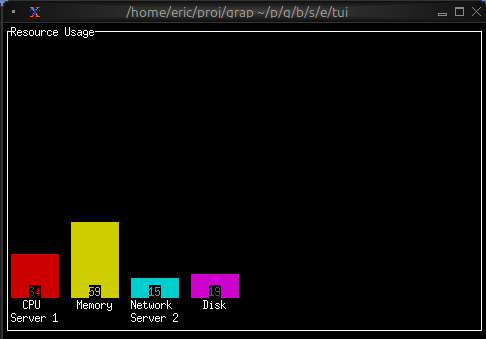
Color-coded Values
use tui::{line, style, barchart::{bar, bar_chart, bar_group}};
let make_colored_bar = |label, value| {
let color = select value {
v if v > 80 => `Red,
v if v > 50 => `Yellow,
_ => `Green
};
bar(#style: &style(#fg: color), #label: &line(label), &value)
};
let bars = [
make_colored_bar("Service A", 35),
make_colored_bar("Service B", 65),
make_colored_bar("Service C", 92)
];
bar_chart(&[bar_group(bars)])
See Also
- chart - For continuous data visualization
- sparkline - For compact trend display
- gauge - For single value display
The Block Widget
The block widget is a container that wraps other widgets with optional borders, titles, and styling. It’s one of the most commonly used widgets for creating structured layouts and visually separating different sections of your TUI.
Interface
use super::{Alignment, Line, Size, Style, Tui};
type Border = [
`Top,
`Right,
`Bottom,
`Left
];
type BorderType = [
`Plain,
`Rounded,
`Double,
`Thick,
`QuadrantInside,
`QuadrantOutside
];
type Padding = {
bottom: i64,
left: i64,
right: i64,
top: i64
};
type Position = [
`Top,
`Bottom
];
type MergeStrategy = [
`Replace,
`Exact,
`Fuzzy
];
type Block = {
border: &[Array<Border>, `All, `None, null],
border_style: &[Style, null],
border_type: &[BorderType, null],
child: &Tui,
merge_borders: &[MergeStrategy, null],
padding: &[Padding, null],
size: [&mut Size, null],
style: &[Style, null],
title: &[Line, null],
title_alignment: &[Alignment, null],
title_bottom: &[Line, null],
title_position: &[Position, null],
title_style: &[Style, null],
title_top: &[Line, null]
};
val block: fn(
?#border: &[Array<Border>, `All, `None, null],
?#border_type: &[BorderType, null],
?#border_style: &[Style, null],
?#merge_borders: &[MergeStrategy, null],
?#padding: &[Padding, null],
?#style: &[Style, null],
?#title: &[Line, null],
?#title_top: &[Line, null],
?#title_bottom: &[Line, null],
?#title_style: &[Style, null],
?#title_position: &[Position, null],
?#title_alignment: &[Alignment, null],
?#size: [&mut Size, null],
child: &Tui
) -> Tui;
Parameters
- border - Which sides have a border:
`All,`None, or an array of sides, e.g.&[`Top, `Left](one side alone is still an array,&[`Top]) - border_style - Style for the border
- merge_borders - Strategy for merging borders of adjacent blocks:
Replace,Exact, orFuzzy - title - Line displayed at the top of the block
- title_bottom - Line displayed at the bottom of the block
- style - Style for the block’s interior
- size (output) - Rendered size of the block; pass
&mut sizewheresize: tui::Size
Examples
Basic Usage
use tui::{line, block::block, paragraph::paragraph};
let content = paragraph(&"Hello, World!");
block(
#border: &`All,
#title: &line("My Block"),
&content
)
Focus Indication
Use dynamic styling to show which block has focus; Tab moves it:
use tui::{
line, style,
block::block,
input_handler::{Event, input_handler, on_press},
layout::{child, layout},
paragraph::paragraph
};
let focused = 0;
let handle_event = |e: Event| on_press(e, |k| select k.code {
k@`Tab => {
focused <- ((k ~ focused) + 1) % 2;
`Stop
},
_ => `Continue
});
let pane = |i, title| block(
#border: &`All,
#border_style: &style(#fg: select focused { n if n == i => `Red, _ => `Yellow }),
#title: &line(title),
¶graph(&"Tab moves the focus")
);
input_handler(
#handle: &handle_event,
&layout(
#direction: &`Horizontal,
&[
child(#constraint: `Percentage(50), pane(0, "Block 1")),
child(#constraint: `Percentage(50), pane(1, "Block 2"))
]
)
)
Dynamic Titles
Titles can contain reactive values that update automatically:
use tui::{line, block::block, paragraph::paragraph};
let count = count(sys::time::timer(duration:1.s, true));
let content = paragraph(&"Content here");
block(
#border: &`All,
#title: &line("Counter: [count]"),
&content
)
See Also
- layout - For arranging multiple blocks
- paragraph - Common content for blocks
- text - For creating styled text content
The Browser Widget
The browser widget provides a specialized interface for browsing and interacting with netidx hierarchies. It displays a table of one level’s children, one column per published column when the children are rows of a table, with selection and cursor movement support.
Interface
use super::{Constraint, Flex, line, Size, Style, style, Tui};
use sys::net;
use tui::table::{cell, row, table};
type MoveCursor = [
`Left(i64),
`Right(i64),
`Up(i64),
`Down(i64)
];
/// A netidx browser over `path`: a table of its children, with one
/// column per published column when the children are rows of a table.
/// The listing refreshes when `path` changes and about once a second,
/// so rows published later appear on the next refresh.
/// `#size` is the area the browser is drawn in, which sizes its
/// viewport (pass the enclosing block's `#size` output); `#cursor`
/// moves the selection. `#selected_row` is set to the selected row's
/// full path, and `#selected_path` to the selected cell's; each is null
/// while the listing is empty, and neither is set while a new path's
/// listing is on its way.
val browser: fn(
?#selected_style: Style,
?#header_style: Style,
?#style: Style,
?#cursor: MoveCursor,
?#selected_row: &mut [string, null],
?#selected_path: &mut [string, null],
?#flex: Flex,
?#rate: duration,
#size: Size,
path: string
) -> Tui;
Parameters
- path - The netidx path whose children are listed. The listing refreshes when
pathchanges and about once a second, so rows published later appear on the next refresh - cursor - Programmatic cursor movement:
Left(n),Right(n),Up(n),Down(n) - selected_row (output) - Full path of the selected row (e.g.
/t/r1), null while the listing is empty - selected_path (output) - Full path of the selected cell: the row in a list, the row and column in a table; null while the listing is empty
- size (input) - The area the browser is drawn in, which sizes its viewport; pass the enclosing block’s
#sizeoutput - rate - The most often a cell’s subscription updates the display (default
duration:0.5s) - flex - How the columns share leftover width (default
`SpaceBetween) - style, header_style, selected_style - Styles for the table, its header row and the selected cell
Examples
Basic Usage
use tui::{Size, block::block, browser::browser};
let selected_path: [string, null] = never();
let size: Size = never();
block(
#border: &`None,
#size: &mut size,
&browser(
#size,
#selected_path: &mut selected_path,
// Start browsing from root
"/"
)
)
Basic Navigation
use tui::{
Size,
block::block,
browser::{MoveCursor, browser},
input_handler::{Event, input_handler, on_press}
};
let path = "/";
let selected_path: [string, null] = never();
let selected_row: [string, null] = never();
let cursor: MoveCursor = never();
let size: Size = never();
let handle_event = |e: Event| on_press(e, |k| select k.code {
e@ `Up => { cursor <- e ~ `Up(1); `Stop },
e@ `Down => { cursor <- e ~ `Down(1); `Stop },
e@ `Left => { cursor <- e ~ `Left(1); `Stop },
e@ `Right => { cursor <- e ~ `Right(1); `Stop },
e@ `Enter => { path <- (e ~ selected_row)$; `Stop },
_ => `Continue
});
input_handler(
#handle: &handle_event,
&block(
#border: &`None,
#size: &mut size,
&browser(
#size,
#cursor,
#selected_path: &mut selected_path,
#selected_row: &mut selected_row,
path
)
)
)
Commands
A : command line beside the browser: :w <value> writes the value to
the selected path, and an error from the command shows in the bottom
title.
use tui::{
Size, line, span, style,
block::block,
browser::{MoveCursor, browser},
input_handler::{Event, KeyCode, input_handler, on_press}
};
let path = "/";
let command_error = "";
let selected_path: [string, null] = never();
let selected_row: [string, null] = never();
let cursor: MoveCursor = never();
let command_mode = false;
let command = "";
let run_command = |c: string, path: string| {
catch(e) command_error <- "[(e.0).error]";
select str::sub(#start:0, #len:2, c)? {
"w " => {
let v = str::sub(#start:2, #len:str::char_len(c) - 2, c)?;
let v: Primitive = str::parse(v)?;
sys::net::write(path, v)?
},
_ => error("invalid command [c]")?
}
};
let title_style = style(#fg:`Indexed(202));
let title_bottom = select command_mode {
true => line(#style:title_style, ":[command]"),
false => {
let spans = [
span(select selected_path { null as _ => path, p => "[path] ([p])" }),
span(#style:style(#fg:`Red), " [command_error]")
];
line(#style:title_style, spans)
}
};
let handle_normal_mode_key = |e: KeyCode| -> [`Stop, `Continue] select e {
e@ `Left => { cursor <- e ~ `Left(1); `Stop },
e@ `Right => { cursor <- e ~ `Right(1); `Stop },
e@ `Down => { cursor <- e ~ `Down(1); `Stop },
e@ `Up => { cursor <- e ~ `Up(1); `Stop },
e@ `Enter => { path <- (e ~ selected_row)$; `Stop },
e@ `Backspace => select e ~ str::dirname(path) {
null as _ => `Stop,
s => {
path <- s;
`Stop
}
},
k@ `Char(":") => {
command <- k ~ "";
command_error <- k ~ "";
command_mode <- k ~ true;
`Stop
},
_ => `Continue
};
let handle_command_mode_key = |e: KeyCode| -> [`Stop, `Continue] select e {
`Char(c) => {
command <- c ~ "[command][c]";
`Stop
},
x@ `Enter => {
command_mode <- x ~ false;
run_command(x ~! command, (x ~! selected_path)$);
`Stop
},
e@ `Backspace if command != "" => {
let len = str::char_len(command) - 1;
command <- e ~ str::sub(#start:0, #len, command)$;
`Stop
},
k@ `Esc => {
command_mode <- k ~ false;
`Stop
},
_ => `Continue
};
let handle_event = |e: Event| on_press(e, |k| select k ~ command_mode {
true => handle_command_mode_key(k.code),
false => handle_normal_mode_key(k.code)
});
let size: Size = never();
let browser = browser(
#cursor,
#selected_row: &mut selected_row,
#selected_path: &mut selected_path,
#size,
path
);
let block = block(
#border:&`None,
#title_bottom:&title_bottom,
#style:&style(#bg:`Indexed(234)),
#size:&mut size,
&browser
);
input_handler(#handle: &handle_event, &block)
See Also
- list - For simpler selection interfaces
- table - For tabular data display
- block - For containing browsers with borders
The Calendar Widget
The calendar widget displays a monthly calendar view with support for highlighting specific dates and displaying events. It displays dates and takes no input, which suits schedules, event views, and time-based visualizations.
Interface
use super::{Style, Tui};
type Date = {
year: i64,
month: i64,
day: i64
};
val date: fn(year: i64, month: i64, day: i64) -> Date;
type CalendarEvent = {
date: Date,
style: Style
};
val calendar_event: fn(style: Style, date: Date) -> CalendarEvent;
type Calendar = {
default_style: &[Style, null],
display_date: &Date,
events: &[Array<CalendarEvent>, null],
show_month: &[Style, null],
show_surrounding: &[Style, null],
show_weekday: &[Style, null]
};
val calendar: fn(
?#default_style: &[Style, null],
?#show_month: &[Style, null],
?#show_surrounding: &[Style, null],
?#show_weekday: &[Style, null],
?#events: &[Array<CalendarEvent>, null],
display_date: &Date
) -> Tui;
Parameters
calendar
- show_month - Style for the month header
- show_weekday - Style for weekday headers (Mon, Tue, etc.)
- show_surrounding - Style for dates from surrounding months
- events - Array of CalendarEvent objects to highlight dates
calendar_event
Takes a style and a date to create an event marker.
date
Creates a date with year, month (1-12), and day (1-31).
Examples
Basic Usage
use tui::calendar::{calendar, date};
let current_date = date(2024, 5, 15);
calendar(¤t_date)
Event Calendar
use tui::{line, style, block::block, calendar::{calendar, calendar_event, date}};
let today = date(2024, 5, 15);
let events = [
calendar_event(style(#fg: `Red), date(2024, 5, 5)),
calendar_event(style(#fg: `Green), date(2024, 5, 15)),
calendar_event(style(#fg: `Yellow), date(2024, 5, 20)),
calendar_event(style(#fg: `Cyan), date(2024, 5, 28))
];
block(
#border: &`All,
#title: &line("May 2024"),
&calendar(
#show_month: &style(#fg: `Yellow, #add_modifier: [`Bold]),
#show_weekday: &style(#fg: `Cyan),
#show_surrounding: &style(#fg: `DarkGray),
#events: &events,
&today
)
)
Color-coded Events by Type
use tui::{style, calendar::{Date, calendar, calendar_event, date}};
type EventType = [`Meeting, `Deadline, `Holiday, `Birthday];
type CalendarEntry = {date: Date, event_type: EventType};
let entries: Array<CalendarEntry> = [
{date: date(2024, 5, 5), event_type: `Meeting},
{date: date(2024, 5, 10), event_type: `Deadline},
{date: date(2024, 5, 15), event_type: `Holiday},
{date: date(2024, 5, 25), event_type: `Birthday}
];
let color_of = |t: EventType| select t {
`Meeting => `Blue,
`Deadline => `Red,
`Holiday => `Green,
`Birthday => `Magenta
};
let events = array::map(entries, |e| calendar_event(style(#fg: color_of(e.event_type)), e.date));
calendar(#events: &events, &date(2024, 5, 1))
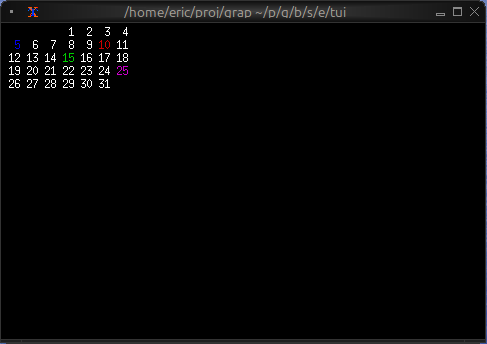
See Also
- table - For tabular date-based data
- list - For event lists
- block - For containing calendars with borders
The Canvas Widget
The canvas widget provides a low-level drawing surface for custom graphics. You can draw lines, circles, rectangles, points, and text labels at specific coordinates, making it perfect for diagrams, plots, and custom visualizations.
Interface
use super::{Color, Line, Marker, Tui};
type CanvasLine = {
color: Color,
x1: f64,
x2: f64,
y1: f64,
y2: f64
};
type CanvasCircle = {
color: Color,
radius: f64,
x: f64,
y: f64
};
type CanvasRectangle = {
color: Color,
height: f64,
width: f64,
x: f64,
y: f64
};
type CanvasPoints = {
color: Color,
coords: Array<(f64, f64)>
};
type CanvasLabel = {
line: Line,
x: f64,
y: f64
};
type CanvasShape = [
`Line(CanvasLine),
`Circle(CanvasCircle),
`Rectangle(CanvasRectangle),
`Points(CanvasPoints),
`Label(CanvasLabel)
];
type Canvas = {
background_color: &[Color, null],
marker: &[Marker, null],
shapes: &Array<&CanvasShape>,
x_bounds: &{ max: f64, min: f64 },
y_bounds: &{ max: f64, min: f64 }
};
val canvas: fn(
?#background_color: &[Color, null],
?#marker: &[Marker, null],
#x_bounds: &{ max: f64, min: f64 },
#y_bounds: &{ max: f64, min: f64 },
shapes: &Array<&CanvasShape>
) -> Tui;
Parameters
- background_color - Background color for the canvas
- marker - Marker type, one of
Dot,Block,Bar,Braille,HalfBlock,Quadrant,Sextant,Octant;Brailleby default - x_bounds - X-axis range with
minandmaxfields (required) - y_bounds - Y-axis range with
minandmaxfields (required)
Shape Types
Line
`Line({color: `Red, x1: 0.0, y1: 0.0, x2: 10.0, y2: 5.0})
Circle
`Circle({color: `Blue, x: 5.0, y: 5.0, radius: 2.0})
Rectangle
`Rectangle({color: `Green, x: 2.0, y: 2.0, width: 3.0, height: 4.0})
Points
`Points({color: `Yellow, coords: [(1.0, 1.0), (2.0, 3.0), (3.0, 1.5)]})
Label
`Label({line: line("Hello"), x: 5.0, y: 0.5})
Examples
Basic Usage
use tui::canvas::canvas;
let line = `Line({color: `Red, x1: 0.0, y1: 0.0, x2: 10.0, y2: 5.0});
let circle = `Circle({color: `Blue, x: 5.0, y: 5.0, radius: 2.0});
canvas(
#x_bounds: &{min: 0.0, max: 10.0},
#y_bounds: &{min: 0.0, max: 10.0},
&[&line, &circle]
)
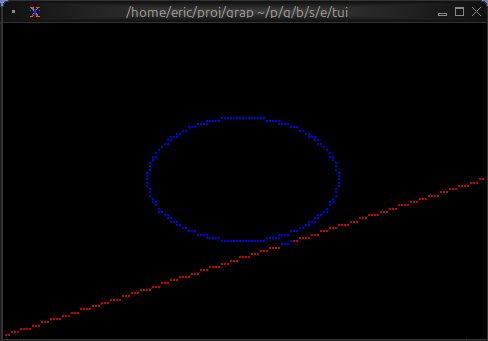
Function Plotting
use tui::canvas::canvas;
let coords = [
(0.0, 0.0), (0.5, 0.48), (1.0, 0.84), (1.5, 1.0),
(2.0, 0.91), (2.5, 0.60), (3.0, 0.14), (3.5, -0.35),
(4.0, -0.76), (4.5, -0.98), (5.0, -0.96)
];
let plot = `Points({color: `Cyan, coords});
canvas(
#x_bounds: &{min: 0.0, max: 10.0},
#y_bounds: &{min: -1.0, max: 1.0},
&[&plot]
)
Network Diagram
use tui::canvas::canvas;
let circle1 = `Circle({color: `Blue, x: 2.0, y: 5.0, radius: 0.5});
let circle2 = `Circle({color: `Blue, x: 8.0, y: 5.0, radius: 0.5});
let circle3 = `Circle({color: `Blue, x: 5.0, y: 8.0, radius: 0.5});
let line1 = `Line({color: `White, x1: 2.0, y1: 5.0, x2: 8.0, y2: 5.0});
let line2 = `Line({color: `White, x1: 2.0, y1: 5.0, x2: 5.0, y2: 8.0});
let line3 = `Line({color: `White, x1: 8.0, y1: 5.0, x2: 5.0, y2: 8.0});
let all_shapes = [&line1, &line2, &line3, &circle1, &circle2, &circle3];
canvas(
#x_bounds: &{min: 0.0, max: 10.0},
#y_bounds: &{min: 0.0, max: 10.0},
&all_shapes
)
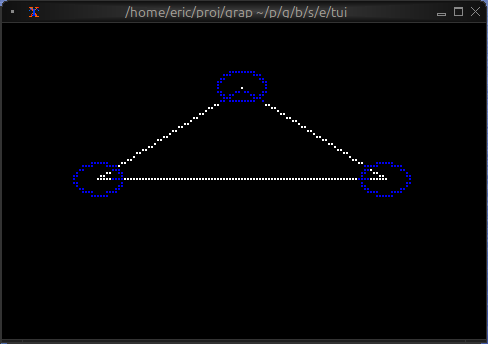
Animated Graphics
use tui::canvas::canvas;
let x = cast<f64>(count(sys::time::timer(0.1, true)))$ * 0.1 % 10.;
let moving_circle = `Circle({color: `Red, x, y: 5.0, radius: 1.0});
canvas(
#x_bounds: &{min: 0.0, max: 10.0},
#y_bounds: &{min: 0.0, max: 10.0},
&[&moving_circle]
)
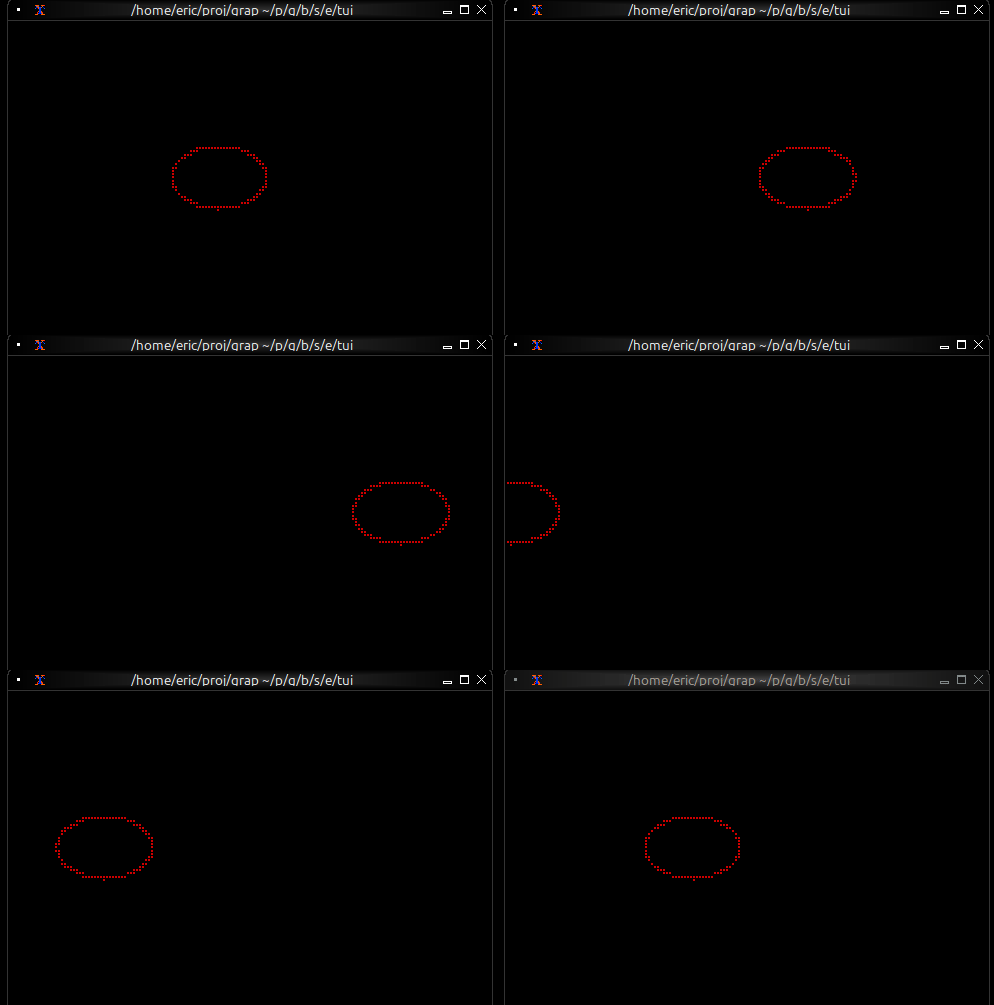
Marker Comparison
- Braille: Highest resolution, smoothest curves, best for detailed graphics
- Dot: Fast rendering, lower resolution, good for simple shapes
- Block: High contrast, blocky appearance, good for filled areas
Coordinate System
- The bottom-left corner is (x_bounds.min, y_bounds.min) and the top-right corner (x_bounds.max, y_bounds.max); (0, 0) is wherever the bounds put it
- X increases to the right
- Y increases upward
- Shapes outside bounds are clipped
See Also
The Chart Widget
The chart widget renders line charts with multiple datasets, custom axes, labels, and styling. It’s ideal for visualizing time series data, trends, sensor readings, and any numeric data relationships.
Interface
use super::{Alignment, Constraint, Line, Marker, Style, Tui};
type GraphType = [
`Scatter,
`Line,
`Bar
];
type LegendPosition = [
`Top,
`TopRight,
`TopLeft,
`Left,
`Right,
`Bottom,
`BottomRight,
`BottomLeft
];
type Axis = {
bounds: {min: f64, max: f64},
labels: [Array<Line>, null],
labels_alignment: [Alignment, null],
style: [Style, null],
title: [Line, null]
};
val axis: fn(
?#labels: [Array<Line>, null],
?#labels_alignment: [Alignment, null],
?#style: [Style, null],
?#title: [Line, null],
bounds: {min: f64, max: f64}
) -> Axis;
type Dataset = {
data: &Array<(f64, f64)>,
graph_type: &[GraphType, null],
marker: &[Marker, null],
name: &[Line, null],
style: &[Style, null]
};
val dataset: fn(
?#marker: &[Marker, null],
?#graph_type: &[GraphType, null],
?#name: &[Line, null],
?#style: &[Style, null],
data: &Array<(f64, f64)>
) -> Dataset;
type LegendConstraints = {
width: Constraint,
height: Constraint
};
type Chart = {
datasets: &Array<Dataset>,
hidden_legend_constraints: &[LegendConstraints, null],
legend_position: &[LegendPosition, null],
style: &[Style, null],
x_axis: &[Axis, null],
y_axis: &[Axis, null]
};
val chart: fn(
?#hidden_legend_constraints: &[LegendConstraints, null],
?#legend_position: &[LegendPosition, null],
?#style: &[Style, null],
?#x_axis: &[Axis, null],
?#y_axis: &[Axis, null],
datasets: &Array<Dataset>
) -> Tui;
Parameters
chart
- style - Background style for the chart area
- x_axis - X-axis configuration. Optional, but without it the chart has empty bounds and draws nothing
- y_axis - Y-axis configuration, the same
axis
- title - Line for axis title
- labels - Array of lines displayed along axis
- style - Style for axis lines and ticks
dataset
- style - Style for the dataset (line and markers)
- graph_type -
Line,Scatter, orBar - marker - One of
Dot,Block,Bar,Braille,HalfBlock,Quadrant,Sextant,Octant - name - Line naming the dataset (for legends)
Examples
Basic Usage
use tui::{style, chart::{axis, chart, dataset}};
let data: Array<(f64, f64)> = [(0.0, 0.0), (1.0, 1.0), (2.0, 4.0), (3.0, 9.0)];
let ds = dataset(
#style: &style(#fg: `Cyan),
#graph_type: &`Line,
#marker: &`Dot,
&data
);
chart(
#x_axis: &axis({min: 0.0, max: 3.0}),
#y_axis: &axis({min: 0.0, max: 9.0}),
&[ds]
)
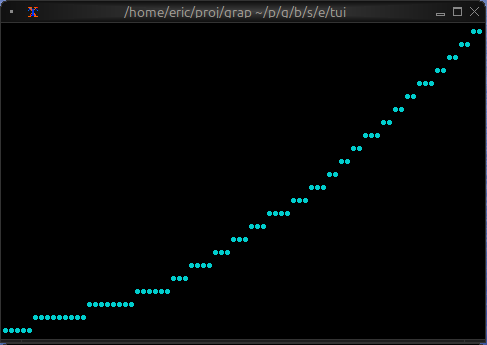
Real-time Data Visualization
use tui::{line, style, chart::{axis, chart, dataset}};
let data: Array<(f64, f64)> = {
let clock = sys::time::timer(duration:0.5s, true);
let x = cast<f64>(count(clock))$ * 0.5;
let y = rand::rand(#clock, #start: f64:0., #end: f64:100.);
let a = [];
a <- array::window(#n: 32, clock ~ a, (x, y));
a
};
let ds = dataset(
#style: &style(#fg: `Cyan),
#graph_type: &`Line,
#marker: &`Dot,
&data
);
let label_style = style(#fg: `Yellow);
chart(
#style: &style(#bg: `Rgb({r: 20, g: 20, b: 20})),
#x_axis: &axis(
#title: line(#style: label_style, "Time (s)"),
#labels: [
line(#style: label_style, "[(data[0]$).0]"),
line(#style: label_style, "[(data[-1]$).0]")
],
{min: (data[0]$).0, max: (data[-1]$).0}
),
#y_axis: &axis(
#title: line(#style: label_style, "Value"),
#labels: [
line("0"), line("50"), line("100")
],
{min: 0.0, max: 100.0}
),
&[ds]
)
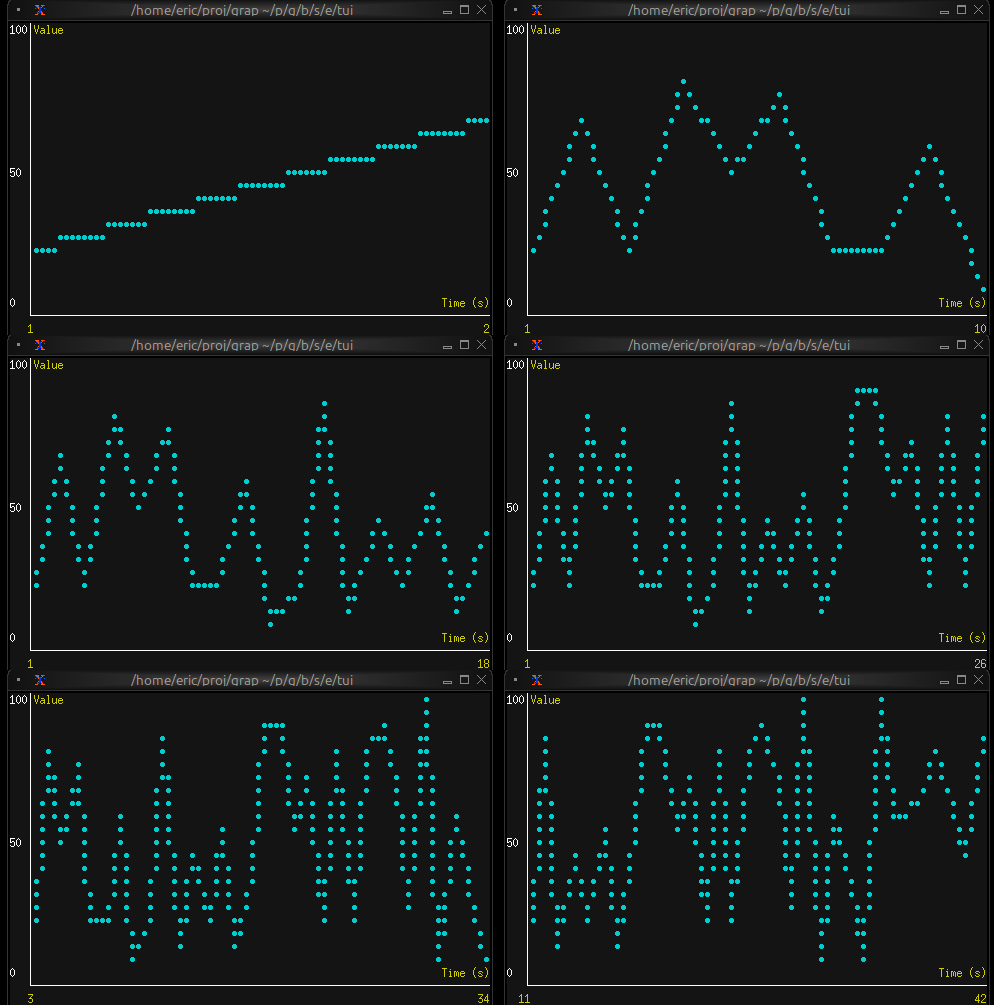
Multiple Datasets
use tui::{line, style, chart::{axis, chart, dataset}};
let temp_data = [(0.0, 20.0), (1.0, 22.0), (2.0, 21.5)];
let humidity_data = [(0.0, 50.0), (1.0, 55.0), (2.0, 52.0)];
let temp_ds = dataset(
#style: &style(#fg: `Red),
#name: &line("Temperature"),
&temp_data
);
let humidity_ds = dataset(
#style: &style(#fg: `Blue),
#name: &line("Humidity"),
&humidity_data
);
let x_axis =
axis(#labels: [line("0"), line("1"), line("2")], {min: 0.0, max: 2.0});
let y_axis =
axis(#labels: [line("0"), line("50"), line("100")], {min: 0.0, max: 100.0});
chart(
#x_axis: &x_axis,
#y_axis: &y_axis,
&[temp_ds, humidity_ds]
)
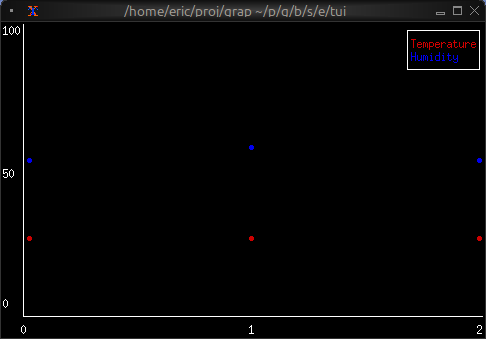
Marker Comparison
- Dot: Fastest, lowest resolution, good for dense data
- Braille: Smoothest curves, medium performance, best visual quality
- Block: High contrast, medium performance
See Also
- barchart - For categorical data visualization
- sparkline - For compact inline charts
- canvas - For custom graphics
The Text Widget
The text widget renders styled text in the terminal. It’s a fundamental building block for displaying formatted content with colors, modifiers, and multiple lines. Text is built from Line objects, which are in turn composed of Span objects.
Interface
use super::{Alignment, Line, Style, style, Tui};
type Text = {
style: &Style,
alignment: &[Alignment, null],
lines: &[Array<Line>, string]
};
val text: fn(
?#style: &Style,
?#alignment: &[Alignment, null],
lines: &[Array<Line>, string]
) -> Tui;
The text widget uses types from the style module including Style, Line, Span, Color, Modifier, and Alignment.
Text Hierarchy
- Span: A single segment of text with a single style
- Line: A collection of spans forming one line
- Text: A collection of lines forming multi-line content
Examples
Basic Usage
use tui::text::text;
text(&"Hello, World!")
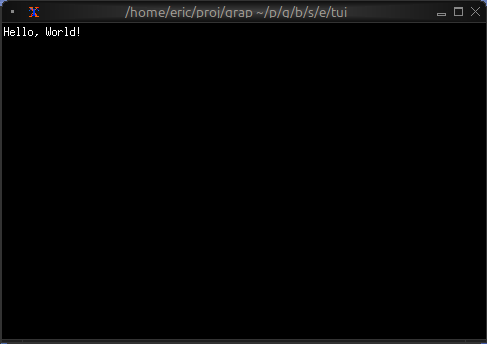
Status Messages
use tui::{line, span, style, text::text};
let make_status = |level, msg| select level {
`Error => line([
span(#style: style(#fg: `Red, #add_modifier: [`Bold]), "ERROR: "),
span(msg)
]),
`Warning => line([
span(#style: style(#fg: `Yellow, #add_modifier: [`Bold]), "WARNING: "),
span(msg)
]),
`Info => line([
span(#style: style(#fg: `Cyan), "INFO: "),
span(msg)
])
};
text(&[
make_status(`Info, "Application started"),
make_status(`Warning, "Cache miss"),
make_status(`Error, "Connection failed")
])
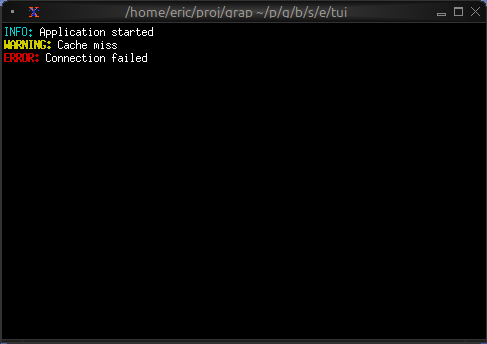
Dynamic Colors
use tui::{line, span, style, text::text};
let count = count(sys::time::timer(duration:1.s, true));
let colors = [`Red, `Green, `Yellow, `Blue, `Magenta, `Cyan];
let color = colors[count % array::len(colors)]$;
let l = line([
span(#style: style(#fg: `White), "Count: "),
span(#style: style(#fg: color, #add_modifier: [`Bold]), "[count]")
]);
text(&[l])
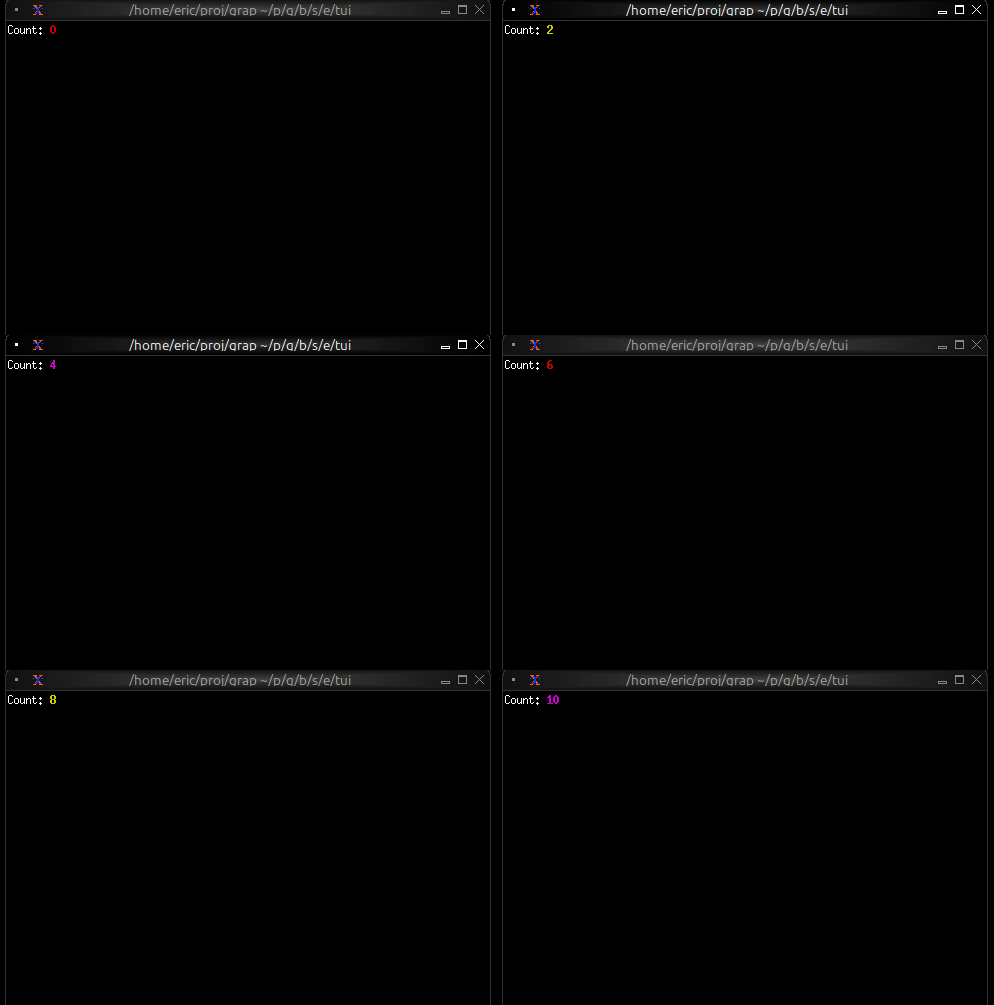
Alignment
use tui::{line, text::text};
text(&[
line(#alignment: `Left, "Left aligned"),
line(#alignment: `Center, "Centered"),
line(#alignment: `Right, "Right aligned")
])
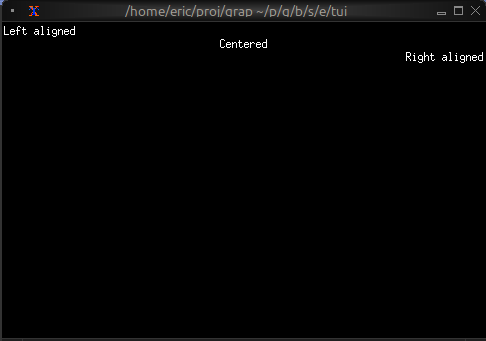
Color Support
- Named colors:
Red,Green,Blue,Yellow,Magenta,Cyan,White,Black,Gray,DarkGray, andLight*variants - Indexed colors:
Indexed(202)for 256-color palette - RGB colors:
Rgb({r: 255, g: 100, b: 50})for true color
Text Modifiers
Bold,Dim,Italic,Underlined,SlowBlink,RapidBlink,Reversed,Hidden,CrossedOut
See Also
- paragraph - For wrapped and scrollable text
- block - For containing text with borders
- list - For selectable text items
The Paragraph Widget
The paragraph widget displays multi-line text with automatic word wrapping and scrolling support. It’s ideal for displaying long text content, logs, or any content that needs to flow across multiple lines.
Interface
use super::{Alignment, Line, Style, style, Tui};
/// `scroll.y` is in lines and `scroll.x` is in chars, and x scrolls only
/// unwrapped text; `wrap` breaks long lines at the width, and `trim`
/// drops the leading whitespace of a wrapped line.
type Paragraph = {
alignment: &[Alignment, null],
lines: &[Array<Line>, string],
scroll: &{ x: i64, y: i64 },
style: &Style,
trim: &bool,
wrap: &bool
};
val paragraph: fn(
?#style: &Style,
?#alignment: &[Alignment, null],
?#scroll: &{x: i64, y: i64},
?#wrap: &bool,
?#trim: &bool,
lines: &[Array<Line>, string]
) -> Tui;
Parameters
- scroll - Record with
xandyfields for scroll position - alignment -
Left,Center, orRight - wrap - Break long lines at the paragraph’s width (default: true);
scroll.xapplies only when this is false - trim - Trim leading whitespace when wrapping (default: true)
Examples
Basic Usage
use tui::paragraph::paragraph;
paragraph(&"This is a simple paragraph. It will automatically wrap to fit the available width.")
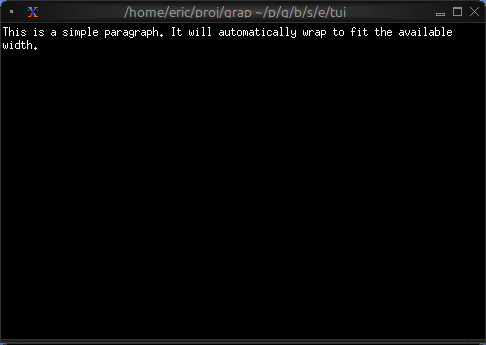
Scrollable Content
use tui::{
line,
block::block,
input_handler::{Event, input_handler, on_press},
paragraph::paragraph
};
let lines = array::init(60, |i| line("[i + 1]: I have got a lovely bunch of coconuts"));
let scroll_y = 0;
let handle_event = |e: Event| on_press(e, |k| select k.code {
k@`Up if scroll_y > 0 => {
scroll_y <- (k ~ scroll_y) - 1;
`Stop
},
k@`Down if scroll_y < array::len(lines) - 1 => {
scroll_y <- (k ~ scroll_y) + 1;
`Stop
},
_ => `Continue
});
input_handler(
#handle: &handle_event,
&block(
#border: &`All,
#title: &line("Scrollable Text"),
¶graph(
#scroll: &{x: 0, y: scroll_y},
&lines
)
)
)
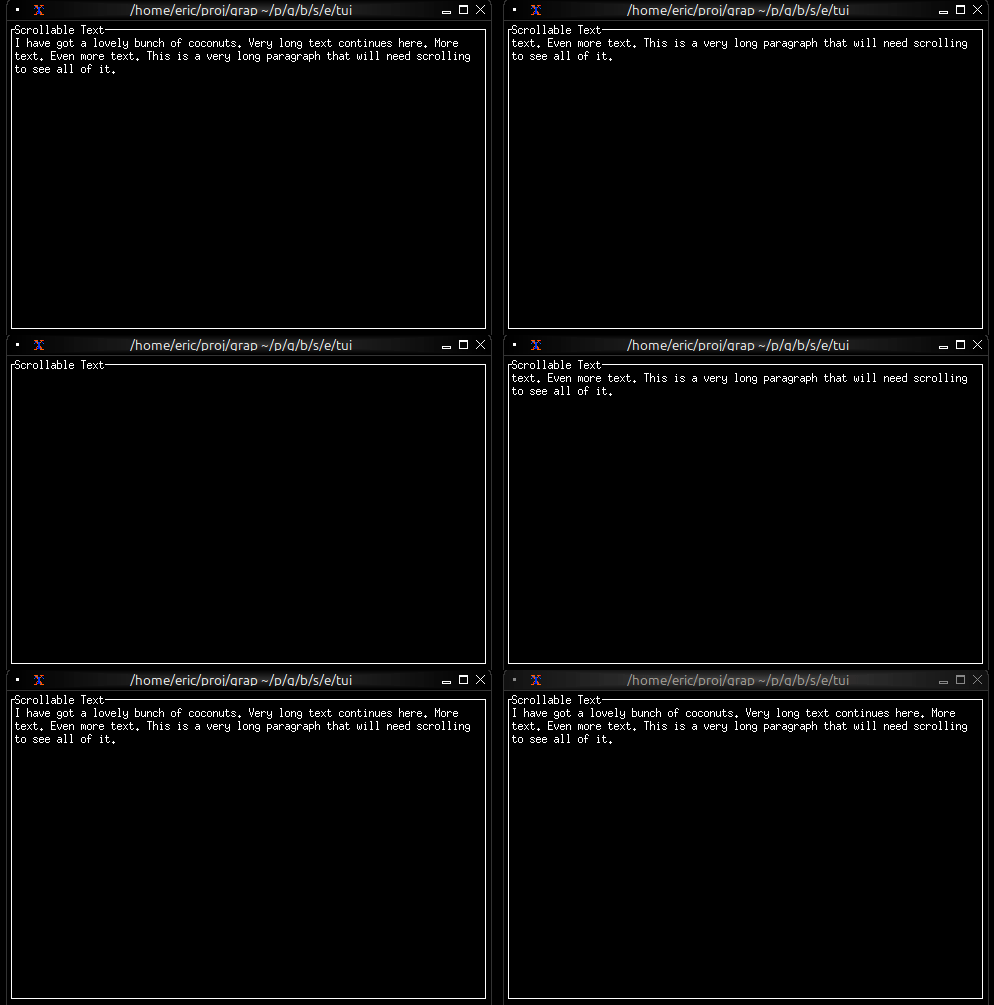
Live Log Viewer
Display real-time updating content:
use tui::{Size, line, block::block, paragraph::paragraph};
use sys::time;
// Self-contained: publish a simulated log entry every second, then
// subscribe to display the rolling window. Drop the publish to point
// the viewer at any other string publisher.
let tick = time::timer(duration:1.s, true);
let n = count(tick);
let messages = [
"request handled",
"cache miss",
"user signed in",
"background job complete",
"config reloaded",
];
let log_source: string = never();
log_source <- tick ~ "[n] [rand::pick(tick ~ messages)]";
sys::net::publish("/local/graphix/paragraph_log_viewer/log", log_source);
let log_entries = [];
let new_entry: string = sys::net::subscribe("/local/graphix/paragraph_log_viewer/log")$;
log_entries <- array::window(
#n: 100,
new_entry ~ log_entries,
line(new_entry)
);
// follow the tail: scroll so the newest entry is on the bottom line
let size: Size = never();
block(
#border: &`None,
#size: &mut size,
¶graph(
#wrap: &false,
#scroll: &{x: 0, y: max(0, array::len(log_entries) - size.height)},
&log_entries
)
)
Centered Message
use tui::{line, style, paragraph::paragraph};
paragraph(
#alignment: &`Center,
&[
line(""),
line(#style: style(#fg: `Yellow, #add_modifier: [`Bold]), "Welcome"),
line(""),
line("Press any key to continue")
]
)
Word Wrapping
The paragraph widget automatically wraps long lines to fit the available width. Word boundaries are respected, so words won’t be split in the middle unless they’re longer than the available width.
See Also
- text - For creating styled text content
- scrollbar - For adding scrollbars
- block - For containing paragraphs with borders
- list - For line-by-line selectable content
The Gauge Widget
The gauge widget displays a single value as a filled progress indicator, perfect for showing percentages, completion status, or resource usage. It provides a clear visual representation of how full or complete something is.
Interface
use super::{Span, Style, Tui};
type Gauge = {
gauge_style: &[Style, null],
label: &[Span, null],
ratio: &f64,
style: &[Style, null],
use_unicode: &[bool, null]
};
val gauge: fn(
?#gauge_style: &[Style, null],
?#label: &[Span, null],
?#style: &[Style, null],
?#use_unicode: &[bool, null],
ratio: &f64
) -> Tui;
Parameters
- gauge_style - Style for the filled portion
- label - A
Spandisplayed in the center - use_unicode - Use Unicode block characters for smoother rendering
- style - Style for the unfilled portion
- ratio (positional) - The filled fraction, from 0.0 to 1.0; a value outside that range is clamped, with a logged warning
Examples
Basic Usage
use tui::{style, gauge::gauge};
// 75%
let progress = 0.75;
gauge(
#gauge_style: &style(#fg: `Green),
&progress
)
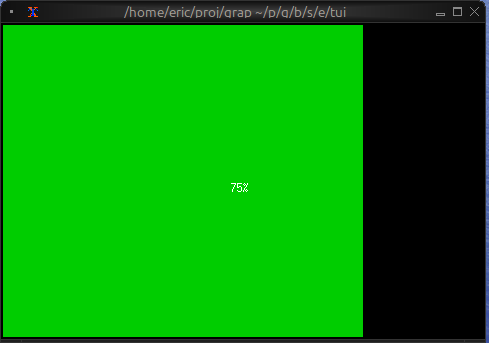
Progress with Color Thresholds
use tui::{line, span, style, block::block, gauge::gauge};
let percentage = min(100, count(sys::time::timer(0.5, true)));
let power = cast<f64>(percentage)$ / 100.0;
let color = select power {
x if x < 0.10 => `Red,
x if x < 0.25 => `Yellow,
x => `Green
};
block(
#border: &`All,
#title: &line("Power Level"),
&gauge(
#gauge_style: &style(#fg: color),
#label: &span("[percentage]%"),
&power
)
)
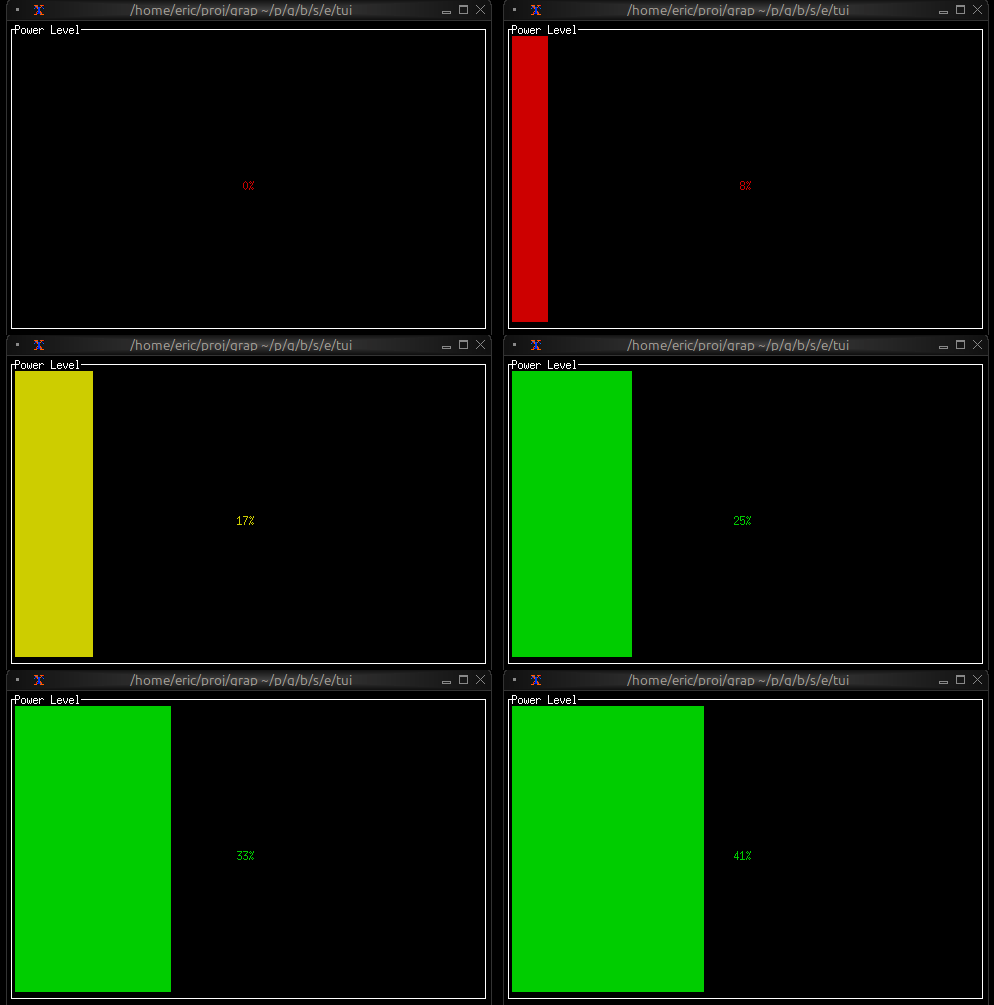
Resource Usage
use tui::{span, style, gauge::gauge};
// memory amounts, in GB
let used_memory = 6.5;
let total_memory = 16.0;
let usage_ratio = used_memory / total_memory;
let color = select usage_ratio {
x if x > 0.9 => `Red,
x if x > 0.7 => `Yellow,
_ => `Green
};
gauge(
#gauge_style: &style(#fg: color),
#label: &span("[used_memory] GB / [total_memory] GB"),
&usage_ratio
)
See Also
- linegauge - For horizontal line-based gauges
- sparkline - For historical trend display
- barchart - For comparing multiple values
The Line Gauge Widget
The line_gauge widget displays a horizontal progress indicator using line-drawing characters. It’s more compact than gauge and ideal for dashboards where vertical space is limited.
Interface
use super::{Line, Style, Tui};
type LineGauge = {
filled_style: &[Style, null],
filled_symbol: &[string, null],
label: &[Line, null],
ratio: &f64,
style: &[Style, null],
unfilled_style: &[Style, null],
unfilled_symbol: &[string, null],
};
val line_gauge: fn(
?#filled_style: &[Style, null],
?#filled_symbol: &[string, null],
?#label: &[Line, null],
?#style: &[Style, null],
?#unfilled_style: &[Style, null],
?#unfilled_symbol: &[string, null],
ratio: &f64
) -> Tui;
Parameters
- filled_style - Style for the filled portion
- filled_symbol - Character used to draw the filled portion
- unfilled_style - Style for the unfilled portion
- unfilled_symbol - Character used to draw the unfilled portion
- label - A
Linedisplayed within the gauge - style - Base style for the widget
- ratio (positional) - The filled fraction, from 0.0 to 1.0; a value outside that range is clamped, with a logged warning
Examples
Basic Usage
use tui::{style, line_gauge::line_gauge};
// 75%
let progress = 0.75;
line_gauge(
#filled_style: &style(#fg: `Green),
&progress
)
Color-coded Status
use tui::{line, style, block::block, line_gauge::line_gauge};
let percentage = min(100, count(sys::time::timer(0.5, true)));
let power = cast<f64>(percentage)$ / 100.0;
let color = select power {
x if x < 0.10 => `Red,
x if x < 0.25 => `Yellow,
x => `Green
};
block(
#border: &`All,
#title: &line("Power"),
&line_gauge(
#filled_style: &style(#fg: color),
#label: &line("[percentage]%"),
&power
)
)
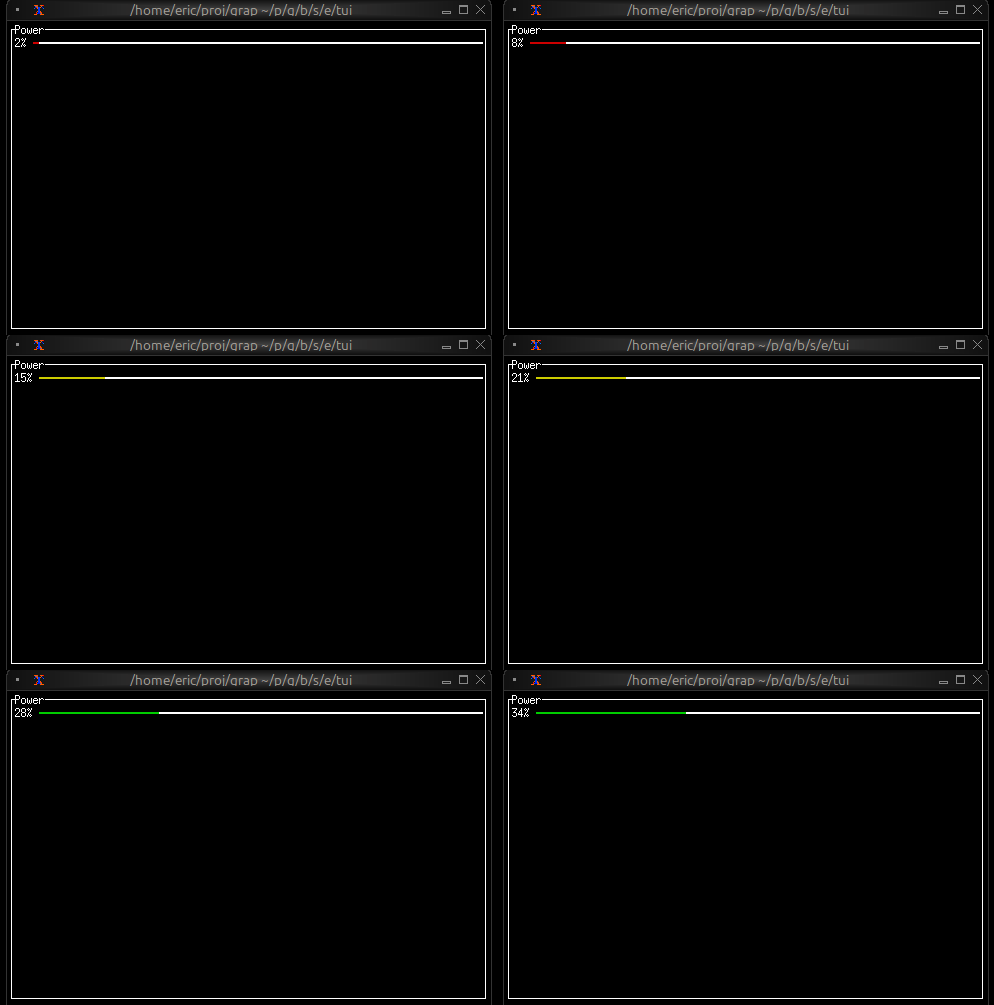
Compact Multi-metric Display
use tui::{line, style, layout::{child, layout}, line_gauge::line_gauge};
layout(
#direction: &`Vertical,
&[
child(#constraint: `Percentage(5), line_gauge(
#filled_style: &style(#fg: `Red),
#label: &line("CPU 45%"),
&0.45
)),
child(#constraint: `Percentage(5), line_gauge(
#filled_style: &style(#fg: `Yellow),
#label: &line("MEM 67%"),
&0.67
)),
child(#constraint: `Percentage(5), line_gauge(
#filled_style: &style(#fg: `Green),
#label: &line("DSK 23%"),
&0.23
))
]
)
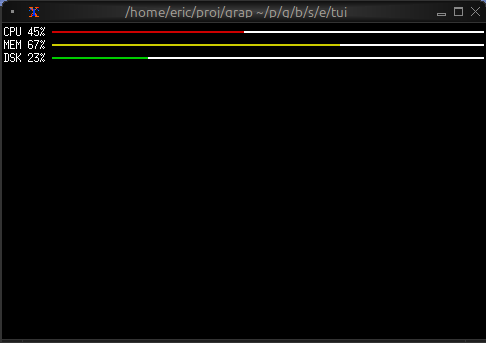
Use Cases
- System resource monitors (CPU, RAM, disk, network)
- Download/upload progress indicators
- Compact status dashboards
- Progress tracking in limited space
Comparison with gauge
Use line_gauge when:
- You need compact, single-line displays
- Vertical space is limited
- You want a more technical/modern look
Use gauge when:
- You have more vertical space available
- You want larger, more prominent indicators
See Also
- gauge - For block-style progress indicators
- sparkline - For historical trend display
- barchart - For categorical value comparison
Input Handling
The input handling system allows TUI applications to respond to keyboard, mouse, and other terminal events. Input handlers wrap widgets and intercept events before they propagate further.
The Event Type
All terminal events are represented by the Event type:
type Event = [
`FocusGained,
`FocusLost,
`Key(KeyEvent),
`Mouse(MouseEvent),
`Paste(string),
`Resize(i64, i64)
];
FocusGained/FocusLost: Terminal window focus changes (enabled while the display runs, independently of mouse input)Key: Keyboard inputMouse: Mouse input (requirestui::mouse <- true)Paste: Bracketed paste contentResize: Terminal was resized to (columns, rows)
Keyboard Events
Keyboard events contain detailed information about key presses:
type KeyEvent = {
code: KeyCode,
kind: KeyEventKind,
modifiers: Array<KeyModifier>,
state: Array<KeyEventState>
};
type KeyEventState = [
`Keypad,
`CapsLock,
`NumLock
];
Key Codes
type KeyCode = [
`Backspace,
`Enter,
`Left,
`Right,
`Up,
`Down,
`Home,
`End,
`PageUp,
`PageDown,
`Tab,
`BackTab,
`Delete,
`Insert,
`F(i64),
`Char(string),
`Null,
`Esc,
`CapsLock,
`ScrollLock,
`NumLock,
`PrintScreen,
`Pause,
`Menu,
`KeypadBegin,
`Media(MediaKeyCode),
`Modifier(ModifierKeyCode)
];
type MediaKeyCode = [
`Play,
`Pause,
`PlayPause,
`Reverse,
`Stop,
`FastForward,
`Rewind,
`TrackNext,
`TrackPrevious,
`Record,
`LowerVolume,
`RaiseVolume,
`MuteVolume
];
type ModifierKeyCode = [
`LeftShift,
`LeftControl,
`LeftAlt,
`LeftSuper,
`LeftHyper,
`LeftMeta,
`RightShift,
`RightControl,
`RightAlt,
`RightSuper,
`RightHyper,
`RightMeta,
`IsoLevel3Shift,
`IsoLevel5Shift
];
Character keys use Char(string), e.g., Char("a") or Char("A").
Function keys use F(i64), e.g., F(1) for F1.
Key Event Kind
type KeyEventKind = [
`Press,
`Repeat,
`Release
];
Most applications only care about Press events, and must say so: a
terminal that reports releases (the Windows console does) delivers two
events per keystroke, and a handler that matches `Key(k) alone
runs twice. on_press(e, f) calls f with the KeyEvent when e is a
press and continues on everything else. It returns what a handler
returns, so it is usually the handler’s whole body:
let handle = |e: Event| on_press(e, |k| select k.code {
`Up => { sel <- k ~ max(0, sel - 1); `Stop },
`Down => { sel <- k ~ sel + 1; `Stop },
_ => `Continue
});
input_handler(#handle: &handle, &view)
A handler that wants mouse, paste, resize or a release selects on the
Event itself. A modal one that lets nothing through wraps the call
and answers every event, which means sampling the answer on the event
(a bare `Stop is a constant: it answers the first event and no
other):
let modal = |e: Event| { on_press(e, keys); e ~ `Stop };
Key Modifiers
type KeyModifier = [
`Shift,
`Control,
`Alt,
`Super,
`Hyper,
`Meta
];
The modifiers array contains all modifiers held during the key event.
Ending the Program
A TUI program runs until Ctrl-C, or until it calls tui::exit, which
ends it the same way: the terminal is restored and the runtime stops.
Fire it from the key that quits, sampled with the event:
`Char("q") => { tui::exit(k ~ null); `Stop }
Handing the Terminal to a Program
Some steps belong on the plain terminal — a sudo password prompt, an
editor. tui::suspend takes a level: while its input is true the
display has released the terminal (leaving the alternate screen and
raw mode, and dropping its input reader), and when the input goes
false the display takes it back with a full repaint. Its result is the
display’s actual state, so start the program on the release and clear
the level with the program’s exit:
let suspended = false;
{
catch(e) { println("could not run: [e]"); suspended <- e ~ false };
suspended <- kk ~ true;
let released = tui::suspend(suspended)?;
let go = select released { true => released, false => never() };
let child = sys::process::spawn(sys::process::options(#args: ["-v"], go ~ "sudo"))?;
let status = sys::process::wait(child.proc)?;
suspended <- status ~ false
}
Mouse Events
Mouse events require enabling mouse support first:
tui::mouse <- true
Mouse events contain position and action information:
type MouseButton = [
`Left,
`Right,
`Middle
];
type MouseEventKind = [
`Down(MouseButton),
`Up(MouseButton),
`Drag(MouseButton),
`Moved,
`ScrollDown,
`ScrollUp,
`ScrollLeft,
`ScrollRight
];
type MouseEvent = {
column: i64,
kind: MouseEventKind,
modifiers: Array<KeyModifier>,
row: i64
};
Creating Input Handlers
Use tui::input_handler::input_handler to wrap a widget with event handling:
/// Route terminal events through `handle` before `child` sees them, one
/// at a time: the child gets an event the handler answers `Continue.
/// An event the handler does not answer in the cycle it was given (its
/// call produced nothing) goes nowhere. The handler is called from the
/// display, outside any `catch`, so it may not raise. While `#enabled`
/// is false, events are dropped: neither the handler nor `child` (nor
/// any handler under it) sees them.
val input_handler: fn(
?#enabled: &[bool, null],
#handle: &fn(e: Event) -> [`Stop, `Continue],
child: &Tui
) -> Tui;
/// Call `f` with the key event when `e` is a key press, and continue
/// on everything else: releases and repeats (a terminal that reports
/// releases would otherwise run every key twice), mouse, paste, focus
/// and resize. It returns what a handler returns, so it is a handler's
/// body, `|e: Event| on_press(e, |k| select k.code { .. })`, or a part
/// of one.
val on_press: fn(e: Event, f: fn(k: KeyEvent) -> [`Stop, `Continue] throws 'e) -> [`Stop, `Continue] throws 'e;
The handler function receives events and returns:
Stop: The event was handled; don’t propagate to other handlersContinue: Pass the event to the next handler
The handler may not raise an error: it is called from the display,
outside any catch, so handle errors in its body ($, or a catch
inside it). on_press is the usual body, and it may throw what its
callback throws.
Basic Example
use tui::{
input_handler::{Event, input_handler, on_press},
paragraph::paragraph
};
let count = 0;
let handle = |e: Event| on_press(e, |k| select k.code {
q@ `Char("q") => {
tui::exit(q ~ null);
`Stop
},
u@ `Up => {
count <- u ~ count + 1;
`Stop
},
d@ `Down => {
count <- d ~ count - 1;
`Stop
},
_ => `Continue
});
input_handler(#handle: &handle, ¶graph(&"[count]"))
The Up and Down arms sample the key (u ~ count + 1). A write
inside a select arm fires when its right-hand side fires: count <- count + 1 would fire again on its own update and loop, and a constant
such as mode <- `Insert fires only at the arm’s first entry, since a
later entry resumes the arm (the check warns of it). Sample the event
that selects the arm instead, k@ `Char("i") => mode <- k ~ `Insert;
the select chapter’s “Writing From an Arm” spells out why.
Conditional Handling
The #enabled parameter turns a handler on and off. A disabled handler
drops every event: neither it nor anything it wraps, nested handlers
included, sees one. So it gates a whole subtree, and whatever enables it
must sit outside it:
use tui::{
input_handler::{Event, input_handler, on_press},
paragraph::paragraph
};
let editing = false;
let typed = "";
// always enabled: 'e' starts editing
let start = |e: Event| on_press(e, |k| select k.code {
i@ `Char("e") if editing == false => {
editing <- i ~ true;
`Stop
},
_ => `Continue
});
// enabled only while editing: Esc stops, characters are typed
let edit = |e: Event| on_press(e, |k| select k.code {
x@ `Esc => {
editing <- x ~ false;
`Stop
},
c@ `Char(s) => {
typed <- c ~ "[typed][s]";
`Stop
},
_ => `Continue
});
let status = select editing {
true => "editing: [typed]",
false => "press e to edit: [typed]"
};
input_handler(
#handle: &start,
&input_handler(#enabled: &editing, #handle: &edit, ¶graph(&status))
)
Event Propagation
Input handlers form a stack. Events flow from the outermost handler inward:
use tui::{
input_handler::{Event, input_handler, on_press},
paragraph::paragraph
};
let last = "nothing yet";
// the outer handler sees each event first and takes only 'a'
let outer = |e: Event| on_press(e, |k| select k.code {
a@ `Char("a") => {
last <- a ~ "outer took a";
`Stop
},
_ => `Continue
});
// the inner handler sees what the outer one passed on
let inner = |e: Event| on_press(e, |k| select k.code {
c@ `Char(s) => {
last <- c ~ "inner took [s]";
`Stop
},
_ => `Continue
});
input_handler(
#handle: &outer,
&input_handler(#handle: &inner, ¶graph(&last))
)
If the outer handler returns Continue, the event reaches the inner one. If
either returns Stop, propagation stops.
Containers route an event to one child: a block passes it to its child,
a layout only to its #focused child (the first when #focused is not
set), tabs only to the selected tab, and an overlay only to its top
layer. A handler in a pane that is not focused, or in a tab that is not
selected, sees no event at all.
The Raw Event Stream
For advanced use cases, you can access the raw event stream directly via
tui::event:
use tui::paragraph::paragraph;
let last = "no key yet";
last <- select tui::event {
`Key(k) => "[k.code]",
_ => never()
};
paragraph(&last)
However, using input_handler is preferred as it integrates properly with the
widget tree and supports the enable/disable pattern.
Text Entry
tui::line_edit is a single-line editor: line_edit::state(initial)
makes its state, line_edit::handle(&mut st, e) applies a key (typing,
paste, Backspace, Delete, Left, Right, Home, End) and answers Stop or
Continue like a handler, and line_edit::view(&st) renders it as a
Line with the cursor shown (#mask hides a secret):
use tui::{
line,
line_edit,
block::block,
input_handler::{Event, input_handler, on_press},
layout::{child, layout},
text::text
};
let ed = line_edit::state("");
let saved = "";
// Enter saves the text and clears the editor; every other key edits
let handle = |e: Event| on_press(e, |k| select k.code {
kk@ `Enter => {
saved <- kk ~ ed.value;
ed <- kk ~ line_edit::state("");
`Stop
},
_ => line_edit::handle(&mut ed, e)
});
input_handler(
#handle: &handle,
&block(
#border: &`All,
#title: &line("type, then Enter"),
&layout(
#direction: &`Vertical,
&[
child(#constraint: `Length(1), text(&[line_edit::view(&ed)])),
child(#constraint: `Length(1), text(&"saved: [saved]"))
]
)
)
)
tui::form::form is a modal form of several line editors: Tab and Down
move to the next field, BackTab and Up to the previous, Enter calls
#on_submit with every field’s text, Esc calls #on_cancel. Render its
view in an input_handler running its handle, on an overlay layer:
use tui::{
block::block,
form::form,
input_handler::{Event, input_handler, on_press},
overlay::{Layer, layer, overlay},
paragraph::paragraph
};
let filling = false;
let greeting = "press f to fill in the form";
let name_form = form(
#title: "Your name",
#on_submit: |v| {
greeting <- "hello [v[0]$] [v[1]$]";
filling <- v ~ false;
null
},
#on_cancel: |e| {
filling <- e ~ false;
null
},
[{ label: "first", value: "" }, { label: "last", value: "" }]
);
let handle_base = |e: Event| on_press(e, |k| select k.code {
f@ `Char("f") => {
filling <- f ~ true;
`Stop
},
_ => `Continue
});
let base = input_handler(
#handle: &handle_base,
&block(#border: &`All, ¶graph(&greeting))
);
let layers: Array<Layer> = select filling {
true => [
layer(
#width: &`Percentage(60),
#height: &`Length(8),
input_handler(#handle: &name_form.handle, &name_form.view)
)
],
false => []
};
overlay(#layers: &layers, base)
Common Patterns
Vim-style Mode Switching
use tui::{
input_handler::{Event, input_handler, on_press},
paragraph::paragraph
};
type Mode = [`Normal, `Insert];
let mode: Mode = `Normal;
let text = "";
let handle = |e: Event| on_press(e, |k| select (k ~ mode, k.code) {
(`Normal, `Char("i")) => {
mode <- k ~ `Insert;
`Stop
},
(`Insert, `Esc) => {
mode <- k ~ `Normal;
`Stop
},
(`Insert, `Char(c)) => {
text <- k ~ "[text][c]";
`Stop
},
_ => `Continue
});
input_handler(#handle: &handle, ¶graph(&"[mode]: [text]"))
Focus Management
use tui::{
block::block,
input_handler::{Event, input_handler, on_press},
layout::{child, layout},
paragraph::paragraph
};
let focused = 0;
let num_widgets = 3;
let handle = |e: Event| on_press(e, |k| select k.code {
t@ `Tab => {
focused <- ((t ~ focused) + 1) % num_widgets;
`Stop
},
t@ `BackTab => {
focused <- ((t ~ focused) - 1 + num_widgets) % num_widgets;
`Stop
},
_ => `Continue
});
let pane = |i| block(
#border: &select focused { n if n == i => `All, _ => `None },
¶graph(&"pane [i]")
);
input_handler(
#handle: &handle,
&layout(
#direction: &`Horizontal,
#focused: &focused,
&[
child(#constraint: `Fill(1), pane(0)),
child(#constraint: `Fill(1), pane(1)),
child(#constraint: `Fill(1), pane(2))
]
)
)
See Also
The Layout Widget
The layout widget arranges child widgets in horizontal or vertical layouts with flexible sizing constraints. It’s the primary tool for organizing complex TUI interfaces and supports focus management for interactive applications.
Interface
use super::{Constraint, Direction, Flex, Size, Tui};
type Spacing = [
`Space(i64),
`Overlap(i64)
];
type Child = {
child: Tui,
constraint: Constraint,
size: [&mut Size, null]
};
val child: fn(
?#size: [&mut Size, null],
#constraint: Constraint,
child: Tui
) -> Child;
type Layout = {
children: &Array<Child>,
direction: &[Direction, null],
flex: &[Flex, null],
focused: &[i64, null],
horizontal_margin: &[i64, null],
margin: &[i64, null],
spacing: &[Spacing, null],
vertical_margin: &[i64, null]
};
val layout: fn(
?#direction: &[Direction, null],
?#flex: &[Flex, null],
?#focused: &[i64, null],
?#horizontal_margin: &[i64, null],
?#margin: &[i64, null],
?#spacing: &[Spacing, null],
?#vertical_margin: &[i64, null],
children: &Array<Child>
) -> Tui;
Parameters
- direction -
HorizontalorVertical(default:Vertical) - focused - Index of the currently focused child (0-indexed, the first when not set). Every event, keys and mouse alike, goes only to the focused child: an
input_handlerin another child hears nothing, and a click over another pane goes to the focused one - flex - How leftover space is distributed when children don’t fill it:
Legacy,Start,End,Center,SpaceBetween,SpaceEvenly,SpaceAround
Constraint Types
- Percentage(n) - Allocates n% of available space
- Length(n) - Fixed width/height in cells
- Min(n) - At least n cells
- Max(n) - At most n cells
- Ratio(num, den) - Fractional allocation (num/den)
- Fill(n) - Takes remaining space after other constraints
Examples
Basic Layout
use tui::{line, block::block, layout::{child, layout}, text::text};
let content1 = text(&"Sidebar content");
let content2 = text(&"Main content");
let sidebar = block(#border: &`All, #title: &line("Sidebar"), &content1);
let main = block(#border: &`All, #title: &line("Main"), &content2);
layout(
#direction: &`Horizontal,
&[
child(#constraint: `Percentage(30), sidebar),
child(#constraint: `Percentage(70), main)
]
)
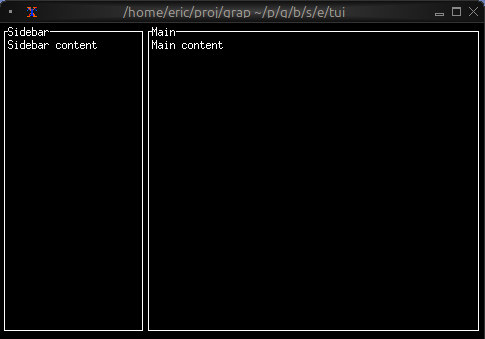
Three-Pane Layout with Focus
use tui::{
block::block,
input_handler::{Event, input_handler, on_press},
layout::{child, layout},
text::text
};
let focused = 0;
let handle_event = |e: Event| on_press(e, |k| select k.code {
k@`Tab => {
focused <- ((k ~ focused) + 1) % 3;
`Stop
},
_ => `Continue
});
let focused_border = |i| select focused { n if n == i => `All, _ => [`Top] };
let left_pane = block(#border:&focused_border(0), &text(&"Left"));
let center_pane = block(#border:&focused_border(1), &text(&"Center"));
let right_pane = block(#border:&focused_border(2), &text(&"Right"));
input_handler(
#handle: &handle_event,
&layout(
#direction: &`Horizontal,
#focused: &focused,
&[
child(#constraint: `Percentage(25), left_pane),
child(#constraint: `Percentage(50), center_pane),
child(#constraint: `Percentage(25), right_pane)
]
)
)
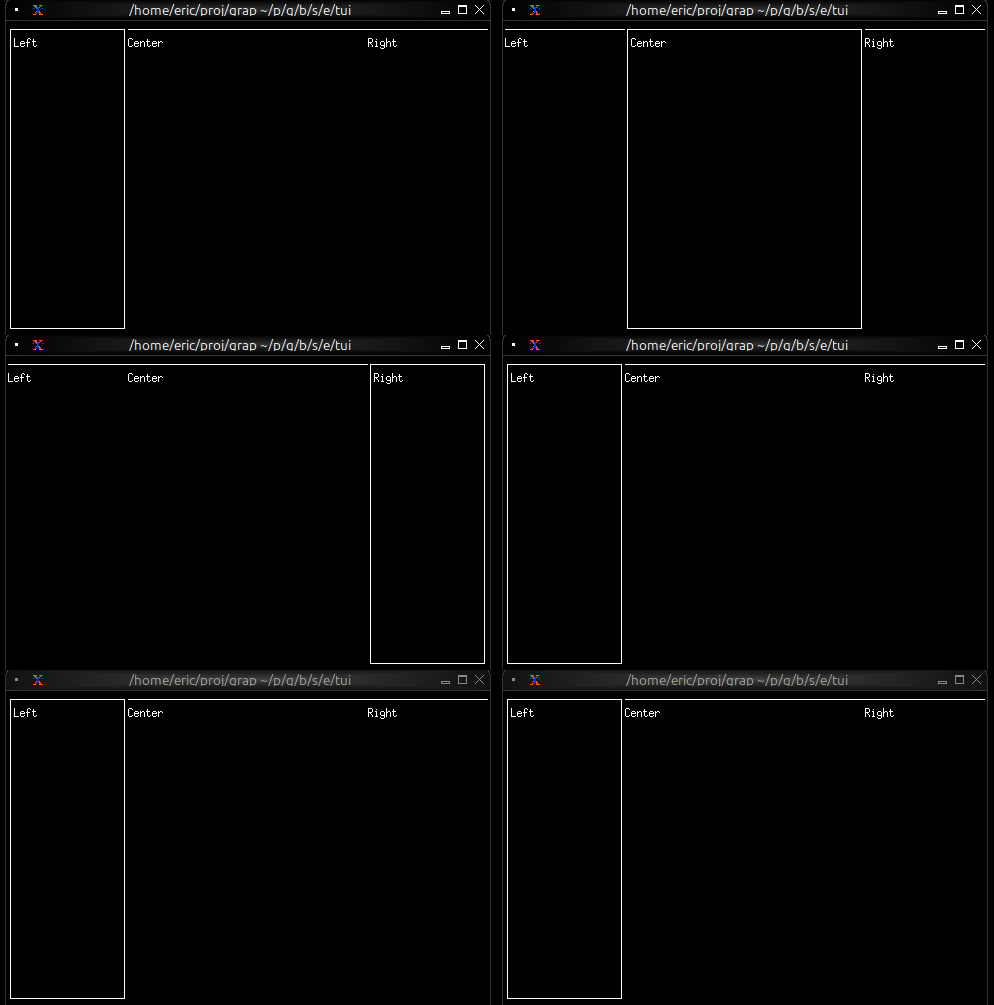
Nested Layouts
use tui::{block::block, layout::{child, layout}, text::text};
let widget1 = block(#border:&`All, &text(&"Widget 1"));
let widget2 = block(#border:&`All, &text(&"Widget 2"));
let bottom_widget = block(#border:&`All, &text(&"Bottom"));
let top_row = layout(
#direction: &`Horizontal,
&[
child(#constraint: `Percentage(50), widget1),
child(#constraint: `Percentage(50), widget2)
]
);
layout(
#direction: &`Vertical,
&[
child(#constraint: `Percentage(50), top_row),
child(#constraint: `Percentage(50), bottom_widget)
]
)
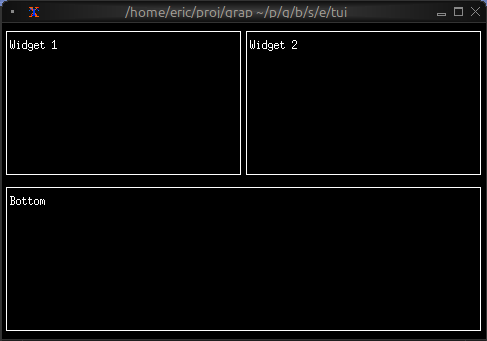
Header/Content/Footer
use tui::{block::block, layout::{child, layout}, text::text};
let header = block(#border:&`All, &text(&"Header"));
let content = block(#border:&`All, &text(&"Main Content"));
let footer = block(#border:&`All, &text(&"Footer"));
layout(
#direction: &`Vertical,
&[
child(#constraint: `Percentage(20), header),
child(#constraint: `Fill(1), content),
child(#constraint: `Percentage(20), footer)
]
)
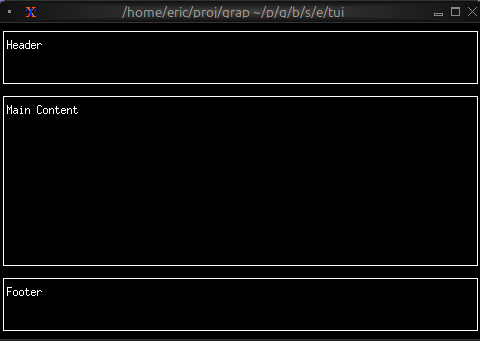
Nested Layout with Focus and Scrolling
Nested layouts whose focused pane is highlighted, with a long paragraph scrolled beside a scrollbar.
use tui::{
line, style,
block::block,
input_handler::{Event, input_handler, on_press},
layout::{child, layout},
paragraph::paragraph,
scrollbar::scrollbar,
text::text
};
let long_text = str::join(#sep: " ", array::init(50, |i| "[i + 1] I've got a lovely bunch of coconuts ... all lined up in a row. Big ones small ones, some the size of your head!"));
let max_scroll = 150;
let focused = 0;
let block1 = block(
#border:&`All,
#border_style: &style(#fg: select focused { f if f == 0 => `Red, _ => `Yellow }),
#title: &line("block 1"),
&text(&"hello layout world!")
);
let block2l = block(
#border:&`All,
#border_style: &style(#fg: `Cyan),
#title: &line("block 2l"),
&text(&"hello again layout world!")
);
let block2r = block(
#border:&`All,
#border_style: &style(#fg: `Cyan),
#title: &line("block 2r"),
&text(&"hello again layout world!")
);
let block2rem = block(
#border:&`All,
#border_style: &style(#fg: `Yellow),
#title: &line("Content!"),
&{
let position = 0;
let handle_event = |e: Event| on_press(e, |k| select k.code {
k@`Up if position > 0 => {
position <- (k ~ position) - 1;
`Stop
},
k@`Down if position < max_scroll => {
position <- (k ~ position) + 1;
`Stop
},
_ => `Continue
});
input_handler(
#handle: &handle_event,
&scrollbar(
#position: &position,
#content_length:&max_scroll,
¶graph(#scroll: &{x: 0, y: position}, &long_text)
)
)
}
);
let block2_layout = layout(
#direction: &`Horizontal,
#focused: &2,
&[
child(#constraint:`Percentage(25), block2l),
child(#constraint:`Percentage(25), block2r),
child(#constraint:`Percentage(50), block2rem)
]
);
let block2 = block(
#border:&`All,
#border_style: &style(#fg: select focused { f if f == 1 => `Red, _ => `Yellow }),
#title: &line("block 2"),
&block2_layout
);
let handle_event = |e: Event| on_press(e, |k| select k.code {
k@`Tab => {
focused <- ((k ~ focused) + 1) % 2;
`Stop
},
_ => `Continue
});
input_handler(
#handle: &handle_event,
&layout(#focused: &focused, &[
child(#constraint:`Percentage(50), block1),
child(#constraint:`Percentage(50), block2)
])
)
See Also
- block - Common child widget for layouts
- input_handler - For handling focus changes
The List Widget
The list widget displays a scrollable list of items and draws a selection the program drives: it handles no keys itself, so the program writes #selected from an input_handler, as the interactive example below does. It’s perfect for menus, file browsers, option selectors, and any interface that requires choosing from a list of items.
Interface
use super::{HighlightSpacing, Line, Style, Tui};
type ListBox = {
highlight_spacing: &[HighlightSpacing, null],
highlight_style: &[Style, null],
highlight_symbol: &[string, null],
items: &Array<Line>,
repeat_highlight_symbol: &[bool, null],
scroll: &[i64, null],
selected: &[i64, null],
style: &[Style, null]
};
val list: fn(
?#highlight_spacing: &[HighlightSpacing, null],
?#highlight_style: &[Style, null],
?#highlight_symbol: &[string, null],
?#repeat_highlight_symbol: &[bool, null],
?#scroll: &[i64, null],
?#selected: &[i64, null],
?#style: &[Style, null],
items: &Array<Line>
) -> Tui;
Parameters
- selected - Index of the currently selected item (0-indexed)
- scroll - Scroll position (offset from the top). A render keeps the selected item in view, moving the offset when the selection is outside it
- highlight_style - Style for the selected item
- highlight_symbol - String displayed before selected item (e.g., “▶ “)
- repeat_highlight_symbol - Whether to repeat symbol on wrapped lines
- style - Base style for all list items
Examples
Basic Usage
use tui::{line, list::list};
let items = [
line("Apple"),
line("Banana"),
line("Cherry")
];
list(
#selected: &0,
&items
)
Interactive List with Navigation
use tui::{
line, style,
block::block,
input_handler::{Event, input_handler, on_press},
list::list
};
let items = [
line("Apple"), line("Banana"), line("Cherry"),
line("Date"), line("Elderberry"), line("Fig"), line("Grape")
];
let last = array::len(items) - 1;
let selected = 0;
let handle_event = |e: Event| on_press(e, |k| select k.code {
k@`Up if selected > 0 => {
selected <- (k ~ selected) - 1;
`Stop
},
k@`Down if selected < last => {
selected <- (k ~ selected) + 1;
`Stop
},
k@`Home => { selected <- k ~ 0; `Stop },
k@`End => { selected <- k ~ last; `Stop },
_ => `Continue
});
input_handler(
#handle: &handle_event,
&block(
#border: &`All,
#title: &line("Fruit Selection"),
&list(
#highlight_style: &style(#fg: `Black, #bg: `Yellow),
#highlight_symbol: &"▶ ",
#selected: &selected,
&items
)
)
)
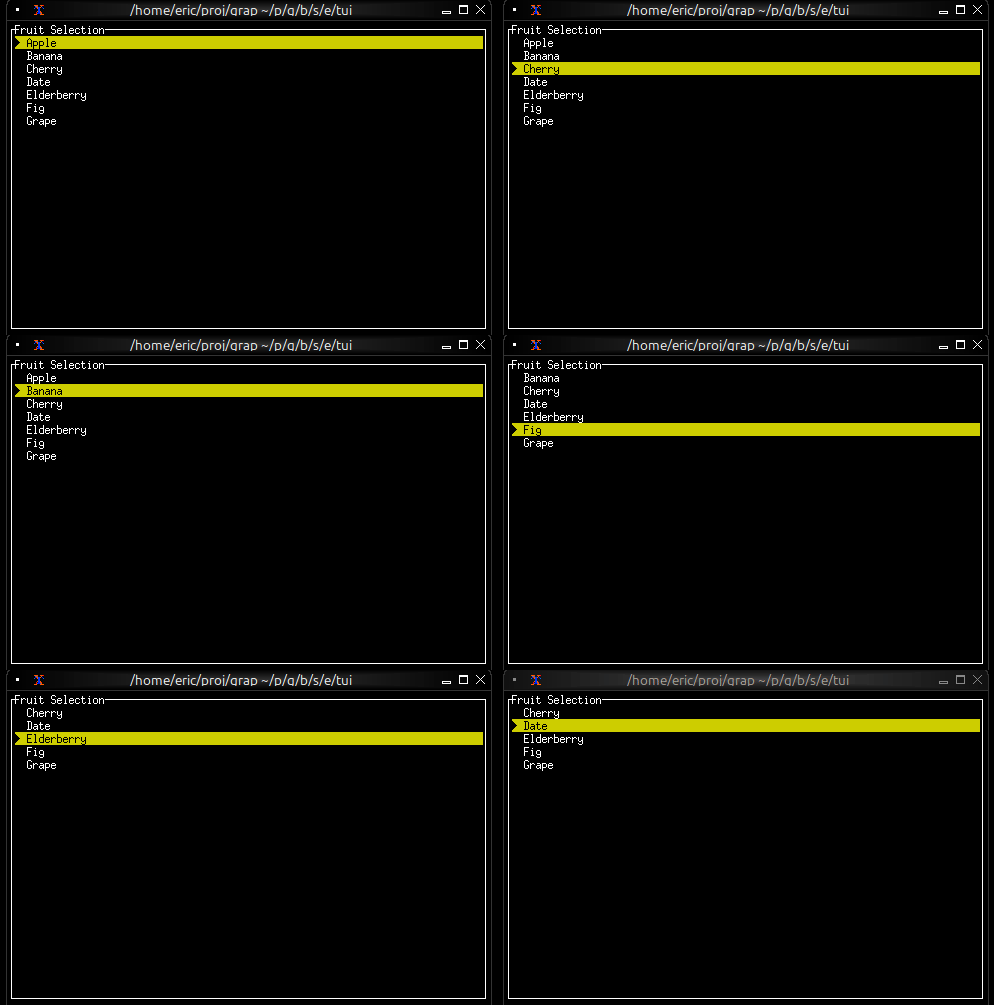
Styled Items
use tui::{line, style, list::list};
let make_item = |text, priority| select priority {
`High => line(#style: style(#fg: `Red, #add_modifier: [`Bold]), text),
`Medium => line(#style: style(#fg: `Yellow), text),
`Low => line(#style: style(#fg: `White), text)
};
let items = [
make_item("Critical bug", `High),
make_item("Feature request", `Medium),
make_item("Documentation", `Low)
];
list(#selected: &0, &items)
See Also
- table - For multi-column structured data
- scrollbar - For adding scrollbars
- block - For containing lists with borders
- tabs - For switching between different lists
The Overlay Widget
The overlay widget draws a reactive stack of layers over a base widget —
the modal and popup primitive. Each layer is centered, sized by its
constraints, and cleared before it draws, so the base never bleeds
through. While any layer is up, the topmost layer captures all
input; when the layers array is empty, the overlay is just its base.
Open a modal by pushing a layer, close it by popping it — in practice,
by deriving the layers array from your state with select.
Interface
use super::{Constraint, Size, Tui};
/// One stacked layer: a widget drawn over the base in a cleared,
/// centered rectangle sized by its constraints.
type Layer = {
child: Tui,
width: &Constraint,
height: &Constraint,
size: [&mut Size, null]
};
/// Build a layer. Defaults to 60% of the overlay area in each axis.
/// `#size` observes the rectangle the layer was actually given, like
/// `layout::child`'s.
val layer: fn(
?#width: &Constraint,
?#height: &Constraint,
?#size: [&mut Size, null],
child: Tui
) -> Layer;
type Overlay = {
base: Tui,
layers: &Array<Layer>
};
/// The base widget with a reactive stack of layers drawn over it, in
/// order — the modal/popup primitive. Each layer is centered, sized by
/// its constraints, and cleared before it draws, so the base never
/// bleeds through. Input goes to the TOPMOST layer while any layer is
/// up and to the base otherwise; an empty `layers` array is just the
/// base. Push a layer to open a modal, pop it to close.
val overlay: fn(#layers: &Array<Layer>, base: Tui) -> Tui;
Parameters
layer
- width - Horizontal size of the layer, as a layout
Constraint(default`Percentage(60)) - height - Vertical size (default
`Percentage(60)) - size - Observes the rectangle the layer was actually given, like
layout::child’s; pass&mut sizewheresize: tui::Size - child - The widget drawn in the layer
overlay
- layers - The stack of layers, drawn in order; the last is topmost and captures input
- base - The widget under the stack
Example
A modal opened with o and closed with Esc. While it is up, its
input handler sees every key; the base handler sees none.
use tui::{
line,
block::block,
input_handler::{Event, input_handler, on_press},
overlay::{Layer, layer, overlay},
paragraph::paragraph
};
let open = false;
let handle_base = |e: Event| on_press(e, |k| select k.code {
c@ `Char("o") => {
open <- c ~ true;
`Stop
},
_ => `Continue
});
let handle_modal = |e: Event| on_press(e, |k| select k.code {
c@ `Esc => {
open <- c ~ false;
`Stop
},
_ => `Continue
});
let base = input_handler(
#handle: &handle_base,
&block(
#border: &`All,
#title: &line("press o to open the modal"),
¶graph(&"base content")
)
);
let modal = layer(
#width: &`Percentage(50),
#height: &`Percentage(30),
input_handler(
#handle: &handle_modal,
&block(
#border: &`All,
#title: &line("modal, Esc closes"),
¶graph(&"while this is up, it captures all input")
)
)
);
let layers: Array<Layer> = select open {
true => [modal],
false => []
};
overlay(#layers: &layers, base)
The Scrollbar Widget
The scrollbar widget adds a visual scrollbar indicator to scrollable content, making it clear when content extends beyond the visible area and showing the current scroll position.
Interface
use super::{Size, Style, Tui};
type ScrollbarOrientation = [
`VerticalRight,
`VerticalLeft,
`HorizontalBottom,
`HorizontalTop
];
type Scrollbar = {
begin_style: &[Style, null],
begin_symbol: &[string, null],
child: &Tui,
content_length: &[i64, null],
end_style: &[Style, null],
end_symbol: &[string, null],
orientation: &[ScrollbarOrientation, null],
position: &[i64, null],
size: [&mut Size, null],
style: &[Style, null],
thumb_style: &[Style, null],
thumb_symbol: &[string, null],
track_style: &[Style, null],
track_symbol: &[string, null],
viewport_length: &[i64, null]
};
val scrollbar: fn(
?#begin_style: &[Style, null],
?#begin_symbol: &[string, null],
?#content_length: &[i64, null],
?#end_style: &[Style, null],
?#end_symbol: &[string, null],
?#orientation: &[ScrollbarOrientation, null],
?#position: &[i64, null],
?#size: [&mut Size, null],
?#style: &[Style, null],
?#thumb_style: &[Style, null],
?#thumb_symbol: &[string, null],
?#track_style: &[Style, null],
?#track_symbol: &[string, null],
?#viewport_length: &[i64, null],
child: &Tui
) -> Tui;
Parameters
- position - Current scroll position, typically the Y offset (default: 0)
- content_length - The number of scroll positions in the content; nothing measures the child, so a scrollbar without one draws no bar (default: 0)
- viewport_length - How many positions the view shows at once, which sizes the thumb (default: the bar’s own length)
- begin_symbol, end_symbol - The arrows at each end; null, the default, draws none
- track_symbol - The track the thumb runs along; null, the default, draws none
- thumb_symbol - The thumb; null, the default, keeps ratatui’s own
- size (output) - Rendered size of the scrollbar area; pass
&mut sizewheresize: tui::Size
Examples
Basic Usage
use tui::{line, paragraph::paragraph, scrollbar::scrollbar};
let lines = array::init(50, |i| line("Line [i]"));
let position = 0;
let content = paragraph(
#scroll: &{x: 0, y: position},
&lines
);
scrollbar(
#position: &position,
#content_length: &array::len(lines),
&content
)
Scrollable Paragraph
use tui::{
line,
block::block,
input_handler::{Event, input_handler, on_press},
paragraph::paragraph,
scrollbar::scrollbar
};
let lines = array::init(100, |i| line("Line [i + 1]"));
let position = 0;
let max_position = array::len(lines) - 1;
let handle_event = |e: Event| on_press(e, |k| select k.code {
k@`Up if position > 0 => {
position <- (k ~ position) - 1;
`Stop
},
k@`Down if position < max_position => {
position <- (k ~ position) + 1;
`Stop
},
k@`PageUp if position > 0 => {
position <- max(0, (k ~ position) - 10);
`Stop
},
k@`PageDown if position < max_position => {
position <- min(max_position, (k ~ position) + 10);
`Stop
},
k@`Home => { position <- k ~ 0; `Stop },
k@`End => { position <- k ~ max_position; `Stop },
_ => `Continue
});
input_handler(
#handle: &handle_event,
&block(
#border: &`All,
#title: &line("Scrollable Content"),
&scrollbar(
#position: &position,
#content_length: &array::len(lines),
¶graph(#scroll: &{x: 0, y: position}, &lines)
)
)
)
Scrollable List
use tui::{
Size, line, style,
input_handler::{Event, input_handler, on_press},
list::list,
scrollbar::scrollbar
};
let items = array::init(30, |i| line("Item [i + 1]"));
let last = array::len(items) - 1;
let selected = 0;
let scroll_pos = 0;
let size: Size = never();
let visible = size.height;
// Auto-scroll to keep selection visible
scroll_pos <- select selected {
s if s < scroll_pos => s,
s if s >= (scroll_pos + visible) => s - visible + 1,
_ => never()
};
let handle_event = |e: Event| on_press(e, |k| select k.code {
k@`Up if selected > 0 => {
selected <- (k ~ selected) - 1;
`Stop
},
k@`Down if selected < last => {
selected <- (k ~ selected) + 1;
`Stop
},
_ => `Continue
});
input_handler(
#handle: &handle_event,
&scrollbar(
#position: &scroll_pos,
#content_length: &array::len(items),
#viewport_length: &visible,
#size: &mut size,
&list(
#highlight_style: &style(#fg: `Black, #bg: `Yellow),
#scroll: &scroll_pos,
#selected: &selected,
&items
)
)
)
See Also
- paragraph - For scrollable text content
- list - For scrollable lists
- table - For scrollable tables
- block - For containing scrollable content
The Sparkline Widget
The sparkline widget renders compact inline charts perfect for dashboards and status displays. It shows data trends in minimal space, with support for color-coded bars based on thresholds.
Interface
use super::{Style, Tui};
type RenderDirection = [
`LeftToRight,
`RightToLeft
];
type SparklineBar = {
style: [Style, null],
value: [f64, null]
};
val sparkline_bar: fn(
?#style: [Style, null],
value: [f64, null]
) -> SparklineBar;
type Sparkline = {
absent_value_style: &[Style, null],
absent_value_symbol: &[string, null],
data: &Array<[SparklineBar, f64, null]>,
direction: &[RenderDirection, null],
max: &[f64, null],
style: &[Style, null]
};
val sparkline: fn(
?#absent_value_style: &[Style, null],
?#absent_value_symbol: &[string, null],
?#direction: &[RenderDirection, null],
?#max: &[f64, null],
?#style: &[Style, null],
data: &Array<[SparklineBar, f64, null]>
) -> Tui;
Parameters
sparkline
- max - Maximum value for scaling (auto-scales if not specified)
- style - Default style for bars
- direction -
LeftToRight(default) orRightToLeft
sparkline_bar
- style - Style for this specific bar
Examples
Basic Usage
use tui::sparkline::sparkline;
let data = [10.0, 25.0, 40.0, 55.0, 70.0, 85.0, 100.0];
sparkline(#max: &100.0, &data)
Threshold-based Coloring
use tui::{line, style, block::block, sparkline::{sparkline, sparkline_bar}};
let data = {
let clock = sys::time::timer(duration:0.3s, true);
let v = rand::rand(#clock, #start:0., #end:100.);
let d = [];
let color = select v {
v if v <= 25. => `Green,
v if v <= 50. => `Yellow,
_ => `Red
};
let v = sparkline_bar(#style: style(#fg: color), v);
d <- array::window(#n:80, clock ~ d, v);
d
};
block(
#border: &`All,
#title: &line("Network Traffic Rate"),
&sparkline(
#style: &style(#fg: `Green),
#max: &100.0,
&data
)
)
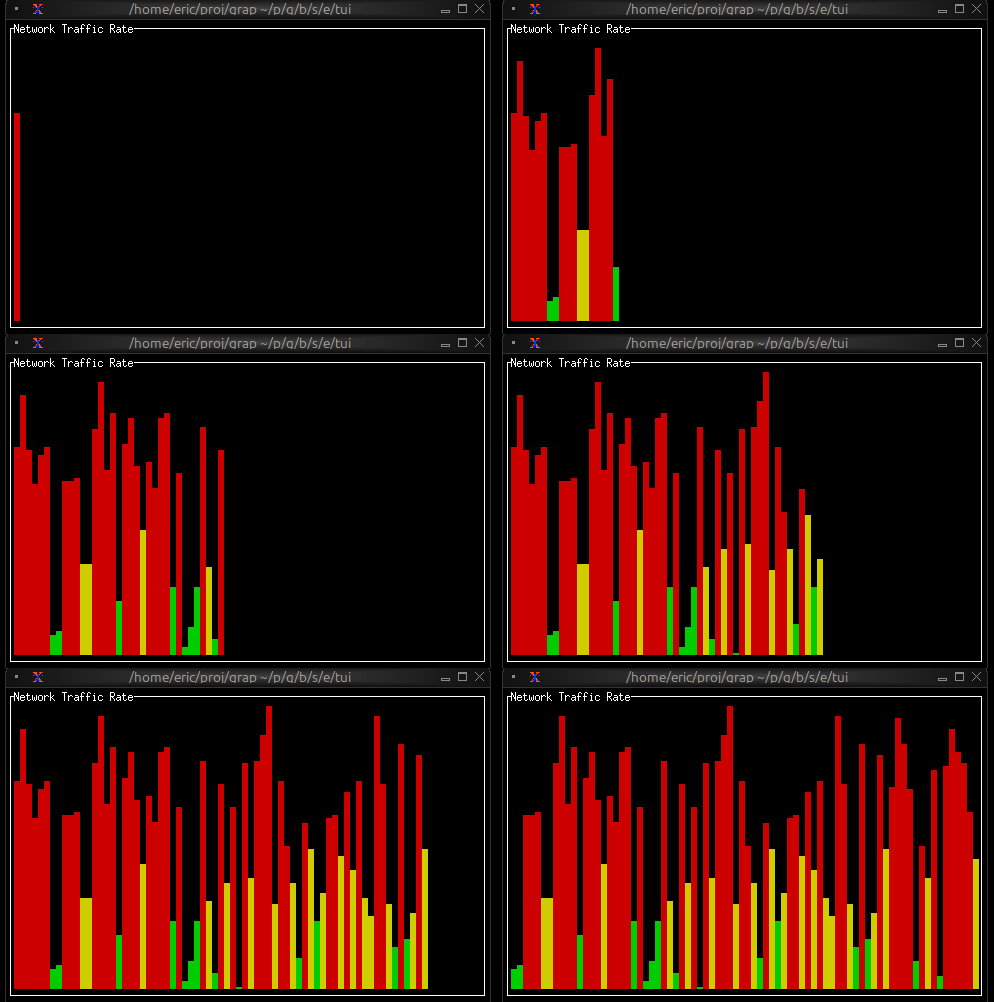
Multi-metric Dashboard
use tui::{line, style, block::block, layout::{child, layout}, sparkline::sparkline};
let cpu_data = [50., 60., 55., 70., 65.];
let mem_data = [30., 35., 40., 38., 42.];
let net_data = [10., 20., 15., 25., 30.];
layout(
#direction: &`Vertical,
&[
child(#constraint: `Percentage(33), block(
#title: &line("CPU"),
&sparkline(#style: &style(#fg: `Red), #max: &100.0, &cpu_data)
)),
child(#constraint: `Percentage(33), block(
#title: &line("Memory"),
&sparkline(#style: &style(#fg: `Yellow), #max: &100.0, &mem_data)
)),
child(#constraint: `Percentage(33), block(
#title: &line("Network"),
&sparkline(#style: &style(#fg: `Cyan), &net_data)
))
]
)
Sparkline from Netidx
This example is self-contained: it both publishes and subscribes to a
simulated CPU value over netidx, so you can run it without any
external publisher. Drop the publish call and point the subscribe at
a real path to chart live data instead — for example, the output of:
top -b | \
grep --line-buffered Cpu | \
awk '{ printf("/local/metrics/cpu|f64|%s\n", 100 - $8); fflush() }' | \
netidx publisher
use tui::sparkline::sparkline;
use core::math;
use sys::time;
// Self-contained: publish a simulated CPU value once a second, then
// subscribe to it for a rolling 60-sample sparkline. Drop the
// publish to point the chart at any other publisher.
let tick = time::timer(duration:1.s, true);
let t = cast<f64>(count(tick))$;
let cpu_source = 50.0;
cpu_source <- tick ~ 50.0 + 40.0 * math::sin(t / 7.0);
sys::net::publish("/local/graphix/sparkline_rolling/cpu", cpu_source);
let data: Array<f64> = [];
let new_value: f64 = sys::net::subscribe("/local/graphix/sparkline_rolling/cpu")$;
data <- array::window(
#n: 60,
new_value ~ data,
new_value
);
sparkline(#max: &100.0, &data)
Use Cases
Sparklines are ideal for:
- System resource monitoring (CPU, memory, network)
- Real-time metrics dashboards
- Compact data visualization in lists or tables
- Rate of change visualization
See Also
- chart - For detailed charts with axes
- gauge - For single current value display
- linegauge - For horizontal progress bars
The Table Widget
The table widget displays structured data in rows and columns with support for selection, scrolling, and custom styling. It’s ideal for data grids, process monitors, file listings, and any tabular data display.
Interface
use super::{Constraint, Flex, HighlightSpacing, Line, Style, Tui};
type Cell = {
content: Line,
style: [Style, null]
};
val cell: fn(
?#style: [Style, null],
content: Line
) -> Cell;
type Row = {
bottom_margin: [i64, null],
cells: Array<Cell>,
height: [i64, null],
style: [Style, null],
top_margin: [i64, null]
};
val row: fn(
?#bottom_margin: [i64, null],
?#height: [i64, null],
?#style: [Style, null],
?#top_margin: [i64, null],
cells: Array<Cell>
) -> Row;
type Table = {
cell_highlight_style: &[Style, null],
column_highlight_style: &[Style, null],
column_spacing: &[i64, null],
flex: &[Flex, null],
footer: &[Row, null],
header: &[Row, null],
highlight_spacing: &[HighlightSpacing, null],
highlight_symbol: &[string, null],
row_highlight_style: &[Style, null],
rows: &Array<&Row>,
selected: &[i64, null],
selected_cell: &[{x: i64, y: i64}, null],
selected_column: &[i64, null],
style: &[Style, null],
widths: &[Array<Constraint>, null]
};
val table: fn(
?#cell_highlight_style: &[Style, null],
?#column_highlight_style: &[Style, null],
?#column_spacing: &[i64, null],
?#flex: &[Flex, null],
?#footer: &[Row, null],
?#header: &[Row, null],
?#highlight_spacing: &[HighlightSpacing, null],
?#highlight_symbol: &[string, null],
?#row_highlight_style: &[Style, null],
?#selected: &[i64, null],
?#selected_cell: &[{x: i64, y: i64}, null],
?#selected_column: &[i64, null],
?#style: &[Style, null],
?#widths: &[Array<Constraint>, null],
rows: &Array<&Row>
) -> Tui;
Parameters
- header - Row object for the table header
- selected - Index of the currently selected row
- row_highlight_style - Style for the selected row
- highlight_symbol - String before selected row
- highlight_spacing - When to show highlight symbol:
Always,WhenSelected,Never - widths - Array of column width constraints
- column_spacing - Number of spaces between columns
- style - Base style for the table
Examples
Basic Usage
use tui::{line, table::{cell, row, table}};
let header = row([
cell(line("Name")),
cell(line("Age")),
cell(line("City"))
]);
let row1 = row([
cell(line("Alice")),
cell(line("28")),
cell(line("New York"))
]);
let row2 = row([
cell(line("Bob")),
cell(line("32")),
cell(line("San Francisco"))
]);
table(
#header: &header,
#selected: &0,
&[&row1, &row2]
)
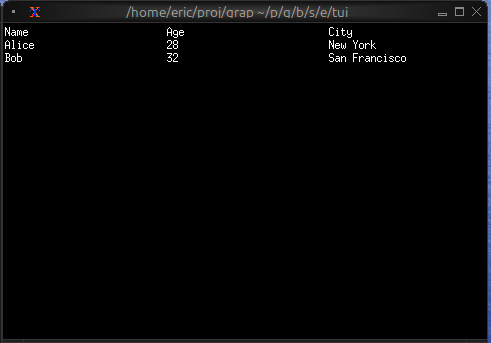
Interactive Table
use tui::{
line, style,
block::block,
input_handler::{Event, input_handler, on_press},
table::{cell, row, table}
};
type User = {name: string, age: i64, city: string};
let users: Array<User> = [
{name: "Alice", age: 28, city: "New York"},
{name: "Bob", age: 32, city: "San Francisco"},
{name: "Charlie", age: 25, city: "Chicago"}
];
let header = row(
#style: style(#fg: `Yellow, #add_modifier: [`Bold]),
[cell(line("Name")), cell(line("Age")), cell(line("City"))]
);
let rows = array::map(users, |u| &row([
cell(line(u.name)),
cell(line("[u.age]")),
cell(line(u.city))
]));
let selected = 0;
let handle_event = |e: Event| on_press(e, |k| select k.code {
k@`Up if selected > 0 => {
selected <- (k ~ selected) - 1;
`Stop
},
k@`Down if selected < array::len(users) - 1 => {
selected <- (k ~ selected) + 1;
`Stop
},
_ => `Continue
});
input_handler(
#handle: &handle_event,
&block(
#border: &`All,
#title: &line("User Directory"),
&table(
#header: &header,
#row_highlight_style: &style(#bg: `Yellow, #fg: `Black),
#selected: &selected,
#column_spacing: &2,
#widths: &[`Percentage(30), `Percentage(20), `Percentage(50)],
&rows
)
)
)
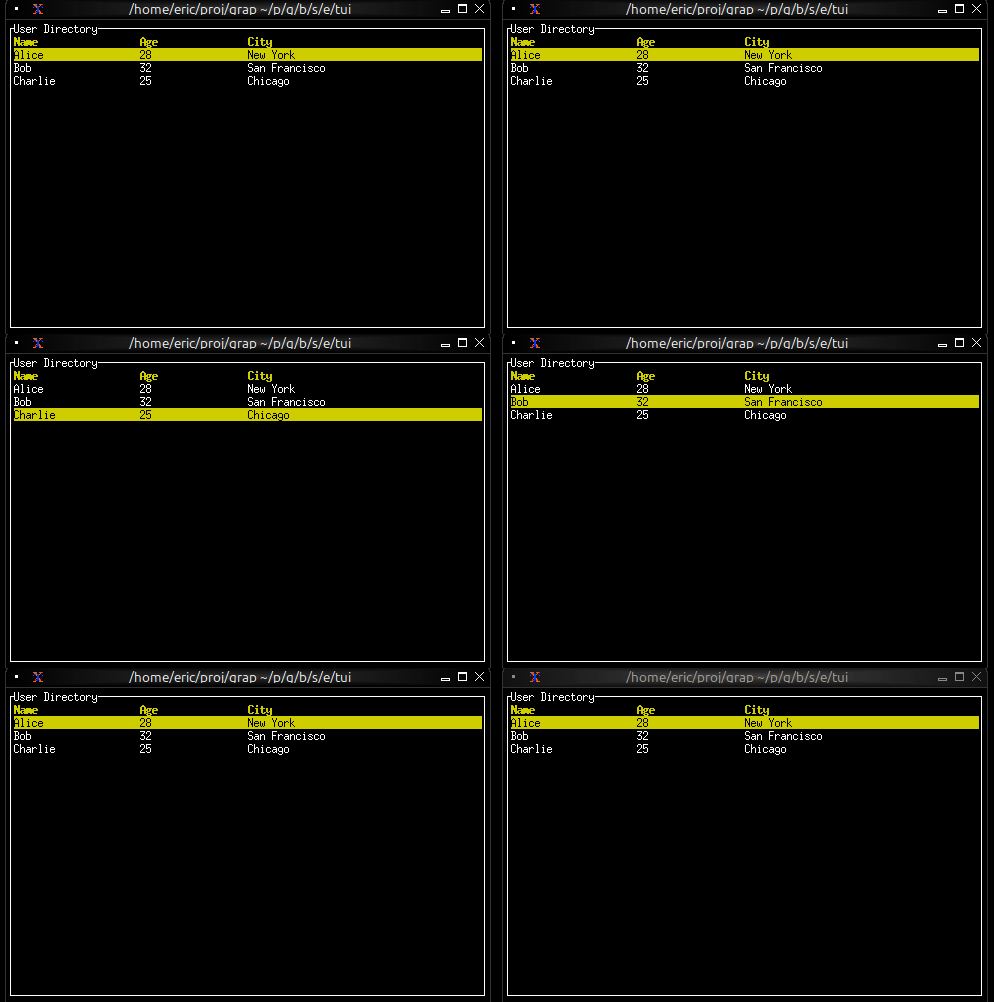
Conditional Cell Styling
use tui::{line, style, table::{cell, row, table}};
let make_cpu_cell = |cpu| {
let s = select cpu {
c if c > 80 => style(#fg: `Red),
c if c > 50 => style(#fg: `Yellow),
_ => style(#fg: `Green)
};
cell(#style: s, line("[cpu]%"))
};
let row1 = row([
cell(line("process-1")),
// Red
make_cpu_cell(85)
]);
let row2 = row([
cell(line("process-2")),
// Yellow
make_cpu_cell(60)
]);
let row3 = row([
cell(line("process-3")),
// Green
make_cpu_cell(30)
]);
let header = row([
cell(#style: style(#add_modifier: [`Bold]), line("Process")),
cell(#style: style(#add_modifier: [`Bold]), line("CPU"))
]);
table(
#header: &header,
#widths: &[`Percentage(60), `Percentage(40)],
&[&row1, &row2, &row3]
)
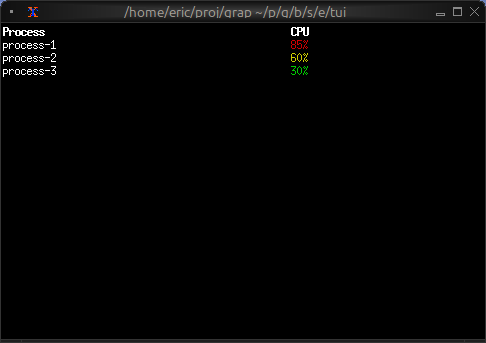
Real-time Updates
use tui::{line, table::{cell, row, table}};
let clock = sys::time::timer(duration:1.s, true);
let cpu_val = 5;
cpu_val <- {
let v = clock ~ cpu_val;
max(0, min(100, v + rand::rand(#clock, #start: -5, #end: 6)))
};
let row1 = row([
cell(line("1")),
cell(line("init")),
cell(line("[cpu_val]%"))
]);
let row2 = row([
cell(line("2")),
cell(line("kthreadd")),
cell(line("0%"))
]);
let rows = [&row1, &row2];
let header = row([cell(line("PID")), cell(line("Name")), cell(line("CPU"))]);
table(#header: &header, &rows)
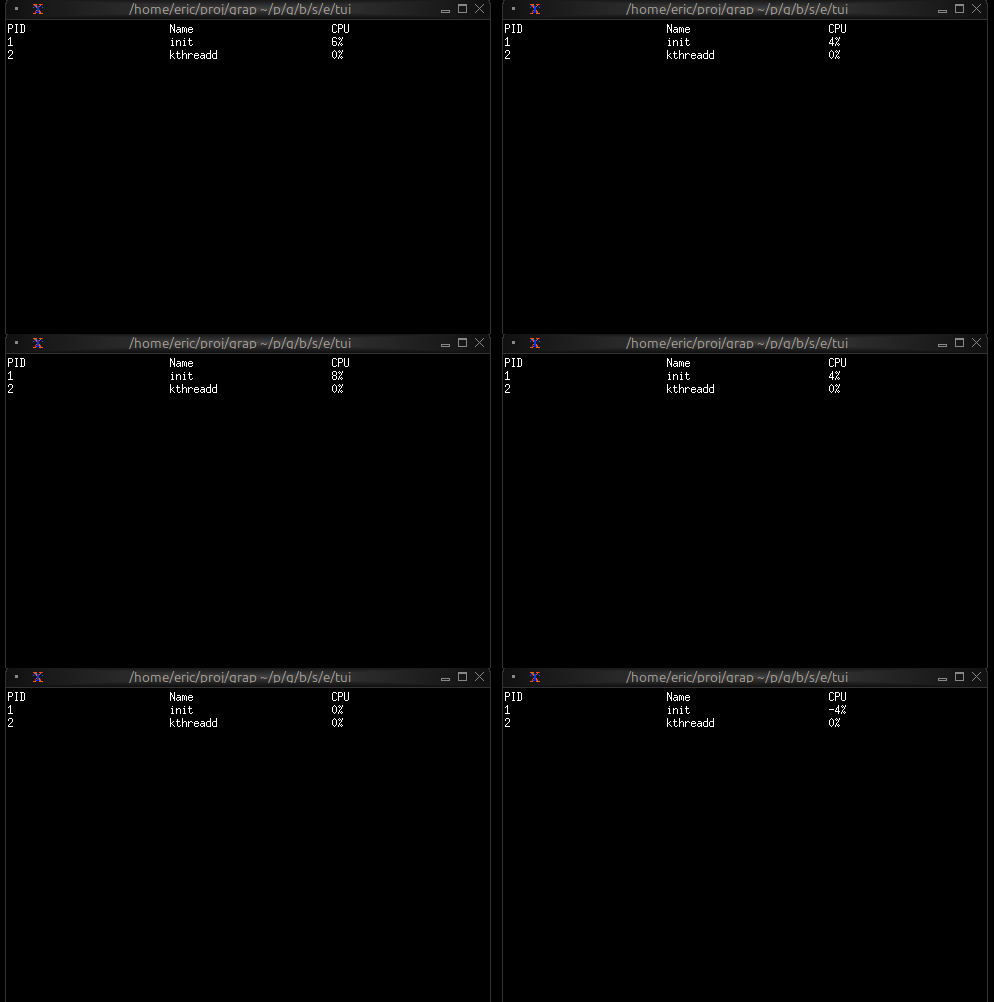
See Also
- list - For simpler single-column selection
- scrollbar - For adding scrollbars
- block - For containing tables with borders
The Tabs Widget
The tabs widget creates a tabbed interface for organizing content into multiple switchable panels. Each tab has a title displayed in the tab bar and associated content that’s shown when the tab is selected.
Interface
use super::{Line, Size, Span, Style, Tui};
type Tabs = {
divider: &[Span, null],
highlight_style: &[Style, null],
padding_left: &[Line, null],
padding_right: &[Line, null],
selected: &[i64, null],
size: [&mut Size, null],
style: &[Style, null],
tabs: &Array<(Line, Tui)>
};
val tabs: fn(
?#divider: &[Span, null],
?#highlight_style: &[Style, null],
?#padding_left: &[Line, null],
?#padding_right: &[Line, null],
?#selected: &[i64, null],
?#size: [&mut Size, null],
?#style: &[Style, null],
tabs: &Array<(Line, Tui)>
) -> Tui;
Parameters
- selected - Index of the currently selected tab (0-indexed). Events go only to the selected tab’s content
- highlight_style - Style for the selected tab title
- style - Base style for unselected tab titles
- divider - A
Spanseparating tab titles
Examples
Basic Usage
use tui::{line, paragraph::paragraph, tabs::tabs};
let tab1 = paragraph(&"This is tab 1");
let tab2 = paragraph(&"This is tab 2");
let tab3 = paragraph(&"This is tab 3");
tabs(
#selected: &0,
&[
(line("One"), tab1),
(line("Two"), tab2),
(line("Three"), tab3)
]
)
Navigation Between Tabs
use tui::{
line, style,
block::block,
input_handler::{Event, input_handler, on_press},
tabs::tabs,
text::text
};
let selected_tab = 0;
let handle_event = |e: Event| on_press(e, |k| select k.code {
k@`Left if selected_tab > 0 => {
selected_tab <- (k ~ selected_tab) - 1;
`Stop
},
k@`Right if selected_tab < 2 => {
selected_tab <- (k ~ selected_tab) + 1;
`Stop
},
k@`Tab => {
selected_tab <- ((k ~ selected_tab) + 1) % 3;
`Stop
},
_ => `Continue
});
let overview = text(&"Overview");
let items = text(&"Items");
let settings = text(&"Settings");
input_handler(
#handle: &handle_event,
&block(
#border: &`All,
#title: &line("Application (←/→ to navigate)"),
&tabs(
#highlight_style: &style(#fg: `Yellow, #add_modifier: [`Bold]),
#style: &style(#fg: `Gray),
#selected: &selected_tab,
&[
(line("Overview"), overview),
(line("Items"), items),
(line("Settings"), settings)
]
)
)
)
Styled Tab Titles
use tui::{line, span, style, tabs::tabs, text::text};
let completed_content = text(&"Completed");
let progress_content = text(&"In Progress");
let failed_content = text(&"Failed");
let tab_list = [
(line([
span(#style: style(#fg: `Green), "✓ "),
span("Completed")
]), completed_content),
(line([
span(#style: style(#fg: `Yellow), "⚠ "),
span("In Progress")
]), progress_content),
(line([
span(#style: style(#fg: `Red), "✗ "),
span("Failed")
]), failed_content)
];
tabs(&tab_list)
Tab with Badge
use tui::{line, span, style, tabs::tabs, text::text};
let unread_count = 5;
let messages_tab = line([
span("Messages"),
span(#style: style(#fg: `Red, #add_modifier: [`Bold]), " ([unread_count])")
]);
let home_content = text(&"Home");
let messages_content = text(&"Messages");
let settings_content = text(&"Settings");
tabs(&[
(line("Home"), home_content),
(messages_tab, messages_content),
(line("Settings"), settings_content)
])
Keyboard Navigation
The widget handles no keys itself: the program writes #selected from
an input_handler around the tabs. Common patterns:
Left/Right- Switch to previous/next tabTab- Cycle forward through tabs- Number keys - Jump directly to tab
See Also
- block - For containing tabs with borders
- list - Common content for tabs
- table - For tabular content in tabs
Graphical User Interfaces (GUIs)
Graphix includes a GUI library built on the Rust iced framework. It provides native desktop windowing with GPU-accelerated rendering via wgpu, giving you high-performance graphical applications with the same reactive programming model used throughout Graphix.
What the GUI Library Offers
- Native windowing: Real desktop windows managed by the OS, not terminal emulation
- GPU-accelerated rendering: All drawing goes through wgpu for smooth, high-performance output
- Reactive widgets: A rich set of interactive widgets (buttons, text inputs, sliders, etc.) that update automatically when their data changes
- Multi-window support: Programs can create and manage multiple windows simultaneously
- Theming: 22 built-in themes plus fully custom palettes and per-widget style overrides
- Auto-detection: The Graphix shell detects GUI mode automatically when the program’s last expression has type
Gui– no special flags needed
The Window Type
Every GUI program is built around windows. The Window type describes a window and its content:
/// A window description
type Window = {
title: &string,
size: &mut Size,
theme: &Theme,
icon: &ImageSource,
content: &Widget
};
/// The custom display root type. An expression of this type
/// triggers the GUI display mode in the shell.
type Gui = Array<&Window>;
val window: fn(
?#title: &string,
?#size: &mut Size,
?#theme: &Theme,
?#icon: &ImageSource,
content: &Widget
) -> Window;
All parameters except the content widget are optional. Defaults are "Graphix" for the title, { width: 800.0, height: 600.0 } for the size, and `Dark for the theme. #size is &mut because the runtime writes the window’s real size back when the user resizes it.
#icon is the window’s icon, an ImageSource: a file path (a string), encoded image `Bytes, `Svg source text, or raw `Rgba pixels. Most of the book’s examples pass #icon: &icon::icon from icon.gx, a module beside them that holds the Graphix logo as an `Svg; leave #icon out and the window has the platform’s default icon.
The final expression of your program should be an Array<&Window> – the shell sees this type and launches the GUI runtime.
Getting Started
Here is a minimal GUI program that creates a window with text and a button:
use gui::{window, button::button, column::column, text::text};
let clicks = 0;
[&window(
#title: &"Graphix Demo",
#theme: &`CatppuccinMocha,
&column(
#spacing: &20.0,
#padding: &`All(40.0),
#halign: &`Center,
#width: &`Fill,
#height: &`Fill,
&[
text(#size: &24.0, &"Hello, Graphix GUI!"),
text(&"A simple window with text and a button"),
button(
#on_press: |c| clicks <- c ~ clicks + 1,
#padding: &`All(10.0),
&text(&"Click me!")
),
text(&"Clicked [clicks] times")
]
)
)]
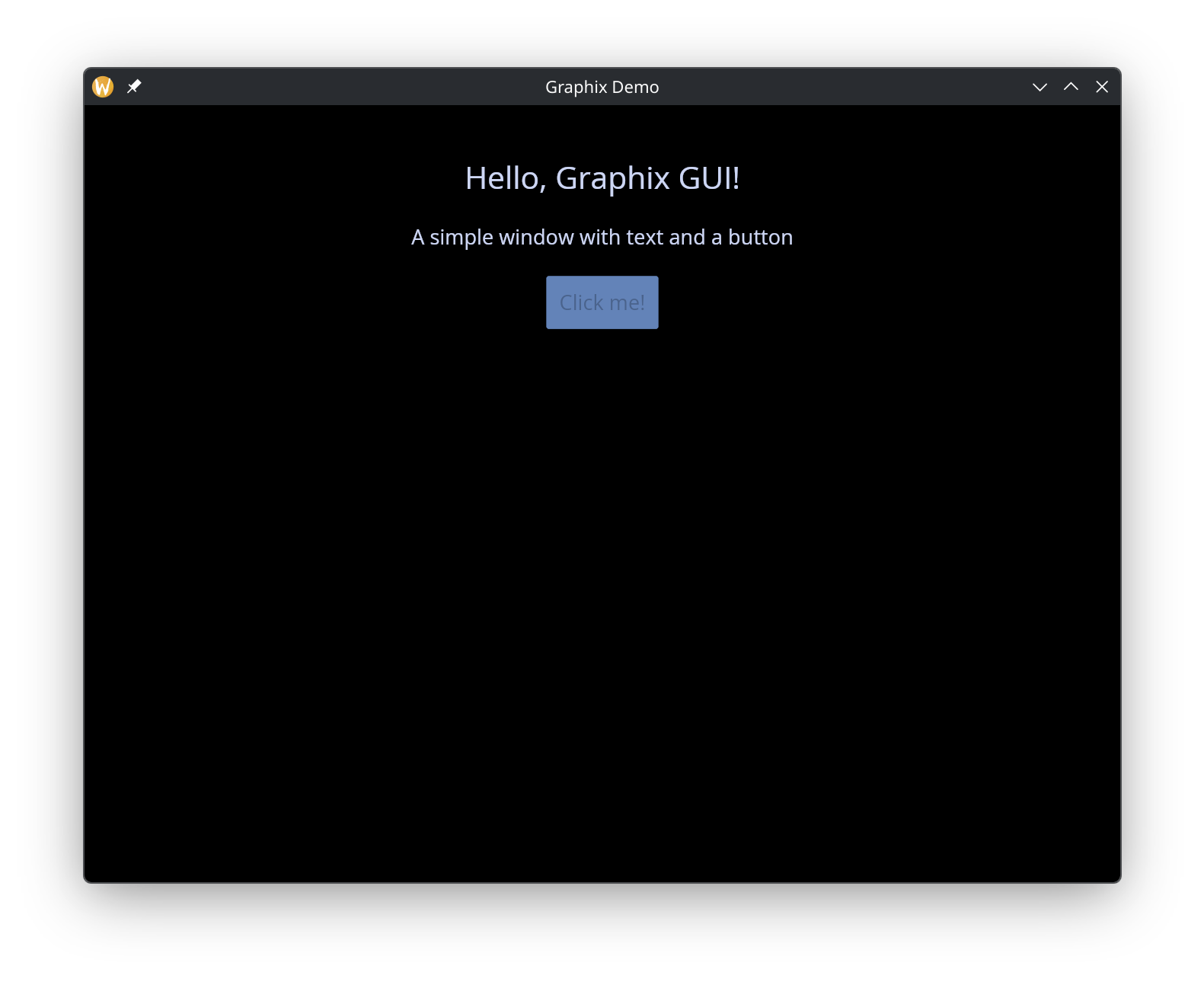
A few things to notice:
use gui::{window, ..}importswindowfrom the top-level GUI module, which also holds the shared types likeLength,Padding, andTheme(writegui::Length, or import them by name too).- Each widget lives in a module of its own name, so the widget function is imported by its path:
button::button,column::column,text::text. - Widget arguments are passed as references with
&. Even literal values like&20.0and&"Hello, Graphix GUI!"are wrapped in&. - The program’s final value is a one-element array
[&window(...)], which has typeGui.
The Reference Pattern
GUI widgets take & references so that updates propagate with fine granularity. When you write:
let name = "world";
text(&"Hello, [name]!")
The text widget holds a reference to the string expression "Hello, [name]!". When name changes, only the computations that depend on it run and only this widget’s value changes; the window is then redrawn from the current widget values.
This is especially important for interactive widgets. A text input, for example, takes a &string for its current value and provides a callback to update it:
let name = "";
text_input(#on_input: |v| name <- v, #placeholder: &"Type here...", &name)
The <- connect operator schedules name to update on the next cycle, and because the text input holds a reference to name, it automatically reflects the new value.
Theming
Every window accepts a #theme parameter that controls its visual appearance. Graphix ships with 22 built-in themes plus support for fully custom palettes and stylesheets:
use gui::{window, column::column, container::container, text::text};
mod icon;
[&window(
#icon: &icon::icon,
#title: &"Theme Demo",
#theme: &`TokyoNight,
&container(
#width: &`Fill,
#height: &`Fill,
#halign: &`Center,
#valign: &`Center,
#padding: &`All(40.0),
&column(
#spacing: &20.0,
#halign: &`Center,
#width: &`Fill,
&[
text(#size: &28.0, #halign: &`Center, #width: &`Fill, &"Theme Demo"),
text(
#size: &16.0, #halign: &`Center, #width: &`Fill,
&"Using TokyoNight theme")
]
)
)
)]
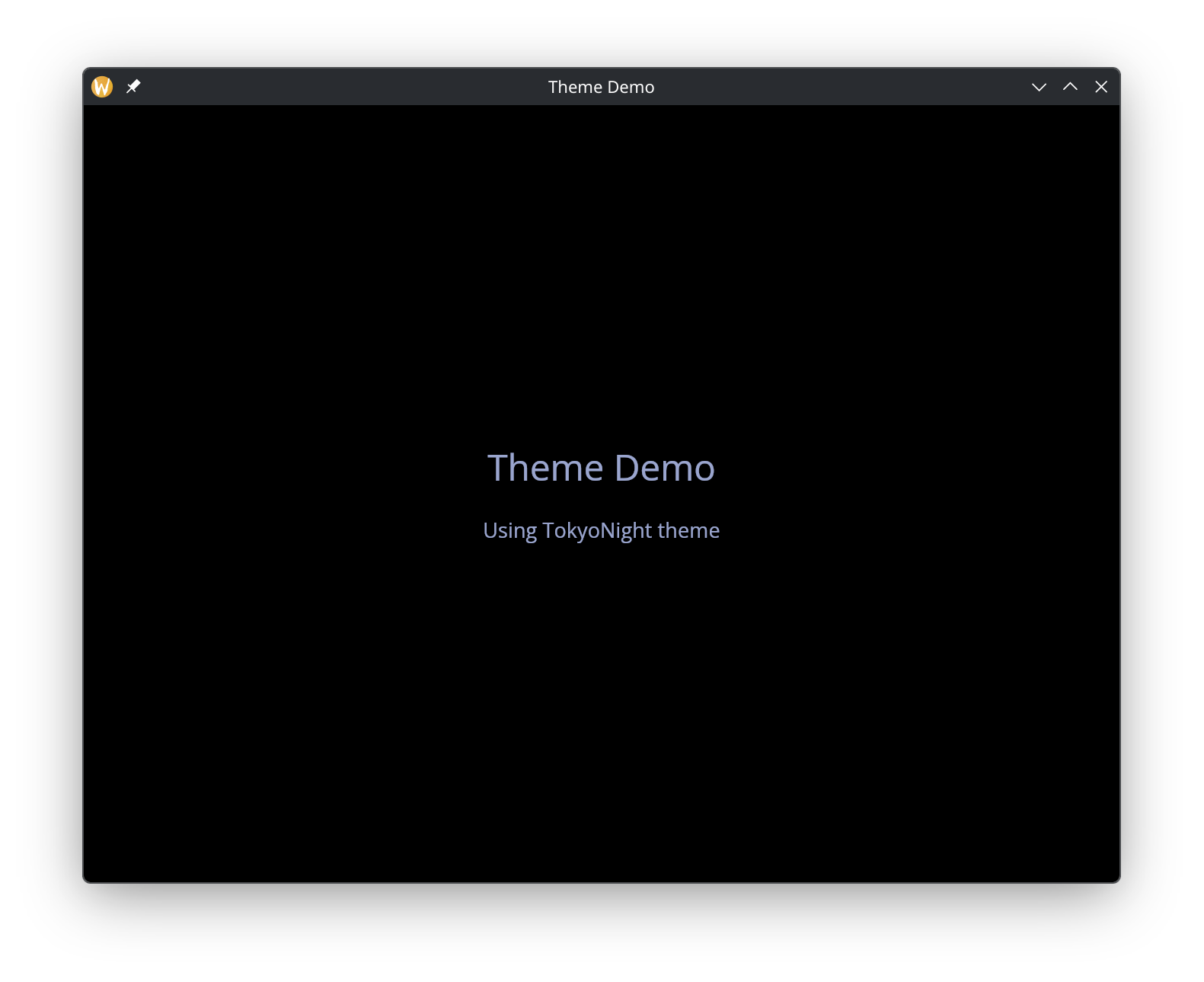
See the theming page for the full list of built-in themes, custom palette creation, and per-widget style overrides.
Further Reading
- Types – reference for all shared types (
Widget,Length,Padding,Color,Font, etc.) - Theming – built-in themes, custom palettes, and per-widget stylesheets
Types
The GUI library defines a set of shared types used across all widgets. These types control layout, sizing, colors, fonts, and more. They are all defined in the top-level gui module: write them gui::Length, or import them by name, use gui::{Length, Padding}.
Layout Types
Length
Controls how a widget is sized along a single axis:
type Length = [`Fill, `FillPortion(i64), `Shrink, `Fixed(f64)];
Padding
Controls spacing between a widget’s border and its content:
type Padding = [
`All(f64),
`Axis({x: f64, y: f64}),
`Each({top: f64, right: f64, bottom: f64, left: f64})
];
`All(px)– uniform padding on all sides.`Axis({x, y})– separate horizontal (x) and vertical (y) padding.`Each({top, right, bottom, left})– individual padding per side.
container(
#padding: &`All(20.0),
&text(&"Padded content")
);
container(
#padding: &`Each({top: 10.0, right: 20.0, bottom: 10.0, left: 20.0}),
&text(&"Different padding per side")
)
Size
A width/height pair used for window dimensions:
type Size = { width: f64, height: f64 };
HAlign and VAlign
Horizontal and vertical alignment for positioning content within a container:
type HAlign = [`Left, `Center, `Right];
type VAlign = [`Top, `Center, `Bottom];
column(
#halign: &`Center,
#width: &`Fill,
&[text(&"Centered text")]
);
container(
#halign: &`Center,
#valign: &`Center,
#width: &`Fill,
#height: &`Fill,
&text(&"Dead center")
)
Visual Types
Color
RGBA color with floating-point components in the range 0.0 to 1.0. Color is an abstract type — use the color constructor to create values. Components default to 0.0 except alpha which defaults to 1.0. Out-of-range values return an InvalidColor error.
// Solid red ($ swallows errors with a warning)
let red = color(#r: 1.0)$;
// Semi-transparent blue (? propagates errors)
let blue_50 = color(#b: 1.0, #a: 0.5)?
Colors are used in custom themes and per-widget style overrides. See the theming page for details.
Font Types
Fonts are described by family, weight, and style:
type FontFamily = [`SansSerif, `Serif, `Monospace, `Name(string)];
type FontWeight = [
`Thin, `ExtraLight, `Light, `Normal, `Medium,
`SemiBold, `Bold, `ExtraBold, `Black
];
type FontStyle = [`Normal, `Italic, `Oblique];
type Font = { family: FontFamily, weight: FontWeight, style: FontStyle };
FontFamilyselects the font.`Name(string)allows loading a specific named font.FontWeightranges from`Thin(lightest) to`Black(heaviest).FontStylecontrols italic/oblique rendering.
text(
#font: &{ family: `Monospace, weight: `Bold, style: `Normal },
&"Monospace bold text"
)
Content Types
ScrollDirection
Controls which axes a scrollable widget allows scrolling on:
type ScrollDirection = [`Vertical, `Horizontal, `Both];
TooltipPosition
Controls where a tooltip appears relative to its target widget:
type TooltipPosition = [`Top, `Bottom, `Left, `Right, `FollowCursor];
ContentFit
Controls how an image or SVG is scaled within its bounds:
type ContentFit = [`Fill, `Contain, `Cover, `None, `ScaleDown];
You do not normally construct Widget variants directly. Each widget module exports a constructor function (e.g., gui::text::text(...), gui::button::button(...)) that returns Widget. This means a column’s children array has type Array<Widget> and can contain any mix of widgets:
use gui::{button::button, column::column, slider::slider, text::text};
let v = 50.0;
column(
#spacing: &10.0,
&[
text(&"A text widget"),
button(&text(&"A button")),
slider(#min: &0.0, #max: &100.0, &v)
]
)
Theming
Every GUI window accepts a #theme parameter that controls the visual appearance of all widgets inside it. Graphix provides 22 built-in themes, plus two mechanisms for full customization: custom palettes and custom stylesheets.
Built-in Themes
The Theme type enumerates all available themes:
type Theme = [
`Light,
`Dark,
`Dracula,
`Nord,
`SolarizedLight,
`SolarizedDark,
`GruvboxLight,
`GruvboxDark,
`CatppuccinLatte,
`CatppuccinFrappe,
`CatppuccinMacchiato,
`CatppuccinMocha,
`TokyoNight,
`TokyoNightStorm,
`TokyoNightLight,
`KanagawaWave,
`KanagawaDragon,
`KanagawaLotus,
`Moonfly,
`Nightfly,
`Oxocarbon,
`Ferra,
`Custom(StyleSheet),
`CustomPalette(Palette)
];
Apply a theme by passing it to the window function:
window(#theme: &`CatppuccinMocha, &content)
Since #theme takes a &Theme, you can change the theme reactively:
let dark = true;
let theme = select dark {
true => `Dark,
false => `Light
};
window(#theme: &theme, &content)
Custom Palettes
For quick color customization without defining per-widget styles, use `CustomPalette with a Palette:
type Palette = {
background: Color,
danger: Color,
primary: Color,
success: Color,
text: Color,
warning: Color
};
The palette defines the core colors from which iced derives all widget styles automatically:
background– window and container backgrounds.text– default text color.primary– accent color for buttons, sliders, a toggled-on toggler, active elements.success– color for success states.danger– color for destructive actions and error states.warning– color for warning indicators.
use gui::{
color, window,
button::button,
column::column,
slider::slider,
text::text,
toggler::toggler
};
mod icon;
let enabled = true;
let br = 0.0;
let cv = |base| min(1.0, base + br);
let my_palette = {
background: color(#r: cv(0.1), #g: cv(0.1), #b: cv(0.15))$,
text: color(#r: cv(0.9), #g: cv(0.9), #b: cv(0.95))$,
primary: color(#r: cv(0.4), #g: cv(0.6), #b: cv(1.0))$,
success: color(#r: cv(0.3), #g: cv(0.8), #b: cv(0.4))$,
danger: color(#r: cv(1.0), #g: cv(0.3), #b: cv(0.3))$,
warning: color(#r: cv(1.0), #g: cv(0.8), #b: cv(0.2))$
};
let col = column(
#spacing: &15.0,
#padding: &`All(30.0),
#width: &`Fill,
&[
text(#size: &24.0, &"Custom Palette"),
button(#on_press: |_| null, #padding: &`All(10.0), &text(&"Primary Button")),
toggler(#label: &"Enabled", #on_toggle: |v| enabled <- v, &enabled),
slider(#min: &0.0, #max: &0.5, #step: &0.05, #on_change: |v| br <- v, &br),
text(&"Brightness: [br]")
]
);
[&window(
#icon: &icon::icon,
#title: &"Custom Palette",
#theme: &`CustomPalette(my_palette),
&col
)]
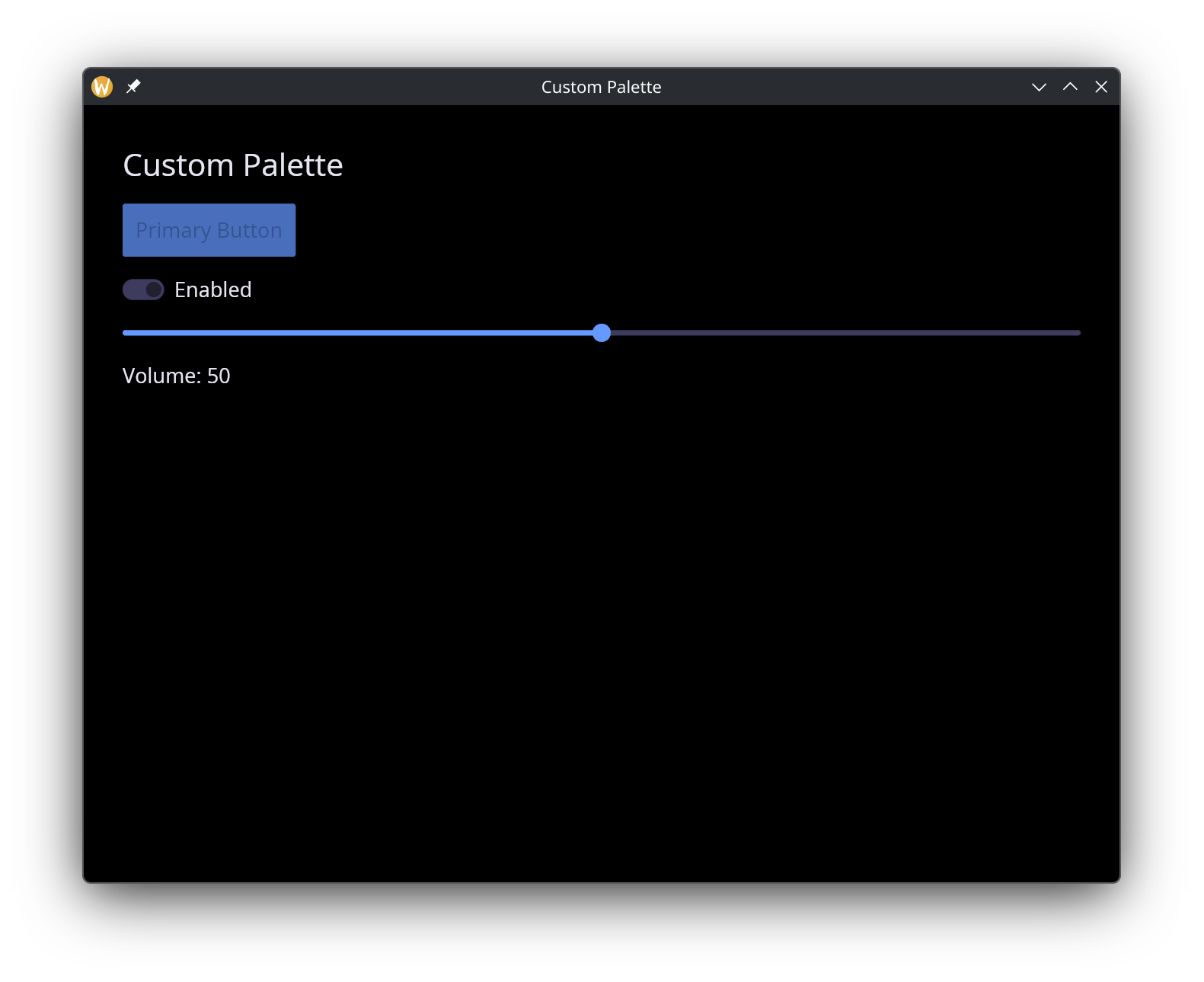
Custom Stylesheets
For full control over individual widget appearances, use `Custom(StyleSheet). A stylesheet combines a palette with optional per-widget style overrides:
/// Full custom theme with optional per-widget style overrides
type StyleSheet = {
button: [ButtonStyle, null],
checkbox: [CheckboxStyle, null],
container: [ContainerStyle, null],
menu: [MenuStyle, null],
palette: Palette,
pick_list: [PickListStyle, null],
progress_bar: [ProgressBarStyle, null],
radio: [RadioStyle, null],
rule: [RuleStyle, null],
scrollable: [ScrollableStyle, null],
slider: [SliderStyle, null],
text_editor: [TextEditorStyle, null],
text_input: [TextInputStyle, null],
toggler: [TogglerStyle, null]
};
Every widget style field is optional (union with null). When null, the widget inherits its style from the palette automatically.
The stylesheet Builder
Use the stylesheet function to construct a StyleSheet without filling in every field manually. Only #palette is required; all widget style parameters default to null:
/// Build a full custom theme from a palette and optional per-widget styles.
/// Omitted widget styles default to the theme's built-in palette-derived style.
val stylesheet: fn(
#palette: Palette,
?#button: [ButtonStyle, null],
?#checkbox: [CheckboxStyle, null],
?#container: [ContainerStyle, null],
?#menu: [MenuStyle, null],
?#pick_list: [PickListStyle, null],
?#progress_bar: [ProgressBarStyle, null],
?#radio: [RadioStyle, null],
?#rule: [RuleStyle, null],
?#scrollable: [ScrollableStyle, null],
?#slider: [SliderStyle, null],
?#text_editor: [TextEditorStyle, null],
?#text_input: [TextInputStyle, null],
?#toggler: [TogglerStyle, null]
) -> StyleSheet;
Example with a custom palette and button override:
use gui::{
color, window,
button::button,
column::column,
container::container,
rule::horizontal_rule,
slider::slider,
style::{
button_style, container_style, slider_style, stylesheet, text_input_style,
toggler_style
},
text::text,
text_input::text_input,
toggler::toggler
};
mod icon;
let palette = {
background: color(#r: 0.12, #g: 0.12, #b: 0.18)$,
text: color(#r: 0.85, #g: 0.85, #b: 0.9)$,
primary: color(#r: 0.55, #g: 0.35, #b: 0.95)$,
success: color(#r: 0.2, #g: 0.8, #b: 0.5)$,
danger: color(#r: 0.95, #g: 0.25, #b: 0.35)$,
warning: color(#r: 1.0, #g: 0.7, #b: 0.1)$
};
let theme = `Custom(stylesheet(
#palette: palette,
#button: button_style(
#background: color(#r: 0.55, #g: 0.35, #b: 0.95)$,
#text_color: color(#r: 1.0, #g: 1.0, #b: 1.0)$,
#border_radius: 12.0
),
#text_input: text_input_style(
#background: color(#r: 0.16, #g: 0.16, #b: 0.24)$,
#border_color: color(#r: 0.55, #g: 0.35, #b: 0.95, #a: 0.5)$,
#border_radius: 8.0,
#border_width: 2.0,
#value_color: color(#r: 0.9, #g: 0.9, #b: 0.95)$,
#placeholder_color: color(#r: 0.5, #g: 0.5, #b: 0.6)$
),
#slider: slider_style(
#rail_color: color(#r: 0.3, #g: 0.3, #b: 0.4)$,
#rail_fill_color: color(#r: 0.55, #g: 0.35, #b: 0.95)$,
#handle_color: color(#r: 0.7, #g: 0.55, #b: 1.0)$,
#handle_radius: 8.0
),
#toggler: toggler_style(
#background: color(#r: 0.3, #g: 0.3, #b: 0.4)$,
#foreground: color(#r: 0.85, #g: 0.85, #b: 0.9)$
),
#container: container_style(
#background: color(#r: 0.15, #g: 0.15, #b: 0.22)$,
#border_color: color(#r: 0.55, #g: 0.35, #b: 0.95, #a: 0.3)$,
#border_width: 1.0,
#border_radius: 10.0
)
));
let name = "";
let volume = 50.0;
let dark_mode = true;
[&window(
#icon: &icon::icon,
#title: &"Custom Styles",
#theme: &theme,
&container(
#padding: &`All(30.0),
#width: &`Fill,
#height: &`Fill,
&column(
#spacing: &15.0,
#width: &`Fill,
&[
text(#size: &24.0, &"Custom Stylesheet Demo"),
horizontal_rule(),
text_input(
#placeholder: &"Type something...",
#on_input: |v| name <- v,
&name
),
slider(
#min: &0.0, #max: &100.0,
#on_change: |v| volume <- v,
&volume
),
text(&"Volume: [volume]"),
toggler(
#label: &"Dark mode",
#on_toggle: |v| dark_mode <- v,
&dark_mode
),
button(#on_press: |_| null, #padding: &`All(12.0), &text(&"Styled Button"))
]
)
)
)]
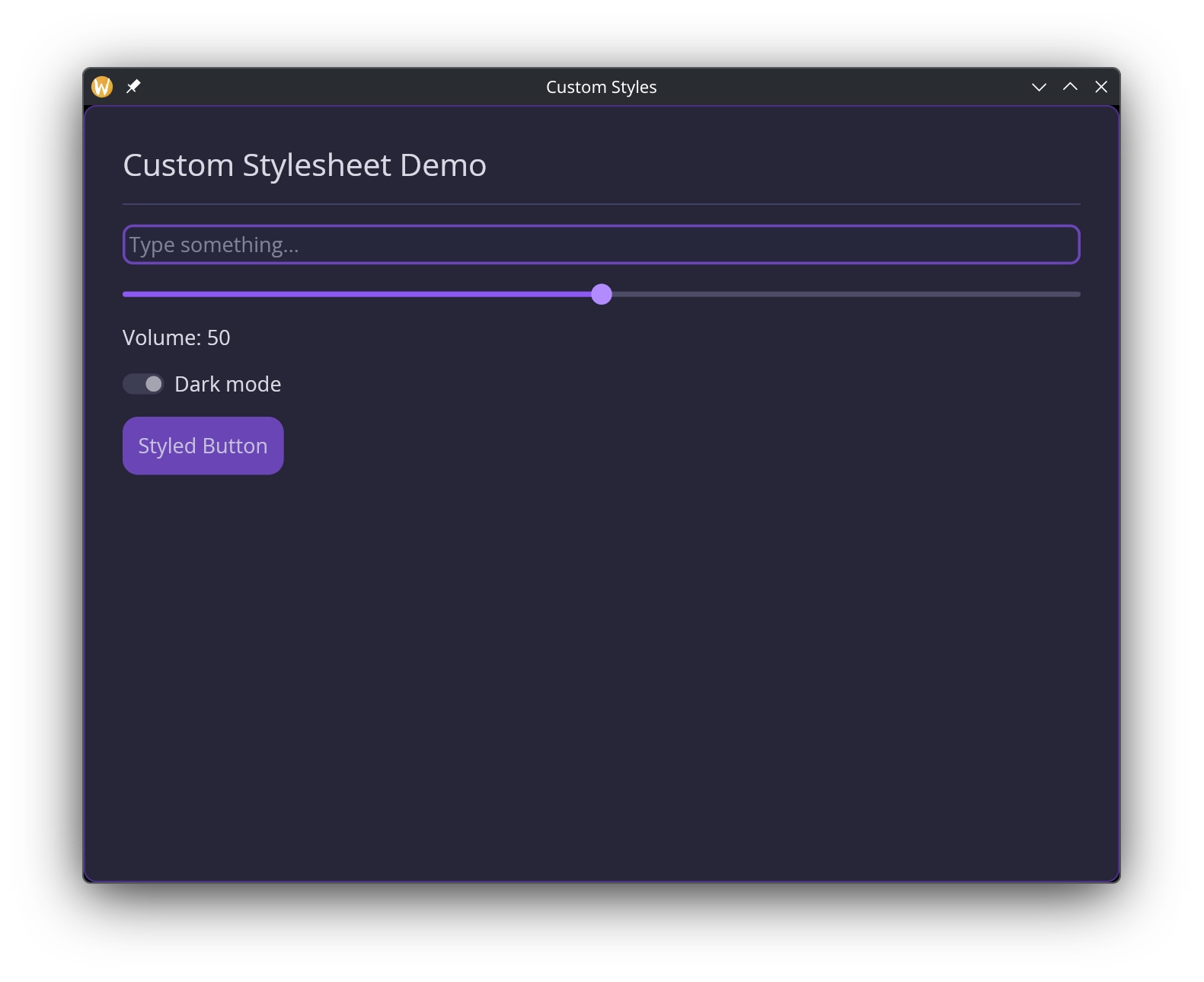
Per-Widget Style Types
Each widget style type is a struct where every field is optional ([T, null]). A null field means “inherit from the theme palette.” The GUI module provides both the types and corresponding builder functions.
ButtonStyle
/// Per-widget style types for custom theming.
/// All fields are optional — null fields inherit the theme default.
type ButtonStyle = {
background: [Color, null],
border_color: [Color, null],
border_radius: [f64, null],
border_width: [f64, null],
text_color: [Color, null]
};
/// Build a ButtonStyle with optional overrides
val button_style: fn(
?#background: [Color, null],
?#border_color: [Color, null],
?#border_radius: [f64, null],
?#border_width: [f64, null],
?#text_color: [Color, null]
) -> ButtonStyle;
TextInputStyle
type TextInputStyle = {
background: [Color, null],
border_color: [Color, null],
border_radius: [f64, null],
border_width: [f64, null],
icon_color: [Color, null],
placeholder_color: [Color, null],
selection_color: [Color, null],
value_color: [Color, null]
};
/// Build a TextInputStyle with optional overrides
val text_input_style: fn(
?#background: [Color, null],
?#border_color: [Color, null],
?#border_radius: [f64, null],
?#border_width: [f64, null],
?#icon_color: [Color, null],
?#placeholder_color: [Color, null],
?#selection_color: [Color, null],
?#value_color: [Color, null]
) -> TextInputStyle;
SliderStyle
type SliderStyle = {
handle_border_color: [Color, null],
handle_border_width: [f64, null],
handle_color: [Color, null],
handle_radius: [f64, null],
rail_color: [Color, null],
rail_fill_color: [Color, null],
rail_width: [f64, null]
};
/// Build a SliderStyle with optional overrides
val slider_style: fn(
?#handle_border_color: [Color, null],
?#handle_border_width: [f64, null],
?#handle_color: [Color, null],
?#handle_radius: [f64, null],
?#rail_color: [Color, null],
?#rail_fill_color: [Color, null],
?#rail_width: [f64, null]
) -> SliderStyle;
Other Widget Styles
The remaining widget style types follow the same pattern – a struct of optional fields with a corresponding builder function:
| Type | Builder | Key Fields |
|---|---|---|
CheckboxStyle | checkbox_style | accent, background, border_color, border_radius, border_width, icon_color, text_color |
ContainerStyle | container_style | background, border_color, border_radius, border_width, text_color |
MenuStyle | menu_style | background, border_color, border_radius, border_width, selected_background, selected_text_color, text_color |
PickListStyle | pick_list_style | background, border_color, border_radius, border_width, handle_color, placeholder_color, text_color |
ProgressBarStyle | progress_bar_style | background, bar_color, border_radius |
RadioStyle | radio_style | background, border_color, border_width, dot_color, text_color |
RuleStyle | rule_style | color, fill_percent (the share of the container the line covers, 0 to 100), radius |
ScrollableStyle | scrollable_style | background, border_color, border_radius, border_width, scroller_color |
TextEditorStyle | text_editor_style | background, border_color, border_radius, border_width, placeholder_color, selection_color, value_color |
TogglerStyle | toggler_style | background, background_border_color, border_radius, foreground, foreground_border_color, text_color |
All builder functions accept the same labeled arguments as the corresponding struct fields, all optional, all defaulting to null.
The Text Widget
The text widget displays a string with optional styling. It is the most basic display widget and the foundation for showing any textual content in a GUI application. Font size, color, font family, weight, style, sizing, and alignment are all configurable through labeled arguments.
Interface
use super::{Color, Font, HAlign, Length, VAlign, Widget};
type Text = {
content: &string,
size: &[f64, null],
color: &[Color, null],
font: &[Font, null],
width: &Length,
height: &Length,
halign: &HAlign,
valign: &VAlign
};
/// A non-null #size must be finite, positive and at most 4096 pixels.
val text: fn(
?#size: &[f64, null],
?#color: &[Color, null],
?#font: &[Font, null],
?#width: &Length,
?#height: &Length,
?#halign: &HAlign,
?#valign: &VAlign,
content: &string
) -> Widget
Parameters
- size - Font size in pixels, finite and greater than zero, up to 4096. Defaults to the theme’s standard text size when null.
- color - Text color, a
Colormade withgui::color(#r, #g, #b, #a), each component a float from 0.0 to 1.0 (colorreturns an error for one out of range, so unwrap it:color(#r: 1.0)$). Defaults to the theme’s text color when null. - font - A
Fontstruct controlling the typeface:family: One of`SansSerif,`Serif,`Monospace, or`Name(string)for a specific font name.weight: One of`Thin,`ExtraLight,`Light,`Normal,`Medium,`SemiBold,`Bold,`ExtraBold,`Black.style: One of`Normal,`Italic,`Oblique.
- width - Horizontal sizing as a
Length:`Fill,`Shrink,`Fixed(f64), or`FillPortion(i64). Defaults to`Shrink. - height - Vertical sizing as a
Length. Defaults to`Shrink. - halign - Horizontal text alignment:
`Left,`Center, or`Right. Defaults to`Left. Only visible when the widget is wider than the text (e.g. with#width: &`Fill). - valign - Vertical text alignment:
`Top,`Center, or`Bottom. Defaults to`Top.
The positional argument is a reference to the string to display. Because it is a reference, the text updates reactively when the underlying value changes.
Examples
Styling and Alignment
use gui::{color, window, column::column, text::text};
mod icon;
[&window(
#icon: &icon::icon,
#title: &"Text Widget",
&column(
#spacing: &15.0,
#padding: &`All(30.0),
#width: &`Fill,
&[
text(&"Default text"),
text(#size: &32.0, &"Large text"),
text(#color: &color(#r: 1.0, #g: 0.2, #b: 0.2)$, &"Red text"),
text(
#font: &{ family: `Monospace, weight: `Bold, style: `Normal },
&"Bold monospace"),
text(#halign: &`Center, #width: &`Fill, &"Centered"),
text(#halign: &`Right, #width: &`Fill, &"Right-aligned")
]
)
)]
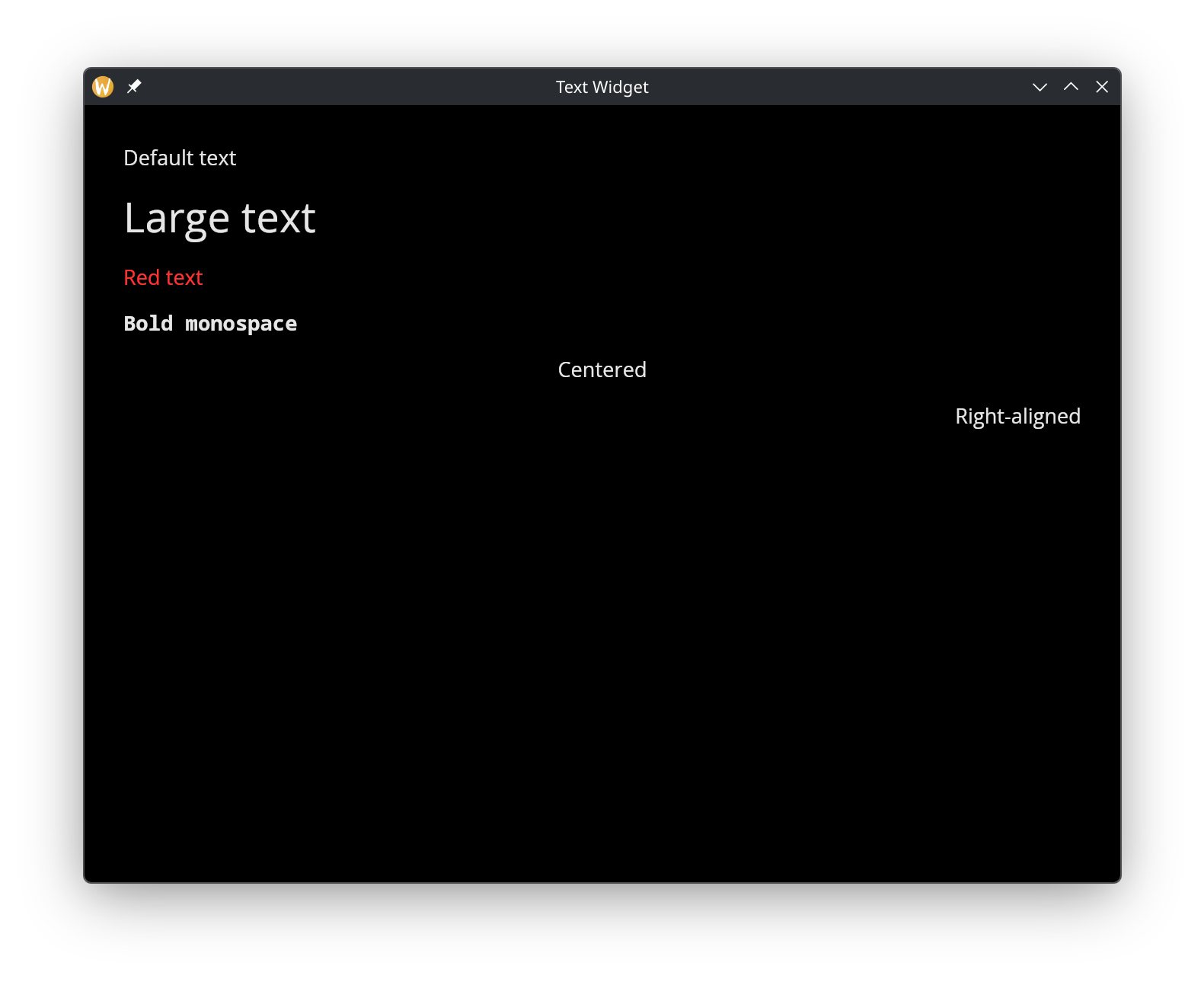
See Also
- button - Clickable button that wraps a widget (often text)
- text_input - Editable single-line text field
- text_editor - Multi-line text editing
The Button Widget
A clickable button that wraps a child widget (typically text). Buttons trigger a callback when pressed and can be styled with custom width, height, and padding.
Interface
use super::{Length, Padding, Widget};
type Button = {
child: &Widget,
disabled: &bool,
on_press: &[fn(e: null) -> Any, null],
width: &Length,
height: &Length,
padding: &Padding
};
val button: fn(
?#on_press: [fn(e: null) -> Any, null],
?#width: &Length,
?#height: &Length,
?#padding: &Padding,
?#disabled: &bool,
child: &Widget
) -> Widget
Parameters
#on_press– Callback invoked when the button is clicked. Receivesnullas its argument. Use the sample operator~inside the callback to capture current state at click time:|c| counter <- c ~ counter + 1. If omitted, the button is disabled: it draws as#disabled: truedoes and ignores clicks.#width– Width of the button. AcceptsLengthvalues:`Fill,`Shrink, or`Fixed(f64). Defaults to`Shrink.#height– Height of the button. SameLengthvalues as width. Defaults to`Shrink.#padding– Interior padding around the child widget. AcceptsPaddingvalues:`All(f64),`Axis({x: f64, y: f64}), or`Each({top: f64, right: f64, bottom: f64, left: f64}).#disabled– Whentrue, the button is grayed out and#on_pressis not triggered. Defaults tofalse.- positional
&Widget– The child widget displayed inside the button. Usually atextwidget.
Examples
Basic Buttons
use gui::{window, button::button, column::column, text::text};
mod icon;
let b0 = button(
#on_press: |c| println(c ~ "normal button clicked"),
#padding: &`All(10.0),
&text(&"Click me!")
);
let b1 = button(
#on_press: |c| println(c ~ "wide button clicked"),
#padding: &`All(8.0),
#width: &`Fixed(200.0),
&text(#halign:&`Center, &"Wide button")
);
let col = column(
#spacing: &20.0,
#padding: &`All(30.0),
#halign: &`Center,
#width: &`Fill,
&[
text(#size: &24.0, &"Button Demo"),
b0,
b1
]
);
[&window(#icon: &icon::icon, #title: &"Button Widget", &col)]
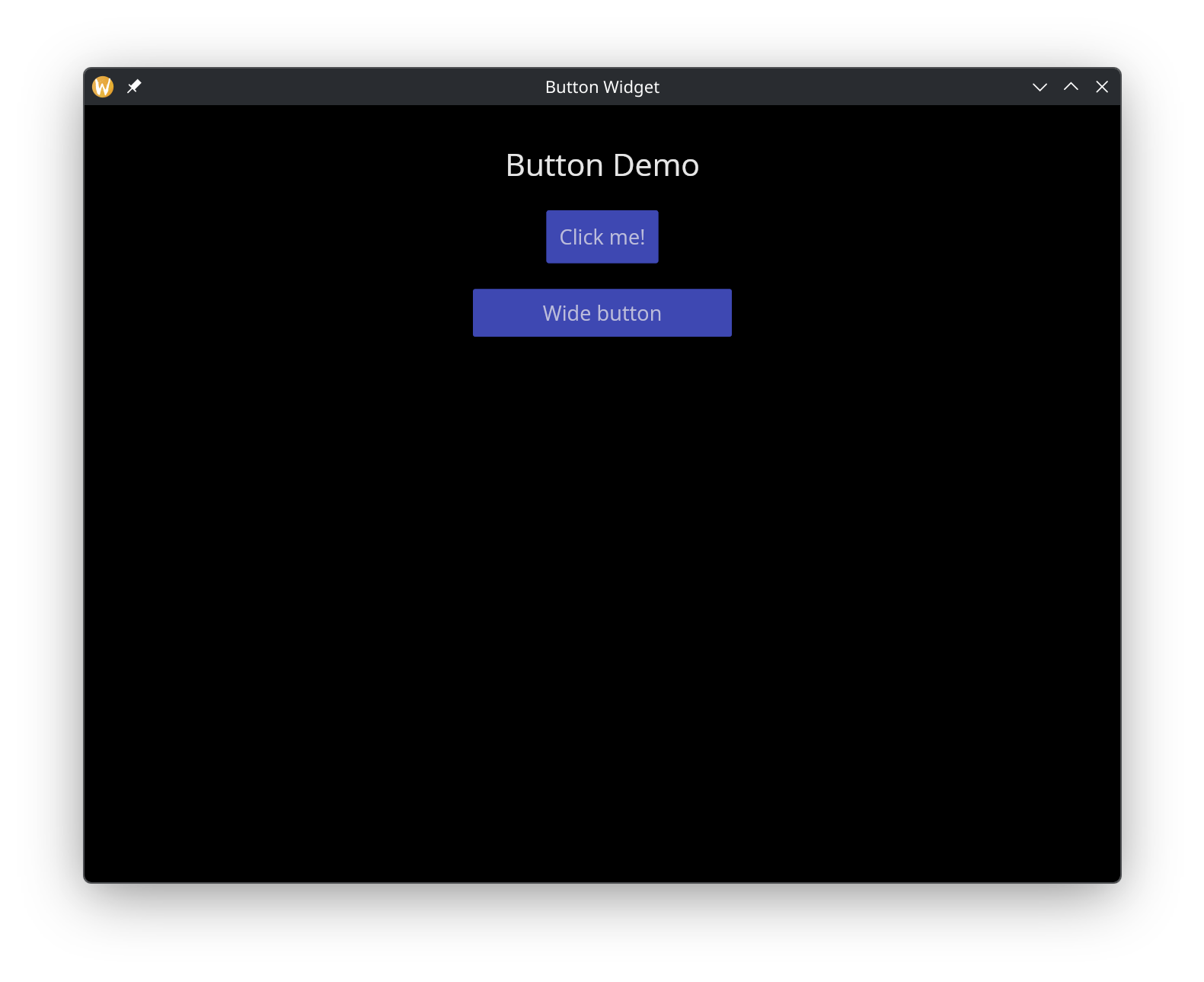
See Also
- text – the most common child widget for buttons
- mouse_area – for click detection on arbitrary widgets
The Text Input Widget
A single-line text field for user input. The widget displays the current value via a reference and reports changes through callbacks. Supports placeholder text, password masking, and custom sizing.
Interface
use super::{Font, Length, Padding, Widget};
type TextInput = {
disabled: &bool,
value: &string,
placeholder: &string,
on_input: &[fn(s: string) -> Any, null],
on_submit: &[fn(e: null) -> Any, null],
is_secure: &bool,
width: &Length,
padding: &Padding,
size: &[f64, null],
font: &[Font, null]
};
/// A non-null #size must be finite, positive and at most 4096 pixels.
val text_input: fn(
?#placeholder: &string,
?#on_input: [fn(s: string) -> Any, null],
?#on_submit: [fn(e: null) -> Any, null],
?#is_secure: &bool,
?#width: &Length,
?#padding: &Padding,
?#size: &[f64, null],
?#font: &[Font, null],
?#disabled: &bool,
value: &string
) -> Widget
Parameters
#placeholder– Hint text displayed when the field is empty. Shown in a lighter style and disappears once the user begins typing.#on_input– Callback invoked on every keystroke. Receives the full current text as astring. Typically used with<-to update state:#on_input: |v| name <- v.#on_submit– Callback invoked when the user presses Enter. Receivesnull. Useful for form submission or triggering a search.#is_secure– Whentrue, the input is masked (password mode). Characters are replaced with dots. Defaults tofalse.#width– Width of the input field. AcceptsLengthvalues. Defaults to`Fill.#padding– Interior padding around the text content. AcceptsPaddingvalues.#size– Font size in pixels, ornullfor the default size.#font– Font to use for the text, ornullfor the default font.#disabled– Whentrue, the input cannot be focused or edited. Defaults tofalse.- positional
&string– Reference to the current text value. The widget reads from this reference to display the text, and you update it from the#on_inputcallback.
Examples
Basic Text Input
use gui::{window, column::column, text::text, text_input::text_input};
mod icon;
let name = "";
let col = column(
#spacing: &15.0,
#padding: &`All(30.0),
#halign: &`Center,
#width: &`Fill,
&[
text(#size: &24.0, &"Text Input Demo"),
text_input(#placeholder: &"Enter your name...", #on_input: |v| name <- v, &name),
text(&name)
]
);
[&window(#icon: &icon::icon, #title: &"Text Input", &col)]
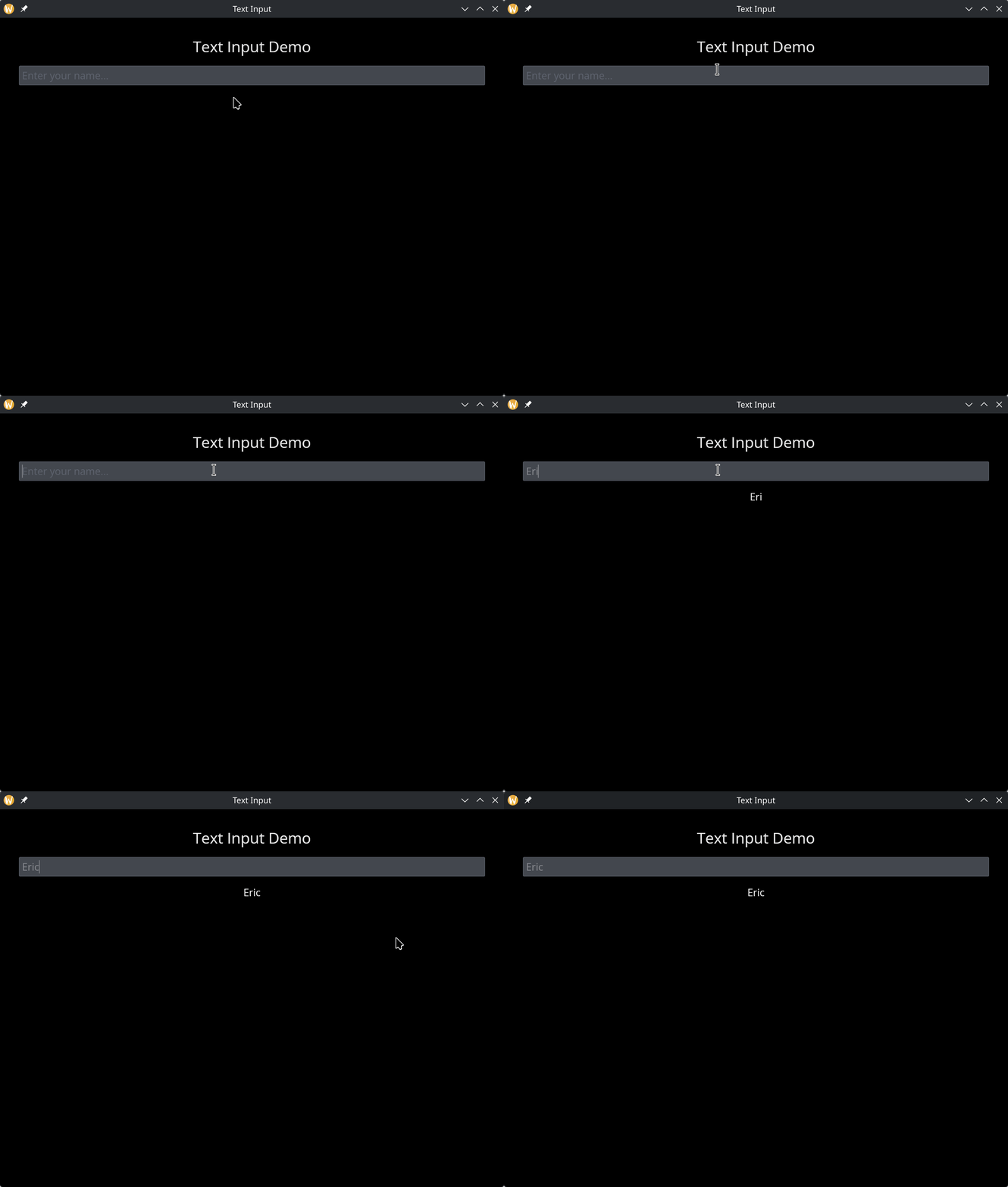
See Also
- text_editor – multi-line text editing
- text – displaying static or reactive text
The Text Editor Widget
A multi-line text editing area for longer-form content. Unlike text_input, which handles a single line, text_editor supports multiple lines of text with scrolling. It reports the full content string on every edit.
Interface
use super::{Font, Padding, Widget};
type TextEditor = {
content: &string,
disabled: &bool,
on_edit: &[fn(s: string) -> Any, null],
placeholder: &string,
width: &[f64, null],
height: &[f64, null],
padding: &Padding,
font: &[Font, null],
size: &[f64, null]
};
/// A non-null #size must be finite, positive and at most 4096 pixels.
val text_editor: fn(
?#placeholder: &string,
?#on_edit: [fn(s: string) -> Any, null],
?#width: &[f64, null],
?#height: &[f64, null],
?#padding: &Padding,
?#font: &[Font, null],
?#size: &[f64, null],
?#disabled: &bool,
content: &string
) -> Widget
Parameters
#placeholder– Hint text displayed when the editor is empty.#on_edit– Callback invoked on every edit. Receives the full content as astring. Use with<-to keep state in sync:#on_edit: |v| content <- v. Without#on_editthe editor is read-only, as a disabled one is.#width– Width in pixels asf64, ornullfor automatic sizing. Note: this is&[f64, null], not&Length– the text editor uses fixed pixel dimensions rather than the layout-basedLengthtype.#height– Height in pixels asf64, ornullfor automatic sizing. Same&[f64, null]type as width.#padding– Interior padding around the text content. AcceptsPaddingvalues.#font– Font to use, ornullfor the default font.#size– Font size in pixels, ornullfor the default size.#disabled– Whentrue, edits are refused; the text can still be scrolled, selected and copied. Defaults tofalse.- positional
&string– Reference to the current content. The editor displays this text and you update it from the#on_editcallback.
Examples
Basic Text Editor
use gui::{window, column::column, text::text, text_editor::text_editor};
mod icon;
let content = "";
let col = column(
#spacing: &15.0,
#padding: &`All(30.0),
#width: &`Fill,
#height: &`Fill,
&[
text(#size: &24.0, &"Text Editor Demo"),
text_editor(
#placeholder: &"Start typing here...",
#on_edit: |v| content <- v,
#height: &300.0,
&content
),
text(&"Length: [str::char_len(content)] characters")
]
);
[&window(#icon: &icon::icon, #title: &"Text Editor", &col)]
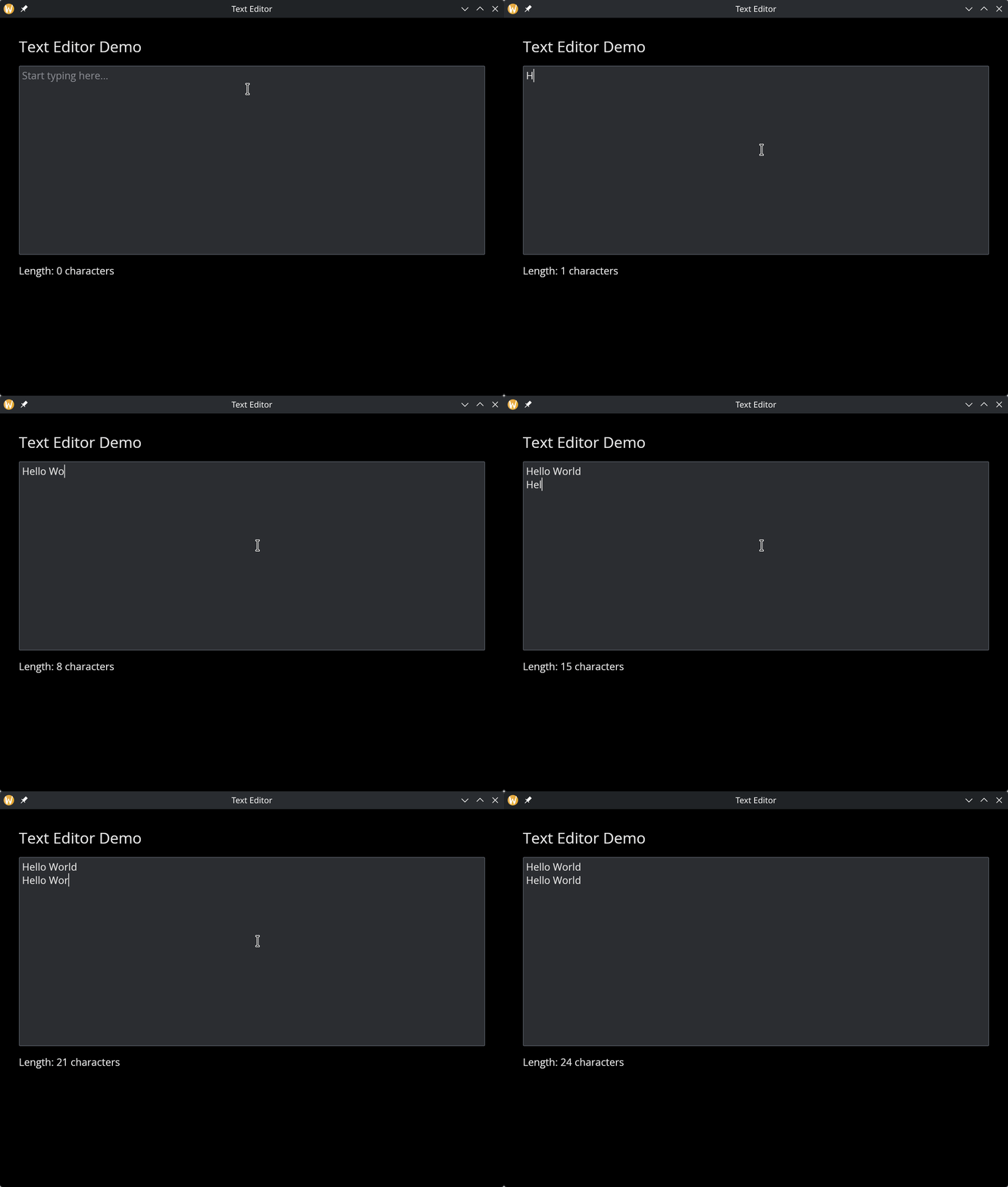
See Also
- text_input – single-line text input
- text – read-only text display
The Checkbox Widget
A checkbox with an optional text label. Displays a checked or unchecked box and reports toggles through a callback. Useful for boolean settings and multi-select scenarios.
Interface
use super::{Length, Widget};
type Checkbox = {
disabled: &bool,
is_checked: &bool,
label: &string,
on_toggle: &[fn(b: bool) -> Any, null],
width: &Length,
size: &[f64, null],
spacing: &[f64, null]
};
/// A non-null #size must be finite, positive and at most 4096 pixels.
val checkbox: fn(
?#label: &string,
?#on_toggle: [fn(b: bool) -> Any, null],
?#width: &Length,
?#size: &[f64, null],
?#spacing: &[f64, null],
?#disabled: &bool,
is_checked: &bool
) -> Widget
Parameters
#label– Text displayed next to the checkbox. If omitted, the checkbox renders without a label.#on_toggle– Callback invoked when the checkbox is clicked. Receives the new boolean state (trueif now checked,falseif unchecked). Typically:#on_toggle: |v| checked <- v.#width– Width of the widget (checkbox plus label). AcceptsLengthvalues.#size– Size of the checkbox square in pixels, ornullfor the default size.#spacing– Gap in pixels between the checkbox and the label text, ornullfor the default spacing.#disabled– Whentrue, the checkbox is grayed out and cannot be toggled. Defaults tofalse.- positional
&bool– Reference to the checked state.truerenders a checked box,falserenders unchecked.
Examples
Checkbox Group
use gui::{window, checkbox::checkbox, column::column, text::text};
mod icon;
let dark_mode = true;
let notifications = false;
let auto_save = true;
let col = column(
#spacing: &15.0,
#padding: &`All(30.0),
#width: &`Fill,
&[
text(#size: &24.0, &"Checkbox Demo"),
checkbox(#label: &"Dark mode", #on_toggle: |v| dark_mode <- v, &dark_mode),
checkbox(#label: &"Enable notifications", #on_toggle: |v| notifications <- v, ¬ifications),
checkbox(#label: &"Auto-save", #on_toggle: |v| auto_save <- v, &auto_save)
]
);
[&window(#icon: &icon::icon, #title: &"Checkbox", &col)]
See Also
The Toggler Widget
A toggle switch with an optional text label. Functionally identical to a checkbox but rendered as a sliding toggle, which is often a better visual fit for on/off settings like enabling features or connectivity options.
Interface
use super::{Length, Widget};
type Toggler = {
disabled: &bool,
is_toggled: &bool,
label: &string,
on_toggle: &[fn(b: bool) -> Any, null],
width: &Length,
size: &[f64, null],
spacing: &[f64, null]
};
/// A non-null #size must be finite, positive and at most 4096 pixels.
val toggler: fn(
?#label: &string,
?#on_toggle: [fn(b: bool) -> Any, null],
?#width: &Length,
?#size: &[f64, null],
?#spacing: &[f64, null],
?#disabled: &bool,
is_toggled: &bool
) -> Widget
Parameters
#label– Text displayed next to the toggle switch. If omitted, the toggler renders without a label.#on_toggle– Callback invoked when the toggle is flipped. Receives the new boolean state. Typically:#on_toggle: |v| enabled <- v.#width– Width of the widget (toggle plus label). AcceptsLengthvalues.#size– Size of the toggle switch in pixels, ornullfor the default size.#spacing– Gap in pixels between the toggle and the label text, ornullfor the default spacing.#disabled– Whentrue, the toggle is grayed out and cannot be flipped. Defaults tofalse.- positional
&bool– Reference to the toggled state.truerenders the toggle in the “on” position,falsein the “off” position.
Examples
Toggle Switches
use gui::{window, column::column, text::text, toggler::toggler};
mod icon;
let wifi = true;
let bluetooth = false;
let col = column(
#spacing: &15.0,
#padding: &`All(30.0),
#width: &`Fill,
&[
text(#size: &24.0, &"Toggler Demo"),
toggler(#label: &"WiFi", #on_toggle: |v| wifi <- v, &wifi),
toggler(#label: &"Bluetooth", #on_toggle: |v| bluetooth <- v, &bluetooth)
]
);
[&window(#icon: &icon::icon, #title: &"Toggler", &col)]
See Also
The Radio Widget
A radio button for single-select choices within a group. Each radio widget represents one option. When the currently selected value matches this radio’s value, the button is filled. Clicking an unselected radio triggers the #on_select callback.
Interface
use super::{Length, Widget};
/// A radio of any value type: `on_select` is called with `value`.
type Radio = {
disabled: &bool,
value: &Any,
label: &string,
on_select: &[fn(v: Any) -> Any, null],
selected: &[Any, null],
width: &Length,
size: &[f64, null],
spacing: &[f64, null]
};
/// A non-null #size must be finite, positive and at most 4096 pixels.
val radio: fn(
#label: &string,
?#selected: &['a, null],
?#on_select: [fn(v: 'a) -> Any, null],
?#width: &Length,
?#size: &[f64, null],
?#spacing: &[f64, null],
?#disabled: &bool,
value: &'a
) -> Widget
Parameters
#label(required) – Text displayed next to the radio button. Unlike most labeled arguments in GUI widgets, this one is not optional – every radio button must have a label.#selected– Reference to the currently selected value, ornullfor none. When this value equals the positional value, the radio button appears filled. Pass the same reference to every radio in the group so they stay in sync.#on_select– Callback invoked when this radio is clicked. Receives this radio’s value (the positional argument). Typically:#on_select: |v| selection <- v.#width– Width of the widget (radio button plus label). AcceptsLengthvalues.#size– Size of the radio circle in pixels, ornullfor the default size.#spacing– Gap in pixels between the radio circle and the label text, ornullfor the default spacing.#disabled– Whentrue, the radio button is grayed out and cannot be selected. Defaults tofalse.- positional
value: &'a– The value this radio button represents. When the user clicks this radio,#on_selectreceives this value. The radio appears selected when#selectedequals this value.
Examples
Radio Group
use gui::{window, column::column, radio::radio, text::text};
mod icon;
let size: [`Small, `Medium, `Large] = `Medium;
let dir: [`Vertical, `Horizontal] = `Vertical;
let col = column(
#spacing: &15.0,
#padding: &`All(30.0),
#width: &`Fill,
&[
text(#size: &24.0, &"Radio Button Demo"),
text(&"Choose a size: [size]"),
radio(#label: &"Small", #selected: &size, #on_select: |v| size <- v, &`Small),
radio(#label: &"Medium", #selected: &size, #on_select: |v| size <- v, &`Medium),
radio(#label: &"Large", #selected: &size, #on_select: |v| size <- v, &`Large),
text(&"Choose a direction: [dir]"),
radio(#label: &"Vertical", #selected: &dir, #on_select: |v| dir <- v, &`Vertical),
radio(#label: &"Horizontal", #selected: &dir, #on_select: |v| dir <- v, &`Horizontal),
]
);
[&window(#icon: &icon::icon, #title: &"Radio Buttons", &col)]
Every radio in a group and its #selected share one type, here the variant [`Small, `Medium, `Large].
See Also
- checkbox – for multi-select boolean toggles
- toggler – for on/off switches
- pick_list – for dropdown-based selection
The Slider Widgets
Graphix provides three related widgets for numeric values within a range: slider (horizontal), vertical_slider, and progress_bar (display-only).
Slider
A horizontal slider that lets the user select a floating-point value by dragging a handle along a track.
Interface
use super::{Length, Widget};
type Slider = {
disabled: &bool,
value: &f64,
min: &f64,
max: &f64,
step: &[f64, null],
on_change: &[fn(v: f64) -> Any, null],
on_release: &[fn(e: null) -> Any, null],
width: &Length,
height: &[f64, null]
};
val slider: fn(
?#min: &f64,
?#max: &f64,
?#step: &[f64, null],
?#on_change: [fn(v: f64) -> Any, null],
?#on_release: [fn(e: null) -> Any, null],
?#width: &Length,
?#height: &[f64, null],
?#disabled: &bool,
value: &f64
) -> Widget
Parameters
#min– Minimum value of the range. Defaults to0.0.#max– Maximum value of the range. Defaults to100.0.#step– Snap increment. When set, every value the slider sends is#minplus a whole number of steps, never past#max, and with the pointer over the track Up/Down arrows and Ctrl+wheel move one step.nullmeans continuous dragging, and then Up/Down and Ctrl+wheel move by one percent of the range.#on_change– Callback invoked as the handle is dragged. Receives the currentf64value. Typically:#on_change: |v| volume <- v.#on_release– Callback invoked when the user releases the handle. Receivesnull. Useful for committing a value only after the user finishes adjusting.#width– Width of the slider track. AcceptsLengthvalues. Defaults to`Fill.#height– Height of the slider track in pixels, ornullfor the default height.#disabled– Whentrue, the slider cannot be dragged. Defaults tofalse.- positional
&f64– Reference to the current value. Must be within the#min..#maxrange.
A range with #min > #max or a non-finite bound displays an empty, inert track. Neither #on_change nor #on_release fires for that range.
Vertical Slider
A vertical slider – identical to slider but oriented top-to-bottom. Note the width and height types are swapped: #width is &[f64, null] (fixed pixels) and #height is &Length (layout-based).
Interface
use super::{Length, Widget};
type VerticalSlider = {
disabled: &bool,
value: &f64,
min: &f64,
max: &f64,
step: &[f64, null],
on_change: &[fn(v: f64) -> Any, null],
on_release: &[fn(e: null) -> Any, null],
width: &[f64, null],
height: &Length
};
val vertical_slider: fn(
?#min: &f64,
?#max: &f64,
?#step: &[f64, null],
?#on_change: [fn(v: f64) -> Any, null],
?#on_release: [fn(e: null) -> Any, null],
?#width: &[f64, null],
?#height: &Length,
?#disabled: &bool,
value: &f64
) -> Widget
Parameters
Same as slider except:
#width– Width of the slider track in pixels, ornullfor the default width. This is&[f64, null], not&Length.#height– Height of the slider track. AcceptsLengthvalues (`Fill,`Shrink,`Fixed(f64)). This is&Length, not&[f64, null].
Progress Bar
A non-interactive horizontal bar that fills proportionally to a value within a range. Use it to display progress, levels, or any metric that the user should see but not control.
Interface
use super::{Length, Widget};
type ProgressBar = {
value: &f64,
min: &f64,
max: &f64,
width: &Length,
height: &[f64, null]
};
val progress_bar: fn(
?#min: &f64,
?#max: &f64,
?#width: &Length,
?#height: &[f64, null],
value: &f64
) -> Widget
Parameters
#min– Minimum value of the range. Defaults to0.0.#max– Maximum value of the range. Defaults to100.0.#width– Width of the bar. AcceptsLengthvalues. Defaults to`Fill.#height– Height of the bar in pixels, ornullfor the default height.- positional
&f64– Reference to the current value. The bar fills proportionally between#minand#max.
Examples
Slider & Progress Bar
use gui::{
window,
column::column,
progress_bar::progress_bar,
slider::slider,
text::text
};
mod icon;
let volume = 50.0;
let col = column(
#spacing: &15.0,
#padding: &`All(30.0),
#width: &`Fill,
&[
text(#size: &24.0, &"Slider & Progress Bar"),
text(&"Drag the slider:"),
slider(#min: &0.0, #max: &100.0, #on_change: |v| volume <- v, &volume),
text(&"Progress bar mirrors the slider:"),
progress_bar(#min: &0.0, #max: &100.0, &volume)
]
);
[&window(#icon: &icon::icon, #title: &"Slider & ProgressBar", &col)]
Vertical Slider
use gui::{
window,
column::column,
row::row,
text::text,
vertical_slider::vertical_slider
};
mod icon;
let value = 50.0;
[&window(
#icon: &icon::icon,
#title: &"Vertical Slider",
&row(
#spacing: &30.0,
#padding: &`All(30.0),
#height: &`Fill,
#valign: &`Center,
&[
column(
#spacing: &10.0,
&[
text(#size: &24.0, &"Vertical Slider"),
text(&"Value: [value]")
]
),
vertical_slider(
#min: &0.0,
#max: &100.0,
#on_change: |v| value <- v,
#height: &`Fixed(200.0),
&value
)
]
)
)]
See Also
- text_input – for entering numeric values as text
- types – for
Lengthand other shared types
The Pick List Widget
A dropdown menu that lets the user select one option from a list of strings. Clicking the widget opens a dropdown; selecting an item closes it and triggers the callback.
Interface
use super::{Length, Padding, Widget};
type PickList = {
disabled: &bool,
on_select: &[fn(s: string) -> Any, null],
options: &Array<string>,
selected: &[string, null],
placeholder: &string,
width: &Length,
padding: &Padding
};
val pick_list: fn(
?#selected: &[string, null],
?#on_select: [fn(s: string) -> Any, null],
?#placeholder: &string,
?#width: &Length,
?#padding: &Padding,
?#disabled: &bool,
options: &Array<string>
) -> Widget
Parameters
#selected– Reference to the currently selected value, ornullif nothing is selected. Whennull, the placeholder text is shown instead.#on_select– Callback invoked when the user picks an item. Receives the selected string. Typically:#on_select: |v| choice <- v.#placeholder– Text displayed when#selectedisnull. Gives the user a hint about what to choose.#width– Width of the dropdown. AcceptsLengthvalues.#padding– Interior padding around the displayed text. AcceptsPaddingvalues.#disabled– Whentrue, the dropdown cannot be opened. Defaults tofalse.- positional
&Array<string>– Reference to the list of available options.
Examples
use gui::{window, column::column, pick_list::pick_list, text::text};
mod icon;
let language: [string, null] = null;
let col = column(
#spacing: &15.0,
#padding: &`All(30.0),
#width: &`Fill,
&[
text(#size: &24.0, &"Pick List Demo"),
text(&"Selected: [language]"),
pick_list(
#selected: &language,
#on_select: |v| language <- v,
#placeholder: &"Choose a language...",
&["English", "Spanish", "French", "Japanese"]
)
]
);
[&window(#icon: &icon::icon, #title: &"Pick List", &col)]
See Also
- Combo Box — searchable dropdown with type-to-filter
- Radio — inline single-select when there are few options
The Combo Box Widget
A searchable dropdown that combines a text input with a dropdown list. As the user types, the options are filtered to match. This is useful when the list of options is long and the user needs to find a specific item quickly.
Interface
use super::{Length, Widget};
type ComboBox = {
disabled: &bool,
on_select: &[fn(s: string) -> Any, null],
options: &Array<string>,
selected: &[string, null],
placeholder: &string,
width: &Length
};
val combo_box: fn(
?#selected: &[string, null],
?#on_select: [fn(s: string) -> Any, null],
?#placeholder: &string,
?#width: &Length,
?#disabled: &bool,
options: &Array<string>
) -> Widget
Parameters
#selected– Reference to the currently selected value, ornullif nothing is selected.#on_select– Callback invoked when the user selects an item from the filtered list. Receives the selected string.#placeholder– Placeholder text shown in the input field when nothing is selected. Defaults to"Type to search...".#width– Width of the widget. AcceptsLengthvalues.#disabled– Whentrue, the combo box cannot be interacted with. Defaults tofalse.- positional
&Array<string>– Reference to the full list of options. The combo box filters this list as the user types.
Examples
use gui::{window, column::column, combo_box::combo_box, text::text};
mod icon;
let selected: [string, null] = null;
let col = column(
#spacing: &15.0,
#padding: &`All(30.0),
#width: &`Fill,
&[
text(#size: &24.0, &"Combo Box Demo"),
combo_box(
#selected: &selected,
#on_select: |v| selected <- v,
#placeholder: &"Type or select a fruit...",
&["Apple", "Banana", "Cherry", "Date", "Elderberry", "Fig", "Grape"]
),
text(&"Selected: [selected]")
]
);
[&window(#icon: &icon::icon, #title: &"Combo Box", &col)]
See Also
- Pick List — standard dropdown without search
- Radio — inline single-select when there are few options
The Column Widget
The column widget arranges child widgets vertically from top to bottom. It is one of the primary layout containers, along with row.
Interface
use super::{HAlign, Length, Padding, Widget};
type Column = {
children: &Array<Widget>,
spacing: &f64,
padding: &Padding,
width: &Length,
height: &Length,
halign: &HAlign
};
val column: fn(
?#spacing: &f64,
?#padding: &Padding,
?#width: &Length,
?#height: &Length,
?#halign: &HAlign,
children: &Array<Widget>
) -> Widget
Parameters
- spacing — vertical space between child widgets in pixels
- padding — space around the column’s edges (see Types for
Paddingvariants) - width — column width (
Fill,Shrink,Fixed(px), orFillPortion(n)) - height — column height
- halign — horizontal alignment of children within the column (
Left,Center,Right)
The positional argument is a reference to an array of child widgets.
Examples
use gui::{window, column::column, text::text};
mod icon;
[&window(
#icon: &icon::icon,
#title: &"Column Widget",
&column(
#spacing: &15.0,
#padding: &`All(30.0),
#halign: &`Center,
#width: &`Fill,
&[
text(#size: &24.0, &"Column Layout"),
text(&"Items are stacked vertically"),
text(&"With configurable spacing"),
text(&"And padding around the edges"),
text(
#halign: &`Center, #width: &`Fill,
&"This column is centered and fills the width")
]
)
)]
See Also
- Row — horizontal layout
- Container — single-child alignment and padding
- Stack — overlapping layout
- Space & Rules — spacing and dividers within layouts
The Row Widget
The row widget arranges child widgets horizontally from left to right. It is one of the primary layout containers, along with column.
Interface
use super::{Length, Padding, VAlign, Widget};
type Row = {
children: &Array<Widget>,
spacing: &f64,
padding: &Padding,
width: &Length,
height: &Length,
valign: &VAlign
};
val row: fn(
?#spacing: &f64,
?#padding: &Padding,
?#width: &Length,
?#height: &Length,
?#valign: &VAlign,
children: &Array<Widget>
) -> Widget
Parameters
- spacing — horizontal space between child widgets in pixels
- padding — space around the row’s edges
- width — row width (
Fill,Shrink,Fixed(px), orFillPortion(n)) - height — row height
- valign — vertical alignment of children within the row (
Top,Center,Bottom)
The positional argument is a reference to an array of child widgets.
Examples
use gui::{window, button::button, column::column, row::row, text::text};
mod icon;
[&window(
#icon: &icon::icon,
#title: &"Row Widget",
&column(
#spacing: &20.0,
#padding: &`All(30.0),
#width: &`Fill,
&[
text(#size: &24.0, &"Row Layout"),
row(
#spacing: &30.0,
&[
text(&"Left"),
text(&"Center"),
text(&"Right")
]
),
row(
#spacing: &10.0,
#valign: &`Center,
&[
button(#on_press: |_| null, #padding: &`All(10.0), &text(&"One")),
button(#on_press: |_| null, #padding: &`All(10.0), &text(&"Two")),
button(#on_press: |_| null, #padding: &`All(10.0), &text(&"Three"))
]
)
]
)
)]
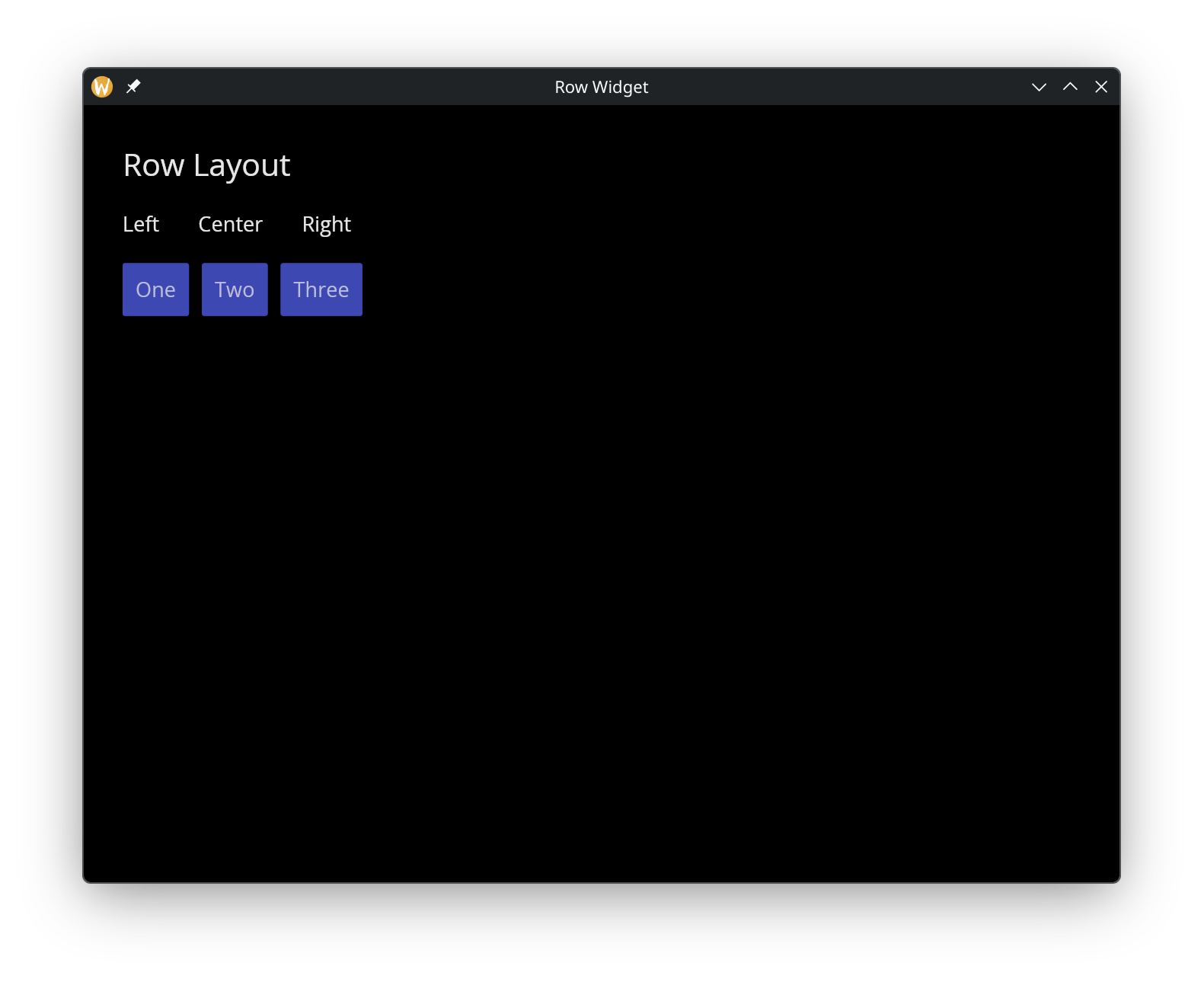
See Also
- Column — vertical layout
- Container — single-child alignment and padding
- Space & Rules — spacing and dividers within layouts
The Container Widget
The container widget wraps a single child widget, providing padding and alignment control. Use it to position content within a fixed or flexible region.
Interface
use super::{HAlign, Length, Padding, VAlign, Widget};
type Container = {
child: &Widget,
padding: &Padding,
width: &Length,
height: &Length,
halign: &HAlign,
valign: &VAlign
};
val container: fn(
?#padding: &Padding,
?#width: &Length,
?#height: &Length,
?#halign: &HAlign,
?#valign: &VAlign,
child: &Widget
) -> Widget
Parameters
- padding — space between the container’s edges and its child
- width — container width (
Fill,Shrink,Fixed(px), orFillPortion(n)) - height — container height
- halign — horizontal alignment of the child (
Left,Center,Right) - valign — vertical alignment of the child (
Top,Center,Bottom)
The positional argument is a reference to the child widget.
Examples
use gui::{window, column::column, container::container, text::text};
mod icon;
[&window(
#icon: &icon::icon,
#title: &"Container Widget",
&column(
#spacing: &15.0,
#padding: &`All(30.0),
#width: &`Fill,
&[
text(#size: &24.0, &"Container Widget"),
container(
#width: &`Fill,
#height: &`Fixed(100.0),
#halign: &`Center,
#valign: &`Center,
&text(&"Centered in a fill container")
),
container(
#padding: &`All(20.0),
&text(&"Padded content")
),
container(
#width: &`Fill,
#height: &`Fixed(80.0),
#halign: &`Right,
#valign: &`Bottom,
&text(&"Bottom-right aligned")
)
]
)
)]
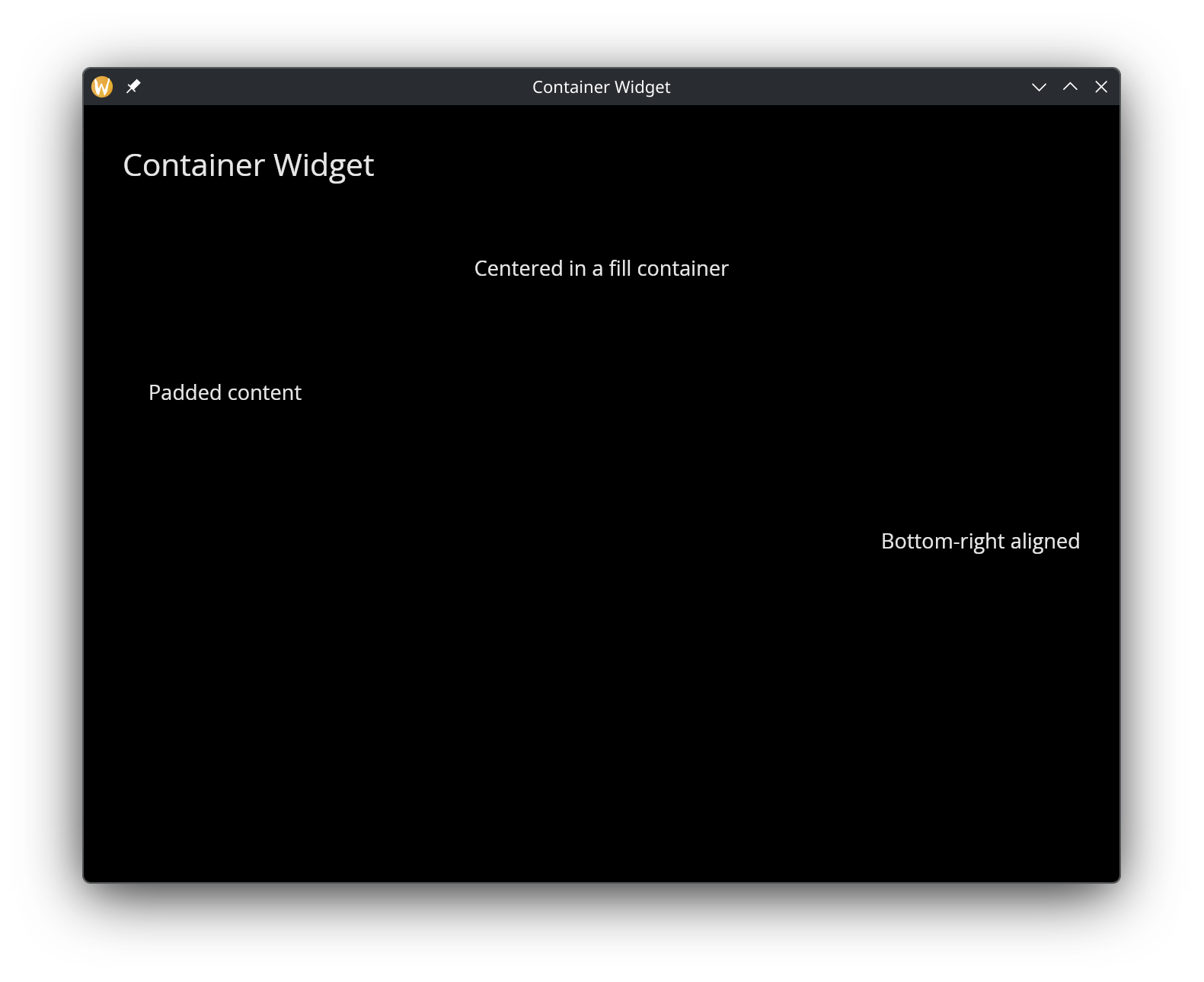
See Also
The Scrollable Widget
The scrollable widget wraps content that may exceed the available space, providing scroll bars to navigate. It supports vertical, horizontal, or bidirectional scrolling.
Interface
use super::{Length, ScrollDirection, Widget};
type Scrollable = {
child: &Widget,
direction: &ScrollDirection,
on_scroll: &[fn(pos: {x: f64, y: f64}) -> Any, null],
width: &Length,
height: &Length
};
val scrollable: fn(
?#direction: &ScrollDirection,
?#on_scroll: [fn(pos: {x: f64, y: f64}) -> Any, null],
?#width: &Length,
?#height: &Length,
child: &Widget
) -> Widget
Parameters
- direction — scroll direction:
Vertical(default),Horizontal, orBoth - on_scroll — callback receiving the scroll offset as
{x, y}when the user scrolls - width — widget width
- height — widget height
The positional argument is a reference to the child widget to scroll.
Examples
use gui::{
window,
column::column,
rule::horizontal_rule,
scrollable::scrollable,
text::text
};
mod icon;
let col = column(
#spacing: &10.0,
#padding: &`All(20.0),
#width: &`Fill,
&[
text(&"Item 1"), horizontal_rule(),
text(&"Item 2"), horizontal_rule(),
text(&"Item 3"), horizontal_rule(),
text(&"Item 4"), horizontal_rule(),
text(&"Item 5"), horizontal_rule(),
text(&"Item 6"), horizontal_rule(),
text(&"Item 7"), horizontal_rule(),
text(&"Item 8"), horizontal_rule(),
text(&"Item 9"), horizontal_rule(),
text(&"Item 10"), horizontal_rule(),
text(&"Item 11"), horizontal_rule(),
text(&"Item 12"), horizontal_rule(),
text(&"Item 13"), horizontal_rule(),
text(&"Item 14"), horizontal_rule(),
text(&"Item 15")
]
);
[&window(
#icon: &icon::icon,
#title: &"Scrollable",
#size: &mut { width: 400.0, height: 300.0 },
&scrollable(
#height: &`Fill,
#width: &`Fill,
&col
)
)]
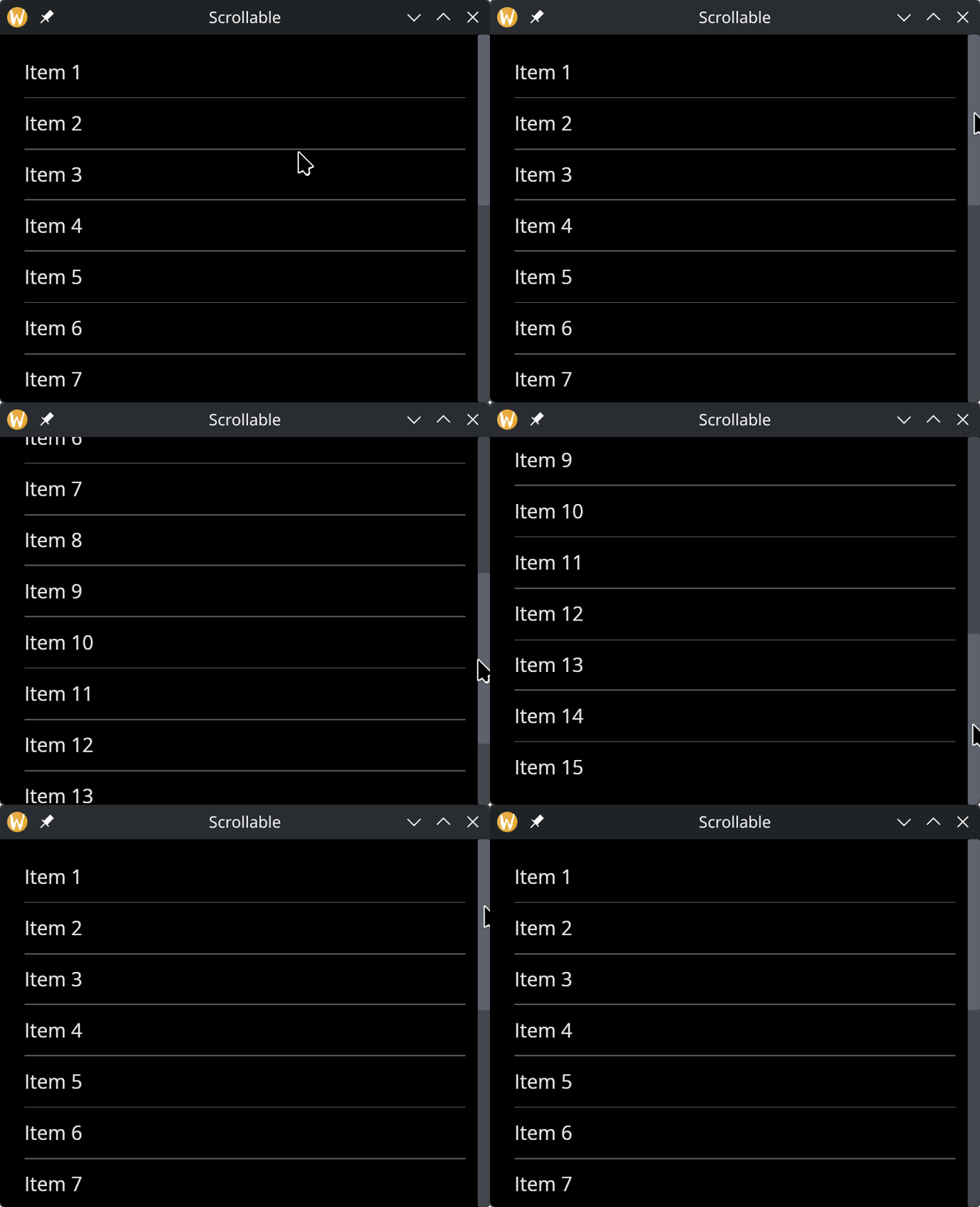
See Also
- Column — commonly used inside scrollable for vertical lists
- Space & Rules — dividers between scrollable items
The Stack Widget
The stack widget layers children on top of each other. The first child is drawn at the bottom, and each subsequent child is drawn on top. This is useful for overlays, watermarks, or layered visual effects.
Interface
use super::{Length, Widget};
type Stack = {
children: &Array<Widget>,
width: &Length,
height: &Length
};
val stack: fn(
?#width: &Length,
?#height: &Length,
children: &Array<Widget>
) -> Widget
Parameters
- width — stack width
- height — stack height
The positional argument is a reference to an array of child widgets. Children are drawn in order, with later children appearing on top of earlier ones.
Examples
use gui::{
color, window,
column::column,
container::container,
stack::stack,
text::text
};
mod icon;
[&window(
#icon: &icon::icon,
#title: &"Stack Widget",
&column(
#spacing: &15.0,
#padding: &`All(30.0),
#width: &`Fill,
#height: &`Fill,
&[
text(#size: &24.0, &"Stack Demo"),
stack(
#width: &`Fill,
#height: &`Fill,
&[
container(
#width: &`Fill,
#height: &`Fill,
#halign: &`Center,
#valign: &`Center,
&text(#size: &64.0, #color: &color(#r: 0.3, #g: 0.3, #b: 0.3)$, &"Background")
),
container(
#width: &`Fill,
#height: &`Fill,
#halign: &`Center,
#valign: &`Center,
&text(#size: &32.0, &"Foreground")
)
]
)
]
)
)]
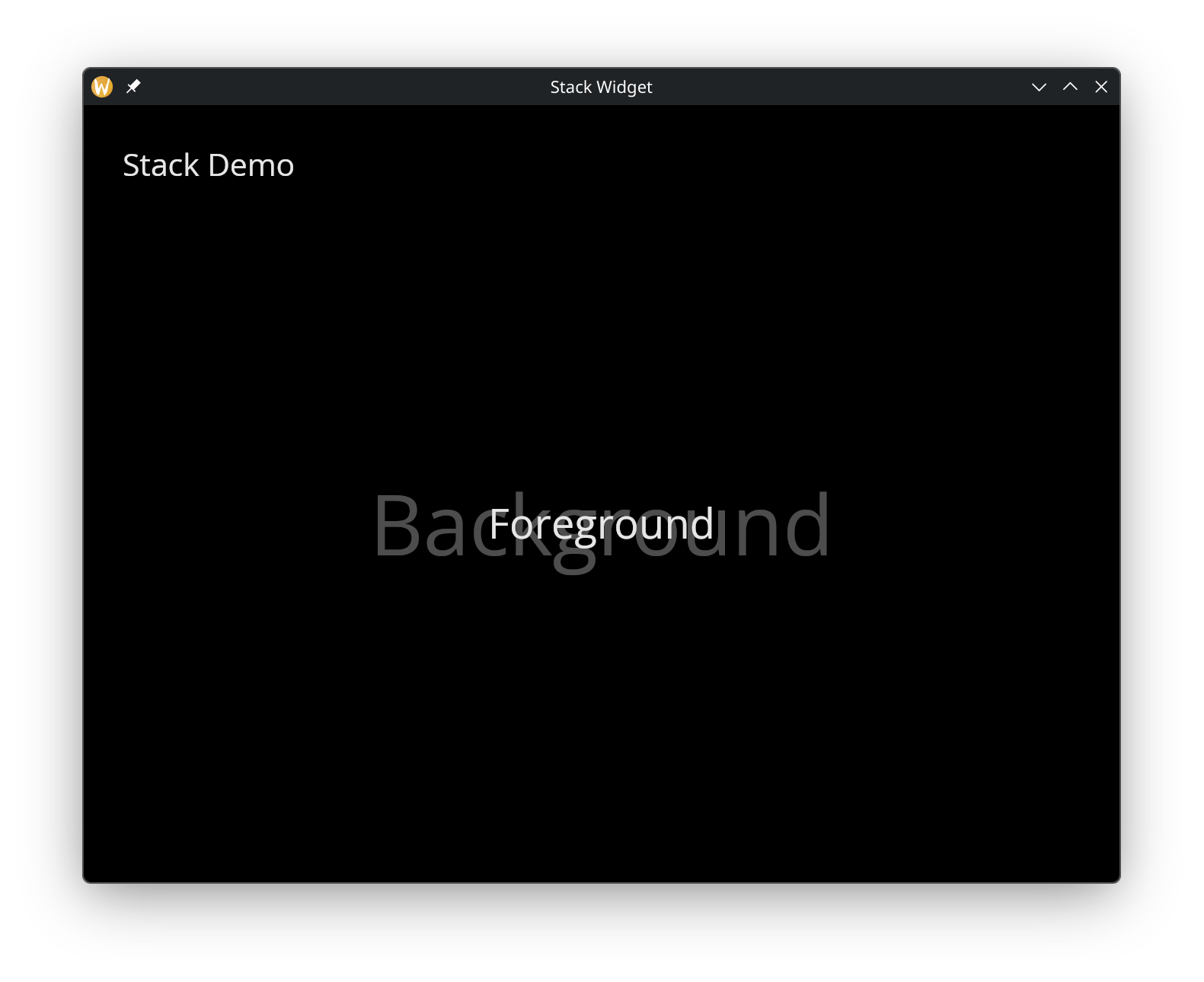
See Also
- Container — for positioning content within stack layers
- Column — for non-overlapping vertical layout
Space & Rules
Space and rules are layout utilities for controlling whitespace and adding visual dividers between widgets.
Space
The space widget creates empty space with configurable dimensions. Use it to push widgets apart within a row or column.
Interface
use super::{Length, Widget};
type Space = {
width: &Length,
height: &Length
};
val space: fn(
?#width: &Length,
?#height: &Length
) -> Widget
Parameters
- width — horizontal size of the space
- height — vertical size of the space
A common pattern is space(#width: &Fill)` to push items to opposite ends of a row.
Example
use gui::{window, column::column, row::row, space::space, text::text};
mod icon;
[&window(
#icon: &icon::icon,
#title: &"Space Widget",
&column(
#spacing: &10.0,
#padding: &`All(30.0),
#width: &`Fill,
&[
text(#size: &24.0, &"Space Widget"),
text(&"Space pushes items apart:"),
row(
#width: &`Fill,
&[
text(&"Left"),
space(#width: &`Fill),
text(&"Right")
]
),
text(&"Vertical space below:"),
space(#height: &`Fixed(50.0)),
text(&"...and above this line")
]
)
)]
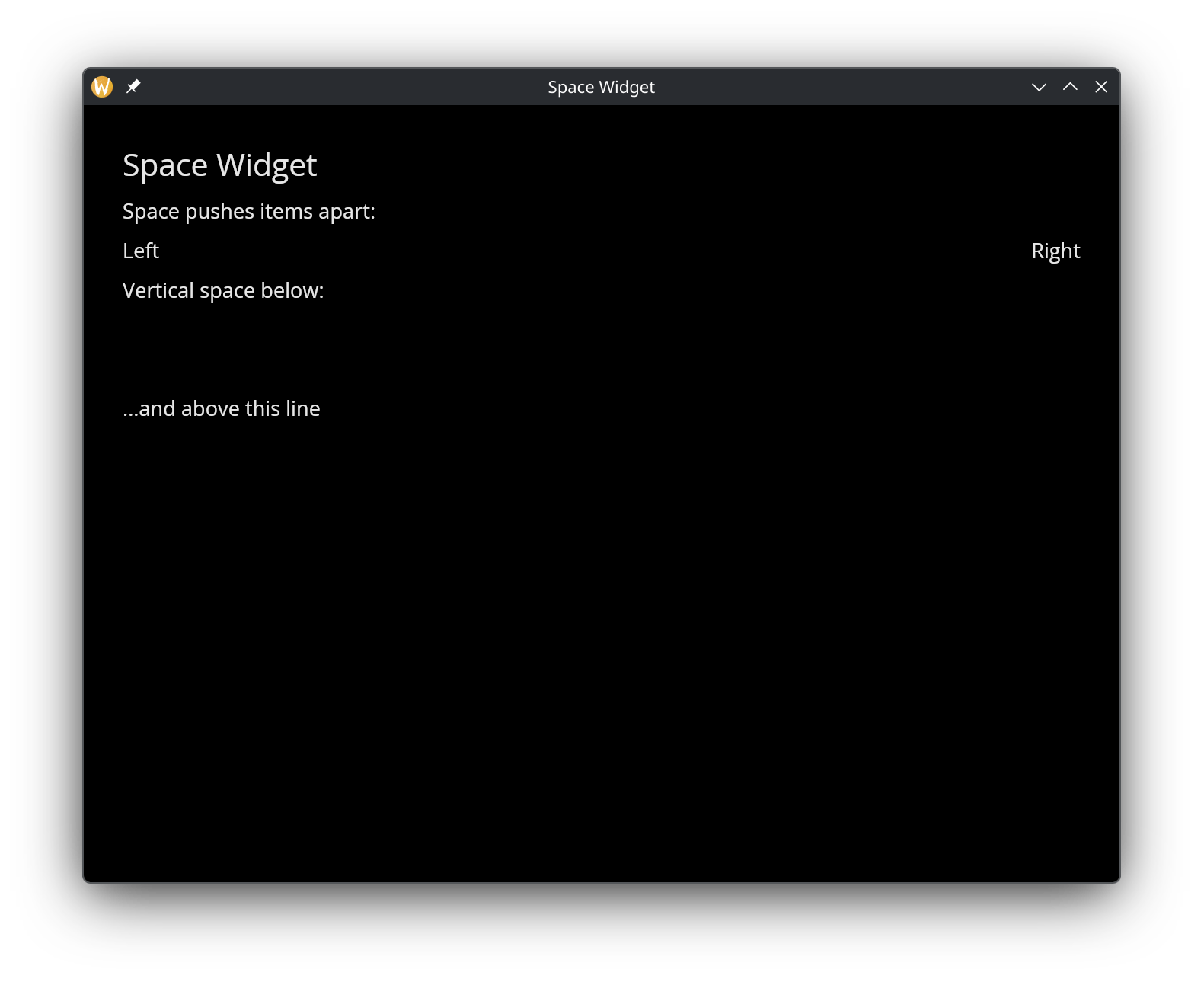
Rules
Rules draw horizontal or vertical lines to visually separate content.
Interface
use super::Widget;
type HorizontalRule = { height: &f64 };
type VerticalRule = { width: &f64 };
val horizontal_rule: fn(?#height: &f64) -> Widget;
val vertical_rule: fn(?#width: &f64) -> Widget
Parameters
- height (horizontal_rule) — thickness of the horizontal line in pixels
- width (vertical_rule) — thickness of the vertical line in pixels
Example
use gui::{
window,
column::column,
row::row,
rule::{horizontal_rule, vertical_rule},
text::text
};
mod icon;
[&window(
#icon: &icon::icon,
#title: &"Rules",
&row(
#spacing: &20.0,
#padding: &`All(30.0),
#width: &`Fill,
#height: &`Fill,
&[
column(
#spacing: &10.0,
#width: &`Fill,
&[
text(#size: &24.0, &"Horizontal Rules"),
text(&"Section One"),
horizontal_rule(),
text(&"Section Two"),
horizontal_rule(#height: &4.0),
text(&"Section Three")
]
),
vertical_rule(),
column(
#spacing: &10.0,
#width: &`Fill,
&[
text(#size: &24.0, &"Right Panel"),
text(&"Separated by a vertical rule")
]
)
]
)
)]
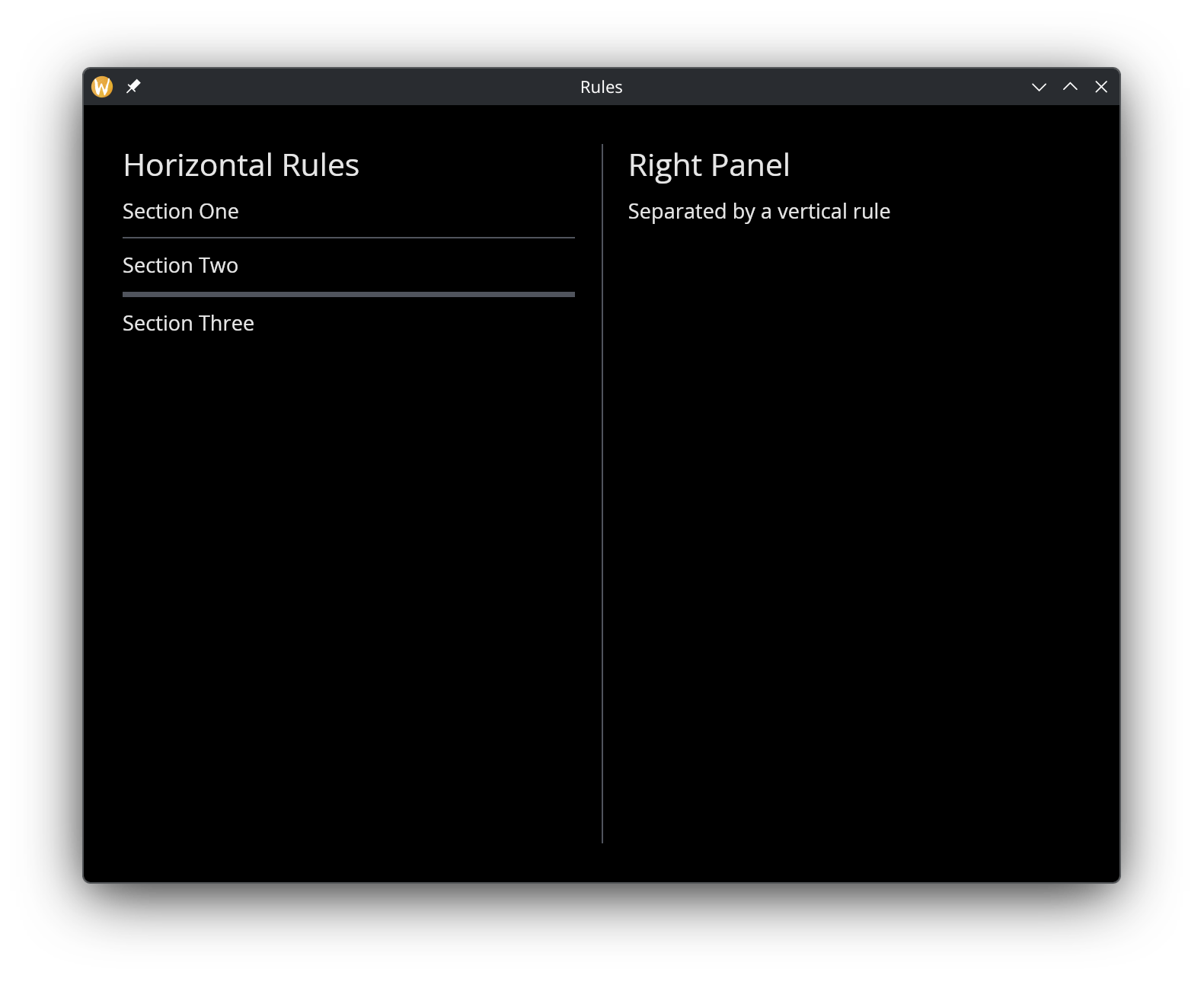
See Also
- Column — vertical layout where rules serve as dividers
- Row — horizontal layout where vertical rules separate sections
- Scrollable — rules work well between scrollable list items
The Canvas Widget
The canvas widget provides a low-level 2D drawing surface for custom graphics. You supply an array of shapes – lines, circles, rectangles, arcs, curves, text labels, and arbitrary paths – and the canvas renders them in order. This makes it suitable for diagrams, visualizations, procedural art, and anything that doesn’t fit into the standard widget set.
Interface
use super::{Color, Length, Widget};
type PathSegment = [
`MoveTo({x: f64, y: f64}),
`LineTo({x: f64, y: f64}),
`BezierTo({ control_a: {x: f64, y: f64}, control_b: {x: f64, y: f64}, to: {x: f64, y: f64} }),
`QuadraticTo({ control: {x: f64, y: f64}, to: {x: f64, y: f64} }),
`ArcTo({ a: {x: f64, y: f64}, b: {x: f64, y: f64}, radius: f64 }),
`Close
];
/// A Text shape's size must be finite, positive and at most 4096 pixels.
type CanvasShape = [
`Line({ from: {x: f64, y: f64}, to: {x: f64, y: f64}, color: Color, width: f64 }),
`Circle({ center: {x: f64, y: f64}, radius: f64, fill: [Color, null], stroke: [{color: Color, width: f64}, null] }),
`Rect({ top_left: {x: f64, y: f64}, size: {width: f64, height: f64}, fill: [Color, null], stroke: [{color: Color, width: f64}, null] }),
`RoundedRect({ top_left: {x: f64, y: f64}, size: {width: f64, height: f64}, radius: f64, fill: [Color, null], stroke: [{color: Color, width: f64}, null] }),
`Arc({ center: {x: f64, y: f64}, radius: f64, start_angle: f64, end_angle: f64, stroke: {color: Color, width: f64} }),
`Ellipse({ center: {x: f64, y: f64}, radii: {x: f64, y: f64}, rotation: f64, start_angle: f64, end_angle: f64, fill: [Color, null], stroke: [{color: Color, width: f64}, null] }),
`BezierCurve({ from: {x: f64, y: f64}, control_a: {x: f64, y: f64}, control_b: {x: f64, y: f64}, to: {x: f64, y: f64}, color: Color, width: f64 }),
`QuadraticCurve({ from: {x: f64, y: f64}, control: {x: f64, y: f64}, to: {x: f64, y: f64}, color: Color, width: f64 }),
`Text({ content: string, position: {x: f64, y: f64}, color: Color, size: f64 }),
`Path({ segments: Array<PathSegment>, fill: [Color, null], stroke: [{color: Color, width: f64}, null] })
];
type Canvas = {
shapes: &Array<CanvasShape>,
width: &Length,
height: &Length,
background: &[Color, null]
};
val canvas: fn(
?#width: &Length,
?#height: &Length,
?#background: &[Color, null],
shapes: &Array<CanvasShape>
) -> Widget
Parameters
- width - Horizontal sizing as a
Length. Defaults to`Fill. - height - Vertical sizing as a
Length. Defaults to`Fill. - background - Background color for the canvas area. Null means transparent.
The positional argument is a reference to an array of CanvasShape values. Shapes are drawn in array order, so later shapes paint over earlier ones.
Shapes
Line
A straight line between two points with a given color and stroke width.
`Line({ from: {x: 0.0, y: 0.0}, to: {x: 100.0, y: 50.0},
color: color(#r: 1.0)$, width: 2.0 })
Circle
A circle defined by center and radius. Either or both of fill and stroke can be provided; set the other to null.
`Circle({ center: {x: 100.0, y: 100.0}, radius: 40.0,
fill: color(#r: 0.2, #g: 0.6, #b: 1.0)$, stroke: null })
Rect
An axis-aligned rectangle defined by its top-left corner and size.
`Rect({ top_left: {x: 10.0, y: 10.0}, size: {width: 80.0, height: 60.0},
fill: color(#g: 0.8, #b: 0.4)$, stroke: null })
RoundedRect
Like Rect but with rounded corners. The radius field controls the corner rounding.
`RoundedRect({ top_left: {x: 10.0, y: 10.0}, size: {width: 80.0, height: 60.0},
radius: 8.0,
fill: null, stroke: {color: color(#r: 1.0, #g: 1.0, #b: 1.0)$, width: 2.0} })
Arc
A circular arc defined by center, radius, and start/end angles in radians. Arcs only have a stroke (no fill).
`Arc({ center: {x: 100.0, y: 100.0}, radius: 50.0,
start_angle: 0.0, end_angle: 3.14159,
stroke: {color: color(#r: 1.0, #g: 0.5)$, width: 2.0} })
Ellipse
An ellipse with independent x and y radii, a rotation angle, and start/end angles (all in radians). Supports both fill and stroke.
`Ellipse({ center: {x: 150.0, y: 100.0}, radii: {x: 60.0, y: 30.0},
rotation: 0.5, start_angle: 0.0, end_angle: 6.283,
fill: color(#r: 0.8, #g: 0.2, #b: 0.8, #a: 0.5)$, stroke: null })
BezierCurve
A cubic Bezier curve defined by start, two control points, and end. Drawn as a stroked line.
`BezierCurve({ from: {x: 0.0, y: 100.0},
control_a: {x: 50.0, y: 0.0}, control_b: {x: 150.0, y: 200.0},
to: {x: 200.0, y: 100.0},
color: color(#g: 1.0, #b: 1.0)$, width: 2.0 })
QuadraticCurve
A quadratic Bezier curve with one control point. Drawn as a stroked line.
`QuadraticCurve({ from: {x: 0.0, y: 100.0},
control: {x: 100.0, y: 0.0},
to: {x: 200.0, y: 100.0},
color: color(#r: 1.0, #g: 1.0)$, width: 2.0 })
Text
A text label placed at a specific position on the canvas.
`Text({ content: "Hello", position: {x: 50.0, y: 50.0},
color: color(#r: 1.0, #g: 1.0, #b: 1.0)$, size: 16.0 })
Path
An arbitrary path built from PathSegment values. Supports fill, stroke, or both. Path segments are:
`MoveTo({x, y})– move the pen without drawing`LineTo({x, y})– draw a straight line to the point`BezierTo({control_a, control_b, to})– cubic Bezier segment`QuadraticTo({control, to})– quadratic Bezier segment`ArcTo({a, b, radius})– arc through two tangent points`Close– close the path back to its start
`Path({
segments: [
`MoveTo({x: 0.0, y: 0.0}),
`LineTo({x: 50.0, y: 100.0}),
`LineTo({x: 100.0, y: 0.0}),
`Close
],
fill: color(#r: 0.5, #b: 0.5, #a: 0.8)$,
stroke: null
})
Examples
Basic Shapes
use gui::{color, window, canvas::canvas, column::column, text::text};
mod icon;
let shapes = &[
`Rect({
top_left: { x: 50.0, y: 50.0 },
size: { width: 200.0, height: 150.0 },
fill: color(#r: 0.2, #g: 0.4, #b: 0.8)$,
stroke: null
}),
`Circle({
center: { x: 350.0, y: 125.0 },
radius: 60.0,
fill: color(#r: 0.8, #g: 0.2, #b: 0.3)$,
stroke: null
}),
`Line({
from: { x: 50.0, y: 250.0 },
to: { x: 450.0, y: 250.0 },
color: color(#g: 0.8, #b: 0.4)$,
width: 3.0
}),
`Text({
content: "Hello Canvas!",
position: { x: 150.0, y: 280.0 },
color: color(#r: 1.0, #g: 1.0, #b: 1.0)$,
size: 24.0
})
];
let col = column(
#spacing: &15.0,
#padding: &`All(20.0),
#width: &`Fill,
#height: &`Fill,
&[
text(#size: &24.0, #halign: &`Center, #width: &`Fill, &"Canvas Demo"),
canvas(
#width: &`Fill,
#height: &`Fill,
#background: &color(#r: 0.1, #g: 0.1, #b: 0.15)$,
shapes
)
]
);
[&window(#icon: &icon::icon, #title: &"Canvas", #size: &mut { width: 600.0, height: 450.0 }, &col)]
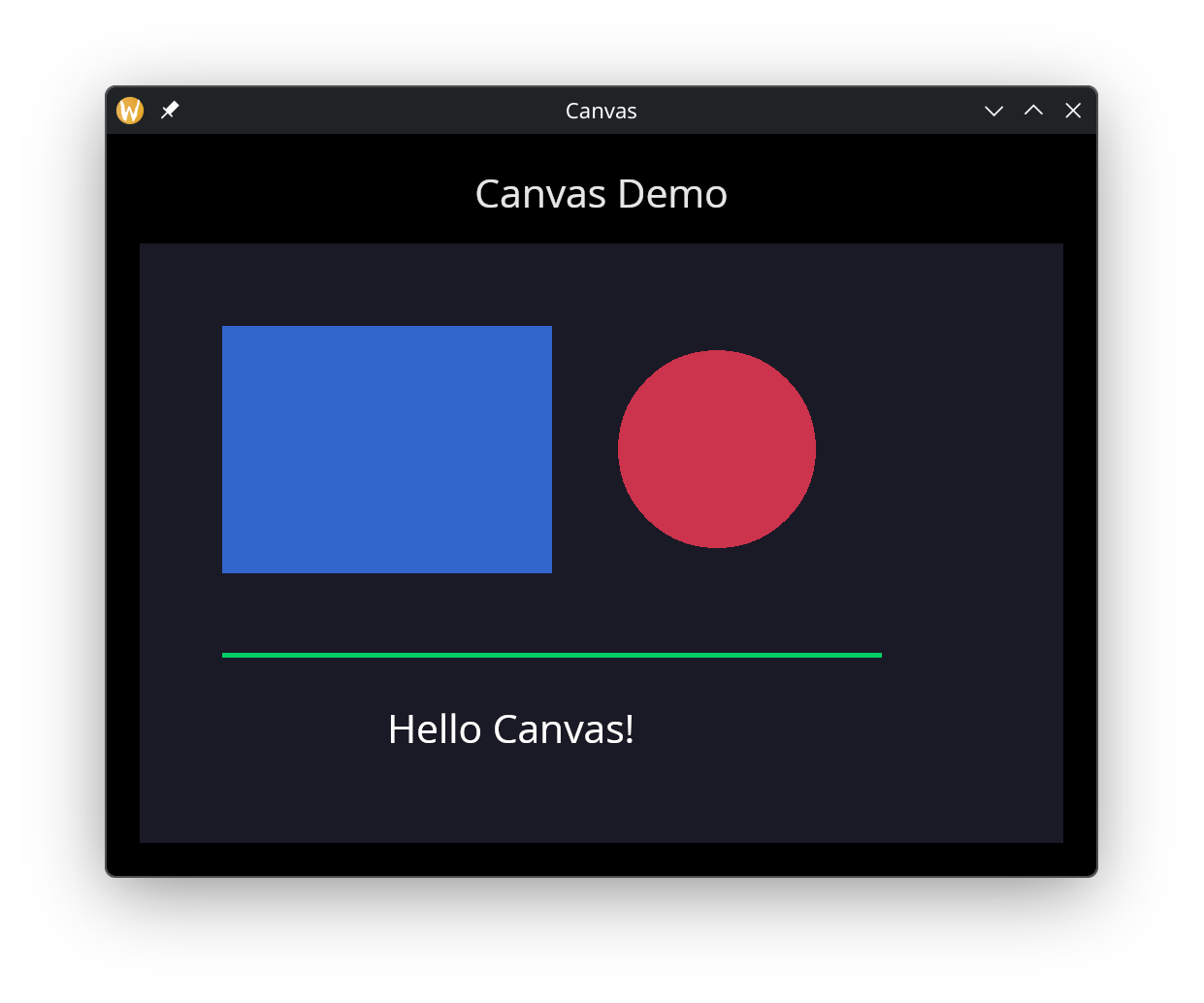
Per-Pixel Drawing
The Mandelbrot set, one rectangle per pixel. The escape loop, its
coloring and the array::init over the grid compile to native code,
which the #[native] on the init asserts.
use gui::{color, window, canvas::canvas};
let start = cast<f64>(sys::time::now(once(null)))$;
let w = 100;
let h = 75;
let max_iter = 64;
let scale = 6.0;
let xmin = -2.5;
let xmax = 1.0;
let ymin = -1.3125;
let ymax = 1.3125;
let dx = (xmax - xmin) / cast<f64>(w)$;
let dy = (ymax - ymin) / cast<f64>(h)$;
let rec iterate = |zr: f64, zi: f64, cr: f64, ci: f64, i: i64| -> i64
select i {
0 => 0,
_ if zr * zr + zi * zi > 4.0 => i,
_ => iterate(zr * zr - zi * zi + cr, 2.0 * zr * zi + ci, cr, ci, i - 1)
};
let color_for = |n: i64| select n {
0 => color(#r: 0.0, #g: 0.0, #b: 0.0)$,
_ => {
let t = cast<f64>(max_iter - n)$ / cast<f64>(max_iter)$;
color(
#r: 9.0 * (1.0 - t) * t * t * t,
#g: 15.0 * (1.0 - t) * (1.0 - t) * t * t,
#b: 8.5 * (1.0 - t) * (1.0 - t) * (1.0 - t) * t
)$
}
};
let shapes = #[native] array::init(w * h, |idx| {
let px = idx % w;
let py = idx / w;
let cr = xmin + cast<f64>(px)$ * dx;
let ci = ymin + cast<f64>(py)$ * dy;
let n = iterate(0.0, 0.0, cr, ci, max_iter);
`Rect({
top_left: {x: cast<f64>(px)$ * scale, y: cast<f64>(py)$ * scale},
size: {width: scale, height: scale},
fill: color_for(n),
stroke: null
})
});
let finish = cast<f64>(sys::time::now(shapes))$;
let elapsed = (finish - start);
println("computed [w * h] pixels in [elapsed]s");
[&window(
#title: &"Mandelbrot Set",
#theme: &`CatppuccinMocha,
#size: &mut {width: 620.0, height: 470.0},
&canvas(
#width: &`Fill,
#height: &`Fill,
#background: &color(#r: 0.0, #g: 0.0, #b: 0.0)$,
&shapes
)
)]
See Also
The Chart Widget
The chart widget renders data visualizations with multiple datasets, axis labels, and automatic or manual axis scaling. It supports line charts, scatter plots, bar charts, area charts, dashed lines, candlestick charts, error bars, pie charts, and 3D plots (scatter, line, surface). Multiple series types can be mixed on the same chart within one mode: a chart cannot mix bar, pie, 3D and XY series, nor XY series over numbers with ones over datetimes. A chart that mixes them draws nothing and logs the conflict once.
Interface
use super::{Color, Length, Widget};
type SeriesStyle = {
color: [Color, null],
label: [string, null],
stroke_width: [f64, null],
point_size: [f64, null]
};
type BarStyle = {
color: [Color, null],
label: [string, null],
margin: [f64, null]
};
type CandlestickStyle = {
gain_color: [Color, null],
loss_color: [Color, null],
bar_width: [f64, null],
label: [string, null]
};
type PieStyle = {
colors: [Array<Color>, null],
donut: [f64, null],
label_offset: [f64, null],
show_percentages: [bool, null],
start_angle: [f64, null]
};
type SurfaceStyle = {
color: [Color, null],
color_by_z: [bool, null],
label: [string, null]
};
type Projection3D = {
pitch: [f64, null],
scale: [f64, null],
yaw: [f64, null]
};
type MeshStyle = {
show_x_grid: [bool, null],
show_y_grid: [bool, null],
grid_color: [Color, null],
bold_line_color: [Color, null],
axis_color: [Color, null],
label_color: [Color, null],
label_size: [f64, null],
x_label_area_size: [f64, null],
x_labels: [i64, null],
x_light_lines: [i64, null],
y_label_area_size: [f64, null],
y_labels: [i64, null],
y_light_lines: [i64, null],
z_labels: [i64, null],
z_light_lines: [i64, null]
};
type LegendStyle = {
background: [Color, null],
border: [Color, null],
label_color: [Color, null],
label_size: [f64, null]
};
type LegendPosition = [
`UpperLeft, `UpperRight, `LowerLeft, `LowerRight,
`MiddleLeft, `MiddleRight, `UpperMiddle, `LowerMiddle
];
type ChartStyle = {
background: [Color, null],
margin: [f64, null],
title_size: [f64, null],
title_color: [Color, null],
palette: [Array<Color>, null],
legend_position: [LegendPosition, null],
legend: [LegendStyle, null],
mesh: [MeshStyle, null]
};
type OhlcPoint<'a: [f64, datetime]> = {x: 'a, open: f64, high: f64, low: f64, close: f64};
type ErrorBarPoint<'a: [f64, datetime]> = {x: 'a, min: f64, avg: f64, max: f64};
type Dataset = [
`Line({data: &[Array<(f64, f64)>, Array<(datetime, f64)>], style: SeriesStyle}),
`Scatter({data: &[Array<(f64, f64)>, Array<(datetime, f64)>], style: SeriesStyle}),
`Bar({data: &Array<(string, f64)>, style: BarStyle}),
`Area({data: &[Array<(f64, f64)>, Array<(datetime, f64)>], style: SeriesStyle}),
`DashedLine({data: &[Array<(f64, f64)>, Array<(datetime, f64)>], dash: f64, gap: f64, style: SeriesStyle}),
`Candlestick({data: &[Array<OhlcPoint<f64>>, Array<OhlcPoint<datetime>>], style: CandlestickStyle}),
`ErrorBar({data: &[Array<ErrorBarPoint<f64>>, Array<ErrorBarPoint<datetime>>], style: SeriesStyle}),
`Pie({data: &Array<(string, f64)>, style: PieStyle}),
`Scatter3D({data: &Array<(f64, f64, f64)>, style: SeriesStyle}),
`Line3D({data: &Array<(f64, f64, f64)>, style: SeriesStyle}),
`Surface({data: &Array<Array<(f64, f64, f64)>>, style: SurfaceStyle})
];
type Chart = {
datasets: &Array<Dataset>,
title: &[string, null],
x_label: &[string, null],
y_label: &[string, null],
x_range: &[{min: f64, max: f64}, {min: datetime, max: datetime}, null],
y_range: &[{min: f64, max: f64}, null],
z_label: &[string, null],
z_range: &[{min: f64, max: f64}, null],
projection: &[Projection3D, null],
width: &Length,
height: &Length,
style: &[ChartStyle, null]
};
val chart: fn(
?#title: &[string, null],
?#x_label: &[string, null],
?#y_label: &[string, null],
?#x_range: &[{min: f64, max: f64}, {min: datetime, max: datetime}, null],
?#y_range: &[{min: f64, max: f64}, null],
?#z_label: &[string, null],
?#z_range: &[{min: f64, max: f64}, null],
?#projection: &[Projection3D, null],
?#width: &Length,
?#height: &Length,
?#style: &[ChartStyle, null],
datasets: &Array<Dataset>
) -> Widget;
val line: fn(
?#color: [Color, null],
?#label: [string, null],
?#stroke_width: [f64, null],
?#point_size: [f64, null],
data: &[Array<(f64, f64)>, Array<(datetime, f64)>]
) -> Dataset;
val scatter: fn(
?#color: [Color, null],
?#label: [string, null],
?#point_size: [f64, null],
data: &[Array<(f64, f64)>, Array<(datetime, f64)>]
) -> Dataset;
val bar: fn(
?#color: [Color, null],
?#label: [string, null],
?#margin: [f64, null],
data: &Array<(string, f64)>
) -> Dataset;
val area: fn(
?#color: [Color, null],
?#label: [string, null],
?#stroke_width: [f64, null],
?#point_size: [f64, null],
data: &[Array<(f64, f64)>, Array<(datetime, f64)>]
) -> Dataset;
val dashed_line: fn(
?#color: [Color, null],
?#label: [string, null],
?#stroke_width: [f64, null],
?#point_size: [f64, null],
?#dash: f64,
?#gap: f64,
data: &[Array<(f64, f64)>, Array<(datetime, f64)>]
) -> Dataset;
val candlestick: fn(
?#gain_color: [Color, null],
?#loss_color: [Color, null],
?#bar_width: [f64, null],
?#label: [string, null],
data: &[Array<OhlcPoint<f64>>, Array<OhlcPoint<datetime>>]
) -> Dataset;
val error_bar: fn(
?#color: [Color, null],
?#label: [string, null],
?#stroke_width: [f64, null],
?#point_size: [f64, null],
data: &[Array<ErrorBarPoint<f64>>, Array<ErrorBarPoint<datetime>>]
) -> Dataset;
/// Font sizes must be finite, positive and at most 4096 pixels.
val mesh_style: fn(
?#show_x_grid: [bool, null],
?#show_y_grid: [bool, null],
?#grid_color: [Color, null],
?#bold_line_color: [Color, null],
?#axis_color: [Color, null],
?#label_color: [Color, null],
?#label_size: [f64, null],
?#x_label_area_size: [f64, null],
?#x_labels: [i64, null],
?#x_light_lines: [i64, null],
?#y_label_area_size: [f64, null],
?#y_labels: [i64, null],
?#y_light_lines: [i64, null],
?#z_labels: [i64, null],
?#z_light_lines: [i64, null]
) -> MeshStyle;
val pie: fn(
?#colors: [Array<Color>, null],
?#donut: [f64, null],
?#start_angle: [f64, null],
?#show_percentages: [bool, null],
?#label_offset: [f64, null],
data: &Array<(string, f64)>
) -> Dataset;
val scatter3d: fn(
?#color: [Color, null],
?#label: [string, null],
?#point_size: [f64, null],
data: &Array<(f64, f64, f64)>
) -> Dataset;
val line3d: fn(
?#color: [Color, null],
?#label: [string, null],
?#stroke_width: [f64, null],
?#point_size: [f64, null],
data: &Array<(f64, f64, f64)>
) -> Dataset;
val surface: fn(
?#color: [Color, null],
?#label: [string, null],
?#color_by_z: [bool, null],
data: &Array<Array<(f64, f64, f64)>>
) -> Dataset;
/// Font sizes must be finite, positive and at most 4096 pixels.
val legend_style: fn(
?#background: [Color, null],
?#border: [Color, null],
?#label_color: [Color, null],
?#label_size: [f64, null]
) -> LegendStyle;
/// Every appearance knob of a chart in one record, so one style can be
/// shared by every chart in a program and varied with `{ s with .. }`.
/// Font sizes must be finite, positive and at most 4096 pixels.
val chart_style: fn(
?#background: [Color, null],
?#margin: [f64, null],
?#title_size: [f64, null],
?#title_color: [Color, null],
?#palette: [Array<Color>, null],
?#legend_position: [LegendPosition, null],
?#legend: [LegendStyle, null],
?#mesh: [MeshStyle, null]
) -> ChartStyle;
Chart Parameters
- title — Chart title displayed above the plot area. Null for no title.
- x_label — Label for the x-axis. Null for no label.
- y_label — Label for the y-axis. Null for no label.
- x_range — Manual x-axis range as
{min: f64, max: f64}or{min: datetime, max: datetime}. When null, the range is computed automatically from the data. A range of the other kind than the chart’s x axis (a datetime range on a numeric chart, or the reverse) is ignored. - y_range — Manual y-axis range as
{min: f64, max: f64}. When null, auto-computed. - z_label — Label for the z-axis (3D charts only). Null for no label.
- z_range — Manual z-axis range as
{min: f64, max: f64}(3D charts only). When null, auto-computed. - projection — 3D projection parameters as a
Projection3Dstruct. Controls pitch, yaw, and scale of the 3D view. When null, plotters defaults are used. - width — Horizontal sizing as a
Length. Defaults to`Fill. - height — Vertical sizing as a
Length. Defaults to`Fill. - style — Every appearance knob as a
ChartStylestruct (see ChartStyle Fields). When null, plotters defaults are used.
The positional argument is a reference to an array of Dataset values. Multiple datasets can be plotted on the same axes.
Series Constructors
Rather than constructing Dataset variants directly, use these convenience functions. All style parameters are optional and default to null.
chart::line
chart::line(#label: "Price", #color: color(#r: 1.0)$, &data)
Points connected by straight line segments. Data is &[Array<(f64, f64)>, Array<(datetime, f64)>] — either numeric or time-series x values.
chart::scatter
chart::scatter(#label: "Points", #point_size: 5.0, &data)
Individual points without connecting lines. Same data type as line.
chart::bar
chart::bar(#label: "Counts", &data)
Vertical bars from the x-axis. Data is &Array<(string, f64)> — category labels paired with values. Uses BarStyle (which has margin instead of stroke_width/point_size).
chart::area
chart::area(#label: "Volume", &data)
Like line but with the region between the line and the x-axis filled with 30% opacity. Same data type as line.
chart::dashed_line
chart::dashed_line(#label: "Projection", #dash: 10.0, #gap: 5.0, &data)
A dashed line series. dash and gap control the dash and gap lengths in pixels. Defaults to 5.0 each.
chart::candlestick
chart::candlestick(#label: "OHLC", &ohlc_data)
Financial candlestick chart. Data is &[Array<OhlcPoint<f64>>, Array<OhlcPoint<datetime>>] where each point has {x, open, high, low, close} fields. Gain candles (close > open) are green by default; loss candles are red. Override with #gain_color and #loss_color.
chart::error_bar
chart::error_bar(#label: "Confidence", &error_data)
Vertical error bars. Data is &[Array<ErrorBarPoint<f64>>, Array<ErrorBarPoint<datetime>>] where each point has {x, min, avg, max} fields. A circle is drawn at the average value with whiskers extending to min and max.
chart::pie
chart::pie(#show_percentages: true, #start_angle: -90.0, &data)
Pie chart. Data is &Array<(string, f64)> — category labels paired with values. Uses PieStyle which controls colors, donut hole size, label offset, percentage display, and start angle.
chart::scatter3d
chart::scatter3d(#label: "3D Points", #point_size: 4.0, &data)
3D scatter plot. Data is &Array<(f64, f64, f64)>. Use the chart #projection parameter to control the 3D viewing angle.
chart::line3d
chart::line3d(#label: "3D Line", &data)
3D line plot. Data is &Array<(f64, f64, f64)>. Points connected by line segments in 3D space.
chart::surface
chart::surface(#color_by_z: true, #label: "surface", &grid_data)
3D surface plot. Data is &Array<Array<(f64, f64, f64)>> — a grid of rows where each point is (x, y, z). Set #color_by_z: true for automatic heat-map coloring based on z values.
Styling
A chart’s appearance lives in one ChartStyle record passed as #style,
so a program defines its look once and hands the same value to every
chart. A chart that needs one thing different takes a functional update
of the shared record:
let deck = chart::chart_style(
#background: color(#r: 0.12, #g: 0.12, #b: 0.18)$,
#title_color: color(#r: 0.9, #g: 0.9, #b: 0.95)$,
#legend: chart::legend_style(#label_color: color(#r: 0.85, #g: 0.85, #b: 0.9)$),
#mesh: chart::mesh_style(#label_color: color(#r: 0.75, #g: 0.75, #b: 0.8)$)
);
let headline = {deck with title_size: 28.0};
chart::chart(#title: &"Revenue", #style: &deck, &[...]);
chart::chart(#title: &"Summary", #style: &headline, &[...])
chart::chart_style
chart::chart_style(#background: color(#r: 0.1, #g: 0.1, #b: 0.1)$, #margin: 20.0, #legend_position: `UpperRight)
Constructs a ChartStyle value for the chart’s #style parameter. Every argument is optional; a null field keeps the plotters default.
chart::mesh_style
chart::mesh_style(#label_color: color(#r: 1.0, #g: 1.0, #b: 1.0)$, #x_labels: 5)
Constructs a MeshStyle value for chart_style’s #mesh parameter.
chart::legend_style
chart::legend_style(#background: color(#r: 0.1, #g: 0.1, #b: 0.1)$, #label_color: color(#r: 1.0, #g: 1.0, #b: 1.0)$)
Constructs a LegendStyle value for chart_style’s #legend parameter.
Style Fields
SeriesStyle
Used by line, scatter, area, dashed_line, error_bar, scatter3d, and line3d:
- color — Series color. When null, a color is assigned from a default palette.
- label — Display name shown in the legend. When null, no legend entry is created.
- stroke_width — Line/stroke width in pixels. Defaults to 2. Scatter and scatter3d draw filled dots and take none.
- point_size — Marker radius drawn at each point. Scatter defaults to 3; line, area and dashed_line draw no markers unless it is set, except a series with a single point, which draws a marker of radius 3 so it stays visible. For error_bar it is the width of the whisker caps,
stroke_widthby default.
BarStyle
Used by bar:
- color — Bar fill color. When null, assigned from palette.
- label — Display name shown in the legend.
- margin — Margin between bars in pixels.
CandlestickStyle
Used by candlestick:
- gain_color — Color for gain candles (close > open). Defaults to green.
- loss_color — Color for loss candles (close <= open). Defaults to red.
- bar_width — Width of candlestick bodies in pixels. Defaults to 5.
- label — Display name shown in the legend.
PieStyle
Used by pie:
- colors — Array of colors for pie slices. When null, default palette is used.
- donut — Inner radius as a fraction of the outer radius (0.0–1.0). When null or 0, draws a full pie.
- label_offset — Distance of the labels outside the pie’s edge, as a percentage of its radius. Defaults to 5.
- show_percentages — Whether to display percentage values on labels. Defaults to false.
- start_angle — Starting angle in degrees. Defaults to 0 (3 o’clock position). Use -90.0 to start at 12 o’clock.
SurfaceStyle
Used by surface:
- color — Surface fill color. When null, assigned from palette.
- color_by_z — When true, colors the surface with a heat map based on z values. Defaults to false.
- label — Display name shown in the legend.
Projection3D
Used with the chart #projection parameter for 3D charts:
- pitch — Vertical rotation angle in radians.
- scale — Scale factor for the 3D projection.
- yaw — Horizontal rotation angle in radians.
ChartStyle Fields
- background — Background color, a
Colormade withgui::color. Defaults to white when null. - margin — Margin in pixels around the plot area. Defaults to 10.
- title_size — Font size for the chart title. Defaults to 16. Must be finite, positive and at most 4096 pixels.
- title_color — Color of the chart title text. Defaults to black when null.
- palette — Colors assigned, in order, to series that set no
#colorof their own, and to pie slices without#colors. Cycles when there are more series than colors. When null, a built-in eight-color palette is used. - legend_position — Position of the series legend. Defaults to
`UpperLeftwhen null. - legend — Legend appearance via a
LegendStylestruct. When null, defaults to white background with black border. - mesh — Grid and axis styling via a
MeshStylestruct. When null, plotters defaults are used.
MeshStyle Fields
- show_x_grid — Show vertical grid lines. Defaults to true when null. 2D charts only.
- show_y_grid — Show horizontal grid lines. Defaults to true when null. 2D charts only.
- grid_color — Color of the light grid lines drawn between labeled positions.
- bold_line_color — Color of the bold grid lines drawn at each labeled position.
- axis_color — Color of axis lines. 2D charts only.
- label_color — Color of tick labels and axis descriptions. Essential for dark backgrounds where the default black text is invisible.
- label_size — Font size for axis labels. Must be finite, positive and at most 4096 pixels.
- x_label_area_size — Height of the x-axis label area below the plot, in pixels. Increase to prevent label clipping.
- x_labels — Number of x-axis tick labels; a bold grid line is drawn at each. Defaults to 11.
- x_light_lines — Maximum number of light grid lines between adjacent x labels. Defaults to 10; 0 draws bold lines only on a numeric x axis, while a datetime or bar-category x axis draws at least one light line.
- y_label_area_size — Width of the y-axis label area in pixels. Increase to prevent label clipping.
- y_labels — Number of y-axis tick labels; a bold grid line is drawn at each. Defaults to 11.
- y_light_lines — Maximum number of light grid lines between adjacent y labels. Defaults to 10; 0 draws bold lines only.
- z_labels — Number of z-axis tick labels (3D charts only).
- z_light_lines — Maximum number of light grid lines between adjacent z labels (3D charts only).
LegendStyle Fields
- background — Legend background color. Defaults to white when null.
- border — Legend border color. Defaults to black when null.
- label_color — Color of legend text labels. Defaults to plotters default (black) when null.
- label_size — Font size for legend labels. Must be finite, positive and at most 4096 pixels. When null, the axis label size is used.
Interaction
A chart responds to the mouse:
- Wheel zooms around the cursor (a 3D chart scales instead). The
chart takes the wheel event, so a chart inside a
scrollabledoes not scroll it while the cursor is over the chart. - Drag pans the view; a bar chart pans its value axis only. On a 3D chart, dragging rotates the view.
- Double-click resets the view to the chart’s own ranges.
- Hover shows a tooltip at the data point nearest the cursor (2D charts).
Pie charts ignore zoom and pan.
Examples
Multiple Datasets
use gui::{window, chart, column::column, row::row, slider::slider, text::text};
mod icon;
let rate = 0.;
let clock = sys::time::timer(1. - rate, true);
let x = cast<f64>(count(clock))$;
let series = |start, end| {
let d = [];
let y = rand::rand(#start, #end, #clock);
d <- array::window(#n:20, clock ~ d, (x, y));
d
};
let adjust_speed = row(
#spacing:&15.0,
&[
text(#size: &14.0, &"Adjust Speed"),
slider(#min:&0., #max:&0.9, #step:&0.1, #on_change:|v| rate <- v, &rate)
]
);
let col = column(
#spacing: &15.0,
#padding: &`All(20.0),
#width: &`Fill,
#height: &`Fill,
&[
text(#size: &24.0, #halign: &`Center, #width: &`Fill, &"Chart Demo"),
adjust_speed,
chart::chart(
#title: &"Sample Data",
#x_label: &"x",
#y_label: &"y",
&[
chart::line(#label: "Series A", &series(0., 50.)),
chart::scatter(#label: "Series B", &series(0., 5.))
]
)
]
);
[&window(#icon: &icon::icon, #title: &"Chart", #size: &mut { width: 900.0, height: 700.0 }, &col)]
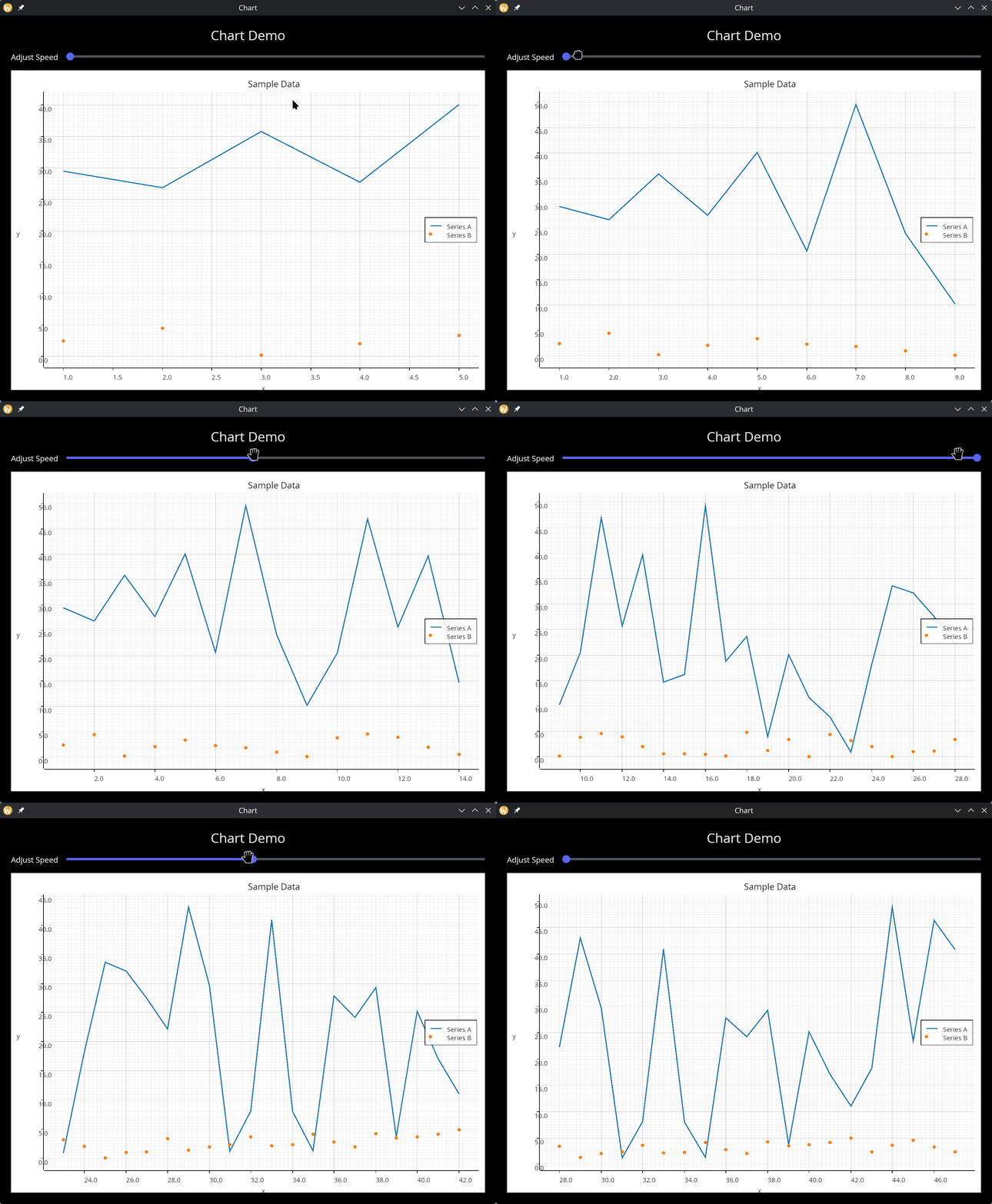
Bar Chart
use gui::{color, window, chart, column::column, text::text};
mod icon;
let data = [
("Jan", 42.),
("Feb", 67.),
("Mar", 35.),
("Apr", 89.),
("May", 54.),
("Jun", 73.),
("Jul", 28.),
("Aug", 61.)
];
let col = column(
#spacing: &15.0,
#padding: &`All(20.0),
#width: &`Fill,
#height: &`Fill,
&[
text(#size: &24.0, #halign: &`Center, #width: &`Fill, &"Bar Chart"),
chart::chart(
#title: &"Monthly Sales",
#x_label: &"Month",
#y_label: &"Units Sold",
&[
chart::bar(
#label: "Product A",
#color: color(#r: 0.2, #g: 0.5, #b: 0.8)$,
&data
)
]
)
]
);
[&window(#icon: &icon::icon, #title: &"Bar Chart", #size: &mut {width: 800.0, height: 600.0}, &col)]
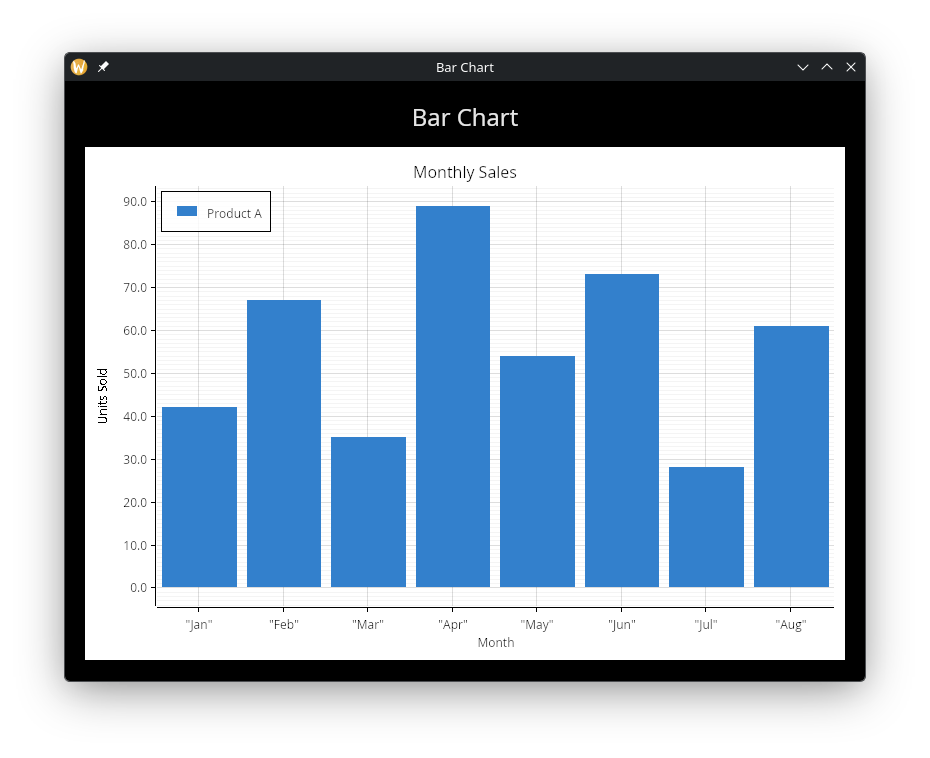
Candlestick
use gui::{color, window, chart, column::column, text::text};
mod icon;
let dark_bg = color(#r: 0.1, #g: 0.1, #b: 0.15)$;
let ohlc_data = [
{x: datetime:"2024-01-01T00:00:00Z", open: 100., high: 108., low: 97., close: 105.},
{x: datetime:"2024-01-02T00:00:00Z", open: 105., high: 112., low: 103., close: 110.},
{x: datetime:"2024-01-03T00:00:00Z", open: 110., high: 115., low: 106., close: 107.},
{x: datetime:"2024-01-04T00:00:00Z", open: 107., high: 111., low: 101., close: 103.},
{x: datetime:"2024-01-05T00:00:00Z", open: 103., high: 109., low: 100., close: 108.},
{x: datetime:"2024-01-08T00:00:00Z", open: 108., high: 116., low: 107., close: 114.},
{x: datetime:"2024-01-09T00:00:00Z", open: 114., high: 118., low: 110., close: 112.},
{x: datetime:"2024-01-10T00:00:00Z", open: 112., high: 117., low: 108., close: 116.},
{x: datetime:"2024-01-11T00:00:00Z", open: 116., high: 120., low: 113., close: 115.},
{x: datetime:"2024-01-12T00:00:00Z", open: 115., high: 119., low: 109., close: 110.},
{x: datetime:"2024-01-15T00:00:00Z", open: 110., high: 114., low: 105., close: 106.},
{x: datetime:"2024-01-16T00:00:00Z", open: 106., high: 112., low: 104., close: 111.},
{x: datetime:"2024-01-17T00:00:00Z", open: 111., high: 117., low: 109., close: 115.},
{x: datetime:"2024-01-18T00:00:00Z", open: 115., high: 121., low: 114., close: 120.},
{x: datetime:"2024-01-19T00:00:00Z", open: 120., high: 125., low: 118., close: 119.},
{x: datetime:"2024-01-22T00:00:00Z", open: 119., high: 122., low: 112., close: 113.},
{x: datetime:"2024-01-23T00:00:00Z", open: 113., high: 118., low: 110., close: 117.},
{x: datetime:"2024-01-24T00:00:00Z", open: 117., high: 123., low: 115., close: 122.},
{x: datetime:"2024-01-25T00:00:00Z", open: 122., high: 126., low: 118., close: 119.},
{x: datetime:"2024-01-26T00:00:00Z", open: 119., high: 124., low: 116., close: 123.}
];
let col = column(
#spacing: &15.0,
#padding: &`All(20.0),
#width: &`Fill,
#height: &`Fill,
&[
text(#size: &24.0, #halign: &`Center, #width: &`Fill, &"Candlestick Chart"),
chart::chart(
#title: &"ACME Corp",
#x_label: &"Date",
#y_label: &"Price",
#style: &chart::chart_style(
#background: dark_bg,
#title_color: color(#r: 0.9, #g: 0.9, #b: 0.95)$,
#title_size: 20.0,
#legend: chart::legend_style(
#background: color(#r: 0.15, #g: 0.15, #b: 0.2)$,
#border: color(#r: 0.4, #g: 0.4, #b: 0.45)$,
#label_color: color(#r: 0.85, #g: 0.85, #b: 0.9)$
),
#mesh: chart::mesh_style(
#show_x_grid: false,
#grid_color: color(#r: 0.3, #g: 0.3, #b: 0.35)$,
#axis_color: color(#r: 0.6, #g: 0.6, #b: 0.65)$,
#label_color: color(#r: 0.75, #g: 0.75, #b: 0.8)$,
#x_label_area_size: 60.0
)
),
&[
chart::candlestick(
#label: "ACME",
#gain_color: color(#g: 0.8, #b: 0.4)$,
#loss_color: color(#r: 0.9, #g: 0.2, #b: 0.2)$,
#bar_width: 6.0,
&ohlc_data
)
]
)
]
);
[&window(
#icon: &icon::icon,
#title: &"Candlestick",
#size: &mut {width: 900.0, height: 650.0},
#theme: &`CatppuccinMocha,
&col
)]
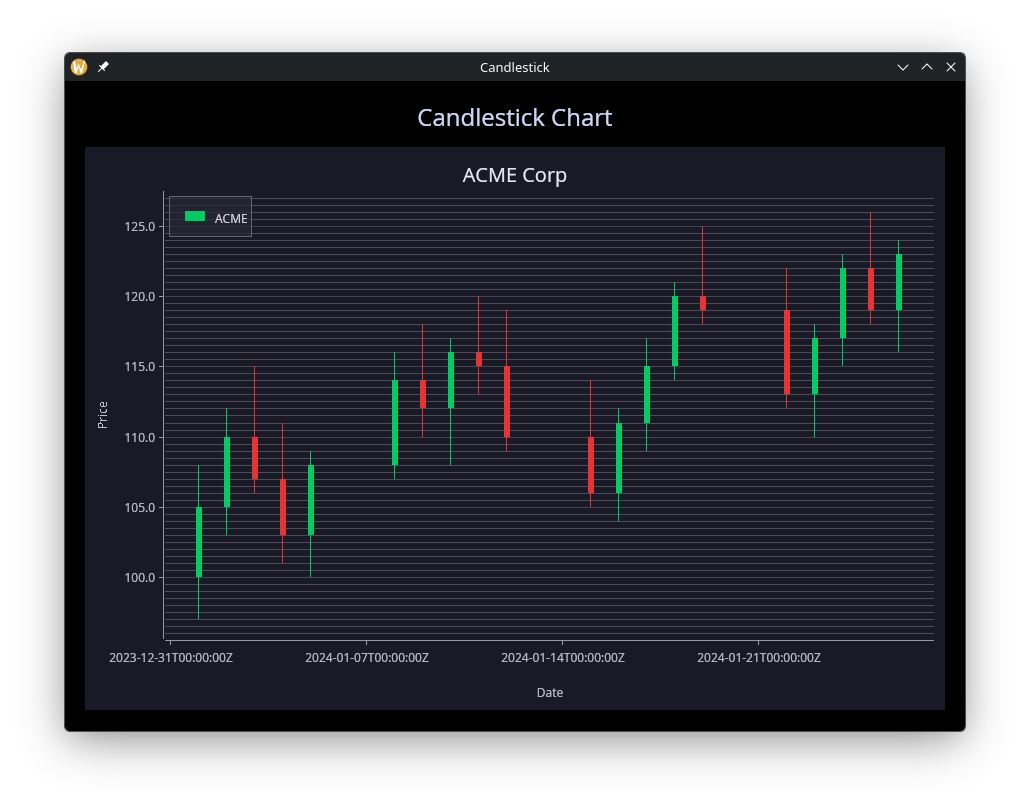
Error Bars
use gui::{color, window, chart, column::column, text::text};
mod icon;
let clock = sys::time::timer(duration:1.s, true);
let x = cast<f64>(count(clock))$;
let avg_data = [];
let err_data = [];
let avg = rand::rand(#start: 20., #end: 80., #clock);
let noise = rand::rand(#start: 3., #end: 15., #clock);
avg_data <- array::window(#n: 25, clock ~ avg_data, (x, avg));
err_data <- array::window(#n: 25, clock ~ err_data, {
x, min: avg - noise, avg, max: avg + noise
});
let col = column(
#spacing: &15.0,
#padding: &`All(20.0),
#width: &`Fill,
#height: &`Fill,
&[
text(#size: &24.0, #halign: &`Center, #width: &`Fill, &"Error Bar Chart"),
chart::chart(
#title: &"Measurements with Confidence Bands",
#x_label: &"Sample",
#y_label: &"Value",
&[
chart::error_bar(
#label: "Confidence",
#color: color(#r: 0.8, #g: 0.4, #b: 0.4)$,
&err_data
),
chart::line(
#label: "Average",
#color: color(#r: 0.2, #g: 0.4, #b: 0.8)$,
#stroke_width: 2.0,
&avg_data
)
]
)
]
);
[&window(#icon: &icon::icon, #title: &"Error Bars", #size: &mut {width: 900.0, height: 650.0}, &col)]
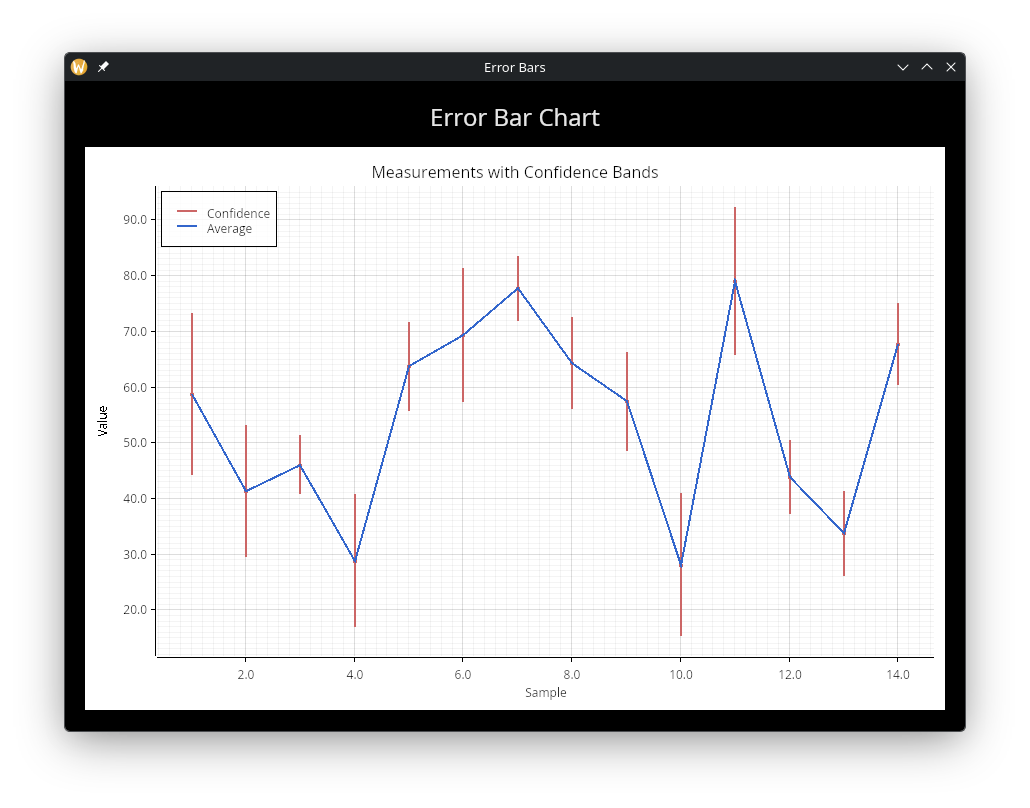
Pie Chart
use gui::{window, chart, column::column, text::text};
mod icon;
let data = [
("Rust", 35.),
("Python", 25.),
("JavaScript", 20.),
("Go", 12.),
("Other", 8.)
];
let col = column(
#spacing: &15.0,
#padding: &`All(20.0),
#width: &`Fill,
#height: &`Fill,
&[
text(#size: &24.0, #halign: &`Center, #width: &`Fill, &"Language Popularity"),
chart::chart(
#title: &"Programming Languages",
&[
chart::pie(
#show_percentages: true,
#start_angle: -90.0,
&data
)
]
)
]
);
[&window(#icon: &icon::icon, #title: &"Pie Chart", #size: &mut {width: 800.0, height: 600.0}, &col)]
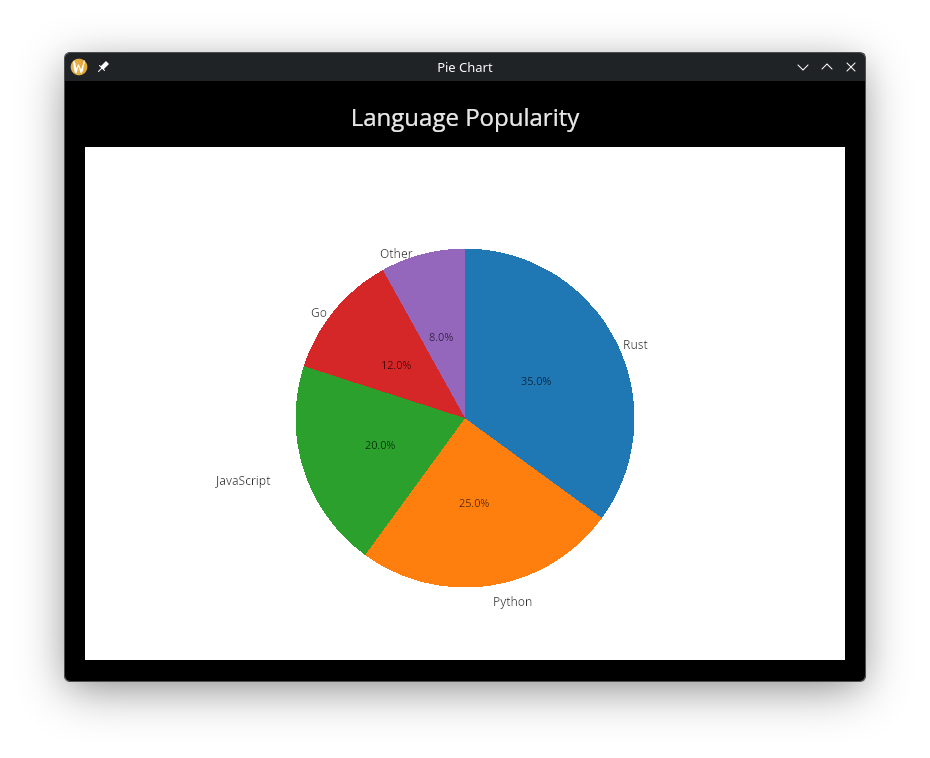
3D Surface
use gui::{window, chart, column::column, text::text};
mod icon;
let surface_data = [
[(-4., -4., 32.), (-4., -2., 20.), (-4., 0., 16.), (-4., 2., 20.), (-4., 4., 32.)],
[(-2., -4., 20.), (-2., -2., 8.), (-2., 0., 4.), (-2., 2., 8.), (-2., 4., 20.)],
[(0., -4., 16.), (0., -2., 4.), (0., 0., 0.), (0., 2., 4.), (0., 4., 16.)],
[(2., -4., 20.), (2., -2., 8.), (2., 0., 4.), (2., 2., 8.), (2., 4., 20.)],
[(4., -4., 32.), (4., -2., 20.), (4., 0., 16.), (4., 2., 20.), (4., 4., 32.)]
];
let col = column(
#spacing: &15.0,
#padding: &`All(20.0),
#width: &`Fill,
#height: &`Fill,
&[
text(#size: &24.0, #halign: &`Center, #width: &`Fill, &"3D Surface Plot"),
chart::chart(
#title: &"Paraboloid",
#x_label: &"X",
#y_label: &"Y",
#z_label: &"Z",
#projection: &{yaw: 0.5, pitch: 0.15, scale: 0.9},
&[
chart::surface(
#color_by_z: true,
#label: "surface",
&surface_data
)
]
)
]
);
[&window(#icon: &icon::icon, #title: &"3D Chart", #size: &mut {width: 800.0, height: 600.0}, &col)]
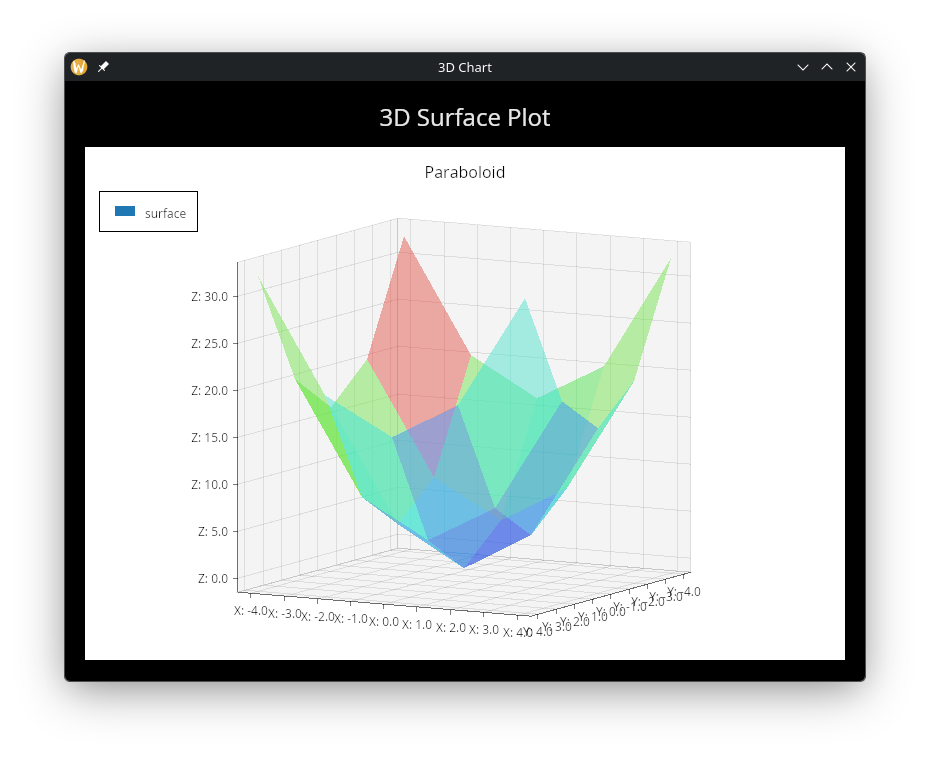
Styling
use gui::{color, window, chart, column::column, text::text};
mod icon;
let clock = sys::time::timer(duration:0.5s, true);
let x = cast<f64>(count(clock))$;
let series = |offset, scale| {
let d = [];
let y = rand::rand(#start: 0., #end: scale, #clock) + offset;
d <- array::window(#n: 30, clock ~ d, (x, y));
d
};
let line_data = series(50., 20.);
let area_data = series(20., 15.);
let dash_data = series(70., 10.);
let dark = chart::chart_style(
#background: color(#r: 0.12, #g: 0.12, #b: 0.18)$,
#margin: 20.0,
#title_color: color(#r: 0.9, #g: 0.9, #b: 0.95)$,
#palette: [
color(#r: 0.3, #g: 0.7, #b: 1.0)$,
color(#r: 0.4, #g: 0.8, #b: 0.4)$,
color(#r: 1.0, #g: 0.6, #b: 0.2)$
],
#legend_position: `UpperRight,
#legend: chart::legend_style(
#background: color(#r: 0.18, #g: 0.18, #b: 0.24)$,
#border: color(#r: 0.4, #g: 0.4, #b: 0.45)$,
#label_color: color(#r: 0.85, #g: 0.85, #b: 0.9)$
),
#mesh: chart::mesh_style(
#show_x_grid: true,
#show_y_grid: false,
#grid_color: color(#r: 0.25, #g: 0.25, #b: 0.3)$,
#bold_line_color: color(#r: 0.4, #g: 0.4, #b: 0.45)$,
#x_light_lines: 2,
#axis_color: color(#r: 0.5, #g: 0.5, #b: 0.55)$,
#label_color: color(#r: 0.75, #g: 0.75, #b: 0.8)$,
#label_size: 14.0
)
);
let col = column(
#spacing: &15.0,
#padding: &`All(20.0),
#width: &`Fill,
#height: &`Fill,
&[
text(#size: &24.0, #halign: &`Center, #width: &`Fill, &"Chart Styling"),
chart::chart(
#title: &"Styled Chart",
#x_label: &"Time",
#y_label: &"Value",
#style: &{dark with title_size: 22.0},
&[
chart::line(
#label: "Signal",
#stroke_width: 3.0,
&line_data
),
chart::area(
#label: "Baseline",
&area_data
),
chart::dashed_line(
#label: "Projection",
#dash: 12.0,
#gap: 6.0,
#stroke_width: 2.0,
&dash_data
)
]
)
]
);
[&window(
#icon: &icon::icon,
#title: &"Chart Styles",
#size: &mut {width: 900.0, height: 700.0},
#theme: &`CatppuccinMocha,
&col
)]
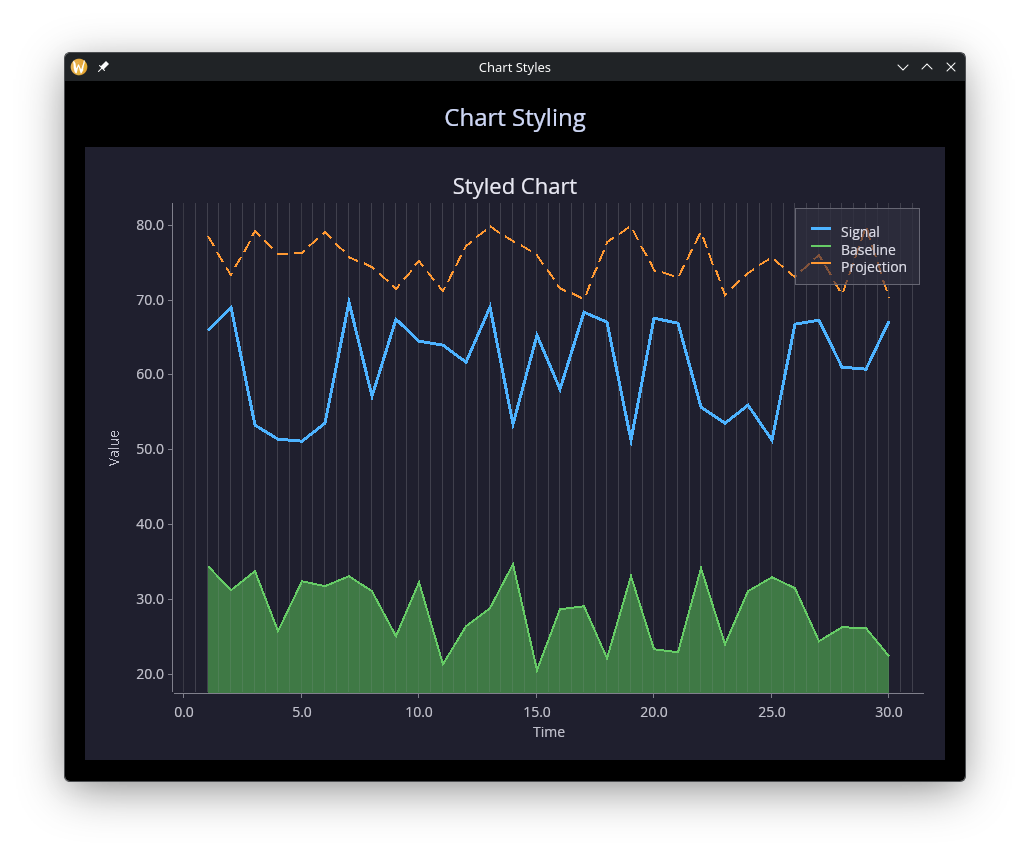
See Also
- canvas — Low-level drawing for custom visualizations
The Image Widget
The image widget displays raster images from files, raw bytes or pixel buffers, and SVG images from files or inline XML, with sizing and content fitting controls.
Interface
use super::{ContentFit, ImageSource, Length, Widget};
type Image = {
source: &ImageSource,
width: &Length,
height: &Length,
content_fit: &ContentFit
};
val image: fn(
?#width: &Length,
?#height: &Length,
?#content_fit: &ContentFit,
source: &ImageSource
) -> Widget
Parameters
The labeled arguments:
- width - Horizontal sizing as a
Length. Defaults to`Shrink. - height - Vertical sizing as a
Length. Defaults to`Shrink. - content_fit - Controls how the content is scaled to fill the available space:
`Fill– Stretch to fill the entire area, ignoring aspect ratio.`Contain– Scale uniformly to fit within the area, preserving aspect ratio. May leave empty space.`Cover– Scale uniformly to cover the entire area, preserving aspect ratio. May crop content.`None– Display at the original size with no scaling.`ScaleDown– Like`Containbut only scales down, never up.
Image Sources
The image widget accepts an ImageSource union:
- string – A file path to a PNG, JPEG, BMP, GIF, or other supported image format, or to an
.svgor.svgzfile. The path is relative to the working directory. `Svg(string)– Inline SVG XML.`Bytes(bytes)– Raw image file bytes (e.g. the contents of a PNG file loaded withsys::fs::read_all_bin). Useful when image data comes from a network source or is embedded in the program. Bytes literals use thebytes:<base64>syntax.`Rgba({width, height, pixels})– A raw RGBA pixel buffer. Thewidthandheightfields specify the image dimensions, andpixelsis abytesvalue containingwidth * height * 4bytes (one byte each for red, green, blue, and alpha per pixel, in row-major order).
An image delivered again with the same source keeps what it has drawn.
Examples
Image
use gui::{window, column::column, image::image, text::text};
mod icon;
let pixels = bytes:/wAA/wD/AP8AAP////8A/wD/////AP///4AA/4AA//8AgAD/gICA//////8AAAD//8DL/6UqKv8AgID//9cA/w==;
[&window(
#icon: &icon::icon,
#title: &"Image Widget",
&column(
#spacing: &15.0,
#padding: &`All(30.0),
#halign: &`Center,
#width: &`Fill,
#height: &`Fill,
&[
text(#size: &24.0, &"Image Demo"),
text(&"A 4x4 pixel image scaled up:"),
image(
#width: &`Fixed(200.0),
#height: &`Fixed(200.0),
&`Rgba({ width: u32:4, height: u32:4, pixels: pixels })
)
]
)
)]
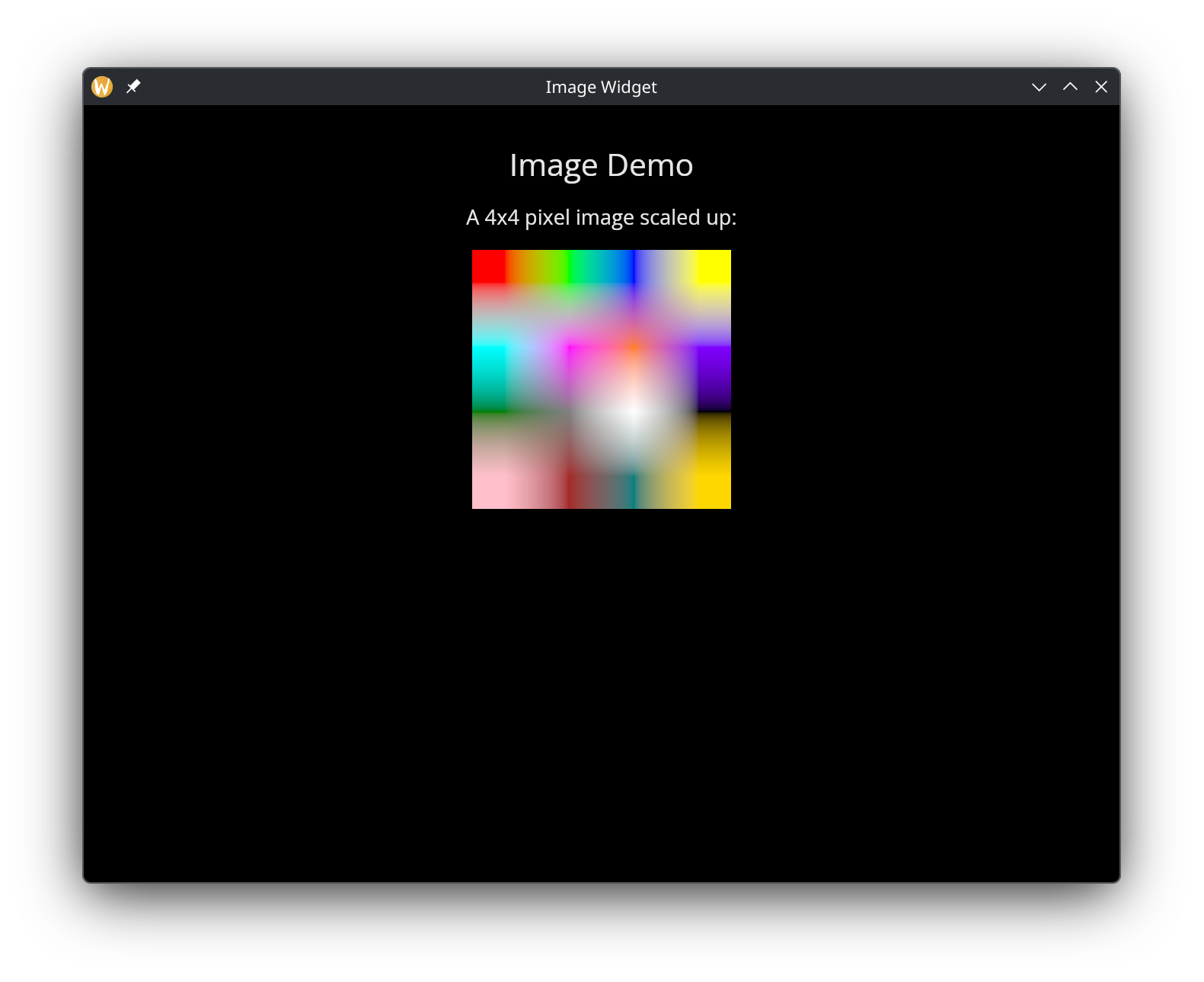
SVG
use gui::{window, column::column, image::image, text::text};
mod icon;
let svg_content = r##"<svg xmlns="http://www.w3.org/2000/svg" viewBox="0 0 200 200">
<circle cx="100" cy="100" r="80" fill="#4a9eff" opacity="0.8"/>
<circle cx="100" cy="100" r="50" fill="#ff6b6b" opacity="0.8"/>
<circle cx="100" cy="100" r="25" fill="#ffd93d" opacity="0.9"/>
</svg>"##;
[&window(
#icon: &icon::icon,
#title: &"SVG Widget",
&column(
#spacing: &15.0,
#padding: &`All(30.0),
#halign: &`Center,
#width: &`Fill,
#height: &`Fill,
&[
text(#size: &24.0, &"SVG Demo"),
image(
#width: &`Fixed(300.0),
#height: &`Fixed(300.0),
#content_fit: &`Contain,
&`Svg(svg_content)
)
]
)
)]
See Also
The Tooltip Widget
The tooltip widget displays a popup hint when the user hovers over a child widget. The tooltip content is itself a widget, allowing rich formatted tips.
Interface
use super::{TooltipPosition, Widget};
type Tooltip = {
child: &Widget,
tip: &Widget,
position: &TooltipPosition,
gap: &[f64, null]
};
val tooltip: fn(
#tip: &Widget,
?#position: &TooltipPosition,
?#gap: &[f64, null],
child: &Widget
) -> Widget
Parameters
- tip — (required) the tooltip content widget, typically
text(...). This is a required labeled argument. - position — where the tooltip appears relative to the child:
Top,Bottom,Left,Right, orFollowCursor - gap — space in pixels between the child and the tooltip
The positional argument is a reference to the child widget that triggers the tooltip on hover.
Examples
use gui::{window, button::button, column::column, text::text, tooltip::tooltip};
mod icon;
let col = column(
#spacing: &20.0,
#padding: &`All(30.0),
#halign: &`Center,
#width: &`Fill,
&[
text(#size: &24.0, &"Tooltip Demo"),
text(&"Hover over the buttons below:"),
tooltip(
#tip: &text(&"Save your work"),
#position: &`Bottom,
#gap: &5.0,
&button(#on_press: |_| null, #padding: &`All(10.0), &text(&"Save"))
),
tooltip(
#tip: &text(&"Delete permanently"),
#position: &`Right,
#gap: &5.0,
&button(#on_press: |_| null, #padding: &`All(10.0), &text(&"Delete"))
)
]
);
[&window(#icon: &icon::icon, #title: &"Tooltip", &col)]
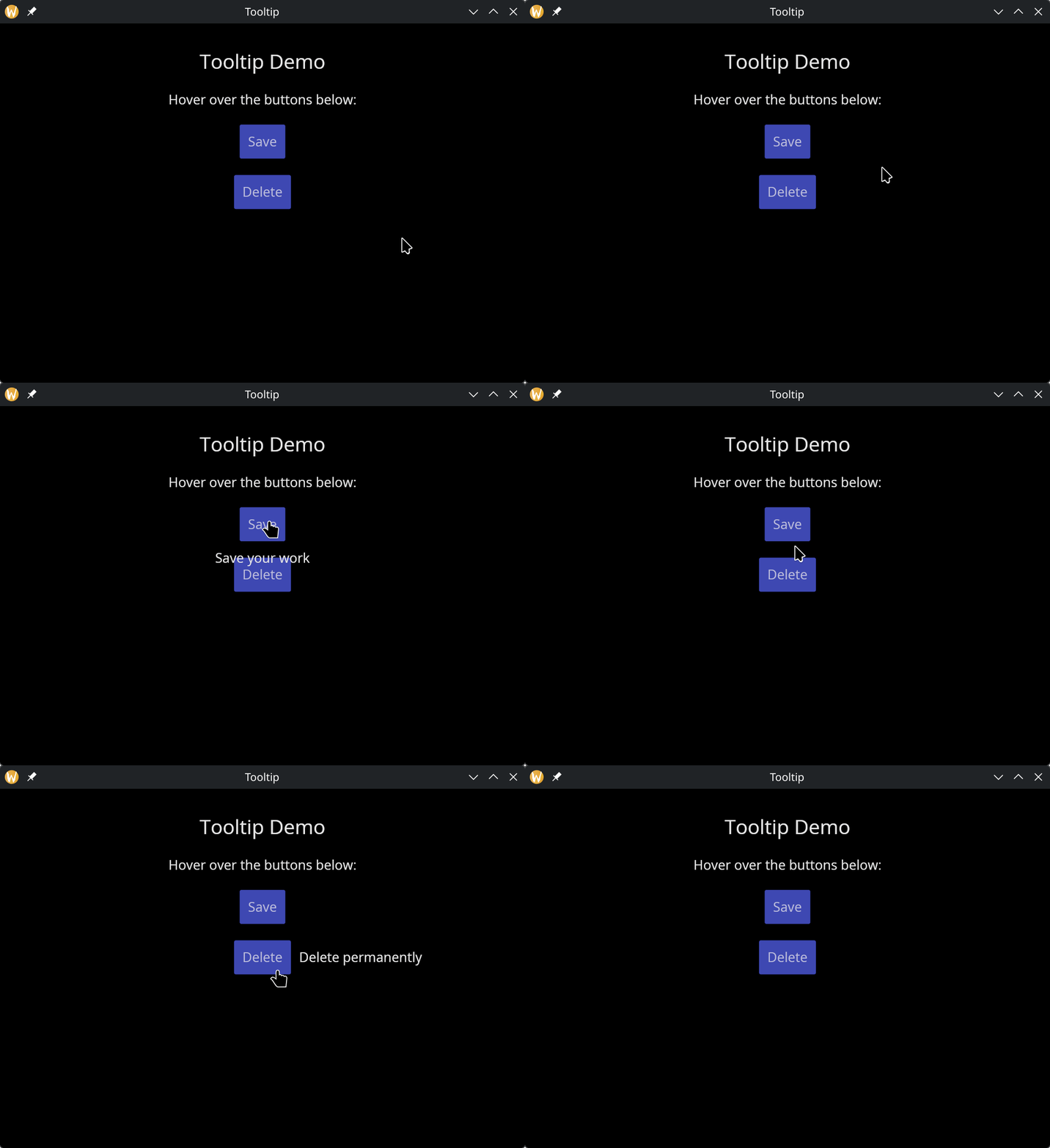
See Also
- Button — commonly wrapped with tooltips
- Mouse Area — lower-level mouse interaction
The Mouse Area Widget
The mouse_area widget wraps a child and captures mouse events within its bounds. Use it to add click, hover, and movement tracking to any widget.
Interface
use super::Widget;
type MouseButton = [`Left, `Right, `Middle];
type MouseArea = {
child: &Widget,
on_press: &[fn(button: MouseButton) -> Any, null],
on_release: &[fn(button: MouseButton) -> Any, null],
on_enter: &[fn(e: null) -> Any, null],
on_exit: &[fn(e: null) -> Any, null],
on_move: &[fn(pos: {x: f64, y: f64}) -> Any, null]
};
val mouse_area: fn(
?#on_press: [fn(button: MouseButton) -> Any, null],
?#on_release: [fn(button: MouseButton) -> Any, null],
?#on_enter: [fn(e: null) -> Any, null],
?#on_exit: [fn(e: null) -> Any, null],
?#on_move: [fn(pos: {x: f64, y: f64}) -> Any, null],
child: &Widget
) -> Widget
Parameters
- on_press — called when a mouse button is pressed inside the area. Receives a
MouseButtonvariant (`Left,`Right, or`Middle). - on_release — called when a mouse button is released inside the area. Receives a
MouseButtonvariant. - on_enter — called when the mouse cursor enters the area
- on_exit — called when the mouse cursor leaves the area
- on_move — called with
{x, y}coordinates as the mouse moves within the area
The positional argument is a reference to the child widget.
Examples
use gui::{
window,
column::column,
container::container,
mouse_area::mouse_area,
text::text
};
mod icon;
let status = "Move the mouse over the box";
let position = "---";
[&window(
#icon: &icon::icon,
#title: &"Mouse Area",
&column(
#spacing: &15.0,
#padding: &`All(30.0),
#width: &`Fill,
&[
text(#size: &24.0, &"Mouse Area Demo"),
text(&status),
text(&"Position: [position]"),
mouse_area(
#on_press: |btn| status <- select btn {
`Left => "Left pressed",
`Right => "Right pressed",
`Middle => "Middle pressed"
},
#on_release: |btn| status <- select btn {
`Left => "Left released",
`Right => "Right released",
`Middle => "Middle released"
},
#on_enter: |e| status <- e ~ "Mouse entered",
#on_exit: |e| status <- e ~ "Mouse exited",
#on_move: |pos| position <- pos ~ "[pos.x], [pos.y]",
&container(
#width: &`Fixed(300.0),
#height: &`Fixed(200.0),
#halign: &`Center,
#valign: &`Center,
&text(&"Interact here")
)
)
]
)
)]
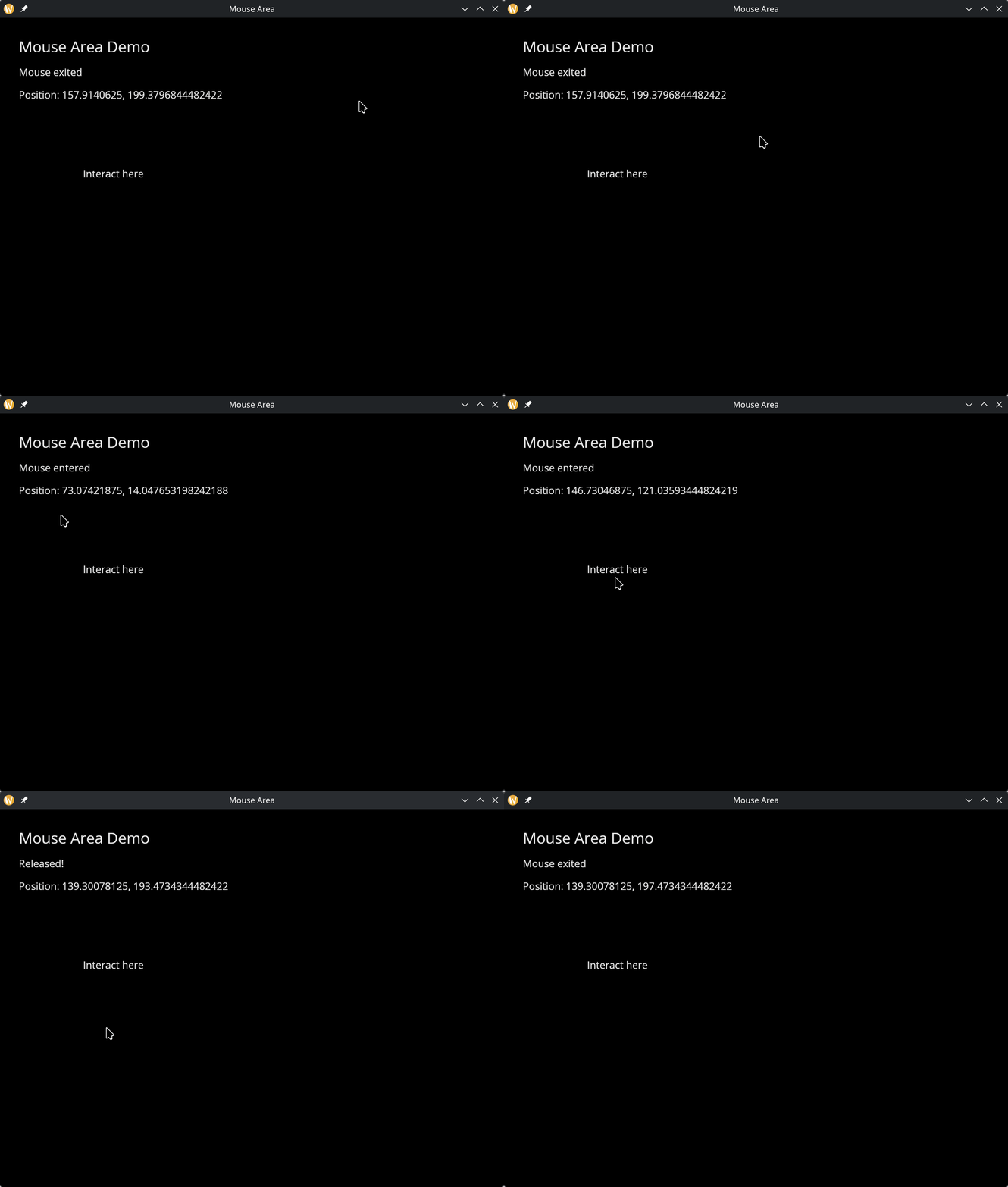
See Also
- Keyboard Area — keyboard event capture
- Button — simpler click handling
- Tooltip — hover-triggered popups
The Keyboard Area Widget
The keyboard_area widget wraps a child and captures keyboard events. Use it to build keyboard-driven interactions like shortcuts, navigation, or text handling.
Interface
use super::Widget;
type KeyEvent = {
key: string,
modifiers: {shift: bool, ctrl: bool, alt: bool, logo: bool},
text: string,
repeat: bool
};
type KeyboardArea = {
child: &Widget,
on_key_press: &[fn(e: KeyEvent) -> Any, null],
on_key_release: &[fn(e: KeyEvent) -> Any, null]
};
/// A key no callback is given for goes on to an enclosing area.
val keyboard_area: fn(
?#on_key_press: [fn(e: KeyEvent) -> Any, null],
?#on_key_release: [fn(e: KeyEvent) -> Any, null],
child: &Widget
) -> Widget
The KeyEvent Type
- key — the key name (e.g.
"a","Enter","ArrowUp") - modifiers — which modifier keys were held:
shift,ctrl,alt,logo(super/command) - text — the text produced by the key press (empty for non-character keys)
- repeat —
trueif this is an auto-repeat event from holding the key
Parameters
- on_key_press — called with a
KeyEventwhen a key is pressed - on_key_release — called with a
KeyEventwhen a key is released
A key with no callback for it goes on to an enclosing keyboard_area.
An area takes keys while it has focus: a click inside it gives it focus, a click outside takes focus away. Until the first click it hears no keys.
The positional argument is a reference to the child widget.
Examples
use gui::{
window,
column::column,
container::container,
keyboard_area::keyboard_area,
text::text
};
mod icon;
let last_key = "None";
let mod_name = "None";
[&window(
#icon: &icon::icon,
#title: &"Keyboard Area",
&keyboard_area(
#on_key_press: |e| {
last_key <- e.key;
mod_name <- select e.modifiers {
{ ctrl: true, .. } => "Ctrl",
{ shift: true, .. } => "Shift",
{ alt: true, .. } => "Alt",
{ logo: true, .. } => "Logo",
_ => "None"
}
},
&container(
#width: &`Fill,
#height: &`Fill,
#halign: &`Center,
#valign: &`Center,
&column(
#spacing: &15.0,
#halign: &`Center,
&[
text(#size: &24.0, &"Keyboard Area Demo"),
text(&"Click here, then press any key..."),
text(#size: &32.0, &last_key),
text(&"Modifier: [mod_name]")
]
)
)
)
)]
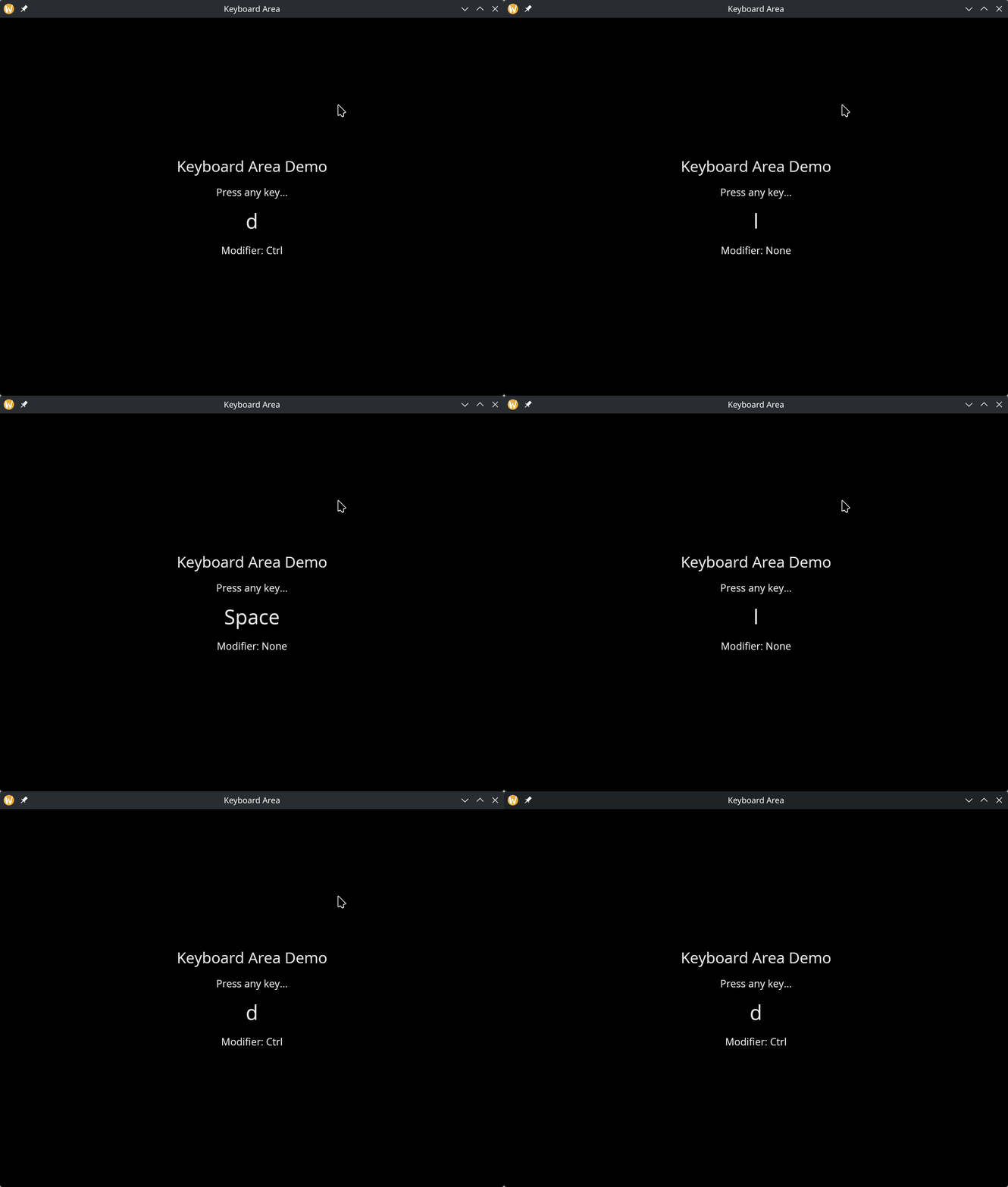
See Also
- Mouse Area — mouse event capture
- Text Input — built-in text input handling
The Clipboard Module
The clipboard module provides functions for reading from and writing to the system clipboard. Unlike other GUI components, clipboard is a plain module of functions, not a widget constructor.
Interface
type ClipboardImage = { height: u32, pixels: bytes, width: u32 };
type HtmlContent = { alt_text: string, html: string };
/// Read text from the system clipboard. Fires each time `trigger` updates.
val read_text: fn(trigger: Any) -> Result<string, `ClipboardError(string)>;
/// Write text to the system clipboard.
val write_text: fn(text: string) -> Result<null, `ClipboardError(string)>;
/// Read an RGBA8 image from the system clipboard.
val read_image: fn(trigger: Any) -> Result<ClipboardImage, `ClipboardError(string)>;
/// Write an RGBA8 image to the system clipboard.
val write_image: fn(image: ClipboardImage) -> Result<null, `ClipboardError(string)>;
/// Read HTML from the system clipboard.
val read_html: fn(trigger: Any) -> Result<string, `ClipboardError(string)>;
/// Write HTML to the system clipboard.
val write_html: fn(content: HtmlContent) -> Result<null, `ClipboardError(string)>;
/// Read file paths from the system clipboard.
val read_files: fn(trigger: Any) -> Result<Array<string>, `ClipboardError(string)>;
/// Write file paths to the system clipboard.
val write_files: fn(files: Array<string>) -> Result<null, `ClipboardError(string)>;
/// Clear the system clipboard.
val clear: fn(trigger: Any) -> Result<null, `ClipboardError(string)>
Functions
Text
- read_text — reads text from the clipboard. Takes an event trigger (
Any) to control when the read happens. - write_text — writes a string to the clipboard.
Images
- read_image — reads an image from the clipboard as a
ClipboardImagecontaining raw pixel data. - write_image — writes a
ClipboardImageto the clipboard.
HTML
- read_html — reads HTML content from the clipboard.
- write_html — writes HTML content with alt text to the clipboard.
Files
- read_files — reads file paths from the clipboard (e.g. from a file manager copy).
- write_files — writes file paths to the clipboard.
Utility
- clear — clears all clipboard contents.
All read functions take an Any argument as an event trigger — they execute when the trigger fires. All functions return Result types that may contain a ClipboardError.
Examples
use gui::{
clipboard, window,
button::button,
column::column,
text::text,
text_input::text_input
};
mod icon;
let content = "Hello, clipboard!";
let pasted = "";
let col = column(
#spacing: &15.0,
#padding: &`All(30.0),
#width: &`Fill,
&[
text(#size: &24.0, &"Clipboard Demo"),
text_input(#placeholder: &"Text to copy...", #on_input: |v| content <- v, &content),
button(
#on_press: |c| clipboard::write_text(c ~ content)$,
#padding: &`All(10.0),
&text(&"Copy to clipboard")
),
button(
#on_press: |c| pasted <- clipboard::read_text(c)$,
#padding: &`All(10.0),
&text(&"Paste from clipboard")
),
text(&"Pasted: [pasted]")
]
);
[&window(#icon: &icon::icon, #title: &"Clipboard", &col)]
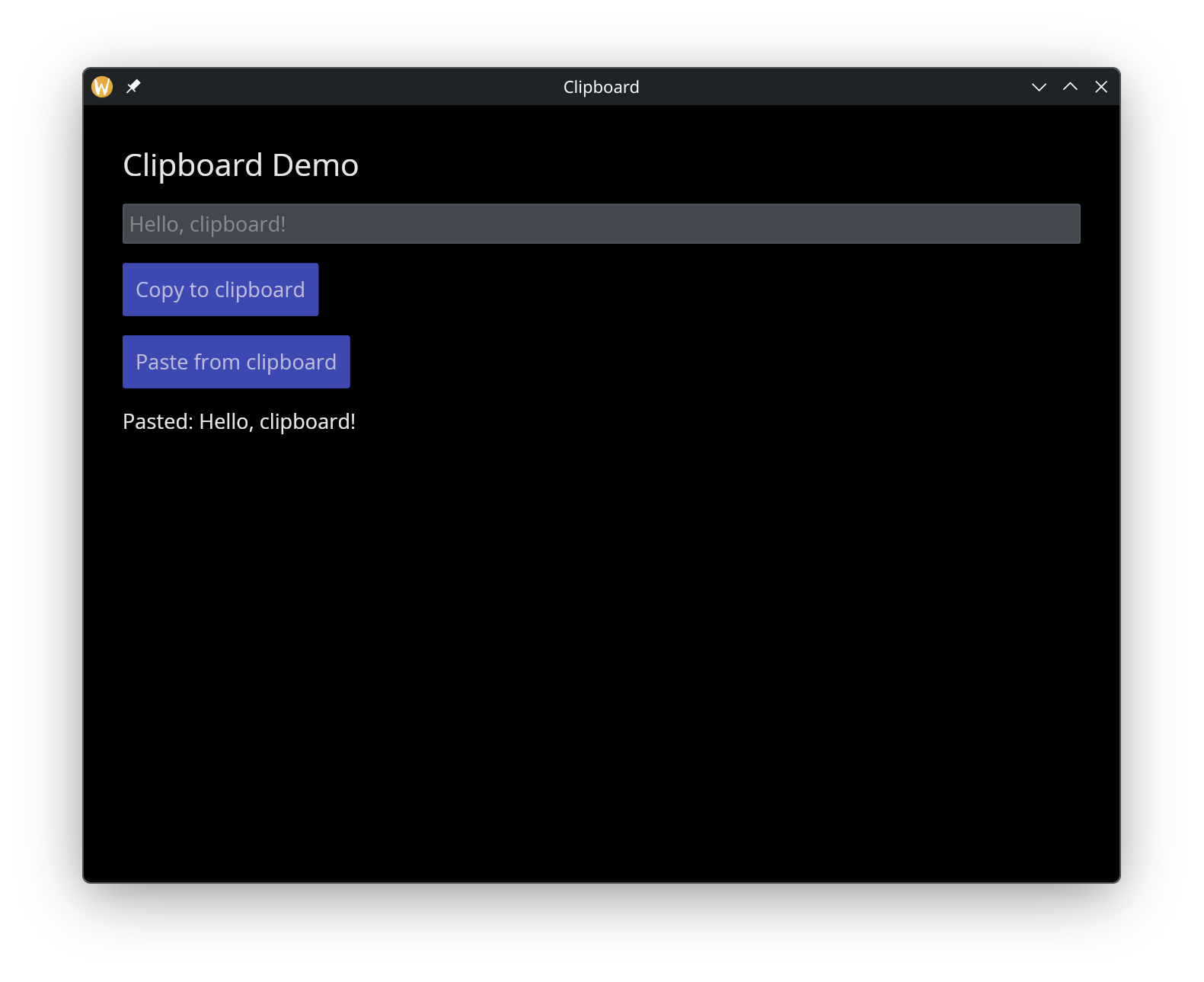
See Also
- Button — commonly used to trigger clipboard operations
- Text Input — text entry for clipboard content
The Grid Widget
A layout container that arranges child widgets in a grid with a fixed number of columns. Items wrap to the next row automatically.
Interface
use super::{Length, Widget};
/// `Fixed(n) is exactly n columns; `Fluid(max_width) is as many columns as
/// needed so that none is wider than max_width pixels
type GridColumns = [`Fixed(i64), `Fluid(f64)];
type GridHeight = [`AspectRatio(f64), `EvenlyDistribute(Length)];
type Grid = {
children: &Array<Widget>,
spacing: &f64,
columns: &GridColumns,
width: &[f64, null],
height: &GridHeight
};
val grid: fn(
?#spacing: &f64,
?#columns: &GridColumns,
?#width: &[f64, null],
?#height: &GridHeight,
children: &Array<Widget>
) -> Widget
Parameters
#spacing– Space in pixels between grid cells, applied both horizontally and vertically. Defaults to0.0.#columns– How columns are determined.`Fixed(n)uses exactlyncolumns.`Fluid(max_width)uses as many columns as needed so that none is wider thanmax_widthpixels. Defaults to`Fixed(3).#width– Total width of the grid in pixels, ornullto use the available space. Defaults tonull.#height– How row heights are determined.`AspectRatio(ratio)sets each cell’s height relative to its width (e.g.1.0for square cells).`EvenlyDistribute(len)divides the givenLengthevenly among all rows. Defaults to`AspectRatio(1.0).- positional
&Array<Widget>– The child widgets to arrange in the grid. They fill left-to-right, top-to-bottom.
Examples
Six Items in Three Columns
use gui::{window, column::column, container::container, grid::grid, text::text};
mod icon;
let item = |label| container(
#width: &`Fill,
#halign: &`Center,
#valign: &`Center,
#padding: &`All(20.0),
&text(#size: &16.0, &label)
);
let col = column(
#spacing: &20.0,
#padding: &`All(30.0),
#width: &`Fill,
&[
text(#size: &24.0, &"Grid Demo"),
grid(
#columns: &`Fixed(3),
#spacing: &10.0,
#width: &800.0,
&[
item("One"),
item("Two"),
item("Three"),
item("Four"),
item("Five"),
item("Six")
]
)
]
);
[&window(#icon: &icon::icon, #title: &"Grid Widget", &col)]
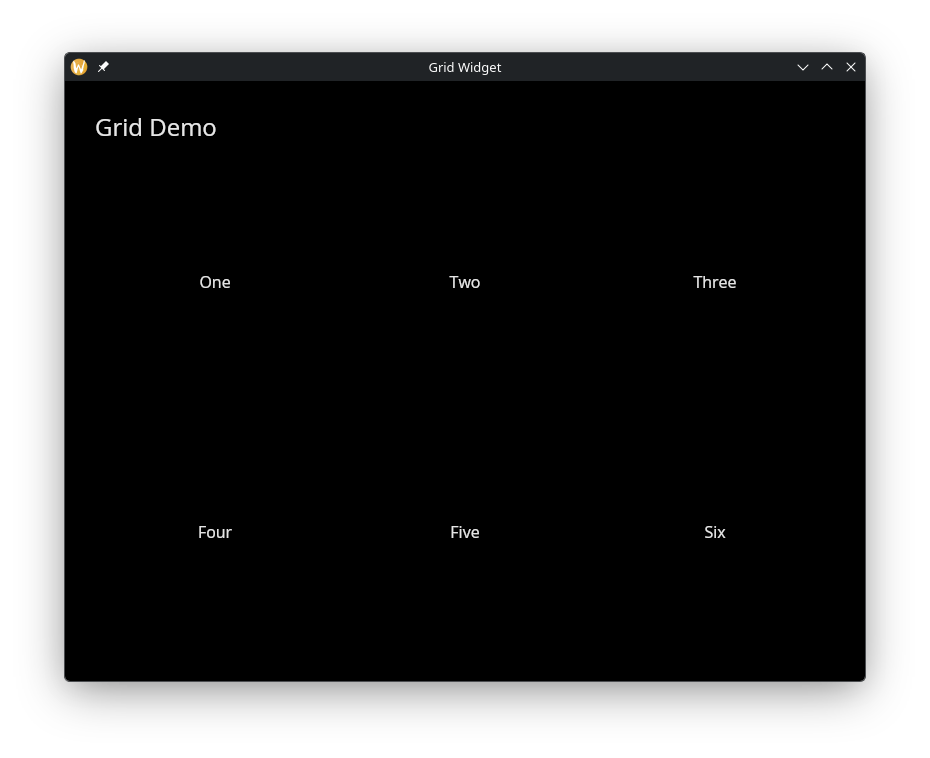
See Also
- column – single-column vertical layout
- row – single-row horizontal layout
- types – for
Lengthand other shared types
The QR Code Widget
Encodes a string as a QR code image. The QR code updates reactively when the input string changes.
Interface
use super::Widget;
type QrCode = {
data: &string,
cell_size: &[f64, null]
};
val qr_code: fn(
?#cell_size: &[f64, null],
data: &string
) -> Widget
Parameters
#cell_size– Size in pixels of each cell in the QR code matrix, ornullfor the default size. Larger values produce a bigger QR code image.- positional
&string– The data to encode. Data past a QR code’s capacity (about 2.3 KB: 2331 bytes of text, more for purely numeric data) cannot be encoded: the widget renders empty space and logs an error.
Examples
QR Code from Text Input
use gui::{
window,
column::column,
qr_code::qr_code,
text::text,
text_input::text_input
};
mod icon;
let url = "https://graphix-lang.github.io/graphix";
let col = column(
#spacing: &20.0,
#padding: &`All(30.0),
#halign: &`Center,
#width: &`Fill,
&[
text(#size: &24.0, &"QR Code Demo"),
text_input(
#placeholder: &"Enter text...",
#on_input: |v| url <- v,
&url
),
qr_code(#cell_size: &4.0, &url)
]
);
[&window(#icon: &icon::icon, #title: &"QR Code", &col)]
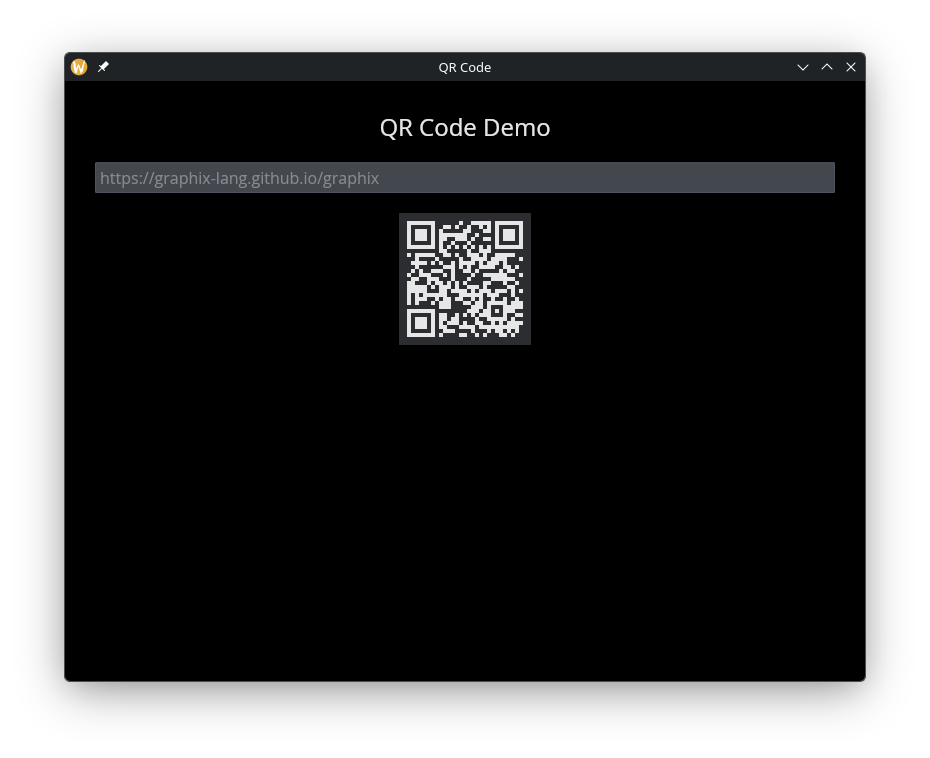
See Also
The Markdown Widget
Renders a markdown string as rich text with support for headings, bold, italic, lists, code blocks, and clickable links.
Interface
use super::{Length, Widget};
type Markdown = {
content: &string,
on_link: &[fn(url: string) -> Any, null],
spacing: &[f64, null],
text_size: &[f64, null],
width: &Length
};
/// A non-null #text_size must be finite, positive and at most 4096 pixels.
val markdown: fn(
?#on_link: [fn(url: string) -> Any, null],
?#spacing: &[f64, null],
?#text_size: &[f64, null],
?#width: &Length,
content: &string
) -> Widget
Parameters
#on_link– Callback invoked when the user clicks a link in the rendered markdown. Receives the URL as astring. If omitted, links are displayed but not interactive.#spacing– Vertical space in pixels between markdown elements (paragraphs, headings, lists), ornullfor the default spacing.#text_size– Base text size in pixels, ornullfor the default. Headings scale relative to this size.#width– Width of the markdown content area. AcceptsLengthvalues. Defaults to`Fill.- positional
&string– The markdown source text to render.
Examples
Rendered Markdown with Link Callback
use gui::{
window,
column::column,
markdown::markdown,
text::text,
text_editor::text_editor
};
mod icon;
let content = r"# Markdown Demo
This is **bold** and this is *italic*.
- First item
- Second item
- Fifth item
Here is a [link](https://graphix-lang.github.io/graphix) you can click.
";
let col = column(
#spacing: &20.0,
#padding: &`All(30.0),
#width: &`Fill,
&[
text(#size: &24.0, &"Markdown Widget"),
markdown(
#on_link: |url| println("Clicked: [url]"),
#text_size: &16.0,
&content
),
text_editor(
#on_edit: |v| content <- v,
#height: &200.0,
&content
)
]
);
[&window(#icon: &icon::icon, #title: &"Markdown", &col)]
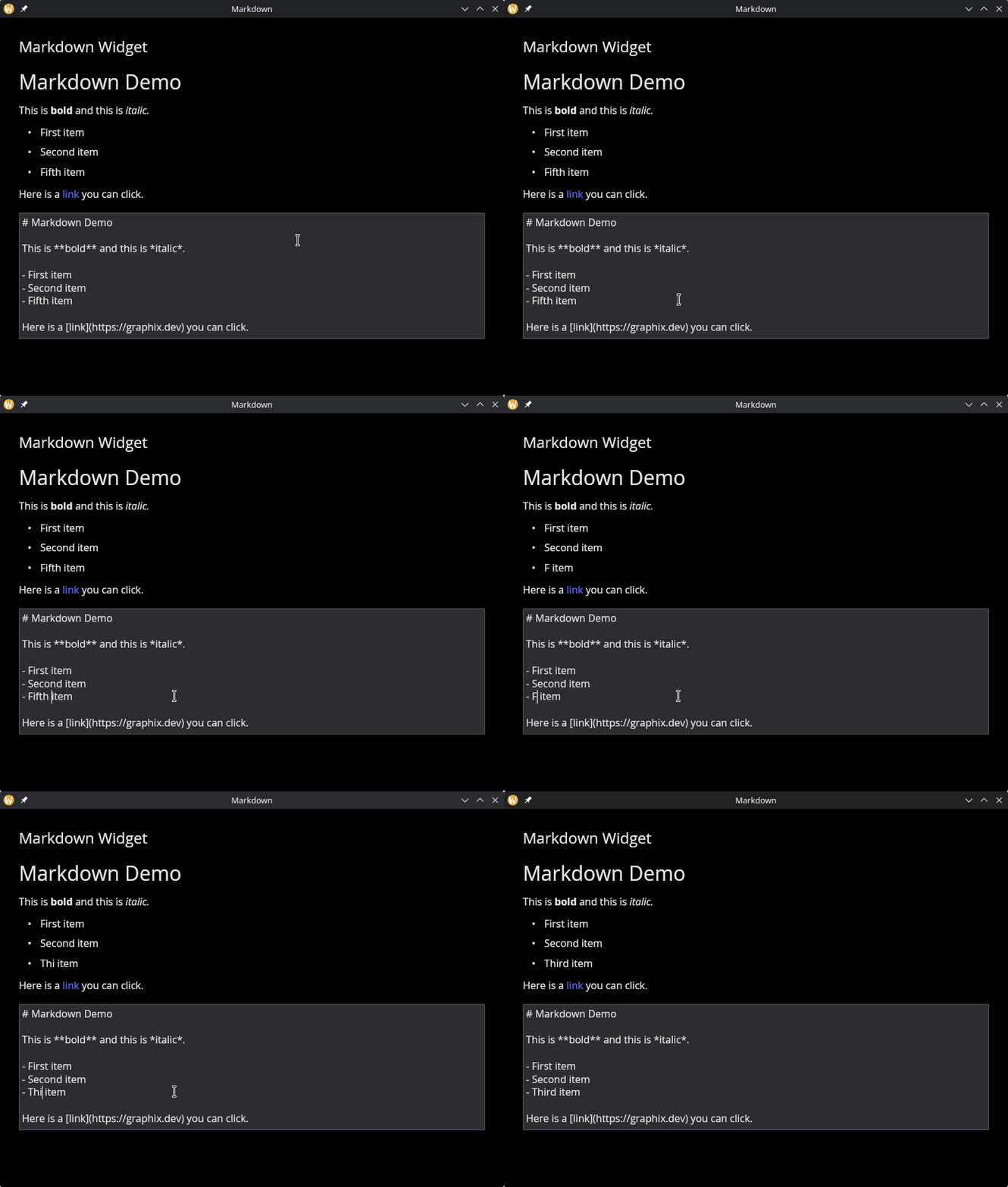
See Also
- text – for plain text display
- text_editor – for editing text content
The Table Widget
Displays data in rows and columns with configurable headers, alignment, and separators. Tables are built from TableColumn definitions and a 2D array of row widgets.
Interface
use super::{HAlign, Length, VAlign, Widget};
type TableColumn = {
header: &Widget,
width: &Length,
halign: &HAlign,
valign: &VAlign
};
type Table = {
columns: &Array<TableColumn>,
rows: &Array<Array<Widget>>,
width: &Length,
padding: &[f64, null],
separator: &[f64, null]
};
val table_column: fn(
?#width: &Length,
?#halign: &HAlign,
?#valign: &VAlign,
header: &Widget
) -> TableColumn;
val table: fn(
?#width: &Length,
?#padding: &[f64, null],
?#separator: &[f64, null],
columns: &Array<TableColumn>,
rows: &Array<Array<Widget>>
) -> Widget
table_column Parameters
#width– Width of this column. AcceptsLengthvalues:`Fill,`FillPortion(i64),`Shrink, or`Fixed(f64). Defaults to`Shrink.#halign– Horizontal alignment of content within this column:`Left,`Center, or`Right. Defaults to`Left.#valign– Vertical alignment of content within this column:`Top,`Center, or`Bottom. Defaults to`Top.- positional
&Widget– The header widget for this column, typically a styledtextwidget.
table Parameters
#width– Total width of the table. AcceptsLengthvalues. Defaults to`Shrink.#padding– Padding in pixels around each cell,0.0for none, ornullfor iced’s default (10 px across, 5 px down).#separator– Thickness in pixels of the lines between rows and between columns,0.0for none, ornullfor iced’s default (1 px).- positional
&Array<TableColumn>– Column definitions created withtable_column. - positional
&Array<Array<Widget>>– Row data. Each inner array has one widget per column.
Examples
Product Table
use gui::{window, column::column, table::{table, table_column}, text::text};
mod icon;
let cols = &[
table_column(#width: &`Fixed(200.0), &text(&"Name")),
table_column(#width: &`Fixed(100.0), #halign: &`Right, &text(&"Price")),
table_column(#width: &`Fixed(80.0), #halign: &`Center, &text(&"Qty"))
];
let rows = &[
[text(&"Apples"), text(&"$1.20"), text(&"5")],
[text(&"Bananas"), text(&"$0.50"), text(&"12")],
[text(&"Cherries"), text(&"$3.00"), text(&"2")]
];
let layout = column(
#spacing: &20.0,
#padding: &`All(30.0),
#width: &`Fill,
&[
text(#size: &24.0, &"Table Demo"),
table(#padding: &8.0, #separator: &1.0, cols, rows)
]
);
[&window(#icon: &icon::icon, #title: &"Table Widget", &layout)]
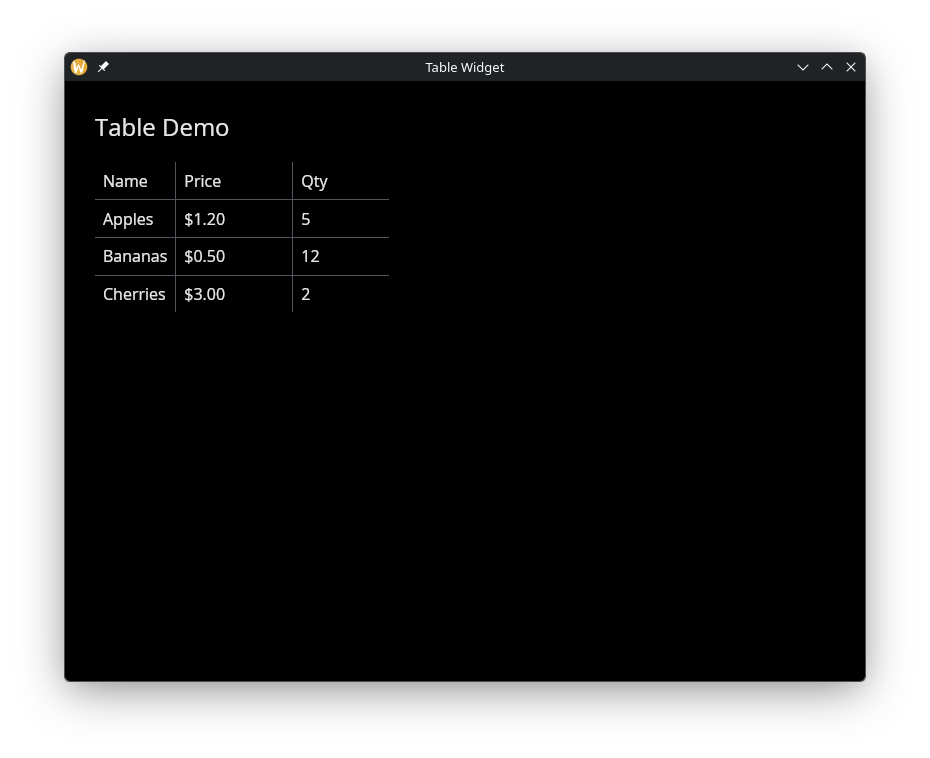
See Also
- column – for simple vertical layouts
- grid – for uniform grid layouts
- types – for
Length,HAlign,VAlign
The Data Table Widget
A spreadsheet-style widget that renders a Table value as a grid of
live-subscribed cells. Columns are typed: each one picks the editor
(text, toggle, pick-list, spinner), visualization (progress bar,
sparkline), or action (button) that cells should use. Row sort, row
filter, column widths, and the selection set are all controlled from
graphix — the widget is the rendering surface and the subscription
manager, nothing more.
The Table value is the single source of truth for what columns
exist, in what order, and how each one is sourced. Columns are
declared as either bare strings (shorthand for a default Text column
with `Netidx source named after the string) or full
ColumnSpec structs. Bare strings let the output of
sys::net::list_table (which has columns: Array<string>) flow
straight through; mixed arrays are fine.
Rows that are absolute netidx paths trigger live subscriptions for
every column whose source is `Netidx. Non-absolute row names
render as virtual rows. Columns whose source is a string or
Map<string, Any> skip subscription entirely and read their values
from the source ref.
With rows and no declared columns, the table shows each row path’s own value
in one synthesized column. Its “value” header does not invoke on_header_click.
Interface
use super::Widget;
type SortDirection = [`Ascending, `Descending];
type SortBy = { column: string, direction: SortDirection };
type ColumnType = [
`Text({ on_edit: [fn(#path: string, #value: Any) -> Any, null] }),
`Toggle({ on_edit: [fn(#path: string, #value: bool) -> Any, null] }),
`Combo({
choices: Array<{ id: string, label: string }>,
on_edit: [fn(#path: string, #value: string) -> Any, null]
}),
`Spin({
min: f64,
max: f64,
increment: f64,
on_edit: [fn(#path: string, #value: f64) -> Any, null]
}),
`Progress,
`Button({
on_click: [fn(#path: string, #value: Any) -> Any, null]
}),
`Sparkline({
history_seconds: f64,
min: [f64, null],
max: [f64, null]
})
];
/// Where a column's per-cell values come from.
///
/// - `` `Netidx(fallback) ``: subscribe to `<row_path>/<column_name>`
/// for every absolute-path row. The fallback is the value rendered
/// for cells whose subscription is pending or `Unsubscribed`, AND
/// for virtual rows (non-absolute paths), which never subscribe.
/// It is one of:
/// - `null`: no fallback — cells render blank until the
/// subscription resolves, and virtual rows render blank.
/// - `string`: a uniform placeholder used for every cell.
/// - `Map<string, Any>`: per-row fallback keyed by row basename
/// — virtual rows pick up their map entry, and absolute rows
/// fall back to it before the subscription delivers a value.
/// - `string`: a uniform default — every cell renders this text. No
/// subscription. Useful for static fields and computed columns
/// where one value applies to all rows.
/// - `Map<string, Any>`: per-row defaults keyed by row basename. No
/// subscription on any row. Useful for purely "calculated"
/// columns whose values are derived in graphix and shouldn't
/// ever subscribe.
type Source = [`Netidx([null, string, Map<string, Any>]), string, Map<string, Any>];
// CR claude for eric: [structure/low] `on_resize` is the one GUI callback a caller must
// pass by reference (`#on_resize: &|w| ..`). Every other callback, including this
// struct's on_edit/on_click, is a plain `[fn, null]` that the builder wraps itself
// (`on_select: &on_select` in data_table). Take `#on_resize: [fn(width: f64) -> Any,
// null] = null` in the column builders and store `on_resize: &on_resize`; the Rust side
// still reads a ref. Found by reading; not run. (gx-ui-06)
type ColumnSpec = {
name: string,
typ: ColumnType,
display_name: [string, null],
source: &Source,
on_resize: &[fn(width: f64) -> Any, null],
width: &[f64, null]
};
/// The data table's content. Rows are netidx paths (absolute paths
/// drive subscriptions; non-absolute rows are virtual). Columns are
/// either bare strings (shorthand for a default Text column with
/// `` `Netidx `` source named after the string) or full `ColumnSpec`
/// structs with explicit type, source, width, etc. Bare strings let
/// `sys::net::Table` (which has `columns: Array<string>`) be passed
/// straight through; mixed arrays are fine.
///
/// Display order is exactly the order of entries in `columns` —
/// virtual and subscribed columns are not segregated.
type Table = {
rows: Array<string>,
columns: Array<[string, ColumnSpec]>
};
type DataTable = {
on_activate: &[fn(#path: string) -> Any, null],
on_header_click: &[fn(#column: string) -> Any, null],
on_select: &[fn(#path: string) -> Any, null],
on_update: &[fn(#path: string, #value: Primitive) -> Any, null],
selection: &Array<string>,
show_row_name: &bool,
sort_by: &Array<SortBy>,
table: &Table
};
/// A data table that displays rows and columns of data.
///
/// Rows that are absolute netidx paths trigger live subscriptions to
/// `<row_path>/<column_name>` for every column whose `source` is
/// `` `Netidx ``. Rows that are not absolute paths are virtual — they
/// never subscribe and render the column source's fallback value
/// (either the `Netidx` payload's per-row map / uniform string, or
/// the bare `string` / `Map<string, Any>` source).
///
/// The caller owns the shape of the Table: row order, column order,
/// hidden vs. shown, virtual vs. subscribed — all of that lives in
/// the `Table` value the caller passes in.
///
/// `sort_by` is a list of sort keys applied in order: the first key
/// is the primary sort, subsequent keys break ties. Empty list (the
/// default) preserves the Table's row order. Sort values come from
/// the column's source — a live subscription when source is
/// `` `Netidx ``, or the source's stored value otherwise. A column the
/// Table does not list sorts by the netidx value at
/// `<row_path>/<column>`. Numbers sort before text, NaN below every
/// number, text by its bytes.
val data_table: fn(
?#sort_by: &Array<SortBy>,
?#selection: &Array<string>,
?#show_row_name: &bool,
?#on_select: [fn(#path: string) -> Any, null],
?#on_activate: [fn(#path: string) -> Any, null],
?#on_header_click: [fn(#column: string) -> Any, null],
?#on_update: [fn(#path: string, #value: Primitive) -> Any, null],
#table: &Table
) -> Widget;
/// Build a `Text` ColumnSpec. With no `on_edit` the cell is read-only.
val text_column: fn(
#name: string,
?#on_edit: [fn(#path: string, #value: Any) -> Any, null],
?#display_name: [string, null],
?#source: &Source,
?#on_resize: &[fn(width: f64) -> Any, null],
?#width: &[f64, null]
) -> ColumnSpec;
/// Build a `Toggle` ColumnSpec for boolean cells.
val toggle_column: fn(
#name: string,
?#on_edit: [fn(#path: string, #value: bool) -> Any, null],
?#display_name: [string, null],
?#source: &Source,
?#on_resize: &[fn(width: f64) -> Any, null],
?#width: &[f64, null]
) -> ColumnSpec;
/// Build a `Combo` ColumnSpec. `choices` is the picklist; each entry's
/// `id` is the value written and `label` is what the user sees.
val combo_column: fn(
#name: string,
#choices: Array<{ id: string, label: string }>,
?#on_edit: [fn(#path: string, #value: string) -> Any, null],
?#display_name: [string, null],
?#source: &Source,
?#on_resize: &[fn(width: f64) -> Any, null],
?#width: &[f64, null]
) -> ColumnSpec;
/// Build a `Spin` ColumnSpec for bounded numeric input.
val spin_column: fn(
#name: string,
#min: f64,
#max: f64,
#increment: f64,
?#on_edit: [fn(#path: string, #value: f64) -> Any, null],
?#display_name: [string, null],
?#source: &Source,
?#on_resize: &[fn(width: f64) -> Any, null],
?#width: &[f64, null]
) -> ColumnSpec;
/// Build a read-only `Progress` ColumnSpec. Cell values are clamped to [0, 1].
val progress_column: fn(
#name: string,
?#display_name: [string, null],
?#source: &Source,
?#on_resize: &[fn(width: f64) -> Any, null],
?#width: &[f64, null]
) -> ColumnSpec;
/// Build a `Button` ColumnSpec. Each cell renders as a button; clicking
/// fires `on_click` with the cell's path and current value.
val button_column: fn(
#name: string,
?#on_click: [fn(#path: string, #value: Any) -> Any, null],
?#display_name: [string, null],
?#source: &Source,
?#on_resize: &[fn(width: f64) -> Any, null],
?#width: &[f64, null]
) -> ColumnSpec;
/// Build a `Sparkline` ColumnSpec. Each cell accumulates values from its
/// subscription for `history_seconds` and renders them as a rolling
/// chart. By default the y-axis is shared across every cell in the
/// column (auto-scaled to the union of all rows' values), so cells can
/// be compared visually. Pass `#min`/`#max` to fix the axis to a
/// caller-defined range instead.
val sparkline_column: fn(
#name: string,
#history_seconds: f64,
?#min: [f64, null],
?#max: [f64, null],
?#display_name: [string, null],
?#source: &Source,
?#on_resize: &[fn(width: f64) -> Any, null],
?#width: &[f64, null]
) -> ColumnSpec;
data_table Parameters
-
#table– The table shape:{ rows: Array<string>, columns: Array<[string, ColumnSpec]> }.sys::net::list_table(path)produces a value whosecolumns: Array<string>unifies with this type via the union element. The caller owns the shape: to filter, sort, hide, or reorder rows and columns — or to attach customColumnSpecs to specific columns — build theTablerecord in graphix and hand the result todata_table. Every change to this ref is reconciled against the current subscription set. -
#sort_by– Array of sort keys applied in order. The first is the primary sort; later keys break ties. Empty list (the default) preserves theTable’s row order. Sort values come from the column’s source — a live subscription when source is`Netidx, or the source’s stored value otherwise. -
#selection– Controlled set of selected cell paths. For cells in the row-name column this is just"row_path"; for every other cell it is"row_path/col_name". The widget’s own click / keyboard handlers never mutate this ref directly — they fire#on_selectand#on_activatecallbacks that the caller uses to drive the ref however they want (single-select, multi-select, toggle, etc.). -
#show_row_name– Whentrue(the default) a synthesized leftmost column shows each row’s basename (Path::basename(row)). Setfalsefor tables where the row identity is already carried by a regular column. -
#on_select– Fired whenever a cell is clicked or keyboard navigation lands on a cell. The callback receives the full cell path ("row_path/col_name"for data cells,"row_path"for the row-name column). -
#on_activate– Fired when the user clicks a row-name cell, or presses Enter: for the selected cell’s row whatever its column, or for the first row when nothing is selected. Receives the row path. -
#on_header_click– Fired when the user clicks a data column’s header label. Receives the column name. -
#on_update– Fired for each update of a cell the table subscribes, which is the rows within 50 of the visible window; a row scrolling back in re-delivers its current value. Useful to mirror live values into graphix state without subscribing separately, but an aggregate over every row (data_table_calculated.gx’s sum) is complete only while the whole table is subscribed. Receives the cell path and new value.
Column Types
Each ColumnSpec carries a typ: ColumnType picked with one of the
helper constructors. All constructors take #name: string plus
their kind-specific args (#on_edit / #on_click / #choices /
etc.) and the common appearance options (#display_name, #source,
#width, #on_resize).
A column name must be one nonempty netidx path component. Use netidx path escaping for a slash inside a name. Invalid names are ignored with a warning.
-
text_column– Plain text. Withon_editthe cell becomes editable: clicking a selected cell opens a text field;Entercommits the typed value viaon_edit,Escapecancels. The widget attempts to parse the buffer as a typed graphix value; if parsing fails the raw string is sent instead, so users can enterhellowithout quotes. -
toggle_column– Renders a toggler. Cell values"true"or"1"turn it on. Withon_editthe user can flip the toggle. -
combo_column– Drop-down with a fixed set ofchoices. Each choice has anid(the raw value published / sent back throughon_edit) and alabel(what the user sees). -
spin_column– Numeric spinner withmin,max, andincrementbounds;on_editreceives the clamped new value. -
progress_column– Read-only progress bar. Cell values are clamped to[0, 1]. -
button_column– Each cell renders as a button labelled with the cell’s current value.on_clickfires with the cell path and current value. -
sparkline_column– Rolling-line visualization accumulating published values overhistory_seconds. By default the y-axis is shared across every cell in the column (auto-scaled to the union of all rows’ values) so cells are visually comparable. Pass#min/#maxto fix the axis instead.
Column Widths and Resizing
Widths are controlled by two refs per column:
-
width: &[f64, null]– WhenSome(f64)the column is pinned to that width (and the resize handle at the column header vanishes unless anon_resizecallback is also set). Whennullthe column auto-sizes to its content, with a per-column cap (default 300px). -
on_resize: &[fn(width: f64) -> Any, null]– Fired while the user drags a column header’s right edge. The callable receives the new pixel width. The reference is a&field so the callable can be swapped, nulled, or initialized reactively.
Double-clicking any column’s resize handle auto-fits every column to its widest cell among the subscribed rows (those within 50 of the visible window); other rows count only their fallback.
Source: Where Cell Values Come From
Each ColumnSpec.source is a &Source ref that decides where the
column’s per-cell values originate:
`Netidx(fallback)– The column subscribes to<row_path>/<column_name>for every row whose path is absolute. Cell values come from the subscription. Thefallbackpayload is what a cell renders before its subscription resolves, any time it goesUnsubscribedafterward, and always for a virtual row:null(blank), a string (one placeholder for every cell), or aMap<string, Any>keyed by row basename (a value per row).`Netidx(null)is the default for the column-builder helpers and the implicit behavior for bare-string entries inTable.columns.string– A uniform value: every cell in the column renders this text. No subscription. Useful for static fields and computed columns where one value applies to all rows.Map<string, Any>– Per-row values keyed by the row’s basename. No subscription. Rows without a matching key render blank. Useful for “calculated” columns whose values are derived in graphix.
When the source ref updates reactively (e.g. the map changes), the widget re-reads it and refreshes the affected cells. Sparkline columns additionally push each new numeric source value into the rolling history, so a virtual-column sparkline fed from graphix state accumulates points the same way a subscribed one does. A subscribed cell’s history holds only its live values, never the fallback.
Keyboard Navigation
The widget is focusable: clicking into it grants keyboard focus.
Arrow keys move the selection among the data columns (the
currently-rendered selected cell scrolls into view as needed); they
never land on the row-name column. Enter fires on_activate for
the selected cell’s row; Space on an editable Text cell opens its editor,
which takes the typed keys, Enter to commit and Escape to cancel.
On other column types, Space does nothing. Clicking another cell cancels
an open Text editor.
Other keys go on to an enclosing keyboard_area, so application
shortcuts keep working while the table has focus.
With multiple selected cells, keyboard navigation starts at the first valid cell in the program’s selection array. If none of the selected cells is fully visible, the table scrolls to that first cell.
Examples
Basic
Minimal usage: publish three hosts and hand the
sys::net::list_table output to data_table with no column
configuration. Bare-string columns become default Text columns with
`Netidx source.
use gui::{window, column::column, data_table::data_table, text::text};
use sys::net;
mod icon;
let publish_host = |#name: string, #status: [`Up, `Degraded], #cpu: f64, #mem: f64| {
net::publish("/local/graphix/data_table_basic/[name]/status", status);
net::publish("/local/graphix/data_table_basic/[name]/cpu", cpu);
net::publish("/local/graphix/data_table_basic/[name]/memory", mem);
};
publish_host(#name: "host-01", #status: `Up, #cpu: 12.4, #mem: 37.1);
publish_host(#name: "host-02", #status: `Up, #cpu: 88.2, #mem: 62.0);
publish_host(#name: "host-03", #status: `Degraded, #cpu: 4.1, #mem: 19.8);
// list_table inspects the resolver to discover children of this path.
let tbl = net::list_table("/local/graphix/data_table_basic")$;
let layout = column(
#spacing: &12.0,
#padding: &`All(20.0),
#width: &`Fill,
#height: &`Fill,
&[
text(#size: &20.0, &"Fleet health"),
data_table(#table: &tbl)
]
);
[&window(
#icon: &icon::icon,
#title: &"Data Table — Basic",
#theme: &`CatppuccinMocha,
&layout
)]
Filter and Sort
Row filtering (a regex over basenames) and sort configuration done
in graphix before the Table is handed to the widget. Shows how the
caller owns the data pipeline end to end.
use gui::{
window,
column::column,
data_table::{SortBy, Table, data_table},
pick_list::pick_list,
row::row,
text::text,
text_input::text_input
};
use sys::net;
mod icon;
// Publish 6 sensors across three environments; the sidebar controls
// let the user pick a row filter mode. Sorting is driven entirely
// from the table itself — click a header to cycle its sort order.
net::publish("/local/graphix/data_table_filter/sensor-01/name", "auth-requests");
net::publish("/local/graphix/data_table_filter/sensor-01/env", "prod");
net::publish("/local/graphix/data_table_filter/sensor-02/name", "auth-errors");
net::publish("/local/graphix/data_table_filter/sensor-02/env", "prod");
net::publish("/local/graphix/data_table_filter/sensor-03/name", "db-latency");
net::publish("/local/graphix/data_table_filter/sensor-03/env", "prod");
net::publish("/local/graphix/data_table_filter/sensor-04/name", "cache-hits");
net::publish("/local/graphix/data_table_filter/sensor-04/env", "stage");
net::publish("/local/graphix/data_table_filter/sensor-05/name", "cache-misses");
net::publish("/local/graphix/data_table_filter/sensor-05/env", "stage");
net::publish("/local/graphix/data_table_filter/sensor-06/name", "api-latency");
net::publish("/local/graphix/data_table_filter/sensor-06/env", "dev");
let raw_tbl = net::list_table("/local/graphix/data_table_filter")$;
// Filter controls: a regex pattern and whether it includes or excludes.
// The caller reshapes the Table in graphix before passing it in.
let pattern = "";
let mode: [`Include, `Exclude] = `Include;
let tbl: Table = select str::len(pattern) {
0 => raw_tbl,
_ => {
let name_of = |r: string| opt::or_default(str::basename(r), r);
let matches = |r: string| select re::is_match(#pat: pattern, name_of(r)) {
error as _ => false,
b => b
};
let keep = |r: string| select mode {
`Include => matches(r),
`Exclude => !matches(r)
};
{ raw_tbl with rows: array::filter(raw_tbl.rows, keep) }
}
};
// Sort state: an array of (column, direction) pairs applied in order.
// The first entry is the primary sort, subsequent entries break ties.
// `cycle_sort` rotates a column through the three states a spreadsheet
// user expects: absent → ascending → descending → absent.
//
// Clicking a column that isn't in `sort_by` appends it as ascending,
// so sort_by grows as the user clicks new columns — that's how multi-
// column sort is demonstrated. The first click on a column that is
// already sorted flips its direction; a second click removes it.
let sort_by: Array<SortBy> = [];
let cycle_sort = |#column: string|
sort_by <- column ~ select array::find(sort_by, |s| s.column == column) {
null => array::push(sort_by, { column, direction: `Ascending }),
{ direction: `Ascending, .. } => array::map(sort_by, |s| select s.column == column {
true => { s with direction: `Descending },
false => s
}),
{ direction: `Descending, .. } => array::filter(sort_by, |s| s.column != column)
};
let controls = row(
#spacing: &10.0,
#padding: &`All(10.0),
&[
text(&"Pattern:"),
text_input(
#on_input: |v: string| pattern <- v,
#placeholder: &"regex or empty",
#width: &`Fill,
&pattern
),
pick_list(
#on_select: |choice: string| mode <- select choice {
"Include matches" => `Include,
_ => `Exclude
},
#selected: &select mode {
`Include => "Include matches",
`Exclude => "Exclude matches"
},
&["Include matches", "Exclude matches"]
)
]
);
let layout = column(
#spacing: &10.0,
#padding: &`All(20.0),
#width: &`Fill,
#height: &`Fill,
&[
text(#size: &20.0, &"Interactive filter + sort"),
text(#size: &12.0, &"Click a column header to cycle its sort; click more than one for tie-broken multi-column sort."),
controls,
data_table(
#sort_by: &sort_by,
#on_header_click: |#column: string| cycle_sort(#column: column),
#table: &tbl
)
]
);
[&window(
#icon: &icon::icon,
#title: &"Data Table — Filter & Sort",
#theme: &`CatppuccinMocha,
&layout
)]
Editable
Every editable column type in one place: Text, Toggle, Combo,
Spin. Each cell is published with an on_write handler so edits
round-trip through netidx. The example shows the
array::map(raw_columns, …) pattern for attaching custom
ColumnSpecs to specific column names while leaving everything else
as bare-string Netidx-sourced columns.
use gui::{
window,
column::column,
data_table::{combo_column, data_table, spin_column, text_column, toggle_column},
text::text
};
use sys::net;
mod icon;
// Four editable columns demonstrating every ColumnType that takes
// user input: Text, Toggle, Combo, Spin. Each cell is published with
// an #on_write handler so edits round-trip through netidx.
// One host's four cells. A parameter is the cell's state: its
// #on_write writes it, and the publish republishes the new value.
let publish_host = |#name: string, #enabled: bool, #zone: string, #cpu: f64, host: string| {
let base = "/local/graphix/data_table_editable/[host]";
net::publish(#on_write: |v: string| name <- v, "[base]/name", name);
net::publish(#on_write: |v: bool| enabled <- v, "[base]/enabled", enabled);
net::publish(#on_write: |v: string| zone <- v, "[base]/zone", zone);
net::publish(#on_write: |v: f64| cpu <- v, "[base]/cpu", cpu)
};
publish_host(#name: "alpha", #enabled: true, #zone: "us-east-1", #cpu: 4.0, "host-01");
publish_host(#name: "bravo", #enabled: false, #zone: "eu-west-1", #cpu: 8.0, "host-02");
// Map the resolver-derived columns array. Each editable column gets
// an explicit ColumnSpec; anything else (none expected here) passes
// through as a default Text/Netidx column.
let make_columns = |raw: Array<string>| array::map(raw, |name| select name {
"name" => text_column(
#name: "name",
#on_edit: |#path: string, #value: Any|
net::write(path, value)$,
#display_name: "Name"
),
"enabled" => toggle_column(
#name: "enabled",
#on_edit: |#path: string, #value: bool|
net::write(path, value)$,
#display_name: "Enabled"
),
"zone" => combo_column(
#name: "zone",
#choices: [
{ id: "us-east-1", label: "US East" },
{ id: "us-west-2", label: "US West" },
{ id: "eu-west-1", label: "EU West" },
{ id: "ap-south-1", label: "Asia Pacific" }
],
#on_edit: |#path: string, #value: string|
net::write(path, value)$,
#display_name: "Zone"
),
"cpu" => spin_column(
#name: "cpu",
#min: 1.0,
#max: 64.0,
#increment: 1.0,
#on_edit: |#path: string, #value: f64|
net::write(path, value)$,
#display_name: "CPU cores"
),
other => other
});
let raw_tbl = net::list_table("/local/graphix/data_table_editable")$;
let tbl = { rows: raw_tbl.rows, columns: make_columns(raw_tbl.columns) };
let selection: Array<string> = [];
let layout = column(
#spacing: &12.0,
#padding: &`All(20.0),
#width: &`Fill,
#height: &`Fill,
&[
text(#size: &20.0, &"Editable hosts"),
text(&"Edits are written back through netidx and reflected in the same cell."),
data_table(
#selection: &selection,
#on_select: |#path| selection <- [path],
#table: &tbl
)
]
);
[&window(
#icon: &icon::icon,
#title: &"Data Table — Editable",
#theme: &`CatppuccinMocha,
&layout
)]
Calculated Columns
A virtual column whose source is a reactive Map<string, Any>,
rebuilt whenever any subscribed cell updates. Demonstrates deriving
per-row aggregates (here, sums) without touching netidx.
use gui::{
window,
column::column,
data_table::{ColumnSpec, Table, data_table, text_column},
text::text
};
use sys::{net, time};
mod icon;
// Two published columns A and B. A virtual "sum" column has its
// per-cell value set from a let-bound Map; the `on_update` callback
// watches every subscribed cell update and pushes the new (a+b)
// total into the sum entry.
let rv = {
let clock = time::timer(5, true);
|| any(1, rand::rand(#start:0, #end:10, #clock))
};
net::publish("/local/graphix/data_table_calculated/r0/A", rv());
net::publish("/local/graphix/data_table_calculated/r1/A", rv());
net::publish("/local/graphix/data_table_calculated/r2/A", rv());
net::publish("/local/graphix/data_table_calculated/r0/B", rv());
net::publish("/local/graphix/data_table_calculated/r1/B", rv());
net::publish("/local/graphix/data_table_calculated/r2/B", rv());
let raw_tbl = net::list_table("/local/graphix/data_table_calculated")$;
let data: Map<string, Map<string, i64>> = {};
// Append a virtual `sum` column to the resolver-derived table. The
// bare strings from `sys::net::list_table` continue to mean "Netidx-
// sourced Text columns"; the new entry pulls its values from a let-
// bound Map updated by the on_update callback below.
let widened: Array<[string, ColumnSpec]> = raw_tbl.columns;
let tbl: Table = {
rows: raw_tbl.rows,
columns: array::push(widened, text_column(
#name: "sum",
#display_name: "A + B",
#source: &opt::or_default(map::get(data, "sum"), {})
))
};
// on_update is called on updates to netidx subscriptions by the table.
let on_update = |#path: string, #value: Primitive| {
let v = cast<i64>(value)$;
// run only when v updates
let d = v ~ data;
let (row, col) = str::row_col(path)$;
let d = map::change(d, col, {}, |rows| map::insert(rows, row, v));
let sum = map::fold(d, 0, |sum, (col, rows)| select col {
"sum" => sum,
col => sum + map::get_or(rows, row, 0)
});
data <- map::change(d, "sum", {}, |sums| map::insert(sums, row, sum))
};
let layout = column(
#spacing: &12.0,
#padding: &`All(20.0),
#width: &`Fill,
#height: &`Fill,
&[
text(#size: &20.0, &"Calculated column"),
text(&"on_update fires on every cell update; the virtual sum column reflects A + B."),
data_table(#on_update, #table: &tbl)
]
);
[&window(
#icon: &icon::icon,
#title: &"Data Table — Calculated",
#theme: &`CatppuccinMocha,
&layout
)]
Sparkline
Live rolling charts per row with automatic column-wide y-axis sharing, so cells are visually comparable without the caller picking bounds.
use gui::{
window,
column::column,
data_table::{data_table, sparkline_column},
text::text
};
use core::math;
use sys::{net, time};
mod icon;
// Four rows, each publishing a cpu value that updates once a second
// on a sine-wave pattern staggered per row. The Sparkline column
// accumulates the history and draws a rolling chart.
let tick = time::timer(duration:1.s, true);
let t = cast<f64>(count(tick))$;
let cpu_1 = 50.0 + 40.0 * math::sin(t / 4.0);
let cpu_2 = 50.0 + 30.0 * math::sin((t + 10.) / 5.0);
let cpu_3 = 40.0 + 20.0 * math::sin((t + 20.) / 6.0);
let cpu_4 = 70.0 + 10.0 * math::sin((t + 30.) / 3.0);
net::publish("/local/graphix/data_table_sparkline/web-01/cpu", cpu_1);
net::publish("/local/graphix/data_table_sparkline/web-02/cpu", cpu_2);
net::publish("/local/graphix/data_table_sparkline/db-01/cpu", cpu_3);
net::publish("/local/graphix/data_table_sparkline/db-02/cpu", cpu_4);
let make_columns = |raw: Array<string>| array::map(raw, |name| select name {
"cpu" => sparkline_column(
#name: "cpu",
#history_seconds: 30.0,
#display_name: "CPU (last 30s)",
#width: &260.0
),
other => other
});
let raw_tbl = net::list_table("/local/graphix/data_table_sparkline")$;
let tbl = { rows: raw_tbl.rows, columns: make_columns(raw_tbl.columns) };
let layout = column(
#spacing: &12.0,
#padding: &`All(20.0),
#width: &`Fill,
#height: &`Fill,
&[
text(#size: &20.0, &"CPU over time"),
text(&"Sparkline column accumulates values from its cell subscription."),
data_table(#table: &tbl)
]
);
[&window(
#icon: &icon::icon,
#title: &"Data Table — Sparkline",
#theme: &`CatppuccinMocha,
&layout
)]
Virtual Rows and Columns
Mix live subscribed rows with virtual rows whose cells come from non-Netidx sources. Virtual-column-plus-virtual-row combinations give you fully client-side cells.
use gui::{
window,
column::column,
data_table::{data_table, progress_column, text_column},
slider::slider,
text::text
};
use sys::{net, time};
mod icon;
let rv = {
let clock = time::timer(5, true);
|| any(0.5, rand::rand(#start:0., #end:1., #clock))
};
net::publish("/local/graphix/data_table_virtual/nr0/score", rv());
net::publish("/local/graphix/data_table_virtual/nr1/score", rv());
net::publish("/local/graphix/data_table_virtual/nr2/score", rv());
let score: Map<string, f64> = {};
let tbl = {
let raw = net::list_table("/local/graphix/data_table_virtual")$;
let columns = array::map(raw.columns, |n| select n {
"score" => progress_column(
#name: "score",
#display_name: "Score",
#source: &`Netidx(score),
#width: &180.0
),
n => n
});
let columns = array::push_front(columns, text_column(
#name: "region",
#display_name: "Region",
#source: &"production"
));
// rows that aren't absolute paths won't attempt to subscribe
// but will be looked up in the score map for a default value.
// that lets us add virtual rows that don't exist in netidx
let rows = array::concat(raw.rows, ["vr0", "vr1", "vr2"]);
uniq({ rows, columns })
};
let layout = column(
#spacing: &14.0,
#padding: &`All(20.0),
#width: &`Fill,
#height: &`Fill,
&[
text(#size: &20.0, &"Virtual rows and columns"),
text(&"Move the sliders to change the score in the three virtual rows."),
slider(
#on_change: |v: f64| score <- v ~ map::insert(score, "vr0", v),
#min: &0.0, #max: &1.0, #step: &0.01,
&map::get_or(score, "vr0", 0.)
),
slider(
#on_change: |v: f64| score <- v ~ map::insert(score, "vr1", v),
#min: &0.0, #max: &1.0, #step: &0.01,
&map::get_or(score, "vr1", 0.)
),
slider(
#on_change: |v: f64| score <- v ~ map::insert(score, "vr2", v),
#min: &0.0, #max: &1.0, #step: &0.01,
&map::get_or(score, "vr2", 0.)
),
data_table(#table: &tbl)
]
);
[&window(
#icon: &icon::icon,
#title: &"Data Table — Virtual",
#theme: &`CatppuccinMocha,
&layout
)]
Dashboard
Kitchen-sink example combining Combo state pickers, Sparkline
CPU metrics, Progress uptime, a Button action column, a regex
row filter in a text input, sort controlled by pick-lists, and
selection echoed in the footer.
use gui::{
window,
column::column,
data_table::{
SortBy, SortDirection, Table, button_column, combo_column, data_table,
progress_column, sparkline_column
},
pick_list::pick_list,
row::row,
text::text,
text_input::text_input
};
use core::math;
use sys::{net, time};
mod icon;
// Kitchen-sink example combining the main data_table features:
// * Combo column for state picklists
// * Sparkline column for rolling cpu metrics
// * Progress column for uptime %
// * Button column that fires an action callback
// * Regex row filter wired to a text input
// * Column sort driven by pick_list widgets in the sidebar
// * Selection echoed in the footer
let t = cast<f64>(count(time::timer(duration:1.s, true)))$;
type State = [`Healthy, `Degraded, `Down];
// Publish a tiny fleet of services. state is writable (Combo).
let svc = |#state:State, #cpu:f64, #uptime:f64, #name:string| {
net::publish(
#on_write: |v: State| state <- v,
"/local/graphix/data_table_dashboard/[name]/state",
state
);
net::publish("/local/graphix/data_table_dashboard/[name]/cpu", cpu);
net::publish("/local/graphix/data_table_dashboard/[name]/uptime", uptime);
net::publish("/local/graphix/data_table_dashboard/[name]/action", "Restart");
};
// single random number
let rn = |start, end| rand::rand(#start, #end, #clock:1);
array::init(1024, |i| svc(
#name:"svc-[i]",
#state:select rand::rand(#clock:1) {
n if n <= 0.8 => `Healthy,
n if n <= 0.9 => `Degraded,
_ => `Down
},
#uptime:rn(0., 1.),
#cpu:rn(0., 30.) + rn(1., 5.) * math::sin((t + rn(0., 5.)) / rn(1., 5.))
));
let last_action = "";
// Map the resolver-derived columns array. Bare-string entries
// (anything we don't recognize) pass through as default Text columns;
// the four named columns get their custom ColumnSpec.
let make_columns = |raw: Array<string>| array::map(raw, |name| select name {
"state" => combo_column(
#name: "state",
#choices: [
{ id: "Healthy", label: "Healthy" },
{ id: "Degraded", label: "Degraded" },
{ id: "Down", label: "Down" }
],
#on_edit: |#path: string, #value: string|
net::write(path, value)$,
#display_name: "State",
#width: &110.
),
"cpu" => sparkline_column(
#name: "cpu",
#history_seconds: 30.0,
#display_name: "CPU",
#width: &220.0,
#min:0.,
#max:100.
),
"uptime" => progress_column(
#name: "uptime",
#display_name: "Uptime",
#width: &180.0
),
"action" => button_column(
#name: "action",
#on_click: |#path: string, #value: Any|
last_action <- "[path]",
#display_name: "Action"
),
other => other
});
// Caller-side filter: apply the regex to the Table's rows, then
// rewrap with the column specs.
let pattern = "";
let tbl: Table = {
let raw = net::list_table("/local/graphix/data_table_dashboard")$;
let rows = select str::len(pattern) {
0 => raw.rows,
_ => array::filter(raw.rows, |r| {
let row = opt::or_default(str::basename(r), r);
select re::is_match(#pat: pattern, row) {
error as _ => false,
b => b
}
})
};
{ rows, columns: make_columns(raw.columns) }
};
let sort_col = "state";
let sort_dir: SortDirection = `Ascending;
let sort_by: Array<SortBy> = [{ column: sort_col, direction: sort_dir }];
// Selection + footer
let selection: Array<string> = [];
let controls = row(
#spacing: &10.0,
&[
text(&"Filter:"),
text_input(
#on_input: |v| pattern <- v,
#placeholder: &"regex or blank",
#width: &`Fill,
&pattern
),
text(&"Sort:"),
pick_list(
#on_select: |v| sort_col <- v,
#selected: &sort_col,
&["state", "cpu", "uptime"]
),
pick_list(
#on_select: |v| sort_dir <- cast<SortDirection>(v)$,
#selected: &cast<string>(sort_dir)$,
&["Ascending", "Descending"]
)
]
);
let footer = row(
#spacing: &10.0,
&[
text(&"Selected:"),
text(&select selection { [p, ..] => "[p]", [] => "" }),
text(&" Last action:"),
text(&"[last_action]")
]
);
let layout = column(
#spacing: &10.0,
#padding: &`All(20.0),
#width: &`Fill,
#height: &`Fill,
&[
text(#size: &20.0, &"Service dashboard"),
controls,
data_table(
#sort_by: &sort_by,
#selection: &selection,
#on_select: |#path: string| selection <- [path],
#table: &tbl
),
footer
]
);
[&window(
#icon: &icon::icon,
#title: &"Data Table — Dashboard",
#theme: &`CatppuccinMocha,
&layout
)]
Scrolling
Enough rows and columns that both scrollbars appear in the example’s 900x400 window. The rows are real netidx paths, and the table subscribes only the displayed rows plus 50 on each side, so scrolling subscribes the rows that enter that window and drops the ones that leave it.
use gui::{
window,
column::column,
data_table::{data_table, progress_column, sparkline_column, text_column},
text::text
};
use sys::{time, net};
mod icon;
// Enough rows and columns that both the vertical and horizontal
// virtualized scrollbars kick in at the window's 900x400. Rows are real
// netidx paths, and more of them than the subscription window around
// the viewport holds (the displayed rows plus 50 on each side), so
// scrolling subscribes the rows that enter it and drops those that
// leave.
let host_ids = array::init(300, |i| "[i + 1]");
let base = "/local/graphix/data_table_scrolling";
// Drive every metric off one clock so all rows update in lockstep.
let tick = time::timer(duration:2.s, true);
let rand01 = || rand::rand(#start: 0., #end: 1., #clock: tick);
let rand100 = || rand::rand(#start: 0., #end: 100., #clock: tick);
let rand_mbps = || rand::rand(#start: 0., #end: 1000., #clock: tick);
let publish_host = |name: string| {
net::publish("[base]/host-[name]/cpu_pct", rand100());
net::publish("[base]/host-[name]/mem_pct", rand100());
net::publish("[base]/host-[name]/disk_pct", rand100());
net::publish("[base]/host-[name]/net_in_mbps", rand_mbps());
net::publish("[base]/host-[name]/net_out_mbps", rand_mbps());
net::publish("[base]/host-[name]/load_1m", rand01());
net::publish("[base]/host-[name]/load_5m", rand01());
net::publish("[base]/host-[name]/load_15m", rand01());
net::publish("[base]/host-[name]/error_count", rand100());
net::publish("[base]/host-[name]/request_count", rand_mbps())
};
array::map(host_ids, publish_host);
let make_columns = |raw: Array<string>| array::map(raw, |name| select name {
"cpu_pct" => progress_column(#name: "cpu_pct", #display_name: "CPU %", #width: &90.),
"mem_pct" => progress_column(#name: "mem_pct", #display_name: "Memory %",#width: &90.),
"disk_pct" => progress_column(#name: "disk_pct", #display_name: "Disk %", #width: &90.),
"net_in_mbps" => text_column( #name: "net_in_mbps", #display_name: "Net In", #width: &110.),
"net_out_mbps" => text_column( #name: "net_out_mbps",#display_name: "Net Out", #width: &110.),
"load_1m" => sparkline_column(#name: "load_1m", #history_seconds: 60., #display_name: "Load 1m", #width: &120.),
"load_5m" => sparkline_column(#name: "load_5m", #history_seconds: 300., #display_name: "Load 5m", #width: &120.),
"load_15m" => sparkline_column(#name: "load_15m", #history_seconds: 900., #display_name: "Load 15m", #width: &120.),
"error_count" => text_column( #name: "error_count", #display_name: "Errors", #width: &100.),
"request_count" => text_column( #name: "request_count",#display_name: "Requests",#width: &110.),
other => other
});
let raw_tbl = net::list_table(base)$;
let tbl = { rows: raw_tbl.rows, columns: make_columns(raw_tbl.columns) };
let layout = column(
#spacing: &10.0,
#padding: &`All(14.0),
#width: &`Fill,
#height: &`Fill,
&[
text(#size: &18.0, &"300 hosts × 10 metrics"),
text(&"Scroll vertically or horizontally to reveal off-screen cells."),
data_table(#table: &tbl)
]
);
[&window(
#icon: &icon::icon,
#title: &"Data Table — Scrolling",
#theme: &`CatppuccinMocha,
#size: &mut {width: 900., height: 400.},
&layout
)]
See Also
- Table – static row/column layout from graphix widgets, no netidx subscriptions.
- Chart – larger-scale line / area / scatter plots.
sys::net– theTablerecord andlist_tablehelper consumed by#table.
Menus
The menu module provides menu bars and context menus. Both are built from the same MenuItem building blocks — actions (clickable items with optional keyboard shortcuts) and dividers.
Interface
use super::{Length, Widget};
/// A keyboard shortcut combining modifier keys with a character key.
type Shortcut;
/// Create a keyboard shortcut. Key must be exactly one character (e.g. "N", "S").
/// Returns an error for invalid keys.
val shortcut: fn(
?#ctrl: bool,
?#shift: bool,
?#alt: bool,
?#logo: bool,
key: string
) -> [Shortcut, Error<`InvalidKey(string)>];
type MenuAction = {
label: &string,
shortcut: &[Shortcut, null],
on_click: &[fn(e: null) -> Any, null],
disabled: &bool
};
type MenuItem = [`Action(MenuAction), `Divider];
type MenuGroup = {
label: &string,
items: &Array<MenuItem>
};
type MenuBar = {
menus: &Array<MenuGroup>,
width: &Length
};
val action: fn(
?#on_click: [fn(e: null) -> Any, null],
?#shortcut: &[Shortcut, null],
?#disabled: &bool,
label: &string
) -> MenuItem;
val divider: fn() -> MenuItem;
val menu: fn(label: &string, items: &Array<MenuItem>) -> MenuGroup;
type ContextMenu = { child: &Widget, items: &Array<MenuItem> };
val context_menu: fn(items: &Array<MenuItem>, child: &Widget) -> Widget;
val bar: fn(?#width: &Length, menus: &Array<MenuGroup>) -> Widget
menu::shortcut
Creates a keyboard shortcut from modifier flags and a single character key; any one character, é or € included. Matching accepts the unmodified key or the character produced by Shift or AltGr, ignoring letter case. The modifier flags must still match: for example, use #ctrl: true, #shift: true with "?" for Ctrl+Shift+? on a US layout.
#ctrl– Hold Ctrl. Defaults tofalse.#shift– Hold Shift. Defaults tofalse.#alt– Hold Alt. Defaults tofalse.#logo– Hold the logo/super key. Defaults tofalse.- positional
string– A single character (e.g."N","Z"). Returns an error if the key is not exactly one character.
The shortcut text (e.g. “Ctrl+N”) is displayed right-aligned in dimmed text next to the menu item label. In a menu bar, pressing the key combination triggers the action anywhere in the window. In a context menu it triggers the action while that menu is open: several rows may carry the same context menu, and a closed one has no row to act on.
menu::action Parameters
#on_click– Callback invoked when the action is clicked. Receivesnull. If omitted, the action is displayed but does nothing.#shortcut– AShortcutvalue created bymenu::shortcut(...). The shortcut text is shown right-aligned in the menu and the key combination triggers the action.nullfor no shortcut.#disabled– Whentrue, the action is grayed out and#on_clickis not triggered. Defaults tofalse.- positional
&string– The label text for this menu action.
menu::divider
Takes no arguments. Returns a horizontal separator line between menu items.
menu::menu
Groups a list of menu items under a label that appears in the menu bar.
- positional
&string– The label shown in the menu bar (e.g."File","Edit"). - positional
&Array<MenuItem>– The items in this dropdown menu.
menu::bar Parameters
#width– Width of the menu bar. AcceptsLengthvalues. Defaults to`Shrink.- positional
&Array<MenuGroup>– The menu groups to display in the bar.
menu::context_menu
Wraps any widget and shows a dropdown menu on right-click. Reuses the same MenuItem type as the menu bar.
- positional
&Array<MenuItem>– The items to display in the context menu. - positional
&Widget– The child widget. Right-clicking anywhere on this widget opens the menu at the cursor position.
The menu closes when an item is clicked, when the user clicks outside it, or when Escape is pressed.
Examples
Menu Bar
use gui::{window, column::column, menu, text::text};
mod icon;
let file_menu = menu::menu(
&"File",
&[
menu::action(
#on_click: |v| println(v ~ "New file"),
#shortcut: &menu::shortcut(#ctrl: true, "N")$,
&"New"
),
menu::action(
#on_click: |v| println(v ~ "Open file"),
#shortcut: &menu::shortcut(#ctrl: true, "O")$,
&"Open"
),
menu::divider(),
menu::action(
#on_click: |v| println(v ~ "Quit"),
#shortcut: &menu::shortcut(#ctrl: true, "Q")$,
&"Quit"
)
]
);
let edit_menu = menu::menu(
&"Edit",
&[
menu::action(
#on_click: |v| println(v ~ "Undo"),
#shortcut: &menu::shortcut(#ctrl: true, "Z")$,
&"Undo"
),
menu::action(
#on_click: |v| println(v ~ "Redo"),
#shortcut: &menu::shortcut(#ctrl: true, #shift: true, "Z")$,
&"Redo"
),
menu::divider(),
menu::action(
#on_click: |v| println(v ~ "Copy"),
#shortcut: &menu::shortcut(#ctrl: true, "C")$,
&"Copy"
),
menu::action(
#on_click: |v| println(v ~ "Paste"),
#shortcut: &menu::shortcut(#ctrl: true, "V")$,
&"Paste"
)
]
);
let layout = column(
#width: &`Fill,
&[
menu::bar(#width: &`Fill, &[file_menu, edit_menu]),
text(#size: &18.0, &"Application content goes here")
]
);
[&window(#icon: &icon::icon, #title: &"Menu Bar", &layout)]
Context Menu
use gui::{window, column::column, container::container, menu, text::text};
mod icon;
let status = "Right-click anywhere";
let items = [
menu::action(
#on_click: |v| status <- v ~ "Copied!",
#shortcut: &menu::shortcut(#ctrl: true, "C")$,
&"Copy"
),
menu::action(
#on_click: |v| status <- v ~ "Pasted!",
#shortcut: &menu::shortcut(#ctrl: true, "V")$,
&"Paste"
),
menu::divider(),
menu::action(
#on_click: |v| status <- v ~ "Deleted!",
&"Delete"
)
];
let content = container(
#halign: &`Center,
#valign: &`Center,
#width: &`Fill,
#height: &`Fill,
&column(
#halign: &`Center,
#spacing: &10.0,
&[
text(#size: &24.0, &"Context Menu Demo"),
text(&status)
]
)
);
[&window(
#icon: &icon::icon,
#title: &"Context Menu",
&menu::context_menu(&items, &content)
)]
See Also
- button – for standalone clickable actions
- keyboard_area – for capturing keyboard shortcuts
- mouse_area – for general mouse event handling
Packages
Graphix has a package system that lets you extend the language with new built-in functions written in Rust and new modules written in Graphix. Packages are the primary mechanism for adding functionality beyond what the standard library provides.
How Packages Work
Each package is a Rust crate named graphix-package-<name>. A package can
contain:
- Rust built-in functions that are callable from Graphix
- Graphix source modules (
.gxand.gxifiles) that provide a Graphix-level API - Dependencies on other packages via Cargo
When you install or remove a package, the graphix binary is rebuilt with the
new set of packages compiled in. This means packages run at native speed with no
FFI or serialization overhead.
Packages can depend on other packages through normal Cargo dependencies. For
example, the tui package depends on sys. If you remove sys from your
installed packages but still have tui installed, sys remains available
because it’s a transitive dependency. Cargo handles the dependency graph
automatically.
The Standard Library as Packages
The standard library is itself implemented as a set of packages, listed in
Using Packages, which ship with the default graphix binary. The same defpackage! macro and Package trait
that power the standard library are available for third-party packages.
Getting Started
- Using Packages covers installing, removing, and managing packages
- Creating Packages covers building your own packages
- Standalone Binaries covers building self-contained binaries from packages
Using Packages
The graphix package command manages your installed packages. All package
operations rebuild the graphix binary to include the new set of packages.
Using an Installed Package
Once installed, a package is available as a Graphix module with the same name
as the package. For example, the sys package provides netidx networking
functions under sys::net:
use sys::net;
net::subscribe("/some/netidx/path")
Or access it without use:
sys::net::subscribe("/some/netidx/path")
The standard library packages (core, str, array, map, re, rand,
sys, http, json, toml, pack, xls, sqlite, db, list, args,
hbs, tui, gui) are pre-installed and available by default.
Searching for Packages
Search crates.io for packages matching a query:
graphix package search http
This searches for crates matching graphix-package-*http*. Results show the
package name, version, and description.
Installing Packages
Install a package from crates.io:
graphix package add mypackage
Install a specific version:
graphix package add mypackage@1.2.0
Install from a local path (useful during development):
graphix package add mypackage --path /home/user/mypackage
Alternative Registries
If your organization uses a private Cargo registry instead of crates.io, use
the --skip-crates-io-check flag to bypass the crates.io validation:
graphix package add mypackage@1.0.0 --skip-crates-io-check
Configure your alternative registry in ~/.cargo/config.toml using Cargo’s
standard source replacement
mechanism.
Removing Packages
graphix package remove mypackage
Standard library packages can be removed too (all but core), and added
back with graphix package add. Removing one also removes the installed
standard library packages that depend on it: the command lists them and
asks before going on. With --yes (or -y) it removes them without
asking; without --yes and with stdin not a terminal, it removes
nothing.
If other installed packages depend on a removed third-party package via Cargo, its modules will still be available (since it remains a transitive dependency). This is by design – Cargo manages the dependency graph.
Listing Installed Packages
graphix package list
Shows the installed standard library packages, the removed ones, and the third-party packages with their versions or paths.
Rebuilding
If you manually edit the packages file, you can trigger a rebuild:
graphix package rebuild
A rebuild also picks up minor and patch version updates of third-party
packages automatically, since no Cargo.lock is generated – Cargo resolves
the latest compatible version within each package’s semver range.
Updating
To update graphix and your packages to their latest versions:
graphix package update
This queries crates.io for the latest graphix-shell and the latest version
of each third-party package installed from crates.io, and lists the changes
it found: a newer shell (the standard library comes with it), the standard
library packages the newer shell ships that you have not installed or
removed, and the third-party updates. It then asks Apply all changes? [Y/e/n]: Y applies them all, e lets you toggle items one by one, n
cancels. Declining the shell update also declines the new standard library
packages, which only build against it. With --yes (or -y) every change
is applied without asking; without --yes the command refuses to run when
stdin is not a terminal. packages.toml is written only after the rebuild
succeeds.
If nothing is newer, the command prints a message and exits without rebuilding.
To update a third-party package to a new major version, edit the version
in packages.toml directly and run graphix package rebuild.
Package Storage
The package list is stored in packages.toml in the Graphix data
directory, the same one that holds your init modules:
| Platform | Location |
|---|---|
| Linux | ~/.local/share/graphix/packages.toml |
| macOS | ~/Library/Application Support/graphix/packages.toml |
| Windows | %LOCALAPPDATA%\graphix\packages.toml |
The file has two tables. [stdlib] lists the standard library packages by
name, the installed ones and the ones you removed (they track the shell’s
version, so they carry none). [packages] maps third-party package names to
versions, or to a path with an inline table:
[stdlib]
installed = ["array", "core", "map", "str", "sys"]
removed = ["gui", "tui"]
[packages]
mypackage = "1.2.0"
another = { path = "/home/user/another" }
A file without a [stdlib] table is read in the older format, a single
[packages] table naming every package, standard library ones included:
any standard library package it does not name counts as removed. The
package commands write the file back in the current format.
How the Rebuild Works
When you add or remove a package, the package manager:
- Unpacks the
graphix-shellsource of the installedgraphix’s version from the Cargo cache, or downloads it from crates.io - Adds your third-party packages to its
Cargo.tomlas dependencies (the shell registers every package its manifest names) - Backs up the previous binary with a timestamp
- Runs
cargo install --force, the installed standard library packages selected as Cargo features, to build and install the new binary
This means you need a working Rust toolchain installed. The rebuild takes roughly the same time as compiling any Rust project of similar size.
Creating Packages
Scaffolding a New Package
Create a new package with:
graphix package create mylib
Or specify a directory:
graphix package create mylib --dir ~/projects
This creates a graphix-package-mylib directory with the following structure:
graphix-package-mylib/
Cargo.toml
README.md
build.rs
src/
lib.rs
graphix/
mod.gx
mod.gxi
Package Structure
src/lib.rs – The Rust Entry Point
The heart of a package is src/lib.rs, which uses the defpackage! macro to
declare the package:
#![allow(unused)]
fn main() {
use graphix_derive::defpackage;
use graphix_package_core::{CachedArgs, CachedVals, EvalCached};
// ... builtin implementations (types are declared in .gx files) ...
defpackage! {
builtins => [
MyBuiltin,
MyCachedBuiltin,
]
}
}The defpackage! macro generates:
- A
pub struct Pthat implements thePackagetrait - Registration code for all listed builtins
- Automatic inclusion of all
.gxand.gxifiles fromsrc/graphix/ - Test infrastructure (
TEST_REGISTER) for the test harness
build.rs – Packing the Graphix Source
Every package has the build script the scaffold writes, which packs the package’s Graphix source into a pre-parsed blob at build time:
fn main() {
graphix_ast_pack::emit().expect("packing graphix AST blob");
}with graphix-ast-pack as its build-dependency in Cargo.toml:
[build-dependencies]
graphix-ast-pack = "0.9.0"
defpackage! includes the blob ($OUT_DIR/graphix_ast.pack), so it
refuses a package that lacks the build script or the build-dependency,
with an error that says to add them.
src/graphix/ – Graphix Source Modules
Graphix source files in src/graphix/ are automatically included in the
package. These files provide the Graphix-level API for your package. The
directory structure maps to the module hierarchy: src/graphix/foo.gx becomes
the module mylib::foo (note you still need mod foo in mod.gx).
The top-level module file is src/graphix/mod.gx. This is where you typically
bind your builtins to Graphix names and re-export them. Builtin lambdas must
have full type annotations on all arguments and the return type:
let my_builtin = |arg: Any| -> bool 'mylib_my_builtin;
let my_cached = |@args: bool| -> bool 'mylib_my_cached;
src/graphix/mod.gxi – Interface File
The interface file declares the public API of your package:
/// Check if a value is an error
val my_builtin: fn(v: Any) -> bool;
/// Logical OR of all arguments
val my_cached: fn(@args: bool) -> bool;
See Interface Files for the full interface syntax.
Writing Built-in Functions
There are two ways to write builtins: the simplified CachedArgs interface for
pure functions, and the full BuiltIn + Apply traits for functions that need
fine-grained control over the update cycle.
Naming Convention
All builtin names must start with your package name. For a package named
mylib, builtins must be named mylib_something (or mylib itself). The register function
defpackage! generates refuses any other name when the package loads.
The Simple Path: fast_builtin!
A pure function of its arguments is a plain Rust function over their
values, and graphix_package_core::fast_builtin! writes the rest. For
example, the minimum of all its arguments:
#![allow(unused)]
fn main() {
use graphix_package_core::fast_builtin;
use netidx_value::Value;
fn mylib_min(args: &[Value]) -> Option<Value> {
let mut res = args.first()?;
for v in &args[1..] {
if v < res {
res = v
}
}
Some(res.clone())
}
fast_builtin!(MyMin, MyMinEv, "mylib_min", mylib_min);
}Then list MyMin in your defpackage! builtins, and bind it in your
package’s Graphix module with every argument and the return type
annotated:
let min = 'a: Ordered |a: 'a, @args: 'a| -> 'a 'mylib_min
The body 'mylib_min names the builtin. 'a: Ordered holds the
arguments to a type whose values order (no references or functions),
the bound core’s own min declares.
The macro writes an EvalCached (the one method eval, called with the
cached argument values whenever an argument changes), a
CachedArgs<MyMinEv> named MyMin that implements Apply around it,
and declares mylib_min the builtin’s fast call, so the interpreter and
native code run one implementation. The sections below are what it
writes by hand.
EFFECT is the builtin’s whole classification, three questions
answered in one place:
Effect::Async— the result may arrive on a later cycle than its trigger, autonomously, or never (a timer, a network read). The conservative default.Effect::Sync— every output appears on the cycle of its trigger, but the instance keeps state across invocations (a tally, a memo of earlier calls), or its result depends on which arguments have been delivered.Effect::Stateless(fast)— same-cycle, and the result depends only on the arguments; never an effect.fastis the fast call described next, orNoneonly for a rawApplythat answers before all its arguments have arrived. A wrongStatelessis a semantics bug: an arm holding the builtin skips sleep, and a wake recomputes it.Effect::Io(io)— same-cycle and stateless, but it acts on the world each time its trigger argument fires (printing, a log line,exit). An arm holding one sleeps, and a wake computes its value without the effect:EvalCached::quiet(its default iseval, so anIobuiltin overrides it to skip the effect).iois anIoCall, how a fused kernel calls it:resultcomputes the call’s value, and each time argumenttriggerfires the kernel queues the call, whichBuiltIn::performperforms after the kernel returns;Nonekeeps the builtin out of native code.
Stateless matters twice: a tail recursion compiles to a native loop only when every builtin it reaches is stateless, and fusion into native code needs the fast call.
Fast calls
A builtin fuses into a native kernel only through a fast call: a plain function the kernel calls directly on its argument values in place, with no dispatch machinery and no marshal at all — a few nanoseconds per call, where a node-walked call costs about 140 ns. Without one the builtin stays correct and runs on the interpreter at every site.
#![allow(unused)]
fn main() {
use graphix_compiler::{Effect, FastCall};
use graphix_package_core::fast_eval;
impl<R: Rt, E: UserEvent> EvalCached<R, E> for MyLenEv {
const NAME: &str = "mylib_len";
const EFFECT: Effect = Effect::Stateless(Some(FastCall::Plain(my_len)));
fn eval(&mut self, ctx: &mut ExecCtx<'_, R, E>, from: &CachedVals) -> Option<Value> {
fast_eval(ctx, my_len, from)
}
}
fn my_len(args: &[Value]) -> Option<Value> {
match args {
[Value::Array(a)] => Some(Value::I64(a.len() as i64)),
_ => None,
}
}
}The contract: the function only ever sees present values (a missing or
bottom argument bottoms the call before it is invoked), None means
“no value this cycle”, and the compiler decides whether the result
fired from the arguments. Use it for cheap pure functions — there is no
result cache, so the function runs on every kernel invocation in which
any input to the enclosing region fired. Having eval delegate to the
same function through fast_eval keeps the interpreter and the JIT on
one implementation. A builtin whose result is directed by its call
site’s return type (str::parse casting to its target) declares
FastCall::Typed instead: the same contract, plus the resolved type
and the environment it resolves in.
A CachedArgs builtin never sees a missing argument: an invocation
with one undelivered or bottom is bottom before eval runs. So every
pure one can take a fast function, and the standard library’s do,
through graphix_package_core::fast_builtin!, which writes the whole
shell from a name and the function. A builtin that must answer before
all its arguments arrive is a raw Apply (below), not an
EvalCached, and has no fast function.
The Full-Control Path: BuiltIn + Apply
For builtins that need to interact with the execution context, manage internal
state across cycles, or work with higher-order functions, implement the
BuiltIn and Apply traits directly. See
Writing Built in Functions for a deep dive.
Implementing Once walks
through a minimal one, once, which passes through exactly one update;
in a package its name starts with the package’s (mylib_once).
Generic Builtins
If your builtin’s type is parameterized over the runtime types R and E, use
the as syntax in the builtins list:
#![allow(unused)]
fn main() {
defpackage! {
builtins => [
MyGeneric as MyGeneric<GXRt<X>, X::UserEvent>,
]
}
}Custom Displays
Packages can provide custom display implementations. Custom displays allow you to do something special with a value returned to the shell by a script or in the REPL. For example the TUI package uses a custom display to take control of the terminal and render a terminal UI from the returned value.
The CustomDisplay Trait
A custom display implements CustomDisplay<X>:
#![allow(unused)]
fn main() {
#[async_trait]
pub trait CustomDisplay<X: GXExt>: Any {
/// Called when the shell wants to return to normal display mode,
/// or when the custom display signals stop. Free any resources here.
async fn clear(&mut self);
/// Called on every update from the Graphix runtime.
/// This includes all updates, not just ones related to the custom
/// display. The future returned must resolve promptly or the shell
/// will hang.
async fn process_update(&mut self, env: &Env, id: ExprId, v: Value);
/// The updates of one runtime cycle have all been processed: a
/// display that redraws shows the cycle whole here.
async fn batch_done(&mut self);
}
}Registering a Custom Display
To hook a custom display into the shell, provide is_custom and init_custom
closures in defpackage!:
is_customreceives each compiled expression and returnstrueif your package should handle its display. The shell calls this to decide whether to use the default display or delegate to your package.init_customconstructs yourCustomDisplay. It receives astopchannel (graphix_package::Stop), which the display keeps for as long as it lives. SendOk(())on it when the program is done (the user closed the window, the script called your exit builtin) andErr(e)when the display cannot go on (the terminal went away). Dropping it unsent means the display died. The shell callsclear()before dropping the display; a script then exits, with the error if there was one, and the REPL returns to its prompt. It also receivesrun_on_main, for a display that needs the main thread.
Here is a minimal example that prints every update to stderr:
#![allow(unused)]
fn main() {
use async_trait::async_trait;
use graphix_compiler::{env::Env, expr::ExprId};
use graphix_package::{CustomDisplay, Stop};
use graphix_rt::GXExt;
use netidx_value::Value;
struct DebugDisplay {
// held so the shell knows the display is alive
_stop: Stop,
}
#[async_trait]
impl<X: GXExt> CustomDisplay<X> for DebugDisplay {
async fn clear(&mut self) {
eprintln!("[debug display] cleared");
}
async fn process_update(&mut self, _env: &Env, id: ExprId, v: Value) {
eprintln!("[debug display] {id:?} = {v}");
}
async fn batch_done(&mut self) {}
}
defpackage! {
builtins => [...],
is_custom => |_gx, _env, e| {
// claim all expressions whose result type is an array
e.typ.with_deref(|t| {
matches!(t, Some(graphix_compiler::typ::Type::Array(_)))
})
},
init_custom => |_gx, _env, stop, _e, _run_on_main| {
Ok(Box::new(DebugDisplay { _stop: stop }))
}
}
}The e parameter is a CompExp which has a typ field (the inferred result
type) and an id field (the expression ID). Typically is_custom checks
whether the result type matches something your display knows how to render, as
the TUI package does with its widget types. The custom display is responsible
for keeping the CompExp alive (if that is necessary), if it is dropped the
expression will be removed from the runtime (just like any other dropped
CompExp).
Dependencies Between Packages
Packages can depend on other packages via Cargo. Add the dependency to your
Cargo.toml:
[dependencies]
graphix-package-core = "0.9"
graphix-package-sys = "0.9"
Your package’s register() function (generated by defpackage!) automatically
calls register() on all its graphix-package-* dependencies before
registering itself. This ensures transitive dependencies are always available.
Testing
The defpackage! macro generates a TEST_REGISTER constant that includes
register functions for all package dependencies. Use the test macros from
graphix-package-core:
#![allow(unused)]
fn main() {
#[cfg(test)]
mod test {
use graphix_package_core::{run, testing::FuseExpect};
// true is no error
run!(my_test, "mylib::my_builtin(true)", |r| {
matches!(r, Ok(netidx_value::Value::Bool(false)))
}; FuseExpect::None);
}
}The run! macro sets up a full Graphix runtime with your package registered,
compiles let result = <the expression>, and checks the first value it
produces against your predicate, which receives a Result<&Value>: the
value, or the compile error. Each run! is four tests, one per
testing::Mode: interp (the node-walk), jit (fusion on), and each again
with every parallel fork point forked (par, jit_par). The predicate must
hold in every mode. interp also checks the program alone and fails unless
the check refuses exactly when the build does; ; build_only after the
fusion expectation exempts a refusal only a build makes (a #[native]
assertion).
The fusion expectation is checked in jit mode: FuseExpect::Jit asserts
the program builds a fused kernel, FuseExpect::None that it builds none.
Leaving it out means FuseExpect::Jit, which fails for a builtin with no
fast call (Effect::Stateless(None), or any Sync or Async builtin),
since a call to it does not fuse.
Publishing
Packages are published to crates.io like any other Rust crate:
cd graphix-package-mylib
cargo publish
Once published, anyone can install it with graphix package add mylib.
Standalone Binaries
If you want to build a self-contained graphix binary with your package
and all it’s dependencies baked in (for deployment, distribution, or
use as a custom application), you can create a main.gx program in
your packages’ src/graphix directory, which will enable the package to
be built as a standalone binary.
Adding a Main Program
Create src/graphix/main.gx in your package with the program to run at startup:
"Hello from my standalone app!"
During normal library use (e.g. when loaded via graphix package add), main.gx is excluded from the virtual filesystem and has no
effect. It only activates the package is building as standalone
binary. This is very similar to Python’s
if __name__ == '__main__':
mechanism, except it is … somewhat less ugly to look at.
Building
From your package directory:
cd graphix-package-mylib
graphix package build-standalone
This builds a release-optimized binary named after your package’s short
name (mylib here) in the current directory that includes your local
package and all its dependencies. The build enables the standalone cargo feature on your
package, which embeds main.gx as the program the binary runs: every
argument the binary is given is the program’s own (sys::args()).
Scaffolded packages already include [features] standalone = [] in their
Cargo.toml. If you created your package before this feature existed, add it
manually:
[features]
standalone = []
The resulting binary is fully standalone — it doesn’t require graphix package add or any runtime .gx files in order to run.
Embedding and Extending Graphix
There are multiple ways you can embed Graphix in your application and extend it with Rust code.
Packages
The recommended way to extend Graphix is by creating a
package. Packages let you bundle Rust built-in
functions and Graphix modules into a crate that can be installed with graphix package add. The standard library itself is built as a set of packages using the
same tools available to third-party developers.
See Packages for details.
Writing Built-in Functions in Rust
A pure function of its arguments is a plain Rust function over their values,
which graphix_package_core::fast_builtin! turns into a builtin that runs in
the interpreter and in native code alike; see The Simple
Path for an example
(mylib_min) and how to register and bind it.
See Writing Built in Functions for the full API details.
Custom Embedded Applications
For most standalone binaries, the simplest approach is graphix package build-standalone — see Standalone Binaries.
If you need more control (custom module resolvers, embedded REPLs, compiler
flags, or integration with your own Rust application), you can use the
graphix-shell crate directly to build a custom application. See Custom
Embedded Applications for details.
Embedding Graphix in Your Application
Using the graphix-rt crate you can embed the Graphix compiler and runtime in
your application. Then you can:
- compile and run Graphix code
- receive events from Graphix expressions
- inject events into Graphix pipelines
- call Graphix functions
The runtime uses tokio and runs in a background task so it integrates well into a normal async workflow.
See Using Graphix as Embedded Scripting for details.
Writing Built in Functions
As mentioned in the introduction you can extend Graphix by writing built in functions in Rust. This chapter will deep dive into the full API. If you just want to write a pure function see the Overview, or better yet the Creating Packages guide.
Most users should create a package rather
than using these traits directly. The defpackage! macro handles
registration and module setup automatically. This chapter is for
understanding the internals.
In order to implement a built-in Graphix function you must implement
two traits,
graphix_compiler::BuiltIn
and
graphix_compiler::Apply.
See the rustdoc for details. These two traits give you more control
than the CachedArgs method we covered in the overview. Lets look at
the simplest possible example.
Understanding The Once Function
The once function evaluates its argument every cycle and passes
through one and only one update. The update method is the most
important method of Apply. It is called every cycle the node is
awake, and it returns a TagValue every time: the value the node
holds and whether it is new this cycle. A node Fired this cycle, or
holds a Stale value from before, or has no value at all
(FreshBottom, StaleBottom). once passes its argument’s first
Fired through and is Stale from then on. Consider the example
program,
let clock = sys::time::timer(1, true);
println(once(clock))
We expect this example to print the datetime exactly one time. The
clock created by sys::time::timer ticks once per second forever: the
built-in asks the
Rt
for a timer, which schedules a cycle a second from now and records that
the toplevel node (let clock = ...) depends on the timer’s event.
When the timer fires, the approximate sequence of events is,
let clock = ..: the toplevelBindupdates its right sidesys::time::timer(1, true)finds its event and returnsFired(DateTime(..))- the bind delivers
clock’s new value to the event, and the runtime schedules what readsclock
println(once(clock)): the toplevelCallSiteupdates its argumentonceupdatesclock, which returnsFired(DateTime(..))- it is
once’s firstFired, sooncereturns itFired printlnprints the datetime
At the next tick clock fires again, once returns its value Stale,
and println does not print.
Sleeping asynchronous builtins
If sleeping a builtin discards pending work or detaches an event source,
also reset its output to TagValue::phantom(). On wake, a restarted
operation must wait for its own completion instead of exposing the previous
activation’s result. This applies outside seq as well as inside it.
Retain outputs for paused computations whose semantic value remains valid;
do not reset every builtin merely because it is classified asynchronous.
Implementing Once
#![allow(unused)]
fn main() {
use anyhow::Result;
use graphix_compiler::{
Apply, BuiltIn, CompileCtx, Effect, ExecCtx, Node, Rt, Scope, TagValue, TagView,
UserEvent, expr::ExprId, image::ImageBuf, typ::FnType,
};
use netidx_core::pack::{Pack, PackError};
#[derive(Debug, Default)]
struct Once {
// whether the one update has passed
done: bool,
// the result slot `update` lends to the caller
out: TagValue,
}
impl<R: Rt, E: UserEvent> BuiltIn<R, E> for Once {
const NAME: &str = "core_once";
// it keeps state across invocations
const EFFECT: Effect = Effect::Sync;
fn init<'a, 'b, 'c, 'd>(
_ctx: &'a mut CompileCtx<R, E>,
_typ: &'a FnType,
_resolved_typ: Option<&'d FnType>,
_scope: &'b Scope,
_from: &'c [Node<R, E>],
_top_id: ExprId,
) -> Result<Box<dyn Apply<R, E>>> {
Ok(Box::new(Once::default()))
}
// restore what `image_encode` wrote; the result slot is never imaged
fn image_decode(
_ctx: &mut ExecCtx<'_, R, E>,
_from: &[Node<R, E>],
buf: &mut &[u8],
) -> Result<Box<dyn Apply<R, E>>, PackError> {
Ok(Box::new(Once { done: bool::decode(buf)?, out: TagValue::phantom() }))
}
}
impl<R: Rt, E: UserEvent> Apply<R, E> for Once {
fn image_encode(&self, buf: &mut ImageBuf) -> Result<(), PackError> {
self.done.encode(buf)
}
fn update(
&mut self,
ctx: &mut ExecCtx<'_, R, E>,
from: &mut [Node<R, E>],
) -> &TagValue {
match from[0].update(ctx).view() {
TagView::Fired(tv) if !self.done => {
self.done = true;
let v = tv.value_cloned();
self.out.set(TagValue::fired(v))
}
// a bottom input before the update makes the result bottom
TagView::FreshBottom if !self.done => self.out.set_bottom(true),
TagView::StaleBottom if !self.done => self.out.set_bottom(false),
_ => self.out.ride(),
}
}
// sleep is a pause: the latch is kept across it
fn sleep(&mut self, _ctx: &mut ExecCtx<'_, R, E>) {}
// a seq step entered for its next run is a birth: forget the update
fn reborn(&mut self, _ctx: &mut ExecCtx<'_, R, E>) {
self.done = false;
self.out = TagValue::phantom()
}
}
}The BuiltIn trait is for construction. It declares the built-in’s
name. The function’s type is declared in the .gx file where the
builtin is bound — all arguments and the return type must be
annotated. For example, once would be bound as:
let once = |v: 'a| -> 'a 'core_once
The init method is called when the built-in is instantiated at a
call site. It receives the compile context, the concrete function
type, the lexical scope, the argument nodes, and the top-level
expression id. In this case we don’t care about any of that
information, but it will be useful later. EFFECT says what the
output depends on (Sync: the same cycle, with state kept across
invocations), and image_encode/image_decode write and restore the
state init built when the session is cached as an image.
The most important method of Apply is update. sleep is called
when the node’s select arm is unselected, and sleep is a pause: values
and other semantic state are kept, so the node resumes from them when
the arm wakes, and a wake starts nothing an argument did not ask for. A
builtin aborts an operation in flight that it cannot pause, and an
event source clears its output to TagValue::phantom(), since its
output is its last event (see above). reborn is called before an
update that follows a sleep and is a birth, a seq step entered for its
next run: that is where once clears its flag, as a new one would
hold nothing.
Higher Order Functions
Now for a built-in that takes another Graphix function as an argument.
The simplest example in the standard library is array::group, Group
in stdlib/graphix-package-array/src/lib.rs; read it beside this
section.
This implements array::group, which given an argument, stores that
argument’s updates internally, and creates an array out of them when
the predicate returns true. Its type is
fn(v: 'a, f: fn(len: i64, x: 'a) -> bool throws 'e) -> Array<'a> throws 'e
For example,
let n = range(0, 100)$;
array::group(n, |_, n| (n == 50) || (n == 99))
range(0, 100) updates 100 times from 0 to 99. The array::group will
create two arrays, one containing [0, .. 50] and the other
containing [51, .. 99].
The implementation needs a call of the predicate in the graph: a call
site node, which handles late binding, optional arguments, default
arguments and the rest. genn::Callback builds one and owns it. Its
init makes it from the predicate’s resolved function type and a name
for each argument:
let pred = genn::Callback::new(ctx, &scope, &mftyp, &["n", "x"], top_id)?;Callback::new binds a private variable for each argument and one for
the function, and builds the call over them. (Callback::through calls
the function a binding the builtin already holds, and
Callback::of_value a function value known when it is built.) From
then on the builtin drives it:
feed_fn(ctx, tv)hands it the function, every time the function argument (from[1]) produces: functions are late bound, so the function a call reaches may change, and the call site follows it;feed_arg(ctx, i, tv)delivers argumentifor this cycle;update(ctx)updates the call and returns its production, which fires when the predicate answers: maybe this cycle, maybe later, maybe never;typecheck0,refs,sleepanddeleteare forwarded from the builtin’s own.
Typecheck
An Apply has two typecheck hooks, both with defaults that do nothing.
typecheck0(ctx, from) runs once the argument nodes have typechecked;
a builtin that generated nodes (the predicate call site above)
typechecks them here. typecheck1(ctx, from, resolved) runs after
static resolution with the call site’s resolved signature, and it is
where a builtin learns the types it acts on: a callback’s signature, an
element type, a cast target.
Type-directed builtins
A builtin whose behaviour depends on a type the program chooses, such as
str::parse or json::read choosing what to decode, declares that type
Concrete in its signature, in the .gx and the .gxi alike:
let parse = 'b: Concrete |s: string| -> Result<'b, `ParseError(string)> 'str_parse
val parse: fn<'b: Concrete>(s: string) -> Result<'b, `ParseError(string)>;
The type checker then refuses every program in which 'b is not fully
known where it settles, at the call or inside a function that is never
called, and a generic wrapper (let p = |s| str::parse(s)) carries the
requirement to its own callers. The builtin’s typecheck1 only extracts
the type with extract_cast_type(Some(resolved)). It never refuses: a
program that type checked has a known type there.
Builtins that wrap a function
A builtin that takes any function and reads its signature, such as
queuefn, declares that parameter’s type Function:
let queuefn = 'a: Function |#count: [&mut i64, null] = null, #trigger: Any, f: 'a| -> 'a 'core_queuefn;
val queuefn: fn<'a: Function>(?#count: [&mut i64, null], #trigger:Any, f: 'a) -> 'a;
The type checker refuses every program that passes something else
there: a value that is not a function, a function with a variadic
argument or a defaulted label (the wrapper’s generated call passes every
formal and no more), or one whose type stays unknown. The builtin’s
typecheck1 reads the signature from the resolved
argument (through type references) without refusing.
BindIds and Refs
BindId names a variable. The
Event
holds this cycle’s deliveries in variables, indexed by it: a variable
that updated this cycle has its TagValue there. A Callback’s
arguments and function are variables of its own, and its call site’s
argument nodes are references to them, so feeding an argument is
delivering to its variable (args() lists their ids, for a builtin that
writes one for a later cycle with ctx.rt.set_var).
The store, refs, delete
When a call site is initialized for the first time, or a select arm
wakes from sleep, it needs the current value of every variable it
depends on, so the runtime keeps the current value of every variable
in its store. A builtin that sets a variable itself never writes
ctx.event.variables directly: ExecCtx::deliver(id, tv) delivers this
cycle and updates the store (a bottom stands there as a stale one), and
ExecCtx::publish(id, tv) delivers this cycle alone. Both mark the
variable’s readers, so the walk visits them (Callback::feed_arg and
feed_fn deliver).
refs reports every variable a node depends on, so the runtime can
hand them their values when the node wakes from sleep or a call site
stands up for the first time; a builtin that owns a Callback forwards
it.
delete removes the node’s part of the graph, which changes at run
time: a Callback’s delete drops its call and releases every
variable it owns. Graphix does this by hand rather than in Drop,
which would need every Node to hold a reference to the ExecCtx.
Custom Embedded Applications
For most standalone binaries, graphix package build-standalone is the simplest
approach — see Standalone Binaries. This section
covers the more advanced case where you need full control: custom module
resolvers, embedded REPLs, compiler flags, or integration with your own Rust
application.
Using the
graphix-shell crate you
can build a custom Graphix application. A ShellBuilder starts with
the standard library’s packages (graphix_shell::stdlib_packages());
add your own with add_packages, e.g.
.add_packages(graphix_package::packages!()) for your graphix-package-*
dependencies, or replace the set with packages(..).
Basic Application
The shell needs a MainThreadHandle so widgets that must run on the
main thread (notably the GUI backend) can dispatch work back from the
tokio runtime. The standard pattern is to spawn tokio on its own thread
and pump the main-thread queue from main:
use anyhow::Result;
use graphix_compiler::expr::Load;
use graphix_package::MainThreadHandle;
use graphix_rt::NoExt;
use graphix_shell::{Mode, ShellBuilder};
use std::path::PathBuf;
// the exit code a script asked for with `sys::exit`, if any
async fn tokio_main(run_on_main: MainThreadHandle) -> Result<Option<i32>> {
ShellBuilder::<NoExt>::default()
.mode(Mode::Script(Load::File(PathBuf::from("main.gx"))))
.no_init(true)
.build()?
.run(run_on_main)
.await
}
fn main() -> Result<()> {
let (handle, main_rx) = MainThreadHandle::new();
let tokio_thread = std::thread::Builder::new()
.name("tokio".into())
.spawn(move || {
tokio::runtime::Builder::new_multi_thread()
.enable_all()
.build()?
.block_on(tokio_main(handle))
})
.expect("spawn tokio thread");
while let Ok(f) = main_rx.recv() {
f();
}
if let Some(code) = tokio_thread.join().expect("tokio thread panicked")? {
std::process::exit(code)
}
Ok(())
}MainThreadHandle::new() returns the handle you pass to .run() and a
receiver you drive on the main thread. The receiver yields closures the
shell wants executed there; calling each in turn is enough.
Netidx Configuration
By default sys::net runs against a process-internal netidx (resolver,
publisher, and subscriber in-process), materialized lazily the first
time a program performs a netidx operation. Nothing to configure — and
programs that never touch sys::net never create it.
To connect to a real netidx environment, seed a
NetConfig
into the context with setup_context — the general hook for
embedder-seeded package state, run against the freshly created context
before anything compiles:
#![allow(unused)]
fn main() {
use graphix_package_core::NetConfig;
use netidx::publisher::DesiredAuth;
let config = netidx::config::Config::load_default()?;
ShellBuilder::<NoExt>::default()
.mode(Mode::Script(Load::File(PathBuf::from("main.gx"))))
.setup_context(Box::new(move |ctx| {
ctx.libstate.set(NetConfig::Config {
config,
auth: DesiredAuth::Anonymous,
bind: None,
});
}))
.build()?
.run(run_on_main)
.await
}Use NetConfig::Ready { publisher, subscriber } if your application
already holds netidx handles it wants graphix to share. Other packages
document their own libstate entries; setup_context is the single
place to seed them all.
Module Resolvers
If you want to bundle additional Graphix source files into your binary (beyond what packages provide), you can add module resolvers. A VFS resolver maps virtual paths to source code:
#![allow(unused)]
fn main() {
use ahash::AHashMap;
use arcstr::literal;
use graphix_compiler::expr::{ResolverRef, VfsResolver};
use netidx_core::path::Path;
fn my_modules() -> ResolverRef {
VfsResolver::new(AHashMap::from_iter([
(Path::from("/myapp/mod.gx"), literal!(include_str!("myapp/mod.gx")).into()),
(Path::from("/myapp/util.gx"), literal!(include_str!("myapp/util.gx")).into()),
]))
}
ShellBuilder::<NoExt>::default()
.module_resolvers(vec![my_modules()])
.mode(Mode::Script(Load::File(PathBuf::from("main.gx"))))
.build()?
.run(run_on_main)
.await
}Module loading is the
ModuleResolver
trait, so a resolver can load source from anywhere — the sys package
ships one that loads modules published in netidx (the shell’s
netidx: scheme).
A VFS key is a file path as the resolver looks it up: module m is
/m.gx or /m/mod.gx, and m::n is /m/n.gx or /m/n/mod.gx. You
can have as many module resolvers as you like. When loading modules they are
checked in order, so earlier ones shadow later ones.
Note that for most cases, creating a package is
preferable to manually constructing VFS resolvers. Packages handle module
registration automatically through the defpackage! macro.
Custom REPL
You can build a REPL with pre-loaded modules by setting the mode to
Mode::Repl:
#![allow(unused)]
fn main() {
ShellBuilder::<NoExt>::default()
.module_resolvers(vec![my_modules()])
.mode(Mode::Repl)
.build()?
.run(run_on_main)
.await
}This gives you a REPL with the builder’s packages and your additional modules available.
Compiler Flags
You can enable or disable compiler flags:
#![allow(unused)]
fn main() {
use graphix_compiler::CFlag;
ShellBuilder::<NoExt>::default()
.enable_flags(CFlag::WarnUnhandled | CFlag::WarningsAreErrors)
.mode(Mode::Repl)
// ...
}Embedded Scripting Systems
You can use Graphix as an embedded scripting engine in your application. For
this application we leave the shell behind and move to the
graphix-rt crate. This is a
lower level crate that gives you a lot more control over the compiler and
runtime.
Tokio
graphix-rt uses tokio internally. It will run the compiler and run loop in
its own tokio task. You interface with this task via a
GXHandle.
As a result, all operations on Graphix objects are async, and the compiler/run
loop will run in parallel with your application.
Setting it up
The shell itself is the best example of using the graphix-rt crate. As we get
further into internals, the details can change more often, but in general
getting a Graphix runtime going involves the following:
#![allow(unused)]
fn main() {
use graphix_rt::{GXConfig, GXRt, NoExt};
use tokio::sync::mpsc;
// set up an execution context using the generic runtime with no customization
let mut ctx = GXRt::<NoExt>::new_state()?;
// ... use the context to register all your built-ins, etc
// set up a channel to receive events from the RT
let (tx, rx) = mpsc::channel(100);
// build the config and start the runtime
let handle = GXConfig::builder(ctx, tx)
// set up a root module. Note if you want the standard library you must
// register packages or load modules manually. Otherwise you will get
// the bare compiler with no standard library.
.root(arcstr::literal!("mod mymod"))
.build()?
.start().await?;
}Once that all succeeds you have a running compiler/run loop, and a handle that
can interact with it. You are expected to read the rx portion of the mpsc
channel. If you do not, the run loop will block waiting for you to read once the
mpsc channel fills up.
Compiling Code, Getting Results
Once setup is complete, lets compile some code and get some results! To compile
code we call
compile
on the handle. This results in one or more toplevel expressions and a copy of
the environment (or a compile error).
#![allow(unused)]
fn main() {
let cres = handle.compile(arcstr::literal!("2 + 2")).await?;
// in this case we know there is just one top level expression
let e = &cres.exprs[0];
// the actual result will come to us on the channel. If the expression kept
// producing results, we'd keep seeing updates for its id on the channel.
// This is a batch of GXEvents
let mut batch = rx.recv().await.ok_or_else(|| anyhow::anyhow!("the runtime is dead"))?;
let mut env = handle.get_env().await?;
for ev in batch.drain(..) {
match ev {
graphix_rt::GXEvent::Updated(id, v) if id == e.id => println!("2 + 2 = {v}"),
graphix_rt::GXEvent::Env(e) => env = e,
_ => ()
}
}
}Refs and TRefs, Depending on Graphix Variables
If you want to be notified when a variable in Graphix updates you can register a
Ref, or a
TRef if you
have a corresponding Rust type that implements
FromValue.
There are two ways to get a ref, by id and by name. By id is probably the most
common, because
BindId
will appear in any data structure that has a value passed by ref (e.g. &v),
which should be common for large structures that don’t change often.
A Rust type that mirrors a Graphix type need not implement FromValue by hand:
#[derive(FromValue, IntoValue)] from the netidx-derive crate maps a struct’s
named fields onto the Graphix struct’s fields by name, and an enum’s variants
onto Graphix variants (`Tag, `Tag(a, b), `Tag({ .. })). A field
passed by reference (&T) reads as a BindId, a reference’s own value
(graphix_compiler::reference::cell reads one from a Value).
Every derive over a Graphix value, in either direction, carries
#[value(shape = "graphix_compiler::rep::GraphixShape")]. A Graphix
tuple, struct or variant value carries a kind marker the default
(netidx) shape does not know: without the attribute, FromValue
refuses every struct, tuple and variant the program sends, and
IntoValue builds values the program does not read as one. The
generated code names netidx_value, anyhow and graphix_compiler, so
the crate depends on all three.
#![allow(unused)]
fn main() {
// the Graphix type {x: f64, y: f64, label: &string}
#[derive(FromValue)]
#[value(shape = "graphix_compiler::rep::GraphixShape")]
struct Point {
x: f64,
y: f64,
label: BindId,
}
}#![allow(unused)]
fn main() {
// assume we got id from a data structure and its type is &i64
let mut r = handle.compile_ref(id).await?;
// if the variable r is bound to has a value right now it will be in last
if let Some(v) = &r.last {
println!("current value: {v}")
}
// now we will get an update whenever the variable updates
let mut batch = rx.recv().await.ok_or_else(|| anyhow::anyhow!("the runtime is dead"))?;
for ev in batch.drain(..) {
match ev {
graphix_rt::GXEvent::Updated(id, v) => {
if let Some(v) = r.update(id, &v) {
println!("current value {v}")
}
},
graphix_rt::GXEvent::Env(_) => ()
}
}
}You can also set refs, which is exactly the same thing as the connect operator
<-, and does what you expect it should do.
Ref By Name
We can also reference a variable by name:
#![allow(unused)]
fn main() {
let mut r = handle.compile_ref_by_name(
&env,
&graphix_compiler::Scope::root(),
&graphix_compiler::ModPath::from(["foo"]),
).await?;
// the rest of the code is exactly the same
}Calling Graphix Functions
A function is called through a call site the runtime compiles for it,
a Callable.
compile_callable
takes the function as a Value: one an expression returned, or a
variable’s value. To call a function by name, take its value through a
ref first:
#![allow(unused)]
fn main() {
let r = handle.compile_ref_by_name(
&env,
&graphix_compiler::Scope::root(),
&graphix_compiler::ModPath::from(["sum"]),
).await?;
let sum = r.last.clone().ok_or_else(|| anyhow::anyhow!("sum has no value yet"))?;
let f = handle.compile_callable(sum).await?;
}call_answered
calls it, and its return value arrives on the channel under the
callable’s answer id:
#![allow(unused)]
fn main() {
f.call_answered(netidx_value::ValArray::from_iter_exact(
[Value::from(1), Value::from(2), Value::from(3)]
))?;
'answer: loop {
let mut batch = rx.recv().await.ok_or_else(|| anyhow::anyhow!("the runtime is dead"))?;
for ev in batch.drain(..) {
match ev {
graphix_rt::GXEvent::Updated(id, v) if id == f.answer => {
println!("sum returned {v}");
break 'answer;
}
graphix_rt::GXEvent::Env(e) => env = e,
_ => (),
}
}
}
}call makes the same call without an answer, for a function called
for its effects (an event handler).