Terminal User Interfaces (TUIs)
Graphix includes a comprehensive TUI library built on top of the popular Rust ratatui crate. This allows you to build rich, interactive terminal applications with:
Core Components
The TUI library provides all the essential building blocks:
- Layout: Flexible container system with horizontal/vertical arrangement and various sizing constraints
- Block: Wrapper component that adds borders, titles, and styling to other components
- Text: Rich text rendering with styling, colors, and formatting
- Paragraph: Multi-line text with scrolling and word wrapping
Interactive Widgets
- Table: Sortable, selectable data tables with custom styling
- List: Scrollable lists with selection and highlighting
- Tabs: Tabbed interface for organizing content
- Browser: Netidx browser component
- Calendar: Date picker and event display
Data Visualization
- Chart: Line charts with multiple datasets, custom axes, and styling
- Bar Chart: Grouped and individual bar charts with labels
- Sparkline: Compact inline charts perfect for dashboards
- Gauge: Progress indicators and meters
- Canvas: Low-level drawing surface for custom graphics
Input Handling
Interactive components use the input widget to handle UI events that flow through the widget graph from parent to child. Parents can choose to pass on events they receive or not. See the input widget for more details.
Building Your First TUI
Here’s a simple example that demonstrates the core concepts:
use tui;
use tui::block;
use tui::text;
use tui::layout;

let counter = 0;
let clock = time::timer(duration:1.s, true);
counter <- clock ~ (counter + 1);

let content = text(&"Counter: [counter]");

block(
  #border: &`All,
  #title: &line("My First TUI"),
  #style: &style(#fg: `Green),
  &content
)
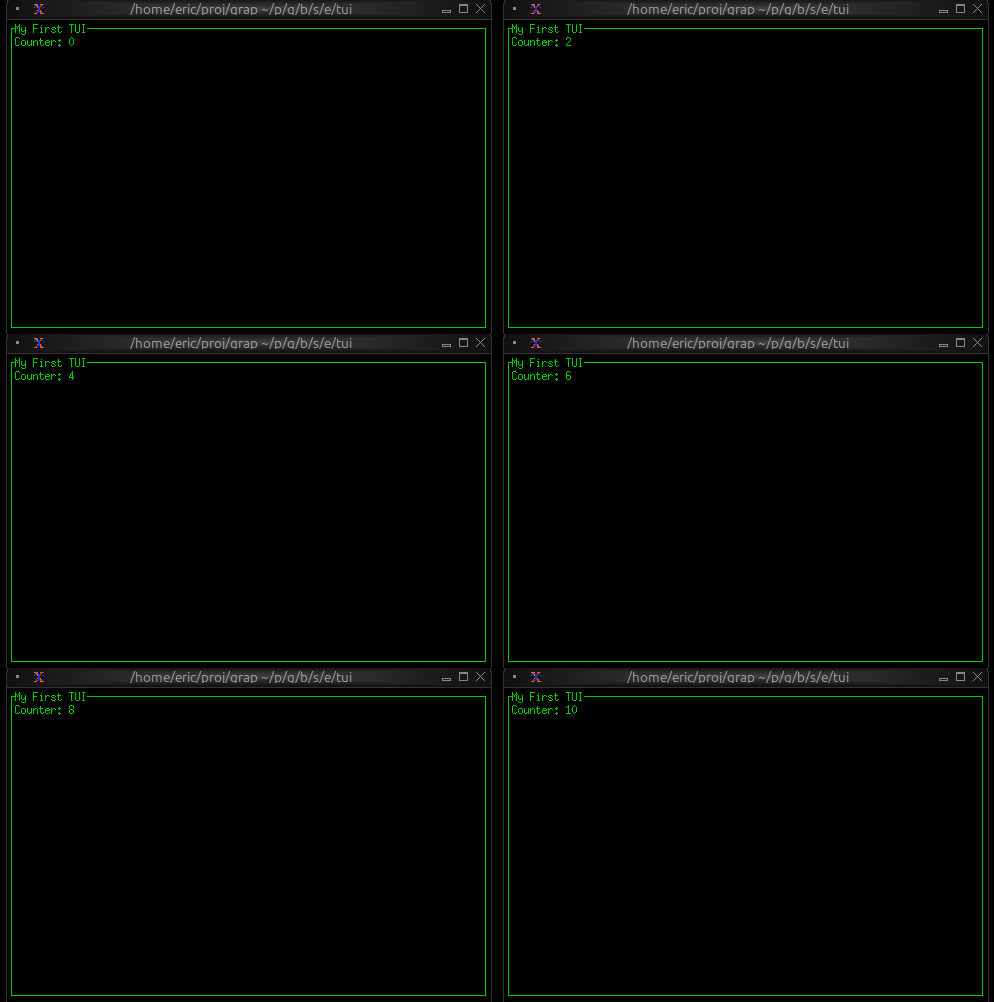
This creates a bordered block with a counter that increments every second. The key insight is that when counter changes, the text automatically updates because of Graphix’s reactive nature.
Styling and Theming
Graphix TUIs support rich styling with:
- Colors: Named colors (
Red,Green,Blue), indexed colors (Indexed(202)), and RGB (Rgb({r: 255, g: 100, b: 50})) - Text Effects: Bold, italic, underline, strikethrough
- Background Colors: Set background colors for any component
- Conditional Styling: Use
selectexpressions to change styles based on state
Many widgets take optional style arguments, allowing styling to be applied at many levels.
use tui;

let is_selected = true;

style(
  #fg: select is_selected { true => `Yellow, false => `White },
  #bg: `DarkGray,
  #add_modifier: [`Bold]
)
Layout System
The layout system provides flexible component arrangement:
- Direction:
HorizontalorVertical - Constraints:
Percentage(50),Length(20),Min(10),Max(100) - Alignment:
Left,Center,Rightfor horizontal;Top,Center,Bottomfor vertical - Focus Management: Built-in focus handling for interactive components
use tui;
use tui::layout;
use tui::text;

let selected_pane = 0;
let sidebar = text(&"Sidebar");
let main_content = text(&"Main");

layout(
  #direction: &`Horizontal,
  #focused: &selected_pane,
  &[
    child(#constraint: `Percentage(30), sidebar),
    child(#constraint: `Percentage(70), main_content)
  ]
)
State Management
In Graphix, UI state is just regular program state. Use variables to track:
- Selection states in lists and tables
- Input field contents
- Window/pane focus
- Application modes (normal, edit, command)
State changes automatically trigger UI updates:
use tui;
use tui::list;
use tui::text;

let selected_item = 0;
let items = [line("Item 1"), line("Item 2"), line("Item 3")];
let arrow_pressed = never();

// When user presses down arrow assume the event is handled as
// shown above and arrow_pressed is set using connect
selected_item <- arrow_pressed ~ ((selected_item + 1) % array::len(items));

// UI automatically reflects the change
list(#selected: &selected_item, &items)
Real-time Data Integration
Graphix TUIs excel at displaying real-time data. Connect to data sources via netidx and the UI updates automatically:
use tui;
use tui::gauge;
use tui::text;

// Subscribe to live data
let temperature = cast<f64>(net::subscribe("/sensors/temperature")?)?;

// Will display updates automatically when data changes
gauge(
  #gauge_style: &style(#fg: `Red),
  #label: &span("Temperature"),
  &(temperature / 100.0)
)