The Canvas Widget
The canvas widget provides a low-level 2D drawing surface for custom graphics. You supply an array of shapes – lines, circles, rectangles, arcs, curves, text labels, and arbitrary paths – and the canvas renders them in order. This makes it suitable for diagrams, visualizations, procedural art, and anything that doesn’t fit into the standard widget set.
Interface
use super::{Color, Length, Widget};
type PathSegment = [
  `MoveTo({x: f64, y: f64}),
  `LineTo({x: f64, y: f64}),
  `BezierTo({ control_a: {x: f64, y: f64}, control_b: {x: f64, y: f64}, to: {x: f64, y: f64} }),
  `QuadraticTo({ control: {x: f64, y: f64}, to: {x: f64, y: f64} }),
  `ArcTo({ a: {x: f64, y: f64}, b: {x: f64, y: f64}, radius: f64 }),
  `Close
];

/// A Text shape's size must be finite, positive and at most 4096 pixels.
type CanvasShape = [
  `Line({ from: {x: f64, y: f64}, to: {x: f64, y: f64}, color: Color, width: f64 }),
  `Circle({ center: {x: f64, y: f64}, radius: f64, fill: [Color, null], stroke: [{color: Color, width: f64}, null] }),
  `Rect({ top_left: {x: f64, y: f64}, size: {width: f64, height: f64}, fill: [Color, null], stroke: [{color: Color, width: f64}, null] }),
  `RoundedRect({ top_left: {x: f64, y: f64}, size: {width: f64, height: f64}, radius: f64, fill: [Color, null], stroke: [{color: Color, width: f64}, null] }),
  `Arc({ center: {x: f64, y: f64}, radius: f64, start_angle: f64, end_angle: f64, stroke: {color: Color, width: f64} }),
  `Ellipse({ center: {x: f64, y: f64}, radii: {x: f64, y: f64}, rotation: f64, start_angle: f64, end_angle: f64, fill: [Color, null], stroke: [{color: Color, width: f64}, null] }),
  `BezierCurve({ from: {x: f64, y: f64}, control_a: {x: f64, y: f64}, control_b: {x: f64, y: f64}, to: {x: f64, y: f64}, color: Color, width: f64 }),
  `QuadraticCurve({ from: {x: f64, y: f64}, control: {x: f64, y: f64}, to: {x: f64, y: f64}, color: Color, width: f64 }),
  `Text({ content: string, position: {x: f64, y: f64}, color: Color, size: f64 }),
  `Path({ segments: Array<PathSegment>, fill: [Color, null], stroke: [{color: Color, width: f64}, null] })
];

type Canvas = {
  shapes: &Array<CanvasShape>,
  width: &Length,
  height: &Length,
  background: &[Color, null]
};

val canvas: fn(
  ?#width: &Length,
  ?#height: &Length,
  ?#background: &[Color, null],
  shapes: &Array<CanvasShape>
) -> Widget
Parameters
- width - Horizontal sizing as a
Length. Defaults to`Fill. - height - Vertical sizing as a
Length. Defaults to`Fill. - background - Background color for the canvas area. Null means transparent.
The positional argument is a reference to an array of CanvasShape values. Shapes are drawn in array order, so later shapes paint over earlier ones.
Shapes
Line
A straight line between two points with a given color and stroke width.
`Line({ from: {x: 0.0, y: 0.0}, to: {x: 100.0, y: 50.0},
        color: color(#r: 1.0)$, width: 2.0 })
Circle
A circle defined by center and radius. Either or both of fill and stroke can be provided; set the other to null.
`Circle({ center: {x: 100.0, y: 100.0}, radius: 40.0,
          fill: color(#r: 0.2, #g: 0.6, #b: 1.0)$, stroke: null })
Rect
An axis-aligned rectangle defined by its top-left corner and size.
`Rect({ top_left: {x: 10.0, y: 10.0}, size: {width: 80.0, height: 60.0},
        fill: color(#g: 0.8, #b: 0.4)$, stroke: null })
RoundedRect
Like Rect but with rounded corners. The radius field controls the corner rounding.
`RoundedRect({ top_left: {x: 10.0, y: 10.0}, size: {width: 80.0, height: 60.0},
               radius: 8.0,
               fill: null, stroke: {color: color(#r: 1.0, #g: 1.0, #b: 1.0)$, width: 2.0} })
Arc
A circular arc defined by center, radius, and start/end angles in radians. Arcs only have a stroke (no fill).
`Arc({ center: {x: 100.0, y: 100.0}, radius: 50.0,
       start_angle: 0.0, end_angle: 3.14159,
       stroke: {color: color(#r: 1.0, #g: 0.5)$, width: 2.0} })
Ellipse
An ellipse with independent x and y radii, a rotation angle, and start/end angles (all in radians). Supports both fill and stroke.
`Ellipse({ center: {x: 150.0, y: 100.0}, radii: {x: 60.0, y: 30.0},
           rotation: 0.5, start_angle: 0.0, end_angle: 6.283,
           fill: color(#r: 0.8, #g: 0.2, #b: 0.8, #a: 0.5)$, stroke: null })
BezierCurve
A cubic Bezier curve defined by start, two control points, and end. Drawn as a stroked line.
`BezierCurve({ from: {x: 0.0, y: 100.0},
               control_a: {x: 50.0, y: 0.0}, control_b: {x: 150.0, y: 200.0},
               to: {x: 200.0, y: 100.0},
               color: color(#g: 1.0, #b: 1.0)$, width: 2.0 })
QuadraticCurve
A quadratic Bezier curve with one control point. Drawn as a stroked line.
`QuadraticCurve({ from: {x: 0.0, y: 100.0},
                  control: {x: 100.0, y: 0.0},
                  to: {x: 200.0, y: 100.0},
                  color: color(#r: 1.0, #g: 1.0)$, width: 2.0 })
Text
A text label placed at a specific position on the canvas.
`Text({ content: "Hello", position: {x: 50.0, y: 50.0},
        color: color(#r: 1.0, #g: 1.0, #b: 1.0)$, size: 16.0 })
Path
An arbitrary path built from PathSegment values. Supports fill, stroke, or both. Path segments are:
`MoveTo({x, y})– move the pen without drawing`LineTo({x, y})– draw a straight line to the point`BezierTo({control_a, control_b, to})– cubic Bezier segment`QuadraticTo({control, to})– quadratic Bezier segment`ArcTo({a, b, radius})– arc through two tangent points`Close– close the path back to its start
`Path({
  segments: [
    `MoveTo({x: 0.0, y: 0.0}),
    `LineTo({x: 50.0, y: 100.0}),
    `LineTo({x: 100.0, y: 0.0}),
    `Close
  ],
  fill: color(#r: 0.5, #b: 0.5, #a: 0.8)$,
  stroke: null
})
Examples
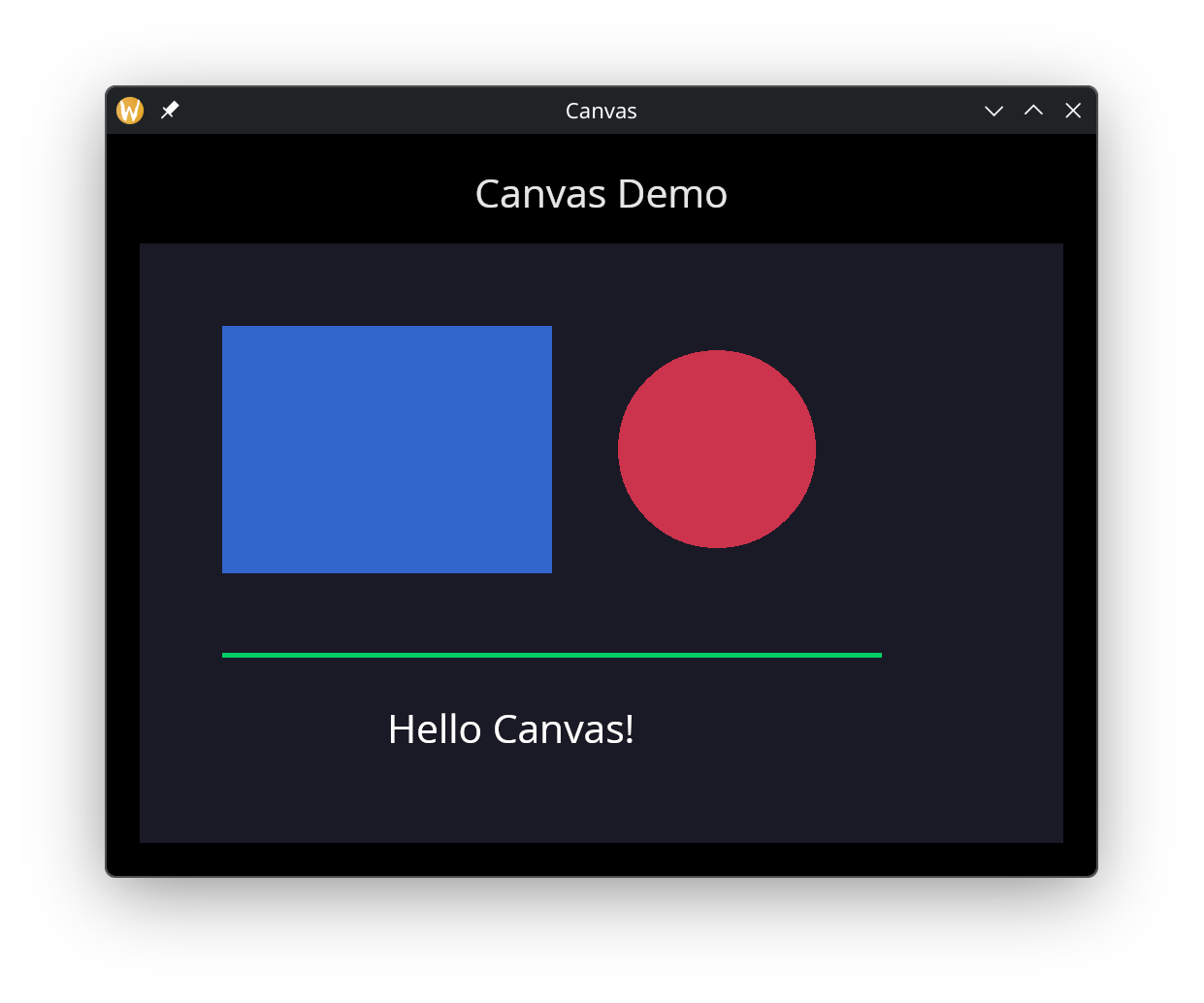
Basic Shapes
use gui::{color, window, canvas::canvas, column::column, text::text};
mod icon;

let shapes = &[
    `Rect({
        top_left: { x: 50.0, y: 50.0 },
        size: { width: 200.0, height: 150.0 },
        fill: color(#r: 0.2, #g: 0.4, #b: 0.8)$,
        stroke: null
    }),
    `Circle({
        center: { x: 350.0, y: 125.0 },
        radius: 60.0,
        fill: color(#r: 0.8, #g: 0.2, #b: 0.3)$,
        stroke: null
    }),
    `Line({
        from: { x: 50.0, y: 250.0 },
        to: { x: 450.0, y: 250.0 },
        color: color(#g: 0.8, #b: 0.4)$,
        width: 3.0
    }),
    `Text({
        content: "Hello Canvas!",
        position: { x: 150.0, y: 280.0 },
        color: color(#r: 1.0, #g: 1.0, #b: 1.0)$,
        size: 24.0
    })
];

let col = column(
    #spacing: &15.0,
    #padding: &`All(20.0),
    #width: &`Fill,
    #height: &`Fill,
    &[
        text(#size: &24.0, #halign: &`Center, #width: &`Fill, &"Canvas Demo"),
        canvas(
            #width: &`Fill,
            #height: &`Fill,
            #background: &color(#r: 0.1, #g: 0.1, #b: 0.15)$,
            shapes
        )
    ]
);

[&window(#icon: &icon::icon, #title: &"Canvas", #size: &mut { width: 600.0, height: 450.0 }, &col)]
Per-Pixel Drawing
The Mandelbrot set, one rectangle per pixel. The escape loop, its
coloring and the array::init over the grid compile to native code,
which the #[native] on the init asserts.
use gui::{color, window, canvas::canvas};

let start = cast<f64>(sys::time::now(once(null)))$;
let w = 100;
let h = 75;
let max_iter = 64;
let scale = 6.0;

let xmin = -2.5;
let xmax = 1.0;
let ymin = -1.3125;
let ymax = 1.3125;
let dx = (xmax - xmin) / cast<f64>(w)$;
let dy = (ymax - ymin) / cast<f64>(h)$;

let rec iterate = |zr: f64, zi: f64, cr: f64, ci: f64, i: i64| -> i64
    select i {
        0 => 0,
        _ if zr * zr + zi * zi > 4.0 => i,
        _ => iterate(zr * zr - zi * zi + cr, 2.0 * zr * zi + ci, cr, ci, i - 1)
    };

let color_for = |n: i64| select n {
    0 => color(#r: 0.0, #g: 0.0, #b: 0.0)$,
    _ => {
        let t = cast<f64>(max_iter - n)$ / cast<f64>(max_iter)$;
        color(
            #r: 9.0 * (1.0 - t) * t * t * t,
            #g: 15.0 * (1.0 - t) * (1.0 - t) * t * t,
            #b: 8.5 * (1.0 - t) * (1.0 - t) * (1.0 - t) * t
        )$
    }
};

let shapes = #[native] array::init(w * h, |idx| {
    let px = idx % w;
    let py = idx / w;
    let cr = xmin + cast<f64>(px)$ * dx;
    let ci = ymin + cast<f64>(py)$ * dy;
    let n = iterate(0.0, 0.0, cr, ci, max_iter);
    `Rect({
        top_left: {x: cast<f64>(px)$ * scale, y: cast<f64>(py)$ * scale},
        size: {width: scale, height: scale},
        fill: color_for(n),
        stroke: null
    })
});

let finish = cast<f64>(sys::time::now(shapes))$;
let elapsed = (finish - start);
println("computed [w * h] pixels in [elapsed]s");

[&window(
    #title: &"Mandelbrot Set",
    #theme: &`CatppuccinMocha,
    #size: &mut {width: 620.0, height: 470.0},
    &canvas(
        #width: &`Fill,
        #height: &`Fill,
        #background: &color(#r: 0.0, #g: 0.0, #b: 0.0)$,
        &shapes
    )
)]