The List Widget
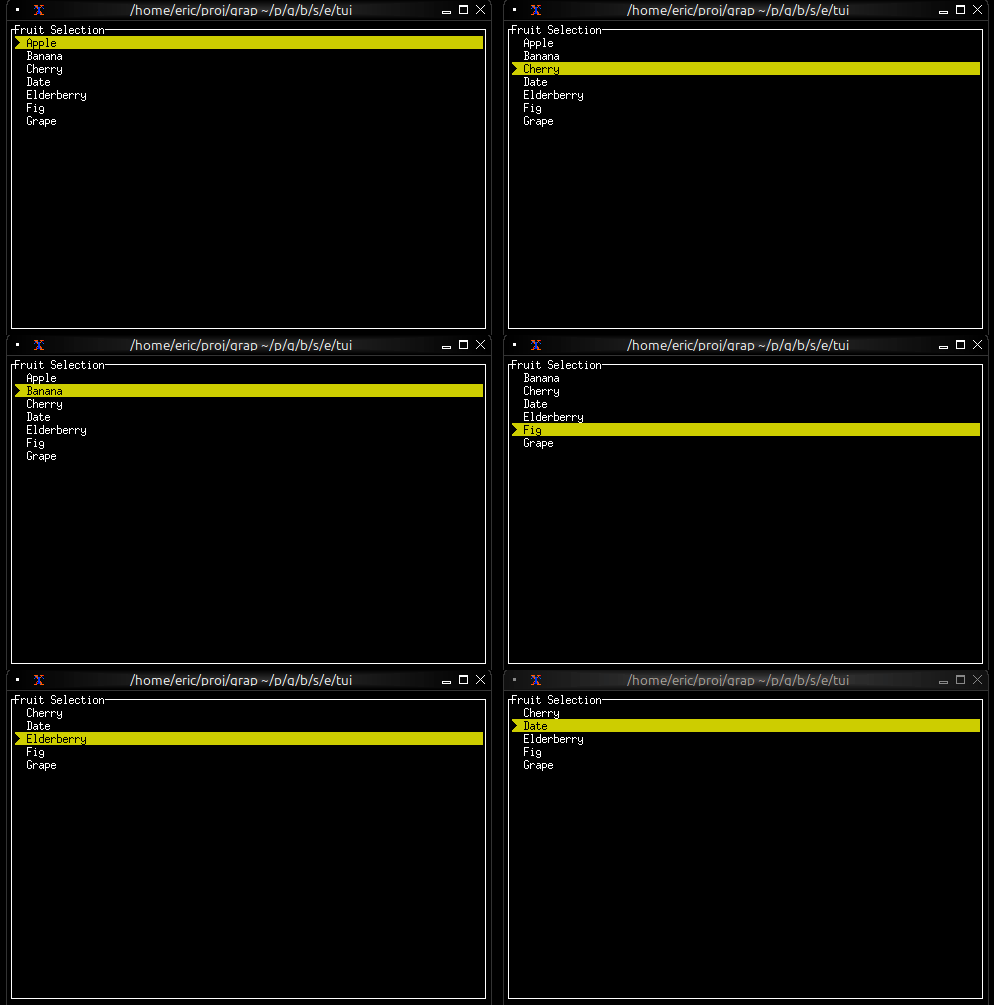
The list widget displays a scrollable list of items and draws a selection the program drives: it handles no keys itself, so the program writes #selected from an input_handler, as the interactive example below does. It’s perfect for menus, file browsers, option selectors, and any interface that requires choosing from a list of items.
Interface
use super::{HighlightSpacing, Line, Style, Tui};
type ListBox = {
  highlight_spacing: &[HighlightSpacing, null],
  highlight_style: &[Style, null],
  highlight_symbol: &[string, null],
  items: &Array<Line>,
  repeat_highlight_symbol: &[bool, null],
  scroll: &[i64, null],
  selected: &[i64, null],
  style: &[Style, null]
};

val list: fn(
  ?#highlight_spacing: &[HighlightSpacing, null],
  ?#highlight_style: &[Style, null],
  ?#highlight_symbol: &[string, null],
  ?#repeat_highlight_symbol: &[bool, null],
  ?#scroll: &[i64, null],
  ?#selected: &[i64, null],
  ?#style: &[Style, null],
  items: &Array<Line>
) -> Tui;
Parameters
- selected - Index of the currently selected item (0-indexed)
- scroll - Scroll position (offset from the top). A render keeps the selected item in view, moving the offset when the selection is outside it
- highlight_style - Style for the selected item
- highlight_symbol - String displayed before selected item (e.g., “▶ “)
- repeat_highlight_symbol - Whether to repeat symbol on wrapped lines
- style - Base style for all list items
Examples
Basic Usage
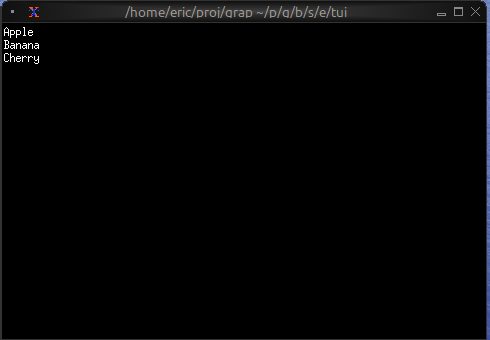
use tui::{line, list::list};

let items = [
    line("Apple"),
    line("Banana"),
    line("Cherry")
];

list(
    #selected: &0,
    &items
)
Interactive List with Navigation
use tui::{
  line, style,
  block::block,
  input_handler::{Event, input_handler, on_press},
  list::list
};

let items = [
    line("Apple"), line("Banana"), line("Cherry"),
    line("Date"), line("Elderberry"), line("Fig"), line("Grape")
];

let last = array::len(items) - 1;
let selected = 0;

let handle_event = |e: Event| on_press(e, |k| select k.code {
    k@`Up if selected > 0 => {
        selected <- (k ~ selected) - 1;
        `Stop
    },
    k@`Down if selected < last => {
        selected <- (k ~ selected) + 1;
        `Stop
    },
    k@`Home => { selected <- k ~ 0; `Stop },
    k@`End => { selected <- k ~ last; `Stop },
    _ => `Continue
});

input_handler(
    #handle: &handle_event,
    &block(
        #border: &`All,
        #title: &line("Fruit Selection"),
        &list(
            #highlight_style: &style(#fg: `Black, #bg: `Yellow),
            #highlight_symbol: &"▶ ",
            #selected: &selected,
            &items
        )
    )
)
Styled Items
use tui::{line, style, list::list};

let make_item = |text, priority| select priority {
    `High => line(#style: style(#fg: `Red, #add_modifier: [`Bold]), text),
    `Medium => line(#style: style(#fg: `Yellow), text),
    `Low => line(#style: style(#fg: `White), text)
};

let items = [
    make_item("Critical bug", `High),
    make_item("Feature request", `Medium),
    make_item("Documentation", `Low)
];

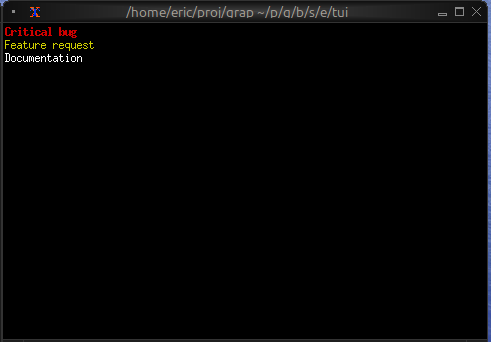
list(#selected: &0, &items)